Bot protection in Microsoft Teams meetings
- Maxime Hiez
- Teams
- 21 Jul, 2026
Introduction
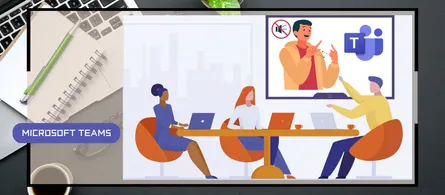
AI note-taking tools like Read.ai, Fireflies.ai or Otter.ai join meetings as external participants. For organizers, this raises a real control challenge : when the lobby is configured to automatically admit certain types of participants, these bots can join without any deliberate action. Microsoft Teams introduces a new layer of protection to allow administrators and organizers to regain control over bot access to their organization’s meetings.
New protection mechanism
Microsoft enables, by default, a new behavioral bot detection mechanism. Teams analyzes infrastructure and behavioral signals during the meeting join process to identify external bots. Participants identified as bots are automatically placed in the lobby, regardless of configured bypass rules, and the organizer must explicitly admit them.
Bot detection: How does it work ?
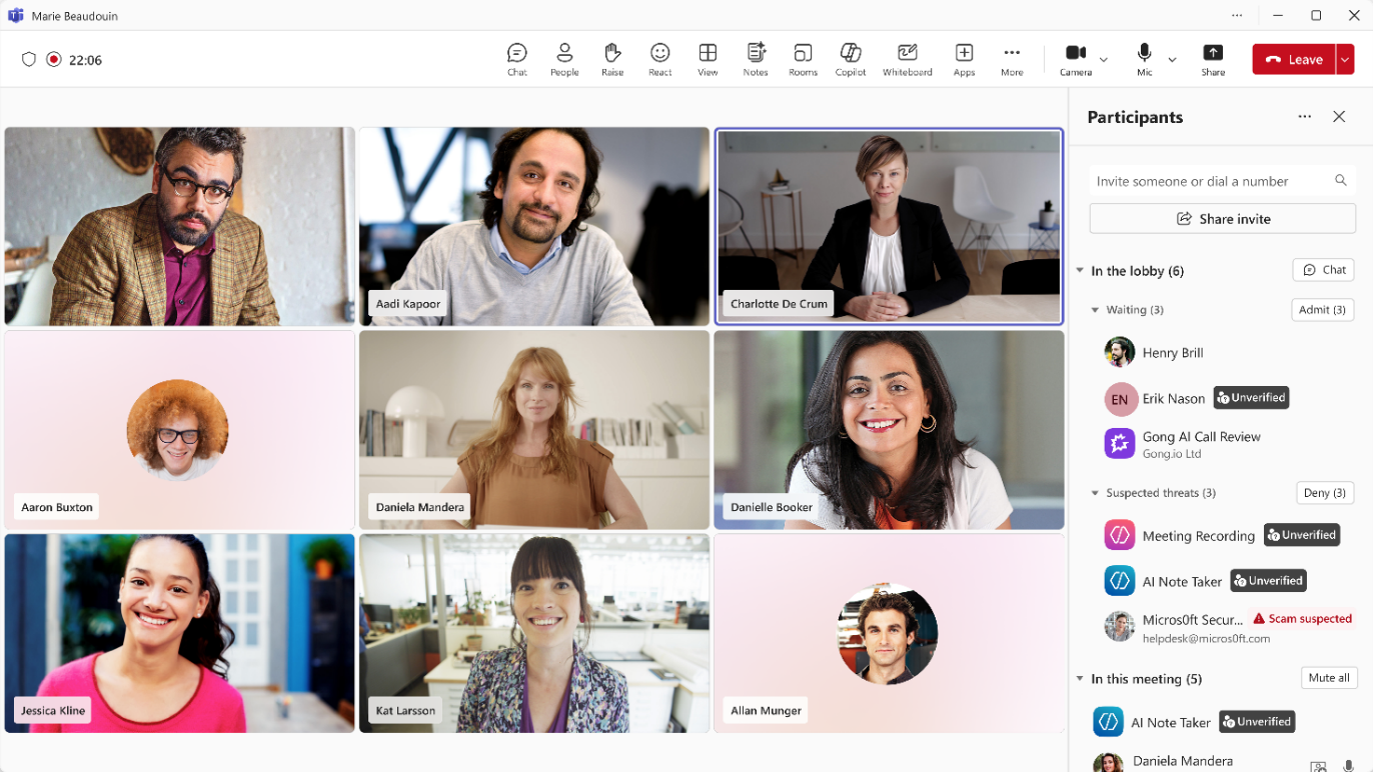
Detection relies on a combination of signals analyzed during the meeting join process. When a participant is identified as an external bot, several behaviors apply automatically :
- Lobby placement : The bot is held in the lobby, even if the meeting policy allows bypass for external participants or guests. Detection overrides the usual lobby configuration.
- Visible labeling : The organizer sees the participant identified as a bot in the lobby view, with a distinct indicator differentiating it from human participants.
- Explicit admission required : The bot can only join the meeting after a deliberate action by the organizer. A risk reminder is displayed when admitting participants from the lobby.
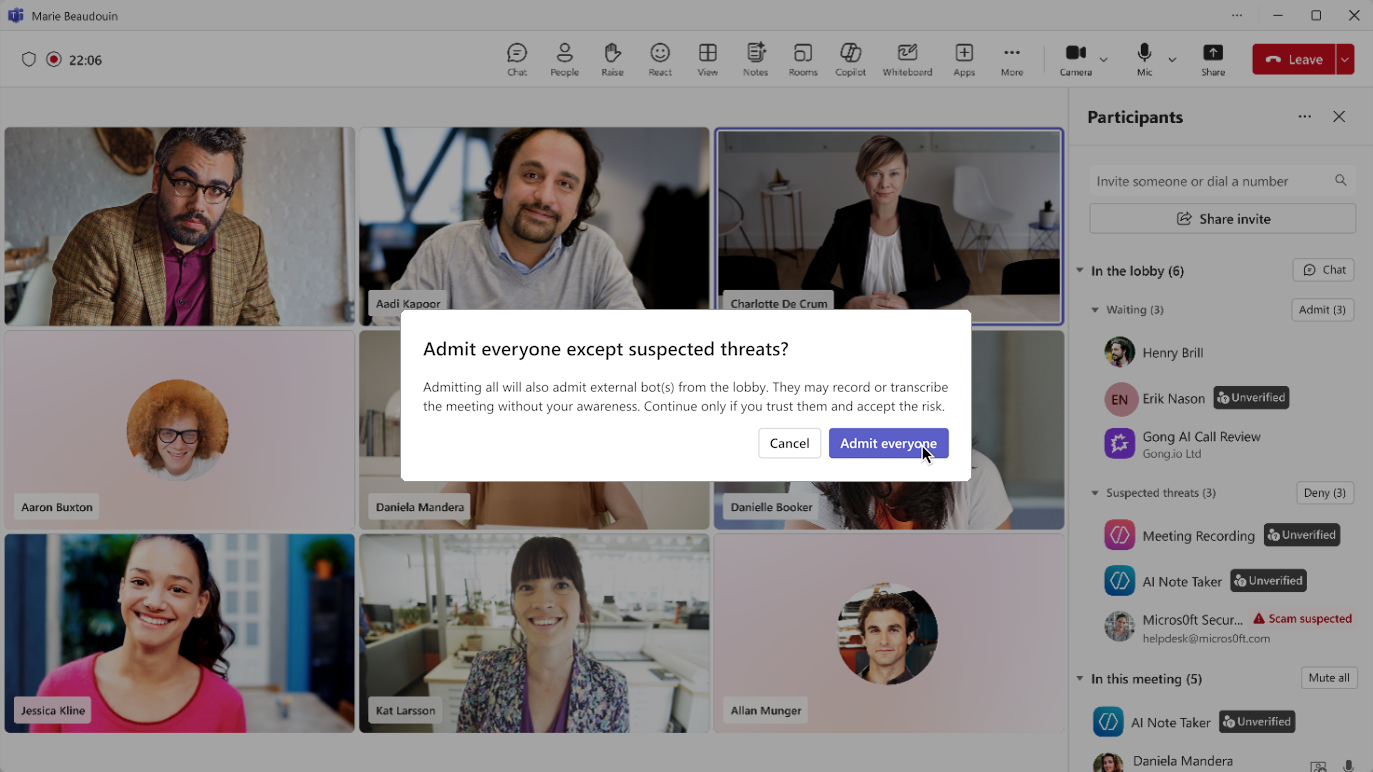
Microsoft acknowledges that detection may occasionally classify a human participant as a bot. In that case, the organizer has a “This is not a bot” option that corrects the representation for the current meeting and helps improve detection accuracy going forward.
note
Administrator configuration
The feature is enabled by default, with no configuration required. To access it :
- Sign in to the Microsoft Teams Admin Center at https://admin.teams.microsoft.com.
- In the left menu, click Meetings, then Meeting policies.
- Select the policy you want to modify and edit the Manage external bots and their access to meetings option.
The bot detection setting offers two values :
- When detected, require approval before joining : Default value. Detected bots are placed in the lobby and must be explicitly admitted by the organizer.
- Do not detect bots : Detection is disabled. External bots are treated as ordinary external participants.
In PowerShell, this setting is configured via Set-CsTeamsMeetingPolicy with the -ExternalBotAccessMode argument. Since the default value is RequireApprovalWhenDetected, detection is enabled for all policies without administrator intervention.
Microsoft also recommends configuring the lobby so that only the organizer and co-organizers can admit participants, to limit accidental bot admissions.
note
Availability
The rollout of behavioral bot detection follows a progressive schedule by environment :
- Worldwide : Generally available since approximately June 2026, with a targeted release available since mid-May 2026.
- GCC : Generally available since July 1, 2026.
- GCC High and DoD : No confirmed date in the government channel release notes.
Microsoft also announced the Teams Bot Identification Program, which will allow independent software vendors to register their bots to be recognized as compliant within Teams. The registration page is announced as coming soon, with no specific date.
Conclusion
Bot detection is enabled by default in all meeting policies, with no action required from the administrator. It is recommended to verify the lobby configuration to ensure that only organizers and co-organizers can admit participants, preventing a bot from being admitted inadvertently. The upcoming Teams Bot Identification Program is worth monitoring closely for organizations that use IT-approved transcription tools.
Sources
Microsoft Learn - Manage external bots
Microsoft Learn - Teams Bot Identification Program
Microsoft Learn - Set-CsTeamsMeetingPolicy
Did you enjoy this post ? If you have any questions, comments or suggestions, please feel free to send me a message from the contact form.
Don’t forget to follow us and share this post.