How to sign in to M365 apps with an external passkey
- Maxime Hiez
- Entra ID , Tutorial
- 12 Oct, 2026
Introduction
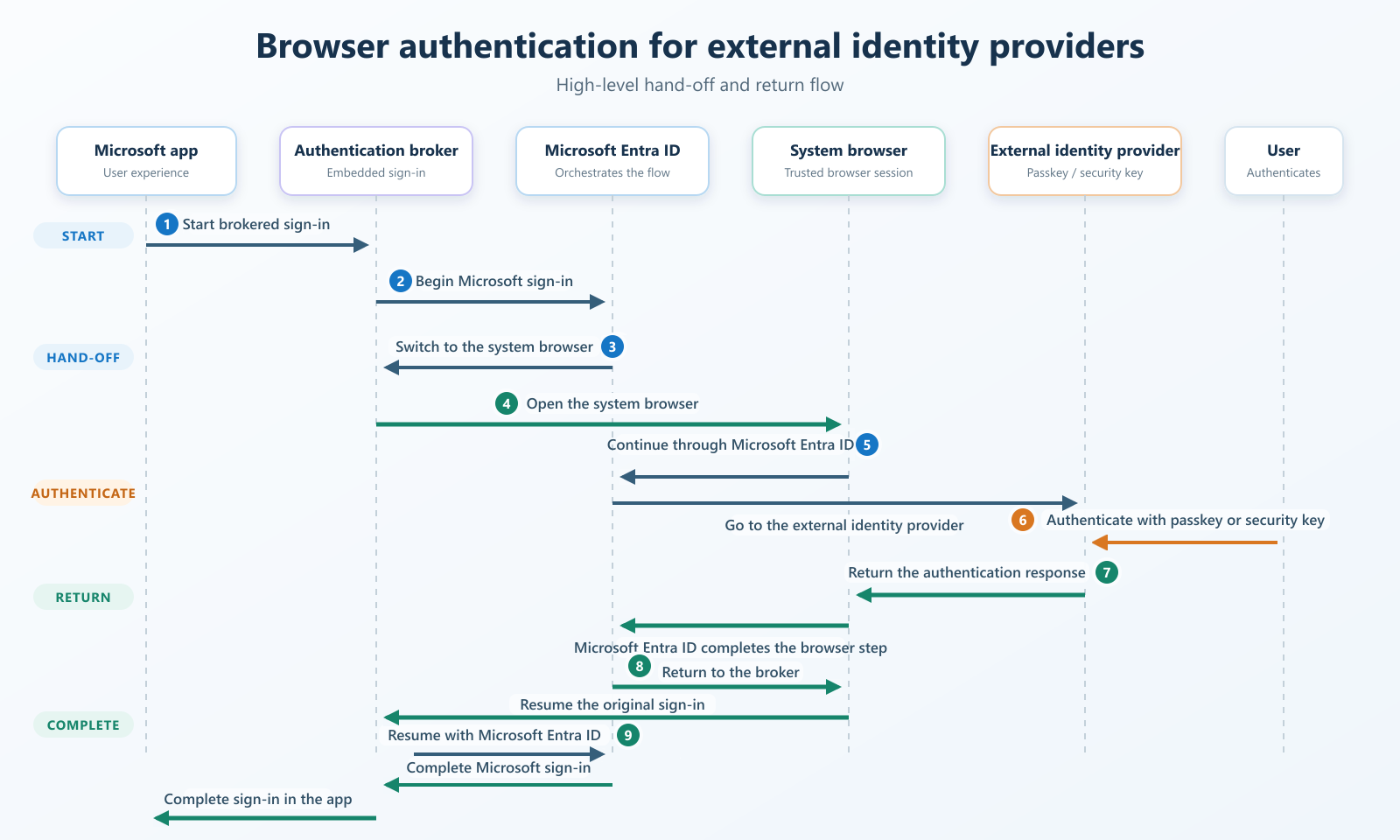
Microsoft announced the general availability of browser authentication for external identity providers in Entra ID. For domains federated through WS-Fed or SAML 2.0, the external identity provider authentication step now runs in the system browser instead of an embedded WebView, which makes it possible to use Passkeys and FIDO2 security keys issued by that provider to sign in to Outlook, Teams, OneDrive, Word, Excel, PowerPoint, and Microsoft To Do on Android, iOS, and managed macOS.
Check the article on migrating from SMS and voice to Passkey HERE, which noted that Passkey support for B2B accounts was still to come. A separate effort also closes that gap on the guest side : since early October 2026, B2B users can register a Passkey from the resource tenant to satisfy that tenant’s MFA requirements.
Prerequisites
Required licenses
- Microsoft Entra ID, on a domain federated through WS-Fed or SAML 2.0.
Administrator role
- An account with the Global Administrator role or the Domain-InternalFederation.ReadWrite.All and Domain.ReadWrite.All permissions, to modify the federation configuration.
Other
- The Microsoft Graph PowerShell module installed.
- An up-to-date system browser and broker app for the targeted platform : Chrome on Android, Safari on iOS and managed macOS, with Microsoft Authenticator or Intune Company Portal as the broker.
Step 1 : Sign in with Microsoft Graph PowerShell
Sign in with the Microsoft Graph module using the following PowerShell command :
Connect-MgGraph -Scopes "Domain-InternalFederation.ReadWrite.All"Step 2 : Identify the domain’s federation configuration
Retrieve the configuration identifier for the federated domain in question. This identifier is needed for the next, activation step.
Update-MgDomainFederationConfiguration -DomainId 'domain.com'Step 3 : Enable browser authentication for the desired platforms
Enable the feature on the federation configuration identified in step 2, specifying the platforms involved among Android, iOS, and macOS.
Update-MgDomainFederationConfiguration -DomainId 'domain.com' -InternalDomainFederationId '<guid>' -SystemBrowserEnabledOn "Android iOS"Setting SystemBrowserEnabledOn to none disables the feature.
Step 4 : Verify the applied configuration
Query the configuration again to confirm that the desired platforms are indeed enabled.
Update-MgDomainFederationConfiguration -DomainId 'domain.com' -InternalDomainFederationId '<guid>'Validate the result
To confirm that the configuration works, start a sign-in from a supported Microsoft app on an eligible device. The system browser should open for the external identity provider authentication step. Once that authentication is complete, a redirect link returns the user to the originating app through the broker.
info
Supported platforms and apps
| Platform | Required browser | Minimum broker |
|---|---|---|
| Android | Chrome (default) | Microsoft Authenticator 6.2510.6857, Link to Windows 1.25102.138.0, Company Portal 5.0.6768.0 |
| Shared Android | Chrome | Android broker compatible with the applicable minimum |
| iOS | Safari | Microsoft Authenticator 6.8.29 (6.8.37 recommended) |
| Managed macOS | Safari | Intune Company Portal 5.2511 |
The Microsoft apps tested and supported for this experience are Outlook, Teams, OneDrive, Word, Excel, PowerPoint, and Microsoft To Do.
note
Authentication flow
Conclusion
You now know how to enable browser authentication for external identity providers, to allow the use of Passkeys and FIDO2 keys issued outside Entra ID on mobile Microsoft 365 apps and on managed macOS.
Sources
Microsoft Learn - Browser authentication for external IdPs
Microsoft Learn - internalDomainFederation resource
Did you enjoy this post ? If you have any questions, comments or suggestions, please feel free to send me a message from the contact form.
Don’t forget to follow us and share this post.