How to launch an email attack simulation with Defender
- Maxime Hiez
- Defender , Tutorial
- 01 Sep, 2026
Introduction
Training your users to recognize a phishing email cannot be limited to an annual awareness session, it is a reflex that is maintained, tested and measured under realistic conditions. Microsoft Defender for Office 365 offers exactly this approach with its attack simulation feature (Attack simulation training), which allows you to send real phishing, credential harvesting or malicious attachment campaigns, without the slightest real risk, directly to your employees’ inboxes. The goal : identify the most vulnerable users, measure how behavior evolves over time, and automatically trigger targeted training for the people who click, enter credentials or open suspicious attachments.
Prerequisites
Required licenses
- Microsoft 365 E5.
- Microsoft Defender for Office 365 Plan 2 in addition to another license (Business Standard, …).
Administrator role
- An account with the Global Administrator or Security Administrator role to access the Microsoft Defender Portal.
Step 1 : Sign in to the Microsoft Defender Portal
Sign in to the Microsoft Defender Portal by opening your web browser to https://security.microsoft.com.
Step 2 : Create the attack campaign
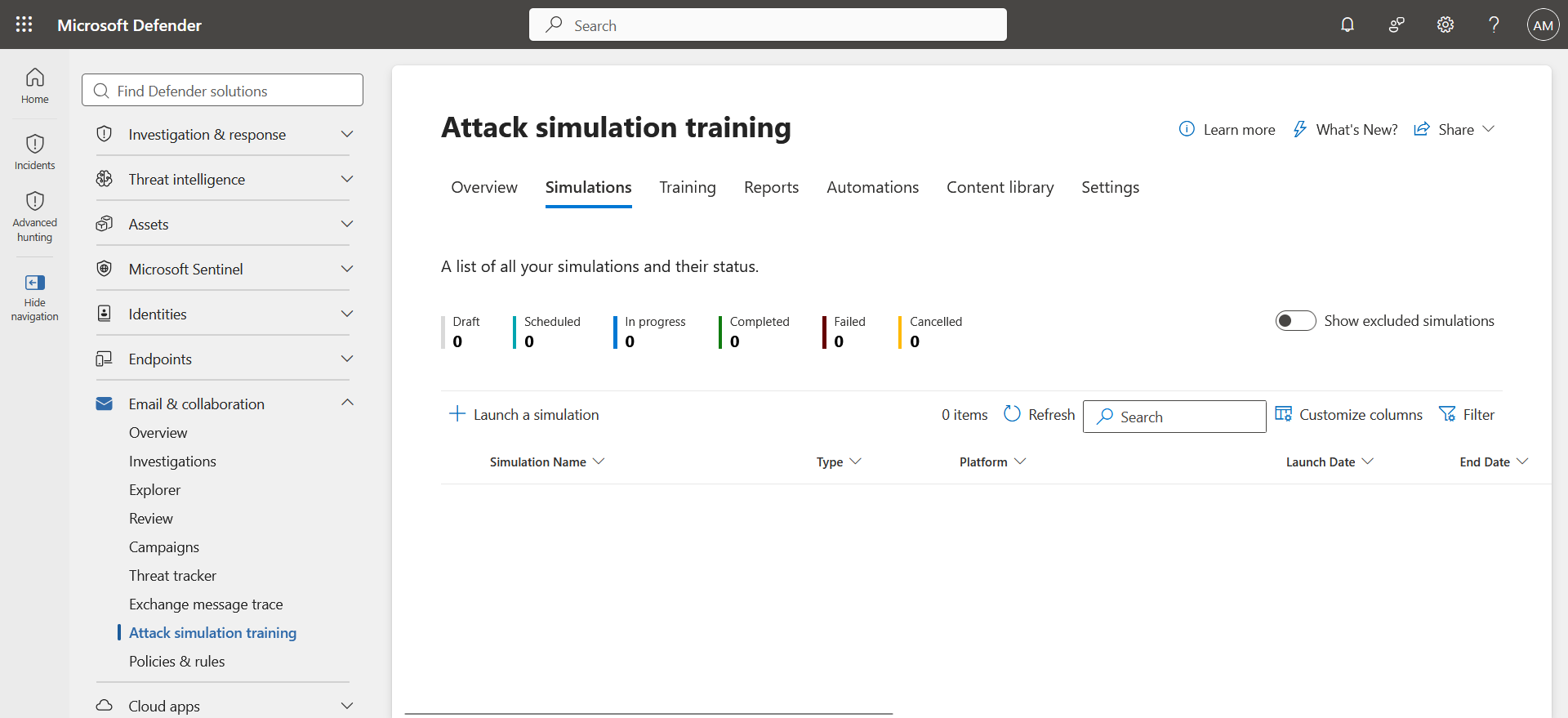
In the left menu, click Email & collaboration, then Attack simulation training, and Launch a simulation.
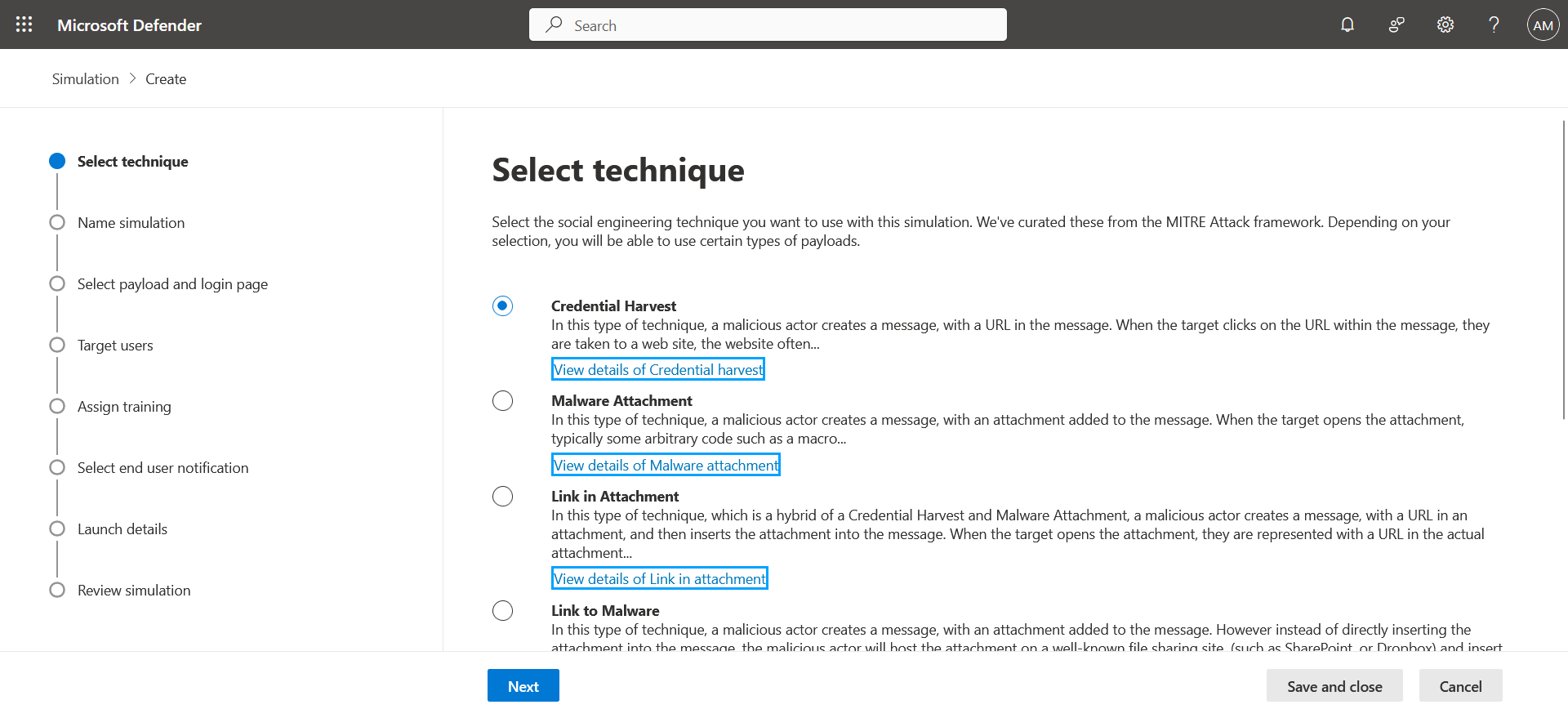
Select the type of attack you want to launch.
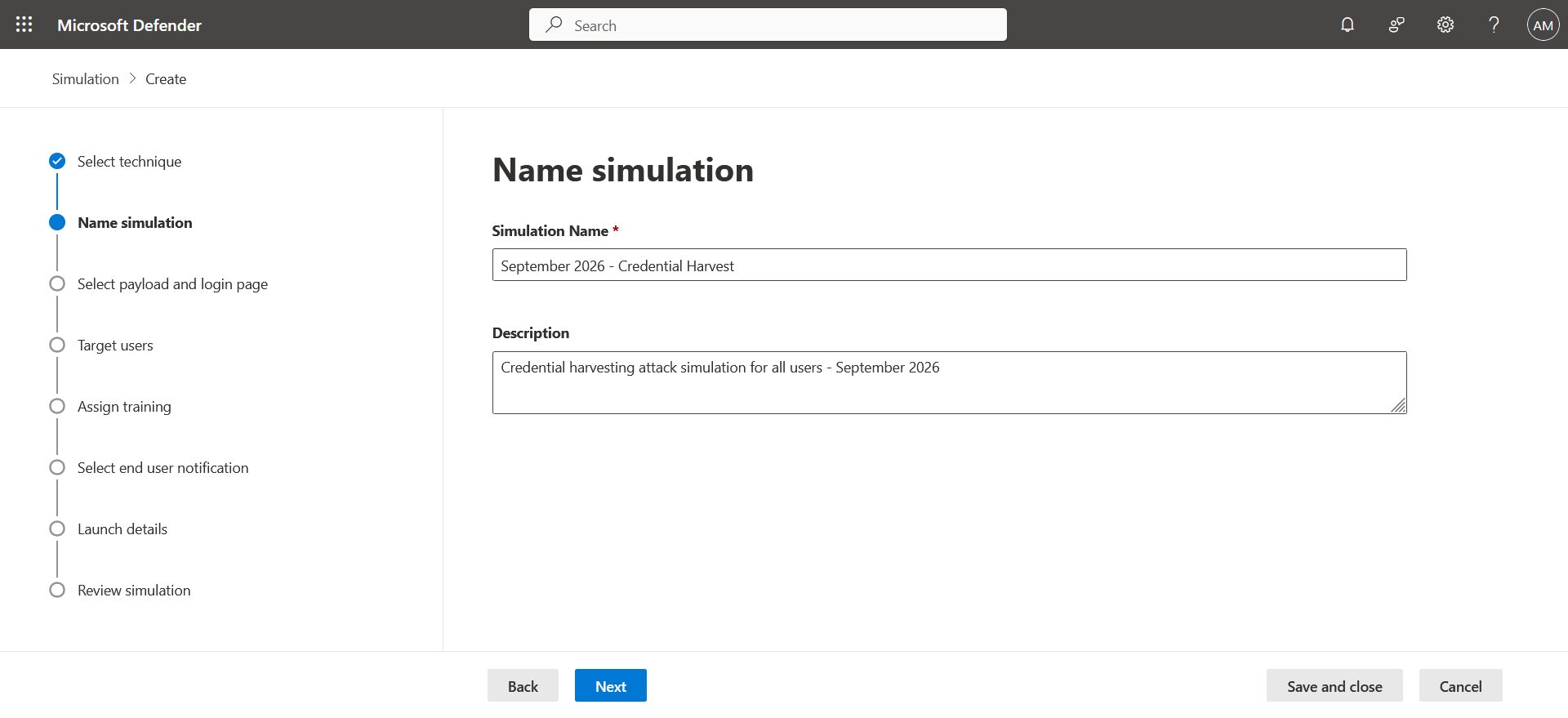
Set a name and a description.
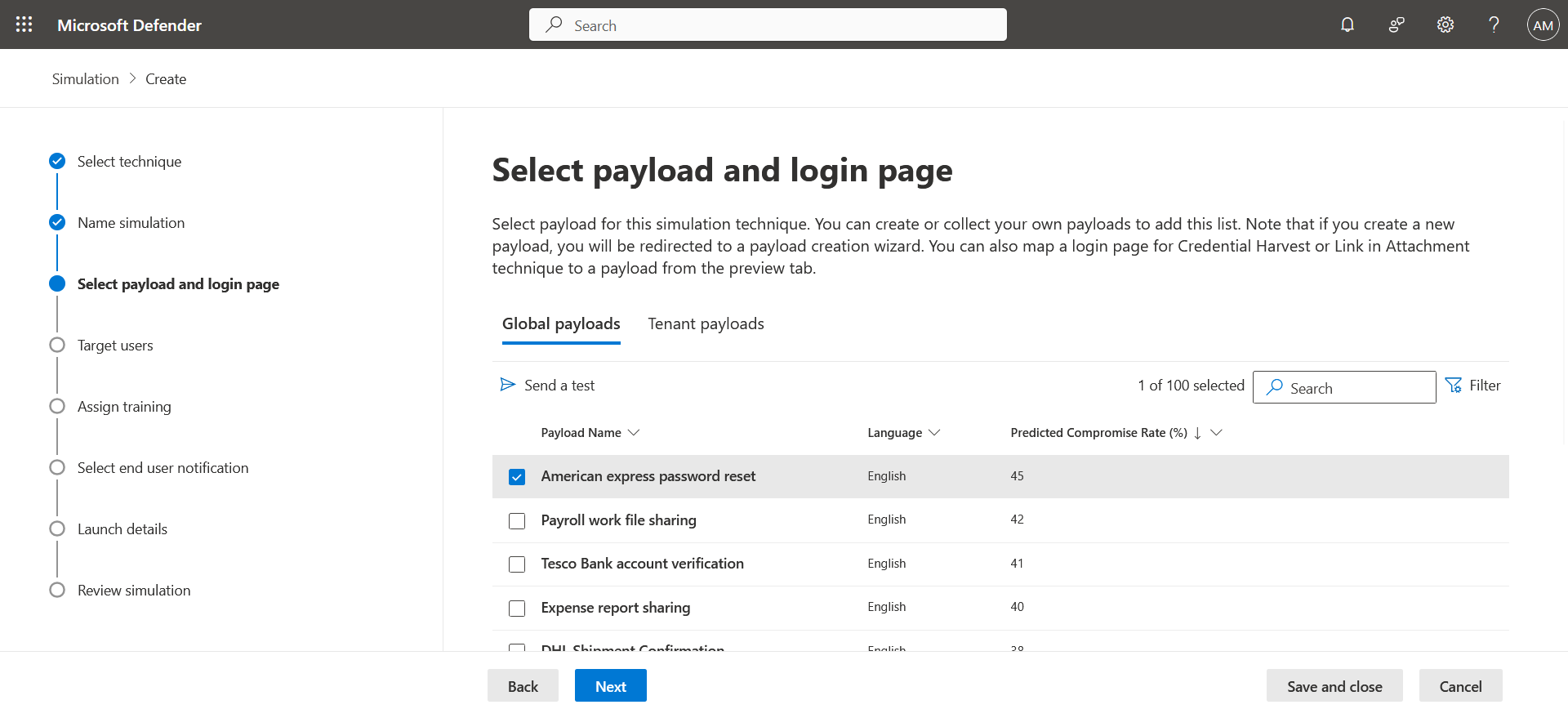
Select the page style used for the attack …
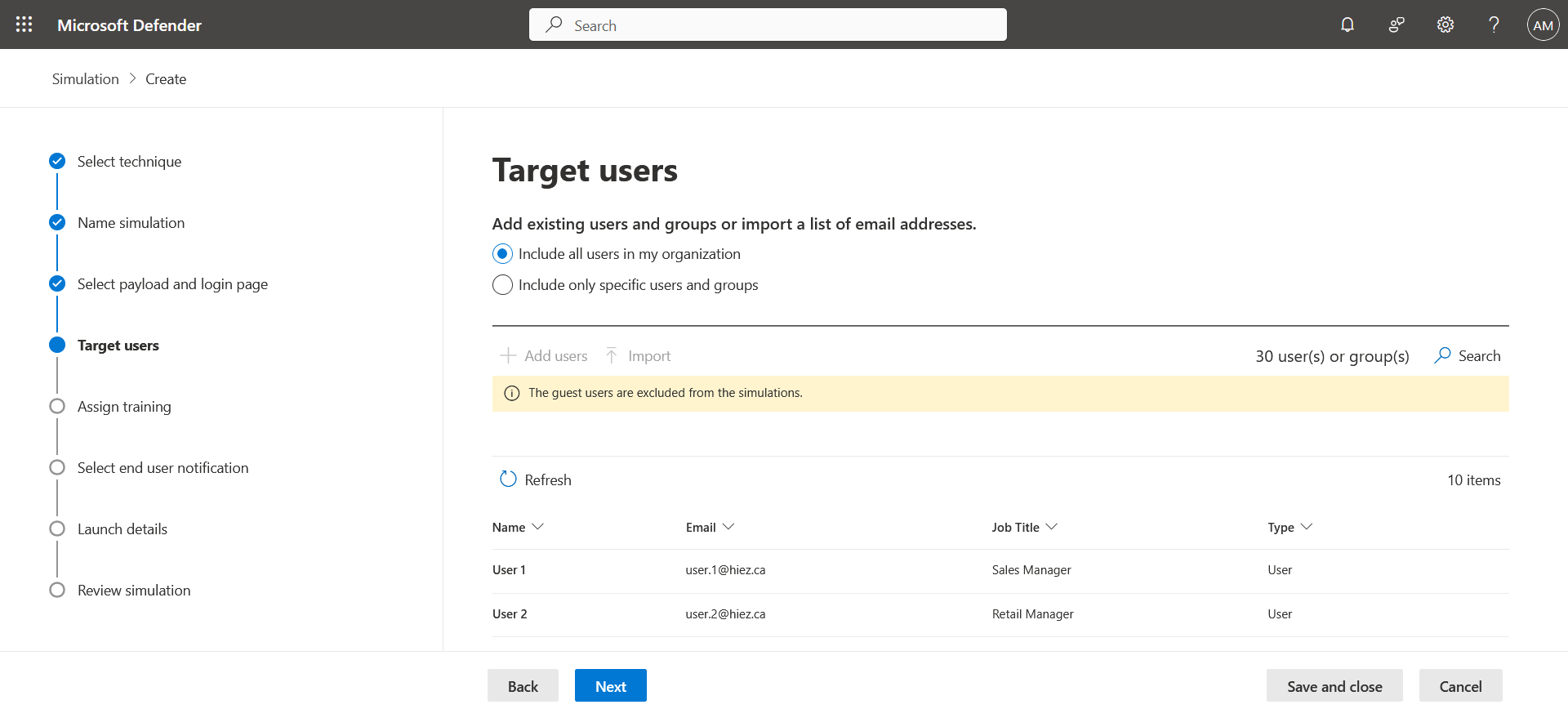
… and the target.
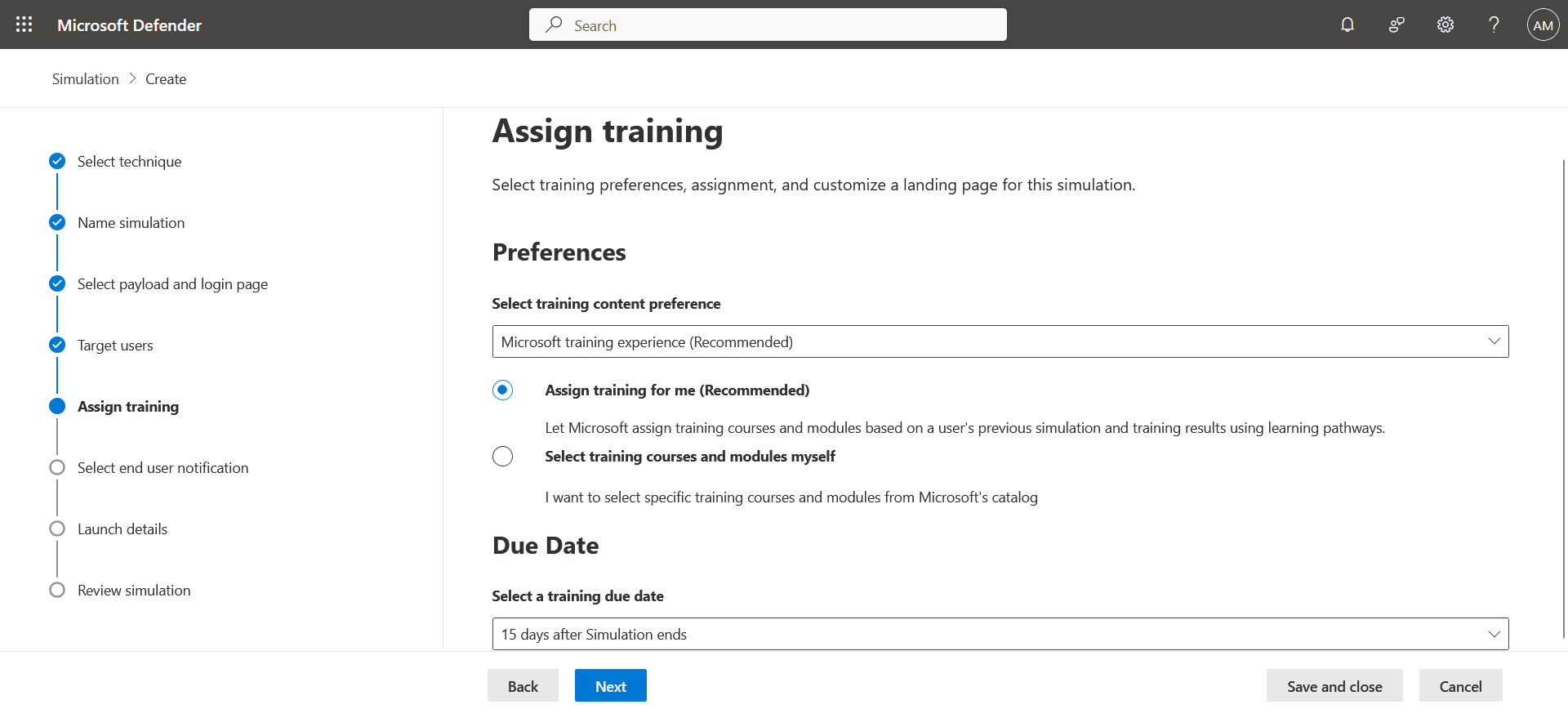
Assign the training that will be required for the people who fail the test …
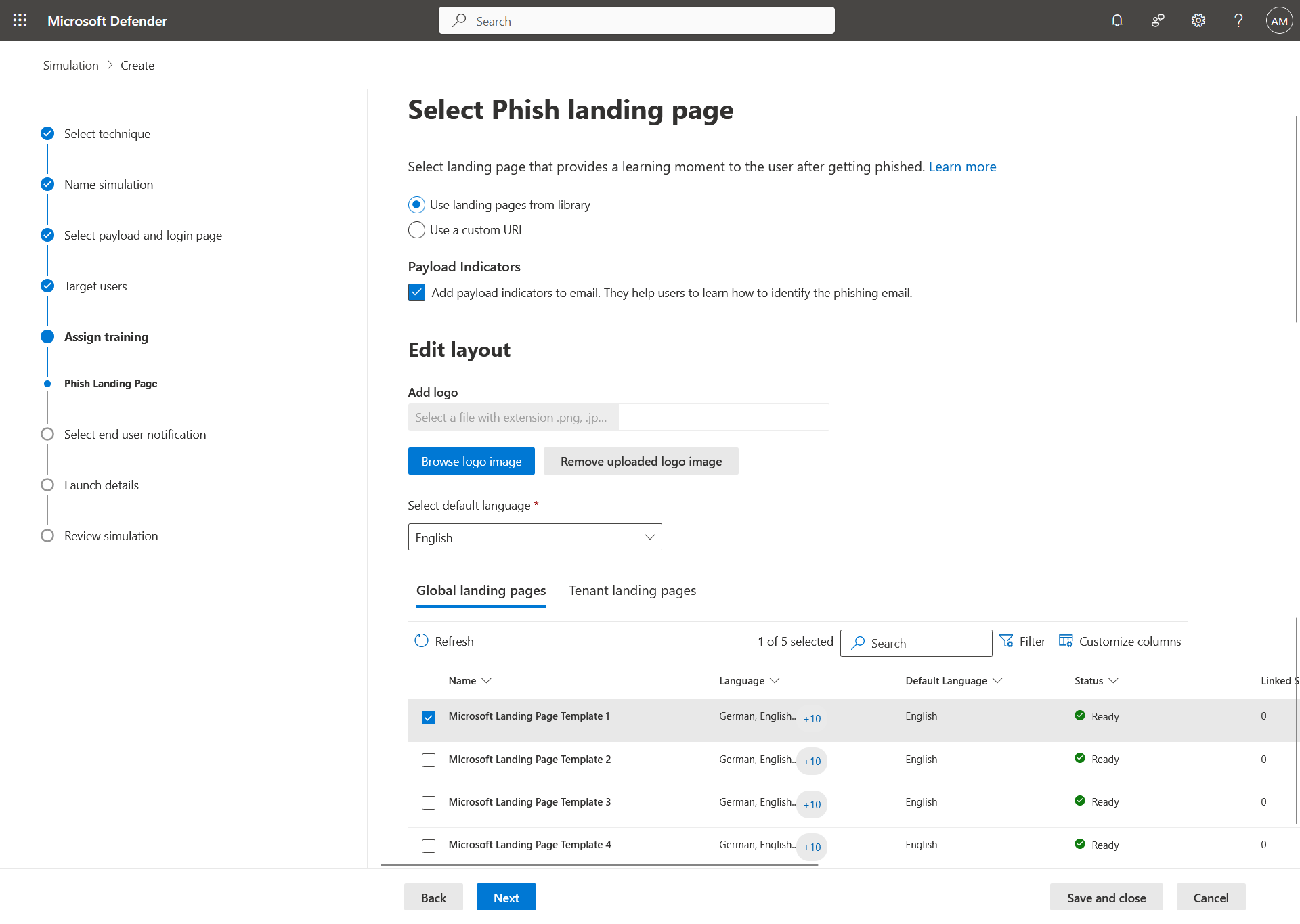
… and the final page of the test.
Step 3 : Receive the email
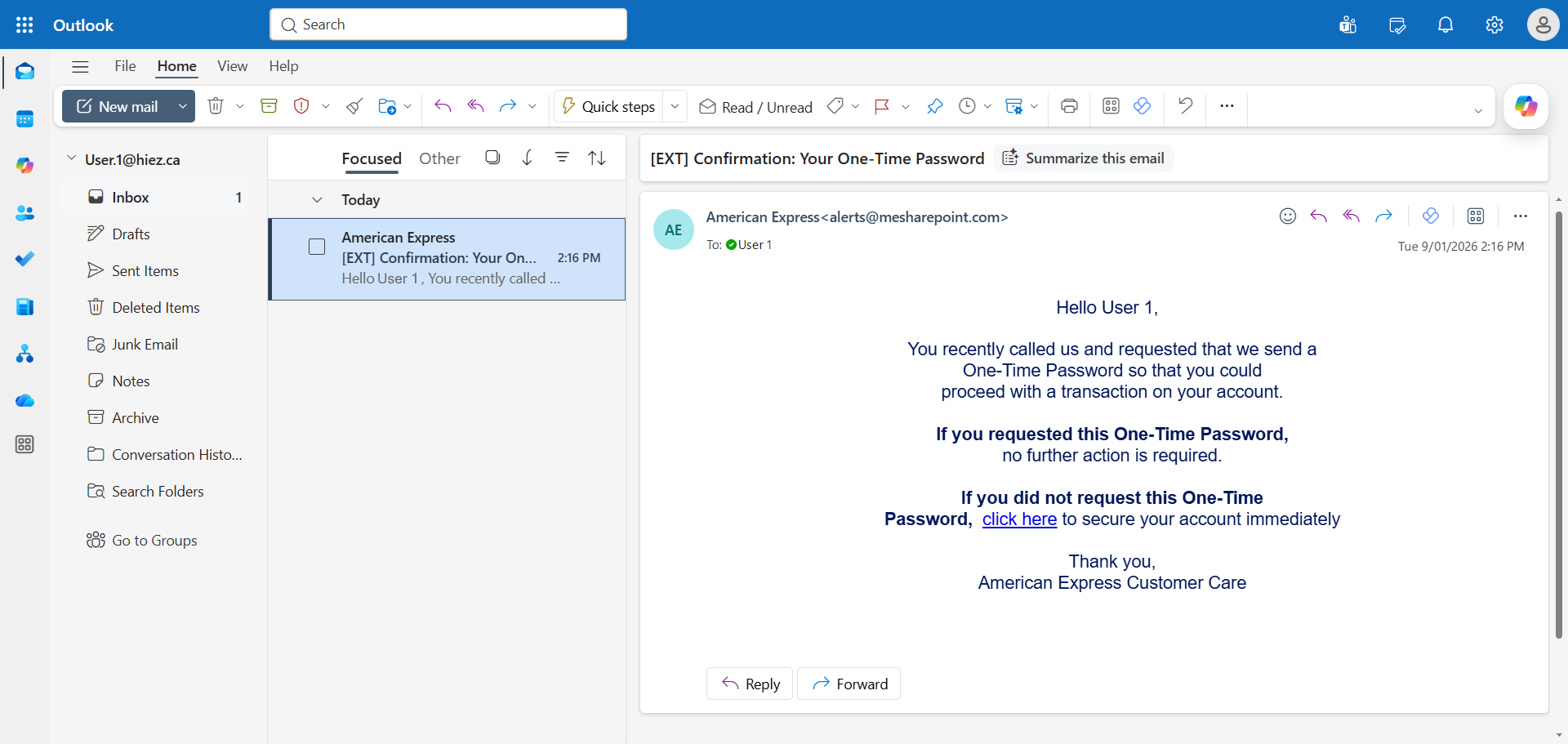
The users targeted by the campaign will receive a fake attack email. They will not know that it is a test.
Step 4 : Click the phishing link
The email contains a malicious link. Click it to simulate a phishing action. The link redirects to a fake Microsoft page offering to sign in. Enter your Microsoft credentials.
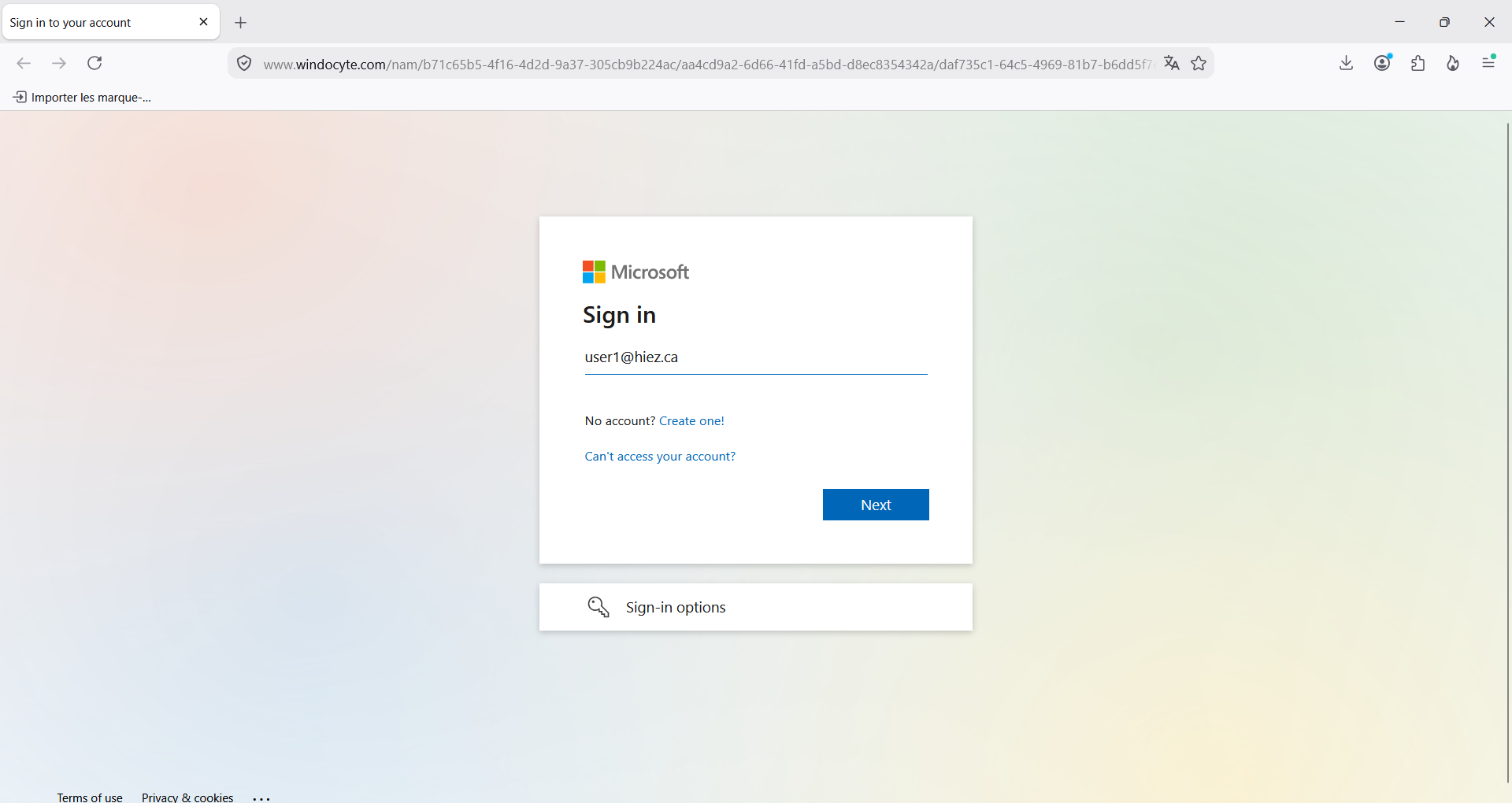
Signing in automatically redirects you to the campaign alert page. Your account is virtually compromised.
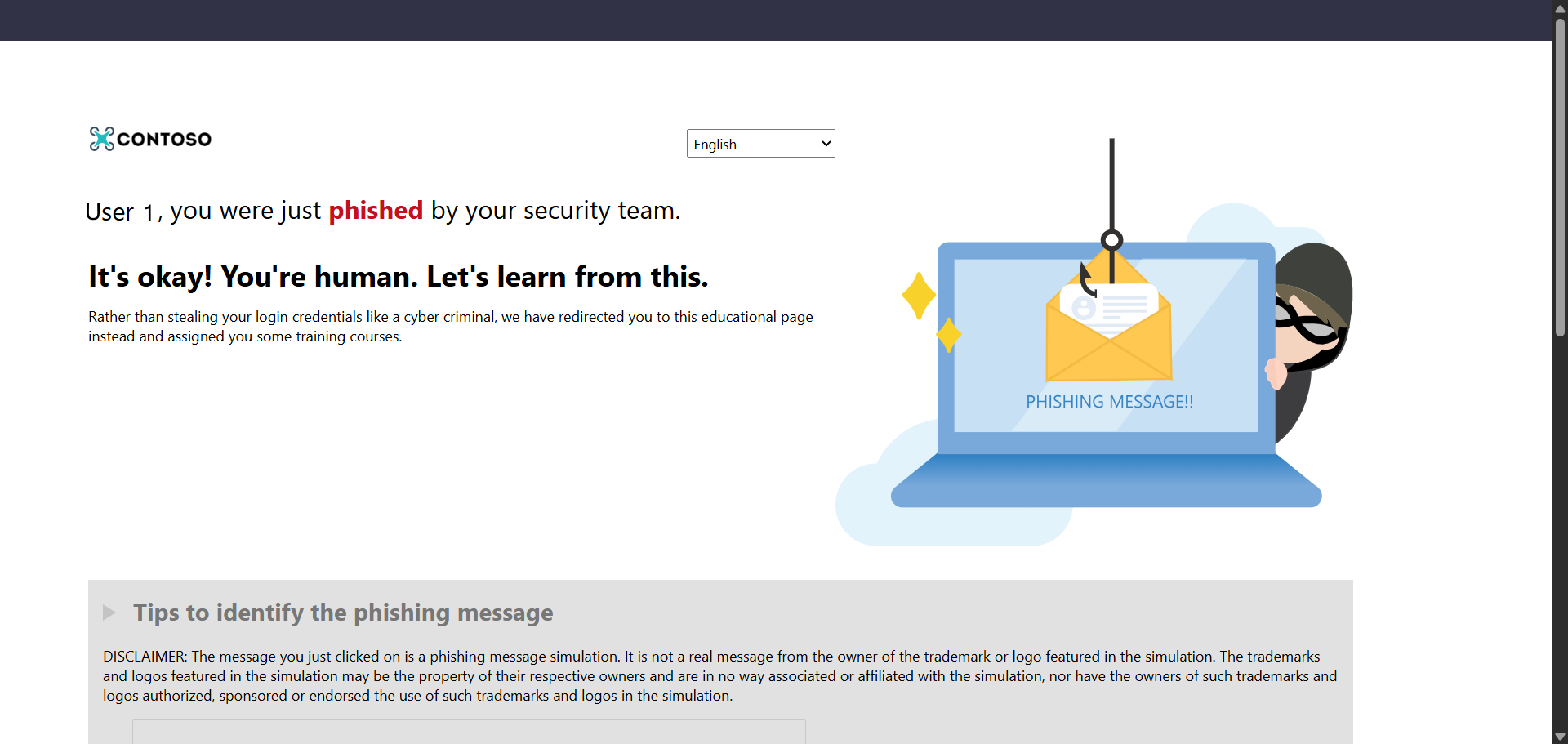
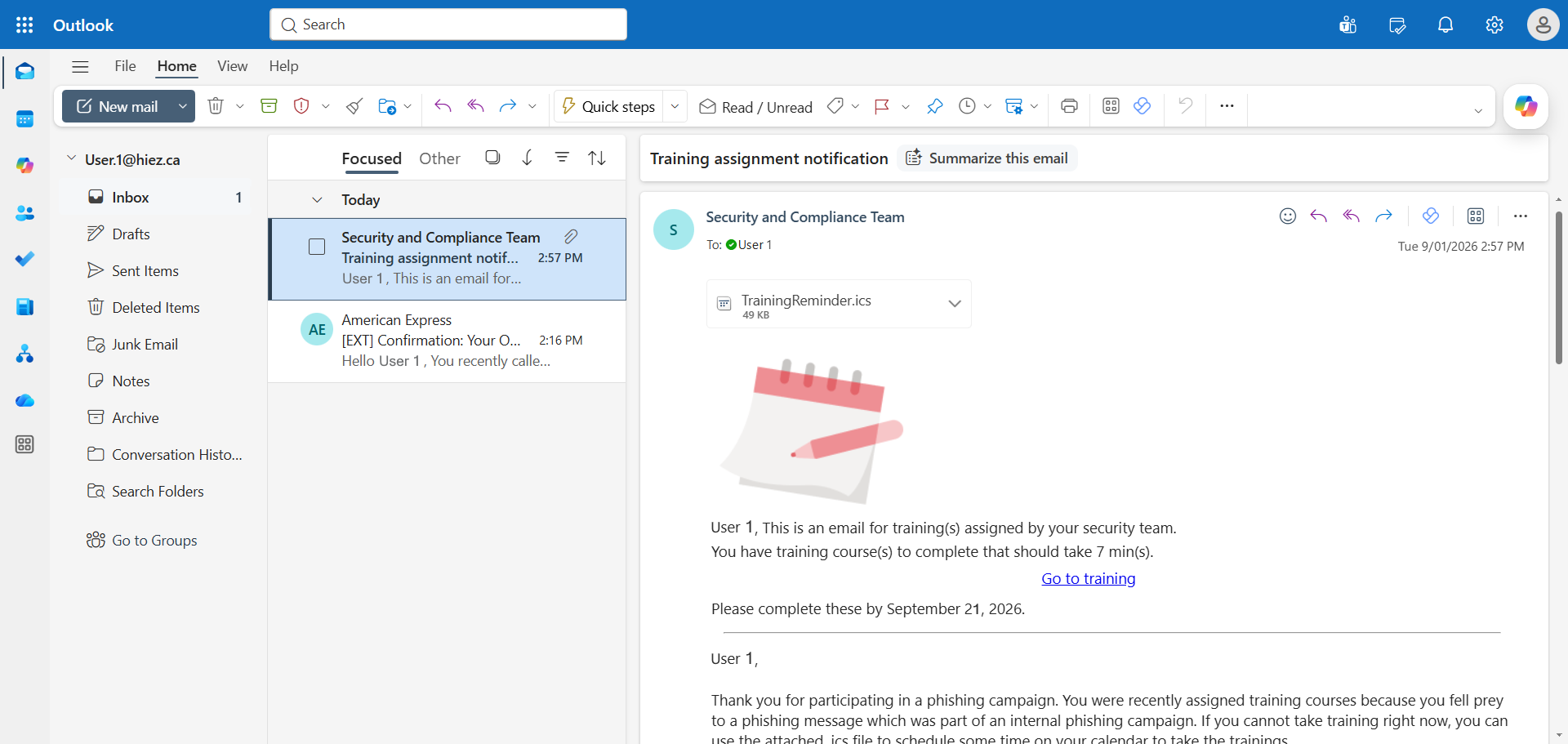
The training will be offered to strengthen the user’s skills.
Step 4b : Report the email
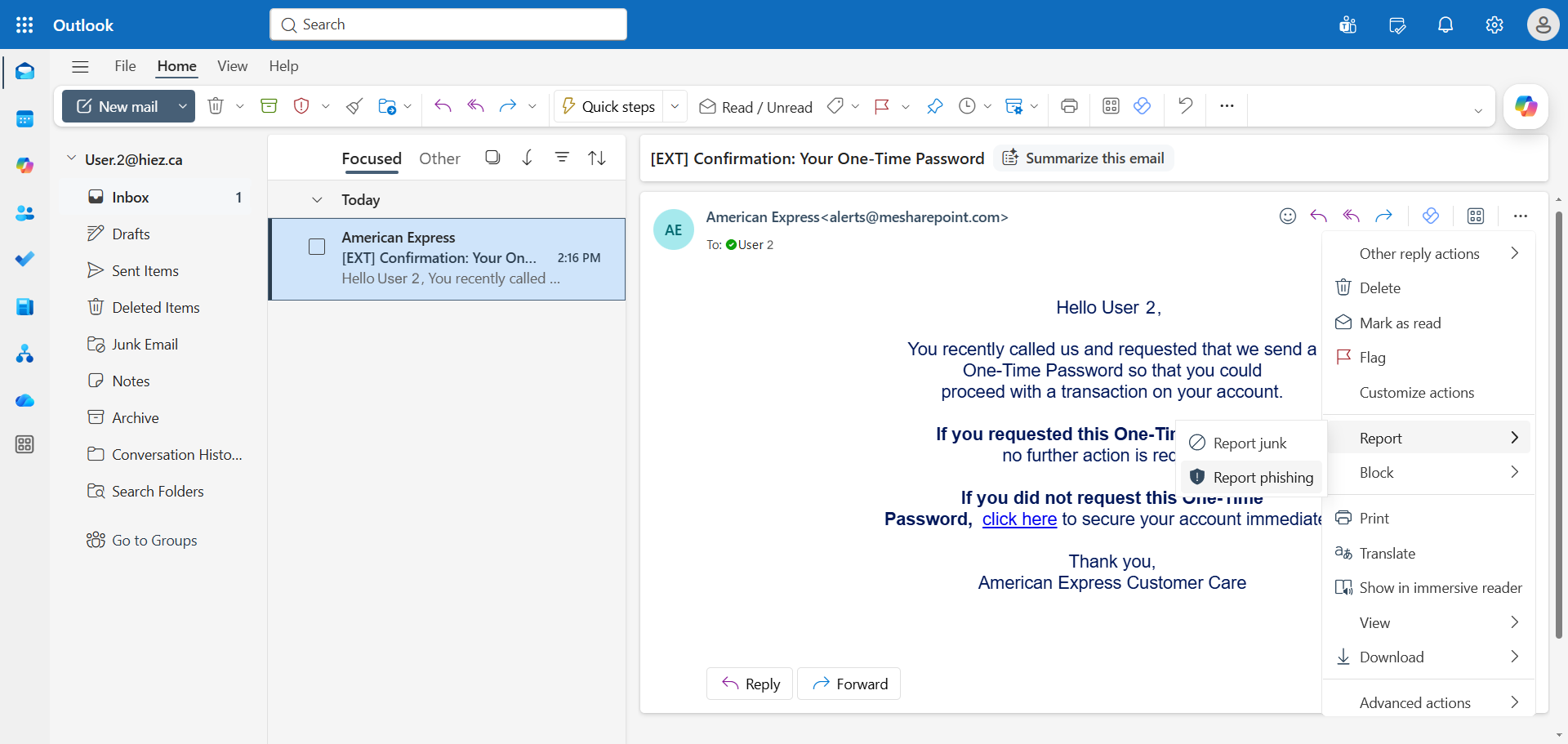
The goal of this campaign is to push users to detect (real) phishing emails and report them.
Click Report, and Report phishing to report the email.
Step 5 : Analyze the results
From the Microsoft Defender Portal, the campaign result is available with the statistics.
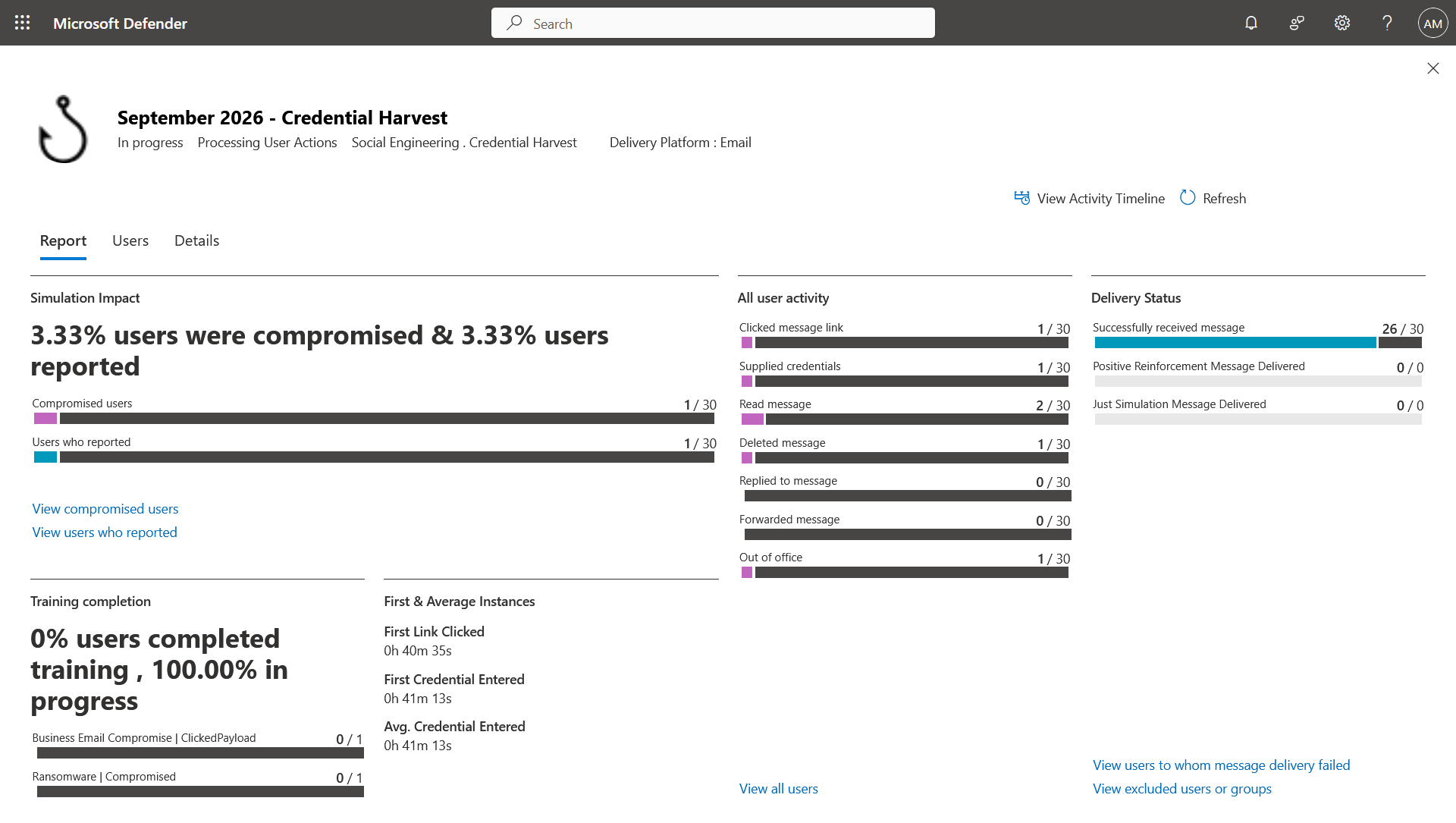
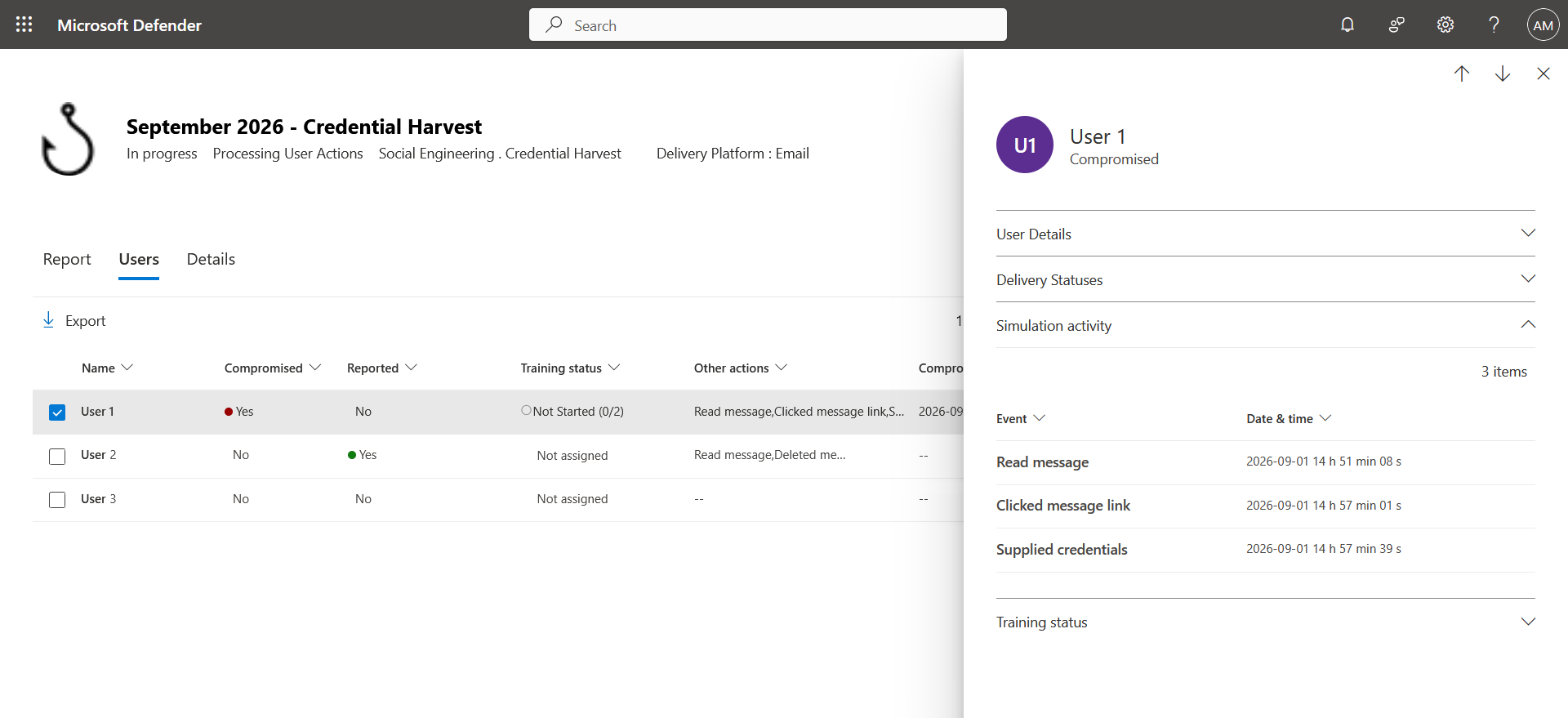
Here we can see the actions performed by the 2 users.
Conclusion
You now know how to launch an email attack simulation with Defender.
Sources
Microsoft Learn - Attack simulation training
Did you enjoy this post ? If you have any questions, comments or suggestions, please feel free to send me a message from the contact form.
Don’t forget to follow us and share this post.