Type something to search...
How to migrate SMS and voice users to Passkey

How to migrate SMS and voice users to Passkey


Introduction

In many Microsoft 365 tenants, SMS and voice call remain the last MFA safety net for a portion of the accounts. They are also the weakest methods against SIM swap, interception and phishing. Microsoft is therefore removing them from its native offering and making Passkeys the default sign-in experience. Two dates structure the whole migration : September 1, 2026 for the automatic enablement, and February 1, 2027 for the effective retirement.


The retirement timeline

The retirement spans six months and each milestone opens a different action.

DateWhat changesExpected action
August 1, 2026The API and the documentation for the temporary opt-out are publishedDecide whether the tenant needs to delay the automatic enablement
September 1, 2026Passkeys become the default experience, SMS and voice users are enabled and prompted at sign-inNotify the users and prepare the registration campaign
September 18, 2026Third-party telecom provider offers are published in the Microsoft Security StoreEvaluate the options if an exception is justified
October 30, 2026Selecting and configuring a telecom provider becomes possibleSign the contract and validate with a pilot group
February 1, 2027SMS and voice call provided by Microsoft are retired from Entra IDHave every account moved to a phishing-resistant method

On September 1, 2026, users enabled for SMS or voice will be automatically moved into a profile allowing all Passkey types. The tenant registration campaign will switch to the Microsoft Managed state and will include those accounts automatically. The prompt will appear at the next sign-in with MFA, and will remain skippable indefinitely by default.

warning

Starting February 1, 2027, users whose only MFA method is SMS or voice call will receive a blocking Passkey registration prompt. It will no longer be possible to skip it, and no opt-out is planned for that milestone.

Prerequisites

Required licenses

  • Microsoft 365 (all editions supporting modern authentication).

Administrator role

  • An account with the Global Reader, Authentication Policy Administrator or Security Reader role to inventory the affected accounts.
  • An account with the Global Administrator or Authentication Policy Administrator role to modify the authentication methods and the registration campaign.

Step 1 : Identify the affected users

The first action is to measure the tenant’s actual exposure. Microsoft published the PowerShell script Entra SMS Voice Usage Analyzer, which lists the accounts enabled for SMS and for voice call.

Run the PowerShell script available on Microsoft’s official GitHub. Any result other than zero means the tenant is in scope for the retirement.

.\Get-SmsVoicePolicyUsers.ps1 -TenantId "Lab.onmicrosoft.com"

Registration campaign: Microsoft managed

SMS state: disabled
Voice state: enabled

  Voice scope:
    Include: ALL USERS
    Exclude group: Service Accounts (abc-123-def)

Exported to: .\SmsVoicePolicyTargets_20260730_100000.csv

===== IMPACT SUMMARY =====
  Sep 1, 2026:  Users in SMS/Voice scope auto-enabled for passkeys. Reg campaign set to Microsoft Managed.
                To prevent: move users out of SMS/Voice AMP scope before Sep 1.
  Jan 28, 2027: Microsoft SMS/Voice delivery RETIRED. Migrate to passkeys or configure customer-managed provider.
  Guide: https://aka.ms/passkey-deployment-guide

Step 2 : Sign in to the Microsoft Entra Admin Center

Sign in to the Microsoft Entra Admin Center by opening your web browser to https://entra.microsoft.com.


Step 3 : Create a security group

In the left menu, click Groups, then New group to create a security group.

Add the accounts returned by the Entra SMS Voice Usage Analyzer script as members. This group is the target for the registration campaign and for the communications, and it avoids prompting the whole organization.


Step 4 : Enable Passkey in the tenant

Check the article from December 2025 on activating Passkey HERE.

Entra ID supports two families of Passkeys, and the choice depends on the device fleet :

  • Synced Passkeys : Stored in a platform credential manager such as iCloud Keychain or Google Password Manager, then synchronized across the user’s devices.
  • Device-bound Passkeys : Created and kept on a specific device, through Passkey in Microsoft Authenticator, Entra Passkey on Windows or a FIDO2 hardware key.

note

Users who already have Passkeys, Windows Hello for Business or another phishing-resistant method have nothing to do.

Step 5 : Configure the registration campaign

The registration campaign prompts the user at their next sign-in with MFA. Enabling it before September 1, 2026 allows you to spread the move at the organization’s own pace instead of being subject to the automatic enablement.

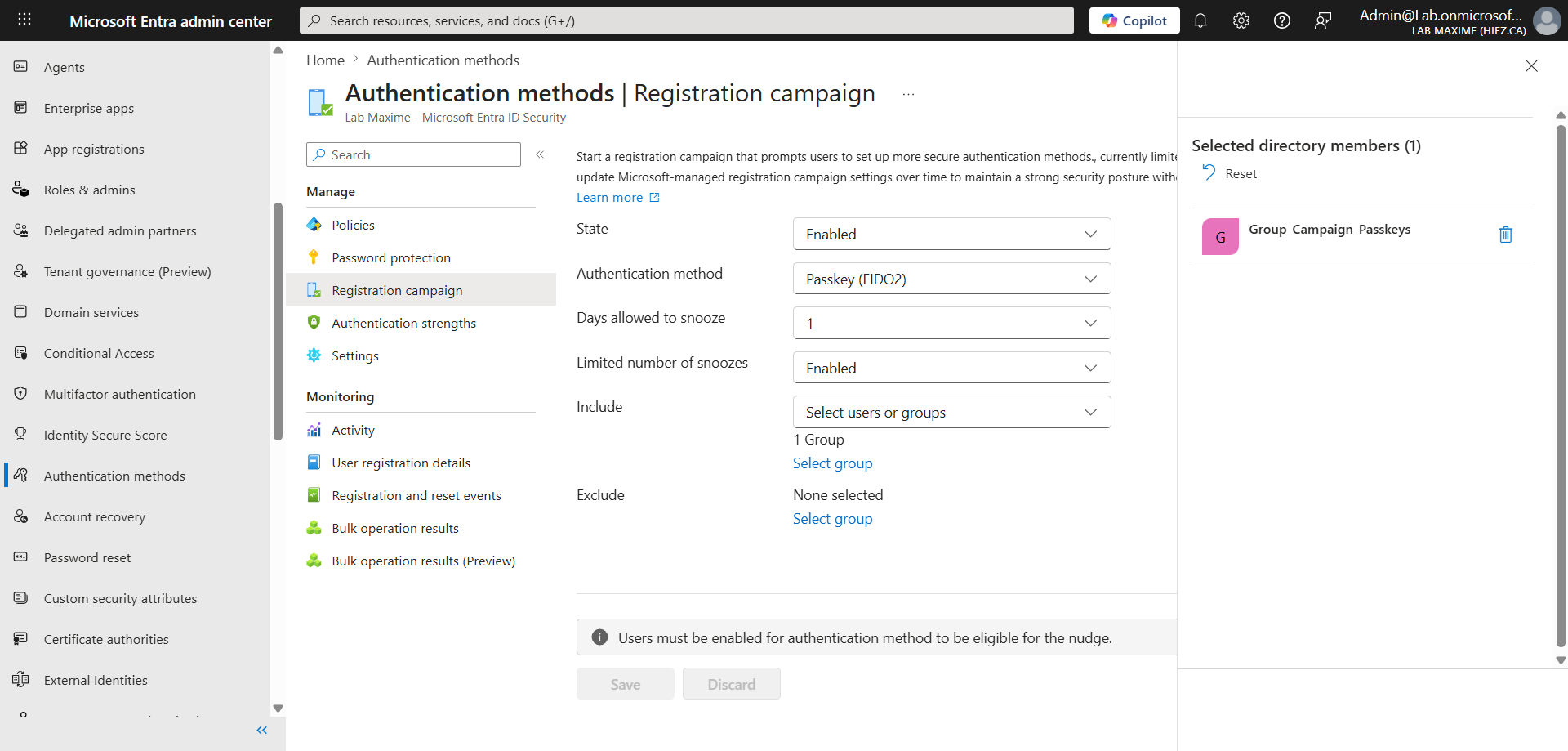
In the left menu, click Authentication methods, and Registration campaign.

Set State to Enabled, Authentication method to Passkey (FIDO2), and target the security group created in step 3.
image


Step 6 : Handle regulatory exceptions

Some contexts require keeping an out-of-band telecom channel, for example an explicit regulatory constraint or a segment of users for which no other method is workable. Those cases go through a provider contracted directly via the Microsoft Security Store.

The approach is the following :

  • Document the need : Identify the user segment, the regulation invoked and the precise scenario.
  • Evaluate the offers : Compare the providers available from September 18, 2026 against regional and compliance requirements.
  • Configure the provider : Selection in the Security Store opens on October 30, 2026.
  • Validate before rollout : Test with a pilot group before extending the configuration.

Billing is on the organization, usually per message, and varies depending on the provider, the volume and the geographic distribution. Moving to Passkeys, on the other hand, generates no additional cost.


Step 7 : Communicate the change

Communication quality is the best predictor of a successful Passkey deployment, well ahead of the technical configuration. Microsoft recommends a three-stage sequence :

  • Awareness : Announce the SMS and voice retirement, explain why and name the replacement method.
  • Action : Direct users to register a Passkey, with separate instructions per device type.
  • Reminder : Follow up with the accounts that still have no phishing-resistant method registered.

Email and Teams message templates are available at https://aka.ms/mfatemplates. Target those sends on the security group from step 3.


Retirement scope and special cases

The retirement goes beyond MFA sign-in alone, and a few situations are worth checking before planning :

  • SSPR : The retirement also applies to self-service password reset. SMS and voice remain usable there only through a Security Store provider.
  • External MFA methods : They are not affected, unless the accounts are also enabled for SMS or voice.
  • B2B and internal guest accounts : They are in scope for the retirement, while Passkey support for those accounts is announced for the end of calendar year 2026.
  • Sovereign environments : The timeline above only applies to public environments.

On external MFA methods, check the article from March 2026 HERE.


Conclusion

The truly binding milestone is February 1, 2027, with a blocking registration prompt and no possible exemption. The most immediate point of attention concerns B2B accounts, whose Passkey support only arrives at the end of 2026 while they are already in scope : those are the ones to frame first in the migration plan.

You now know how to inventory the accounts still depending on SMS and voice call, enable Passkeys and drive the move through a registration campaign.


Sources

Microsoft Learn - SMS and voice retirement

Microsoft Learn - Plan a Passkey deployment

Microsoft Learn - Passkeys (FIDO2) in Entra ID

GitHub - Entra SMS Voice Usage Analyzer


Did you enjoy this post ? If you have any questions, comments or suggestions, please feel free to send me a message from the contact form.

Don’t forget to follow us and share this post.
Related Posts

Email verification of external Teams participants

Email verification of external Teams participants

Introduction Microsoft Teams Premium introduces a new feature to enhance the security and reliability of your meetings: email verification for external participants. This feature allows m

Read More
How to activate Microsoft 365 Passkey in Entra ID

How to activate Microsoft 365 Passkey in Entra ID

Introduction Microsoft 365 Passkey is an authentication method that replaces passwords with more secure options like facial recognition, fingerprint, or a PIN.Prerequisites **<

Read More
How to sign in with Passkey to Microsoft 365

How to sign in with Passkey to Microsoft 365

Introduction Microsoft 365 Passkey is an authentication method that replaces passwords with more secure options like facial recognition, fingerprint, or a PIN.Prerequisites **<

Read More
How to enable LAPS on the MTR Admin account via Intune

How to enable LAPS on the MTR Admin account via Intune

Introduction Microsoft's LAPS (Local Administrator Password Solution) is a free tool designed to improve password security for local administrator accounts on workstations, servers and

Read More
How to enable password writeback in Entra ID

How to enable password writeback in Entra ID

Introduction In an organization configured as hybrid with Microsoft cloud, user accounts are created in the on-premises Active Directory and are synchronized with Microsoft Entra ID. In

Read More
Impact analysis of Entra ID conditional access policies

Impact analysis of Entra ID conditional access policies

Introduction Conditional access in Entra is a security policy that allows administrators to control access to applications and resources based on specific conditions. These conditions can i

Read More
How to create a Windows local admin account via Intune LAPS

How to create a Windows local admin account via Intune LAPS

Introduction I wrote an article last February on how to replace the password of your MTR's local account using LAPS (Local Administrator Password Solution) in Intune. I concluded my article

Read More
New security approach for non-compliant emails

New security approach for non-compliant emails

Introduction Microsoft has announced a major update to Defender for Office 365 that strengthens email security by improving the handling of non-RFC compliant emails. This initiative is

Read More
Blocking screenshots during Teams meetings

Blocking screenshots during Teams meetings

Introduction Microsoft Teams continues to strengthen the privacy and security of online meetings. Starting in July 2025, a new feature will be rolled out to prevent screenshots during meeti

Read More
"Anti-Tampering" certification for Defender for Endpoint (2025)

"Anti-Tampering" certification for Defender for Endpoint (2025)

Introduction Microsoft recently announced that Microsoft Defender for Endpoint has successfully passed the 2025 anti-tampering tests conducted by AV-Comparatives, a recognized independe

Read More
How to enable DLP for Teams with Purview

How to enable DLP for Teams with Purview

Introduction In a context where sensitive data, particularly banking information, is increasingly circulating in collaborative tools, businesses must be extra vigilant to avoid accidental o

Read More
How to enable DLP for Outlook with Purview

How to enable DLP for Outlook with Purview

Introduction Last week, I showed you how to enable DLP for Teams with Microsoft Purview to prevent accidental or malicious data leaks (Data Loss Prevention). Purview is a comprehensive

Read More
Entra Private Access for Domain Controllers

Entra Private Access for Domain Controllers

Introduction Microsoft has announced the Public Preview of Microsoft Entra Private Access for Active Directory Domain Controllers, a major step forward in strengthening the security of

Read More
How to activate Defender EDR in "Block Mode"

How to activate Defender EDR in "Block Mode"

Introduction In a context of constantly evolving cyber threats, antivirus solutions are no longer sufficient to effectively protect workstations. Microsoft Defender for Endpoint's *Block

Read More
How to enable DSPM for AI with Purview

How to enable DSPM for AI with Purview

Introduction With the rise of generative AI models, the phenomenon of Shadow AI (the use of artificial intelligence tools and services not approved or controlled by organizations) is incr

Read More
How to block a website URL in Edge with Defender

How to block a website URL in Edge with Defender

Introduction Web browsing is one of the most common attack vectors in business environments. To strengthen security, Microsoft Defender for Endpoint offers a powerful feature : blocking m

Read More
How to enable DLP for cloud storage with Purview

How to enable DLP for cloud storage with Purview

Introduction A few months ago, I showed you how to enable DLP for Outlook with Microsoft Purview to prevent accidental or malicious data leaks (Data Loss Prevention). Purview is a com

Read More
Extend Zero Trust to AI agent identities in Entra ID

Extend Zero Trust to AI agent identities in Entra ID

Introduction AI agents are becoming increasingly widespread in businesses (incident summaries, log analysis, flow execution, etc.), and it is crucial that their access is continuously evalu

Read More
How to enable DLP for printing with Purview

How to enable DLP for printing with Purview

Introduction A few weeks ago, I showed you how to enable DLP to prevent the copying of financial data to an external cloud storage solution using Microsoft Purview, in order to prevent

Read More
How to enable DLP for AI websites with Purview

How to enable DLP for AI websites with Purview

Introduction Last week, I showed you how to enable DLP to prevent printing of financial data using Microsoft Purview, in order to prevent accidental or malicious data leaks (*Data Loss

Read More
How to enable DLP for copy/paste with Purview

How to enable DLP for copy/paste with Purview

Introduction Last month, I showed you how to enable DLP to prevent financial data from being sent to an AI website using Microsoft Purview, in order to prevent accidental or malicious d

Read More
Purview Sensitivity Labels are coming to OneNote

Purview Sensitivity Labels are coming to OneNote

Introduction Good news for security and compliance teams, Sensitivity Labels are now General Availability in OneNote. This update finally allows you to apply the same classification a

Read More
How to block Teams calls and chats with Purview IB

How to block Teams calls and chats with Purview IB

Introduction Microsoft Purview's Information Barriers allow you to restrict communication and collaboration between specific user groups within a Microsoft 365 environment. Their prim
Read More
External MFA is now available in Entra ID

External MFA is now available in Entra ID

Introduction Microsoft has announced the General Availability of External MFA, in Microsoft Entra ID, formerly known as External Authentication Methods. This feature allows the use
Read More
How to create Sensitivity Labels for emails in Purview

How to create Sensitivity Labels for emails in Purview

Introduction Emails remain one of the primary vectors for information leaks in businesses. Whether it's a message sent to the wrong recipient, an attachment forwarded without proper oversig

Read More
How to secure your emails with Sensitivity Labels

How to secure your emails with Sensitivity Labels

Introduction Last week, I showed you how to create Sensitivity Labels to secure your emails, without explaining how they work. Today I'll talk about how to use them and what results you g

Read More
Detect exposed passwords in plain text with Purview

Detect exposed passwords in plain text with Purview

Introduction In a Microsoft 365 environment, data breaches aren't limited to credit card numbers or personal information. A frequently underestimated risk is the sharing of passwords in p

Read More
Microsoft raises the conditional access policy limit

Microsoft raises the conditional access policy limit

Introduction Microsoft quietly raises the limit of conditional access policies per tenant, from 195 to 244. This limit applies to all policies, whether active, disabled, or in *report-onl

Read More
How to create Sensitive Information Types in Purview

How to create Sensitive Information Types in Purview

Introduction In previous articles, we examined how Microsoft Purview can protect sensitive data through DLP (Data Loss Prevention) policies and Sensitivity Labels. However, all thes

Read More
Purview Sensitivity Labels now support security groups

Purview Sensitivity Labels now support security groups

Introduction Microsoft has updated the scoping of Sensitivity Labels policies in Microsoft Purview, now generally available. Administrators can now include non-mail-enabled security

Read More
Bot protection in Microsoft Teams meetings

Bot protection in Microsoft Teams meetings

Introduction AI note-taking tools like Read.ai, Fireflies.ai or Otter.ai join meetings as external participants. For organizers, this raises a real control challenge : when the lobby

Read More
Microsoft Entra Backup and Recovery finally available

Microsoft Entra Backup and Recovery finally available

Introduction Accidentally deleting a user account, a conditional access policy, or a service principal assignment can quickly paralyze a Microsoft Entra ID tenant. Until now, no native me

Read More
How to configure role expiration in Purview

How to configure role expiration in Purview

Introduction In most tenants, Microsoft Purview permissions pile up. An external auditor is granted eDiscovery access for three weeks, a consultant gets the Compliance Administrator r

Read More
Shieldstral, the multimodal safety classifier from Mistral AI

Shieldstral, the multimodal safety classifier from Mistral AI

Introduction Mistral AI announced on August 4, 2026 Shieldstral, a multimodal safety classifier meant to moderate the inputs and the outputs of a language model. The model sits before a

Read More