Vishing and synthetic media detection in Teams
- Maxime Hiez
- Teams
- 26 Aug, 2026
Introduction
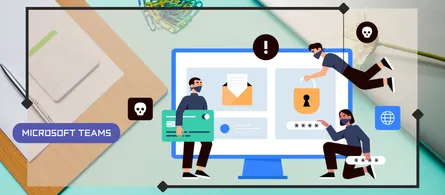
The Teams PowerShell 7.9.0 module introduced two parameters that were not the subject of a dedicated announcement : VoicePhishingDetection in the calling policy and SyntheticMediaDetection in the meeting policy. The first one detects voice phishing attempts during an inbound call, the second one the presence of artificially generated audio or video content in a meeting.
Both answer the same evolution of the attacks : impersonation by voice and by image has become accessible, and the control can no longer rely on the sole vigilance of the user.
Vishing detection in calls
The VoicePhishingDetection parameter enables an AI-based detection of vishing attempts during live inbound calls. Four values are available :
- BannerAndAudio : Visual alert and voice alert, default value
- Banner : Visual alert only
- Audio : Voice alert only
- None : No alert
The alert is triggered during the call, and not afterwards in a report. This is the difference with the classic spam filtering, which qualifies the caller before pickup : here, it is the content of the conversation that is analyzed.
Synthetic media detection in meetings
The SyntheticMediaDetection parameter of the meeting policy accepts two values, Enabled by default and Disabled. When it is disabled, no detection occurs and the other related properties are ignored.
A second parameter, SyntheticMediaDetectionAppId, designates the Teams application ID of the detection bot used for the analysis. The zero GUID, that is 00000000-0000-0000-0000-000000000000, corresponds to the default behavior of the platform : no provider if the Microsoft detection isn’t available, Microsoft detection if it is. This parameter therefore opens the door to third party detection engines, a model already seen with compliance recording.
Configuration in PowerShell
Both parameters are configured from the Teams PowerShell module :
Connect-MicrosoftTeams

Set-CsTeamsCallingPolicy -Identity Global -VoicePhishingDetection BannerAndAudio

Set-CsTeamsMeetingPolicy -Identity Global -SyntheticMediaDetection Enabled
Checking the effective state is done with the corresponding read commands :
Get-CsTeamsCallingPolicy -Identity Global | fl VoicePhishingDetection

Get-CsTeamsMeetingPolicy -Identity Global | fl SyntheticMediaDetection, SyntheticMediaDetectionAppId
note
What it means for administrators
Both parameters are active by default, BannerAndAudio for calls and Enabled for meetings. No action is therefore necessary to benefit from them the day the feature arrives, but two points deserve an early decision.
The first one concerns the environments subject to employee notification obligations, the analysis of the content of a call or a meeting falling under the same type of framework as transcription. The second one concerns false positives on legitimate calls, a collection service or an external technical support being able to show the same signals as a phishing attempt. The Banner value offers a compromise, by flagging without interrupting the conversation with a voice alert.
Conclusion
These two parameters complete the series of protections released this year in Teams, after bot detection in meetings and trust indicators on external participants. They are configurable today and active by default, which leaves time to settle the question of informing the users and of the desired alert level before the detection becomes effective.
Sources
Microsoft Learn - Set-CsTeamsCallingPolicy
Microsoft Learn - Set-CsTeamsMeetingPolicy
Microsoft Learn - Calling policies in Teams
Did you enjoy this post ? If you have any questions, comments or suggestions, please feel free to send me a message from the contact form.
Don’t forget to follow us and share this post.