How to configure calendar sharing in Exchange
- Maxime Hiez
- Exchange , Tutorial
- 08 Dec, 2025
Introduction
In a context where organizations are collaborating more closely, it’s not uncommon for users within one organization to need to efficiently schedule meetings by accessing the calendar availability of resources (users and/or meeting rooms) in another organization. Exchange Online’s cross-tenant calendar sharing feature addresses this need precisely. With this approach, businesses can improve meeting coordination without exposing sensitive user data.
Prerequisites
Administrator role
- An account with the Global Administrator or Exchange Administrator role to access the Exchange Admin Center.
Step 1 : Sign in to the Exchange Admin Center
Sign in to the Microsoft Purview Portal by opening your web browser to https://admin.exchange.microsoft.com.
Step 2 : Activate the organization relationship on tenant A
In the left menu, click Organization, then Sharing.
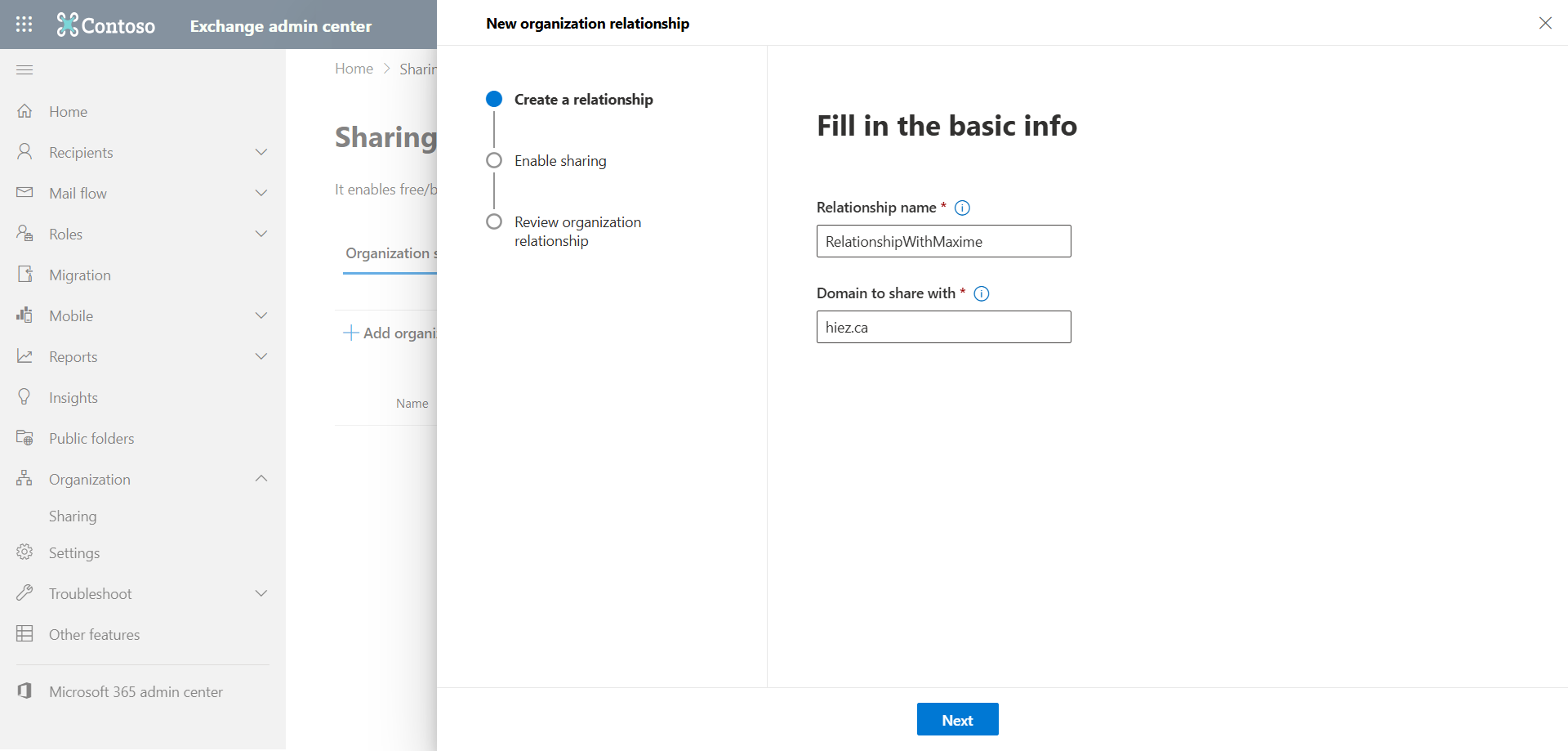
Click Add organization relationship, and enter the policy name and the domain with which you want to activate sharing.
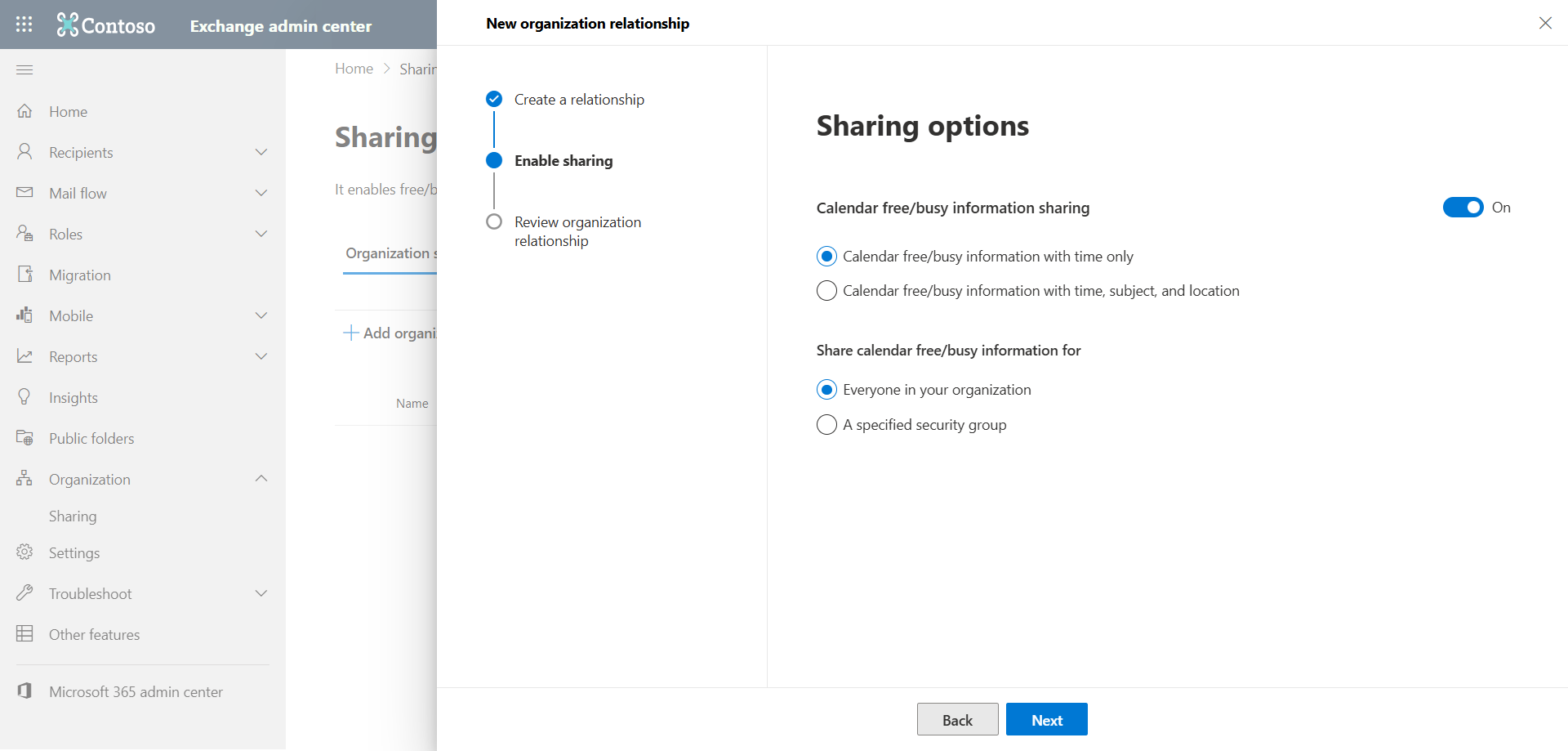
Choose the sharing options. Here we have the default configuration.
You can also create the organizational relationship using the following PowerShell commands :
Connect-ExchangeOnline

New-OrganizationRelationship -Name "RelationshipWithMaxime" -DomainNames "hiez.ca" -FreeBusyAccessEnabled $true -FreeBusyAccessLevel AvailabilityOnly -TargetApplicationUri outlook.com -TargetAutodiscoverEpr https://autodiscover-s.outlook.com/autodiscover/autodiscover.svc/WSSecurity
Step 3 : Activate the organization relationship on tenant B
The same configuration must be performed in the second tenant, targeting the other domain via the web interface or the following PowerShell command :
New-OrganizationRelationship -Name "RelationshipWithOtherDomain" -DomainNames "otherdomain.ca" -FreeBusyAccessEnabled $true -FreeBusyAccessLevel AvailabilityOnly -TargetApplicationUri outlook.com -TargetAutodiscoverEpr https://autodiscover-s.outlook.com/autodiscover/autodiscover.svc/WSSecurity Step 4 : Validate the organizational relationship
The following PowerShell command allows you to validate that the configured organizational relationship meets the requirements.
Get-OrganizationRelationship | Fl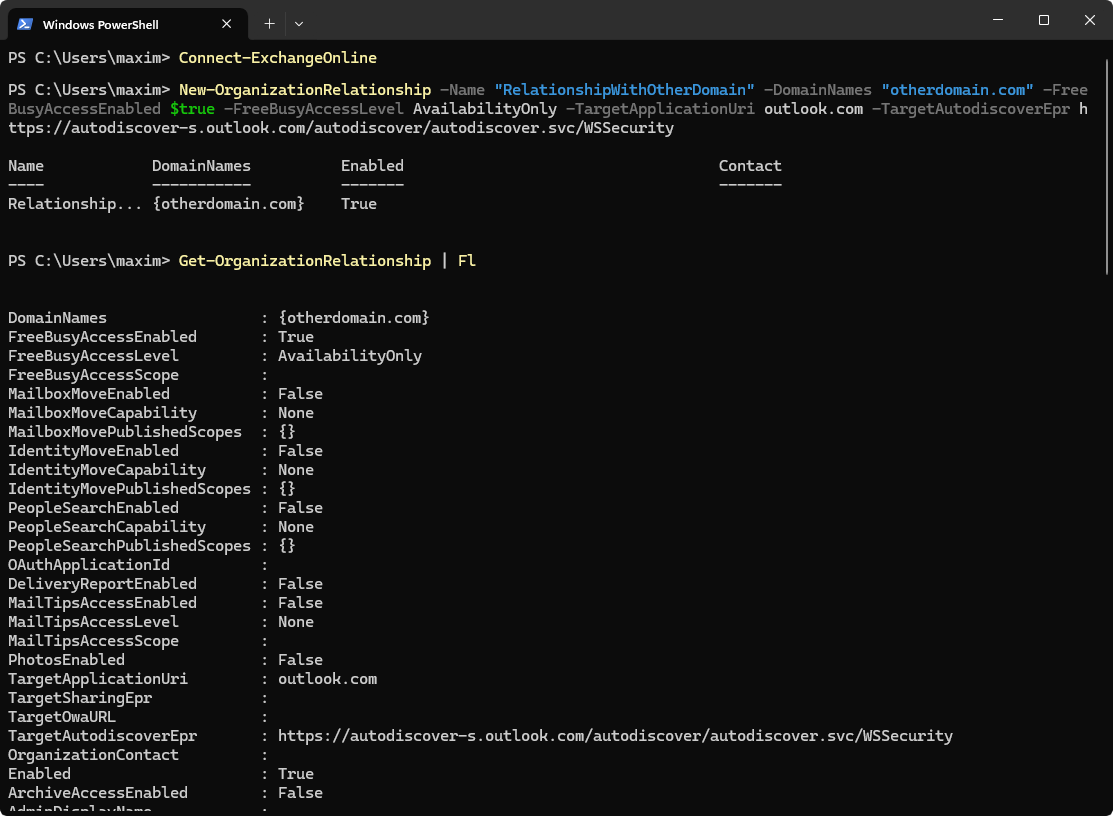
Step 5 : Test Free/Busy in Outlook
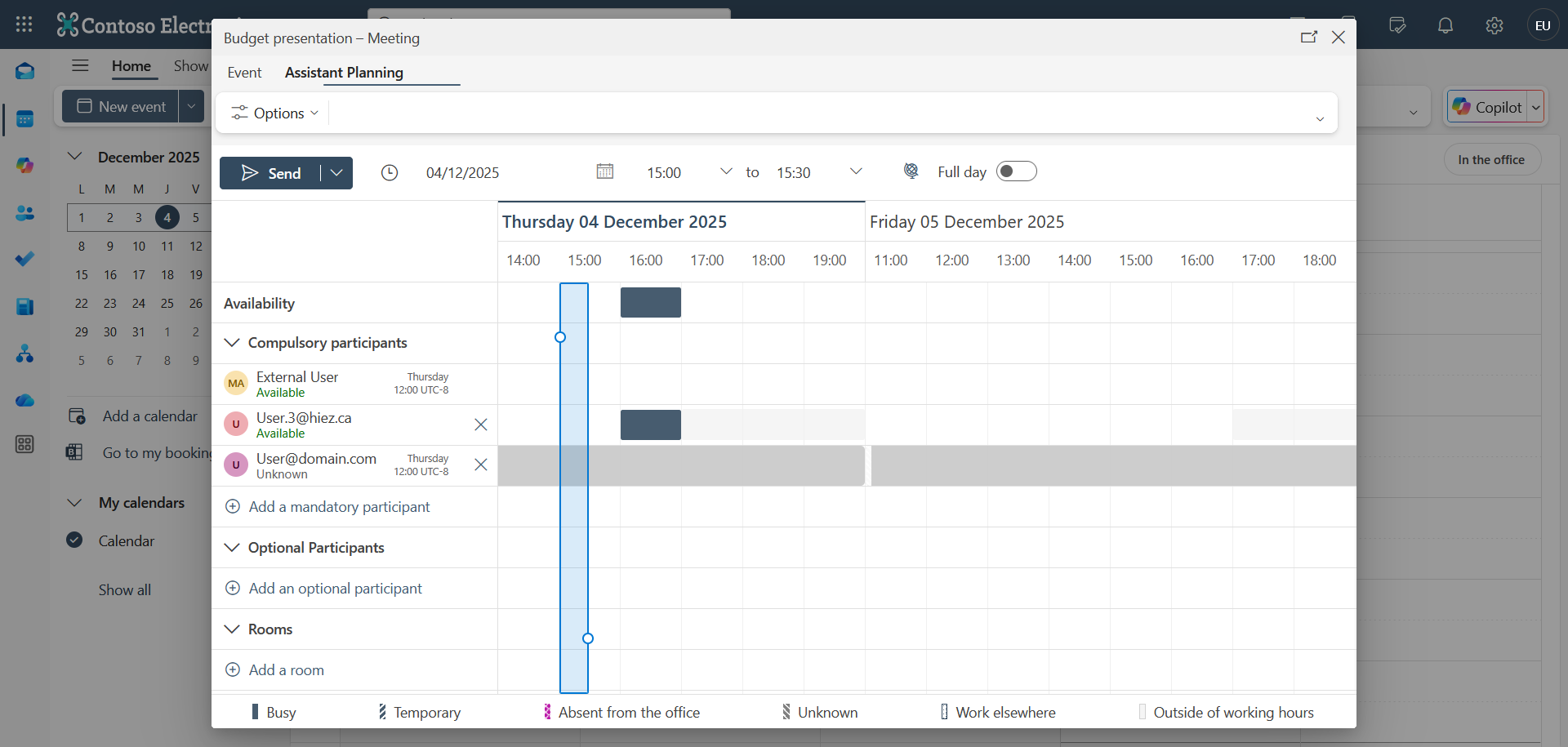
After a few minutes, users can create a new meeting in their Outlook calendar and add participants from the other organization to view their availability.
In my example, I created a Teams meeting from the calendar of the user User@otherdomain.ca and added two external users. We can see that the availability of User.3@hiez.ca is visible, but not that of User@domain.com, a domain for which I haven’t created an organizational relationship.
What if I have a hybrid Exchange configuration?
If you are trying to configure an organizational relationship between a Microsoft 365 tenant and another organization with a hybrid configuration (Exchange Online + on-premises Exchange server), you must add the mail.onmicrosoft.com domain address of the on-premises Exchange server to the organizational relationship of the non-hybrid tenant. Without this, users will not be able to view calendar availability information.
Conclusion
Implementing calendar availability sharing is a great option for organizations with simple collaboration needs across other Microsoft 365 environments. This feature simplifies meeting scheduling and improves collaboration between users. However, this approach is just a first step toward deeper integration.
When two organizations have more complex needs (B2B Collaboration), the Multi-Tenant Organization (MTO) concept goes far beyond simple availability sharing : access to resources between tenants, a unified experience, and more. We will explore this option in a future article.
You now know how to configure calendar sharing in Exchange Online.
Sources
Microsoft Learn - New-OrganizationRelationship
Did you enjoy this post ? If you have any questions, comments or suggestions, please feel free to send me a message from the contact form.
Don’t forget to follow us and share this post.