How to enable multi-lines for Teams telephony
- Maxime Hiez
- Teams , Tutorial
- 29 Apr, 2026
Introduction
Microsoft has just introduced a feature that allows a user to have up to 11 numbers (including their primary and private lines) in their Microsoft Teams phone system. Users can now make and receive calls from multiple business numbers, display different Caller IDs, all without changing accounts or hardware.
Prerequisites
Microsoft Teams telephony enabled
- Direct Routing configuration with an SBC.
- Calling Plan configuration.
- Operator Connect configuration.
PowerShell module
- The Teams PowerShell module in version 7.6.0 or later.
Administrator role
- An account with the Global Administrator or Teams Administrator role to access the Microsoft Teams Admin Center.
Step 1 : Sign in to the Microsoft Teams Admin Center
Sign in to the Microsoft Teams Admin Center via the following PowerShell command :
Connect-MicrosoftTeamsStep 2 : Enable additional lines
You can configure additional lines and validate the correct assignment using the following PowerShell commands :
Set-CsPhoneNumberAssignment -Identity user.3@hiez.ca -PhoneNumber '+15141237891' -PhoneNumberType DirectRouting -AssignmentCategory Alternate

Get-CsOnlineUser -Identity user.3@hiez.ca | fl TelephoneNumbers
Step 3 : Assign telephony policies
A key aspect of multi-line configuration is that certain policies can be assigned per phone number, independently of those already assigned to the user.
- CallingLineIdentity : Display the number on outbound calls (Caller ID)
- OnlineDialOutPolicy : Restrict outbound dialing permissions
- OnlineVoiceRoutingPolicy : Allow calls in Direct Routing mode
- TeamsEmergencyCallingPolicy : Enable notifications for emergency calls
- TeamsEmergencyCallRoutingPolicy : Required for alternate phone numbers with direct routing
- TeamsSharedCallingRoutingPolicy : Assign a software phone number that uses the Shared Calling feature
- TenantDialPlan : Assign normalization rules
You can configure the policies using the following PowerShell commands :
Set-CsPhoneNumberPolicyAssignment -TelephoneNumber +15141237891 -PolicyType OnlineVoiceRoutingPolicy -PolicyName "CA-INTERNATIONAL"

Set-CsPhoneNumberPolicyAssignment -TelephoneNumber +15141237891 -PolicyType TenantDialPlan -PolicyName "DialPlan-Global"

Set-CsPhoneNumberPolicyAssignment -TelephoneNumber +15141237891 -PolicyType CallingLineIdentity -PolicyName "514 842 1161"

Set-CsPhoneNumberPolicyAssignment -TelephoneNumber +15141237891 -PolicyType TeamsEmergencyCallRoutingPolicy -PolicyName "LAB-911"
note
Validate the result
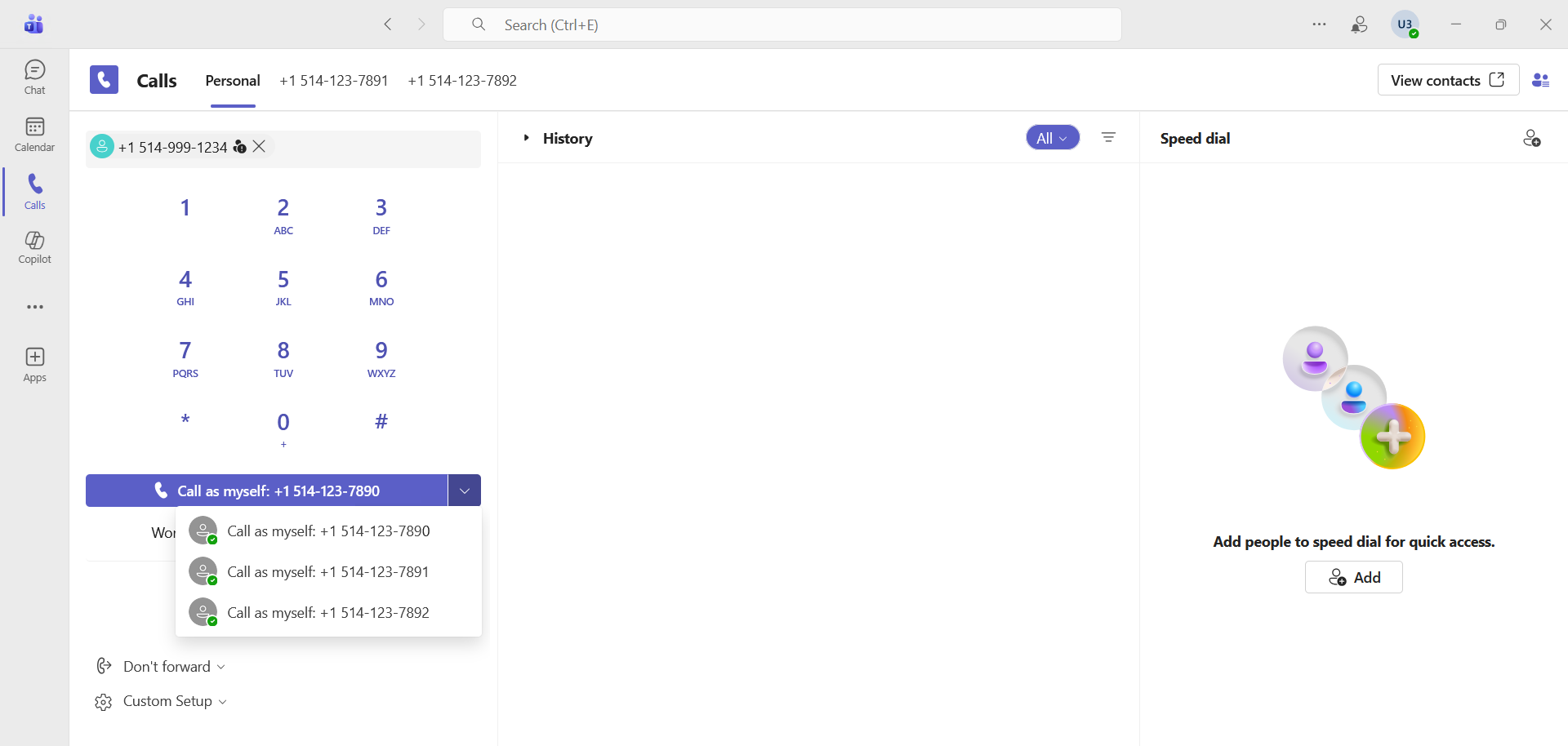
You can see that I now have 2 additional lines assigned to my account. I can choose which number I can make my call from.
Conclusion
You now know how to enable multi-lines for Teams telephony.
Sources
Microsoft Learn - Multi-lines for Teams telephony
Microsoft Learn - Set-CsPhoneNumberPolicyAssignment
Did you enjoy this post ? If you have any questions, comments or suggestions, please feel free to send me a message from the contact form.
Don’t forget to follow us and share this post.