How to enable cross-tenant message recall in Exchange
- Maxime Hiez
- Exchange , Tutorial
- 14 Oct, 2026
Introduction
Cloud message recall has so far only worked within a single tenant. Cross-Tenant Message Recall extends this capability to trusted organizations : a sender from an authorized tenant can now recall a message sent to a recipient in another Microsoft 365 tenant, exactly as they would internally.
Control remains entirely on the side of the tenant receiving the message. A cross-tenant recall is only honored if the recipient tenant’s administrator has explicitly added the sender tenant to an allow list.
Prerequisites
Administrator role
- An account with the Global Administrator or Exchange Administrator role to access Microsoft Exchange Online.
Step 1 : Connect to Microsoft Exchange Online in PowerShell
Connect to Microsoft Exchange Online using the following PowerShell command :
Connect-ExchangeOnlineStep 2 : Check the current configuration
Check whether cross-tenant recall is enabled and which external tenants are already allowed using the following PowerShell command :
Get-CrossTenantRecallConfigurationThe result looks like this :
CrossTenantRecallEnabled AllowedSenderTenantIds
------------------------ -----------------------
False                    {}
note
Step 3 : Enable recall on the 1st tenant
Enable the feature for your tenant using the following PowerShell command :
Set-CrossTenantRecallConfiguration -CrossTenantRecallEnabled $trueStep 4 : Allow a sender tenant
Add the tenant ID to allow to the -AllowedSenderTenantIds parameter using the following PowerShell command :
Set-CrossTenantRecallConfiguration -AllowedSenderTenantIds @{Add="11111111-2222-3333-4444-555555555555"}To allow several tenants in a single command :
Set-CrossTenantRecallConfiguration -AllowedSenderTenantIds @{Add="11111111-2222-3333-4444-555555555555","66666666-7777-8888-9999-000000000000"}tip
Step 5 : Enable recall on the 2nd tenant
Apply the same configuration on the 2nd tenant.
Validate the result
An email is sent to another tenant …
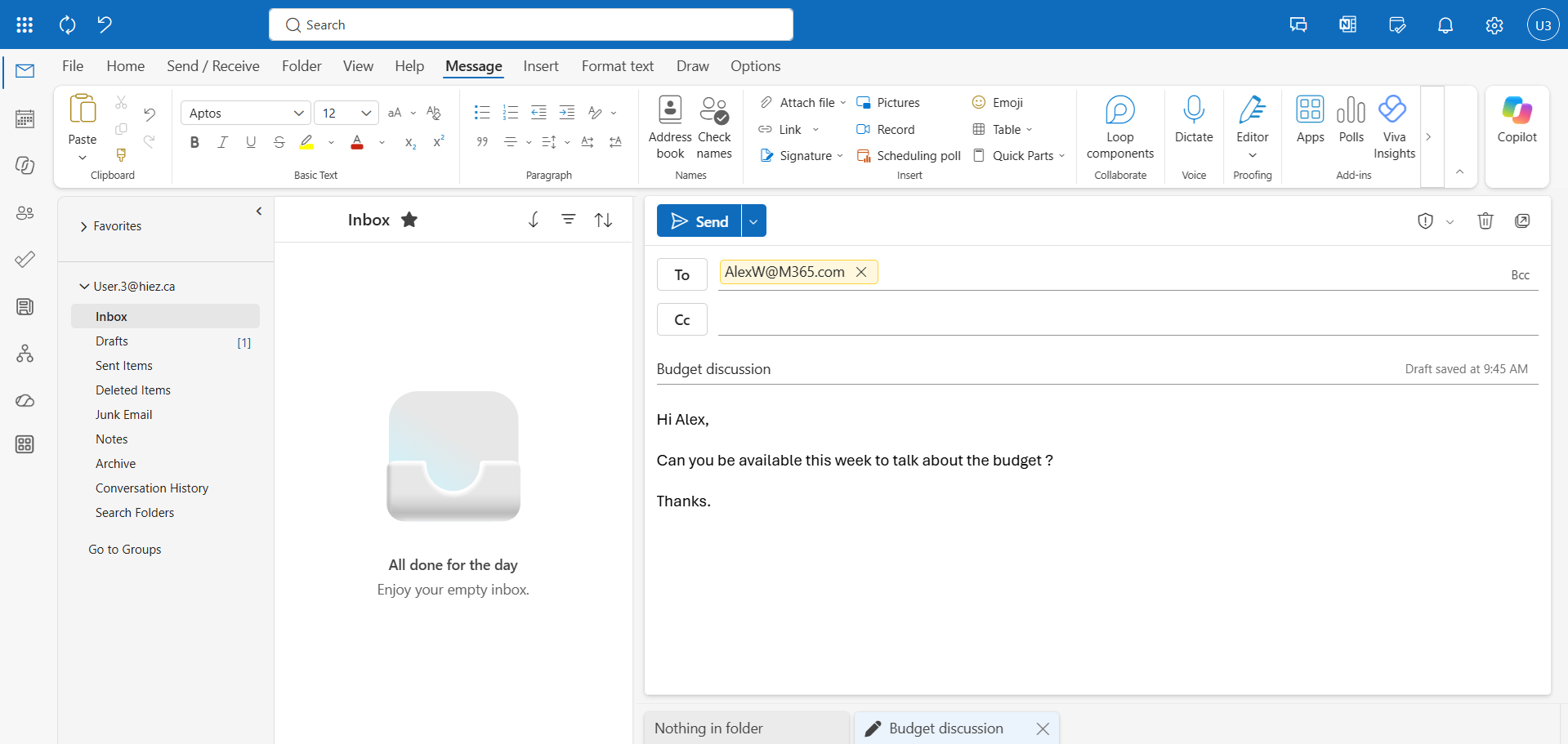
… then recalled within the following minutes.
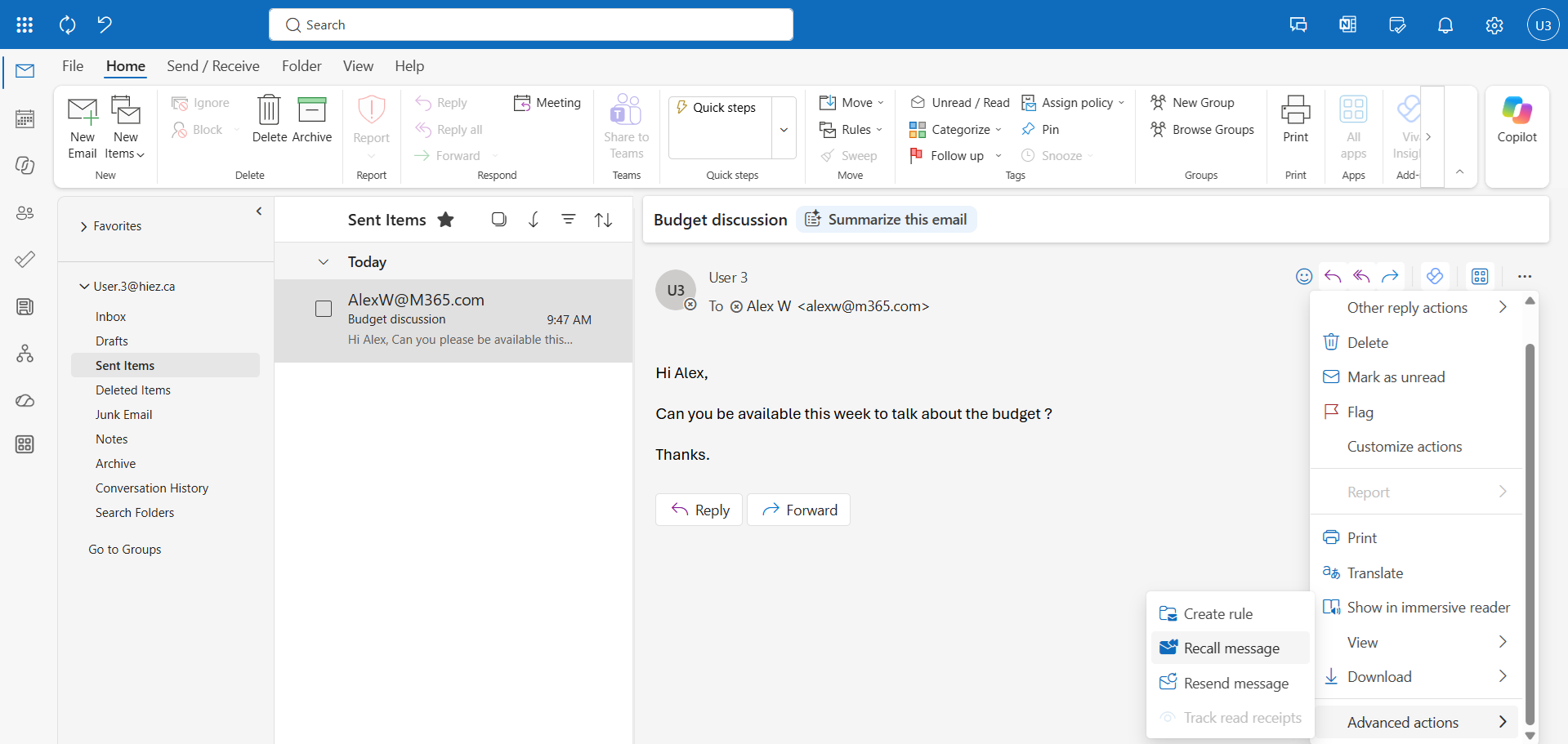
A report is sent by Exchange with a tracking link.
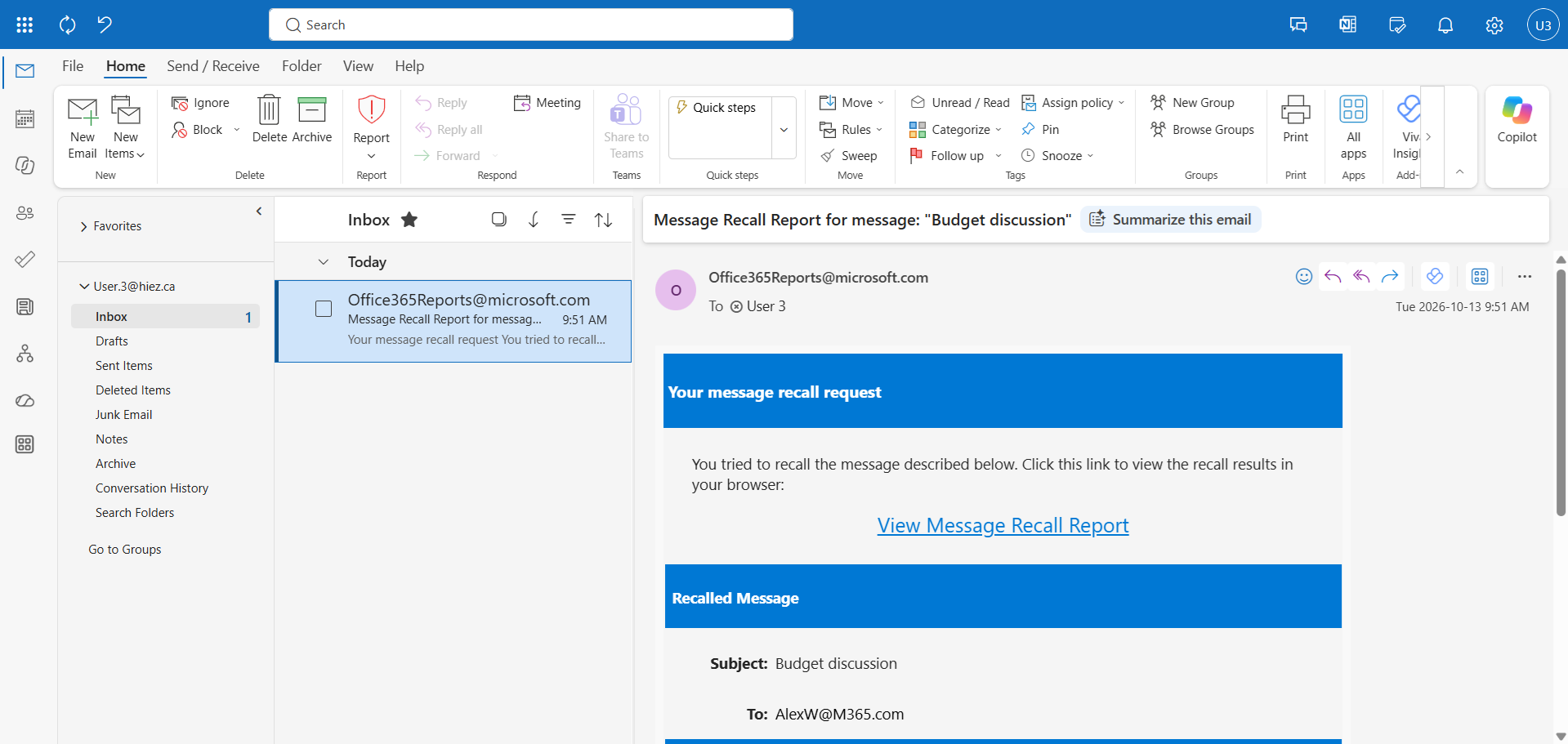
By checking this link, you can see the result of the recall (it can take a few minutes to update).
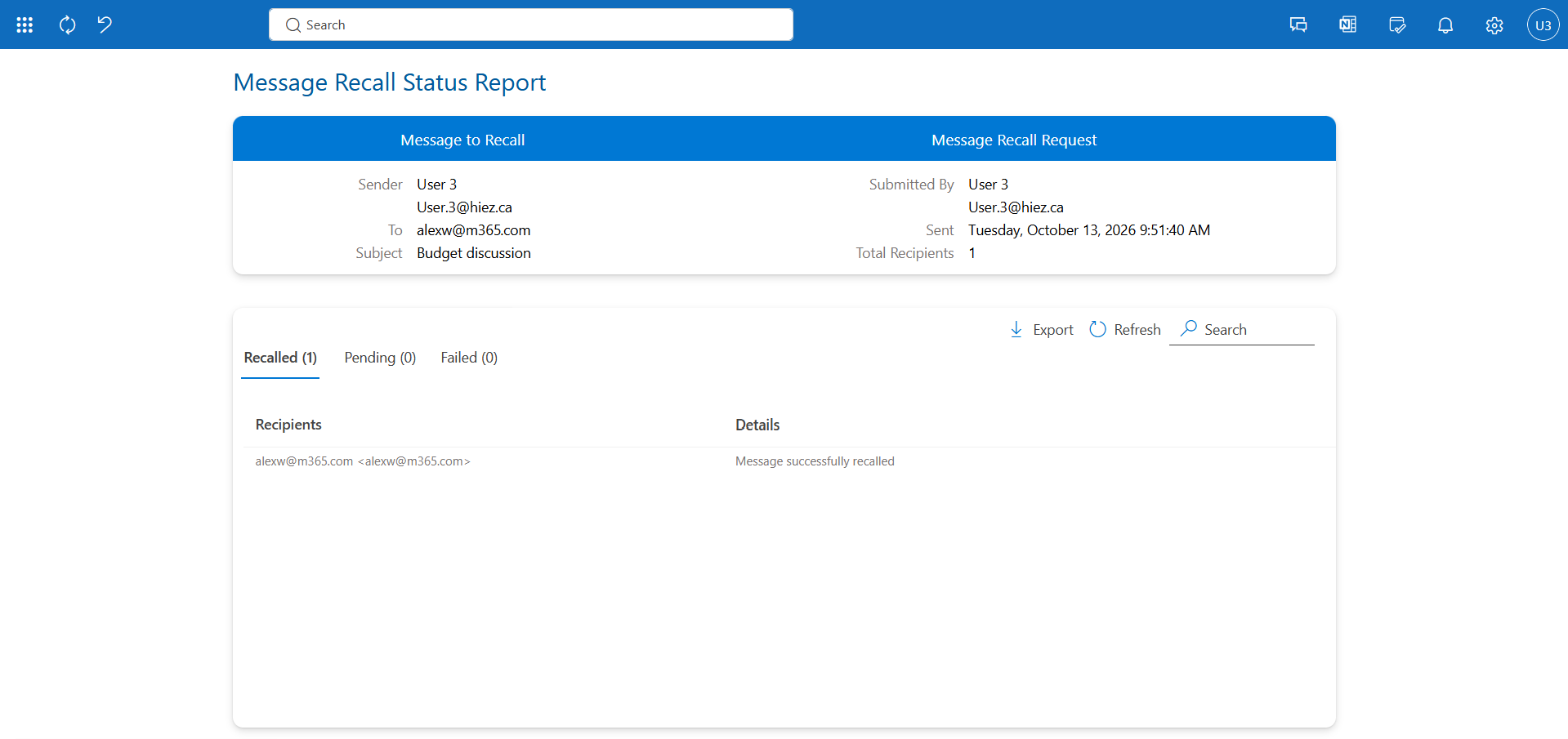
And the recipient ?
In the recipient’s mailbox, the email arrives normally …
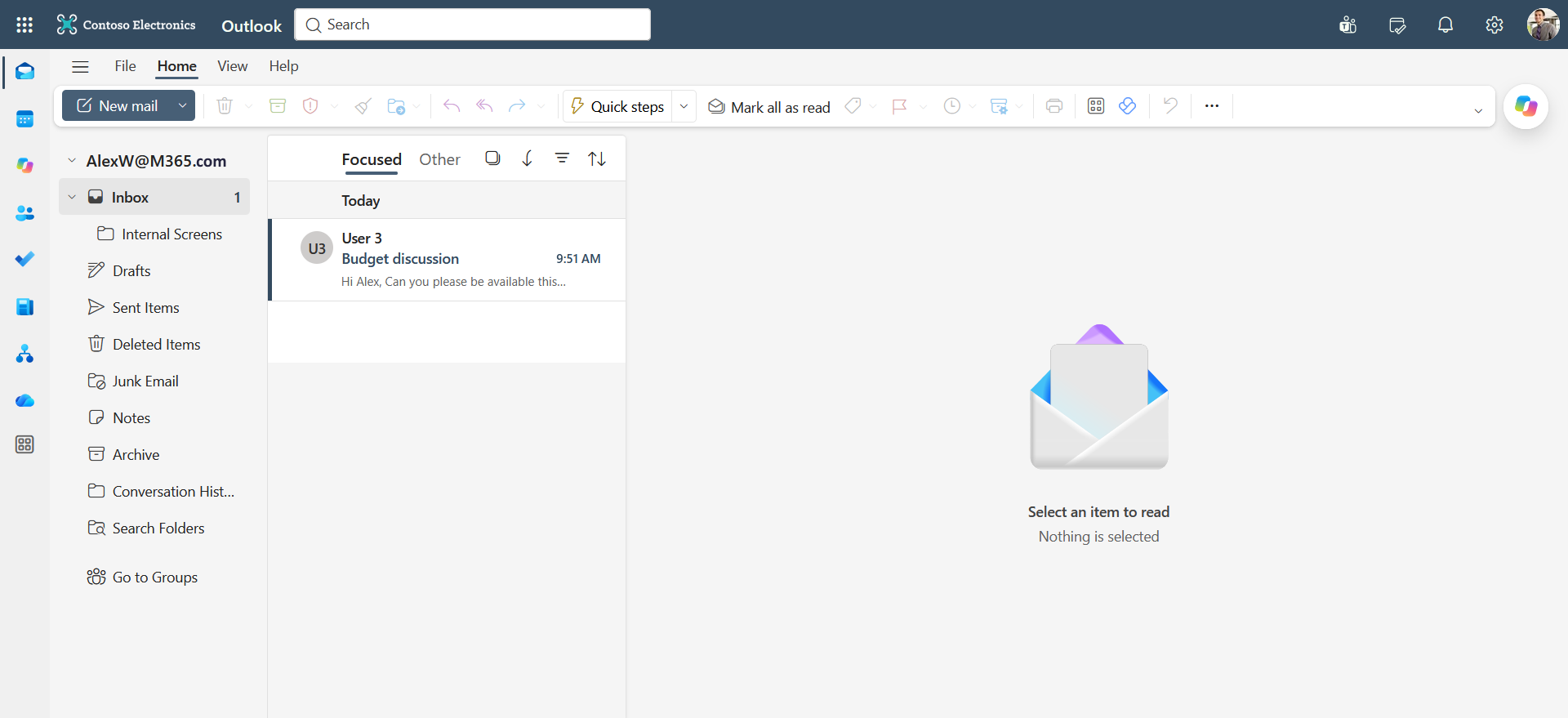
… then is automatically deleted a few moments after the recall.
Removing an allowed tenant
If you want to adjust the configuration and remove one or more tenants from the allow list, you can do so using the following PowerShell command :
Set-CrossTenantRecallConfiguration -AllowedSenderTenantIds @{Remove="11111111-2222-3333-4444-555555555555"}Limitations to know
Cross-tenant recall remains confined to the boundaries of Exchange Online. It doesn’t work for a recall sent to the internet or to an organization outside Exchange Online, and hybrid customers can’t recall a message sent from a cloud mailbox to an on-premises Exchange environment.
warning
Conclusion
You now know how to enable cross-tenant message recall in Exchange Online, and how to manage the list of partner organizations allowed to use it.
Sources
Microsoft Learn - Work with cloud-based message recall
Did you enjoy this post ? If you have any questions, comments or suggestions, please feel free to send me a message from the contact form.
Don’t forget to follow us and share this post.