Type something to search...
How to block a website URL with Defender

How to block a website URL with Defender


Introduction

Web browsing is one of the most common attack vectors in business environments. To strengthen security, Microsoft Defender for Endpoint offers a powerful feature : blocking malicious or non-compliant URLs using indicators. This approach allows administrators to define precise rules to prevent access to dangerous sites, while maintaining flexibility tailored to the organization’s needs.

In last month’s article HERE, it was possible to see in the Purview DSPM for AI console that connections to the AI ​​site Deepseek were made, and it would be best to block it for security reasons.


Prerequisites

A Windows 10/11 PC

  • A Windows 10/11 PC enrolled in Defender.

Required licenses

  • Microsoft 365 Business Premium, Microsoft 365 E3 and Microsoft 365 E5.
  • Microsoft Defender for Endpoint Plan 1 or Microsoft Defender for Endpoint Plan 2 in addition to another license (Business Standard, …).

Administrator role

  • An account with the Global Administrator or Security Administrator role to access the Microsoft Defender Portal.

Step 1 : Sign in to the Microsoft Defender Portal

Sign in to the Microsoft Defender Portal by opening your web browser to https://security.microsoft.com.


Step 2 : Activate Custom network indicators

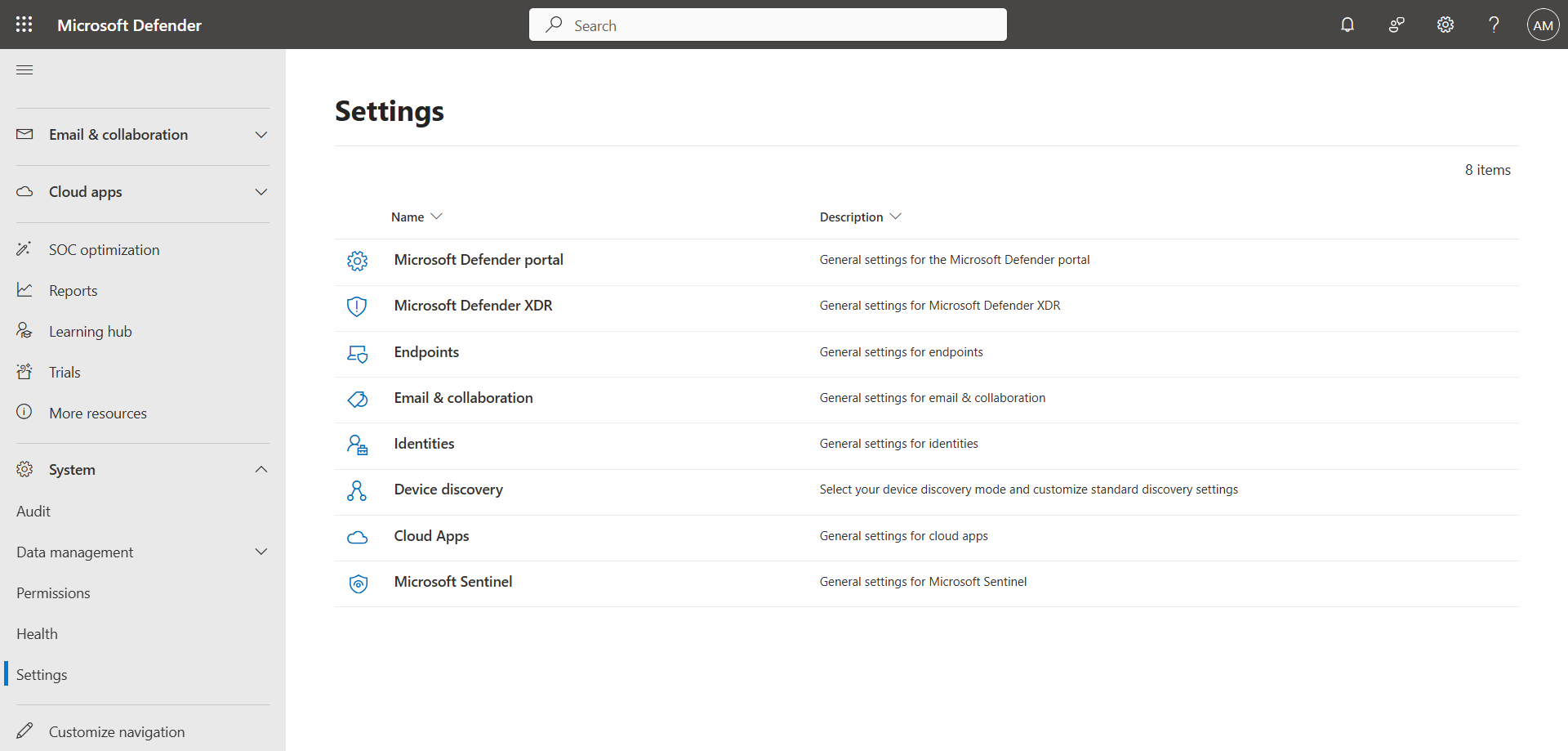
In the left menu, click System, then Settings.
image

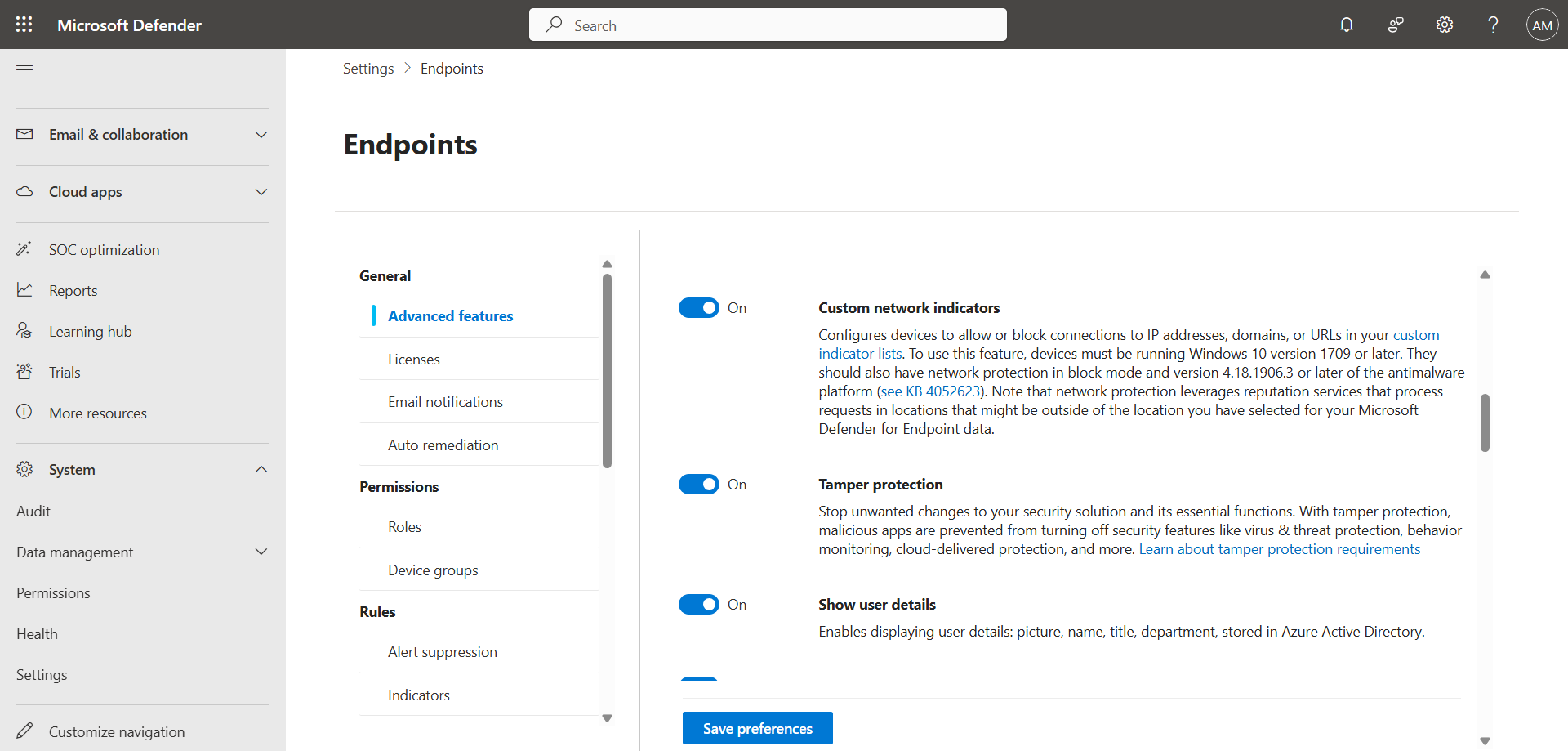
Click Endpoints, then Advanced features, and activate the Custom network indicators switch.
image


Step 3 : Declare the URL to block

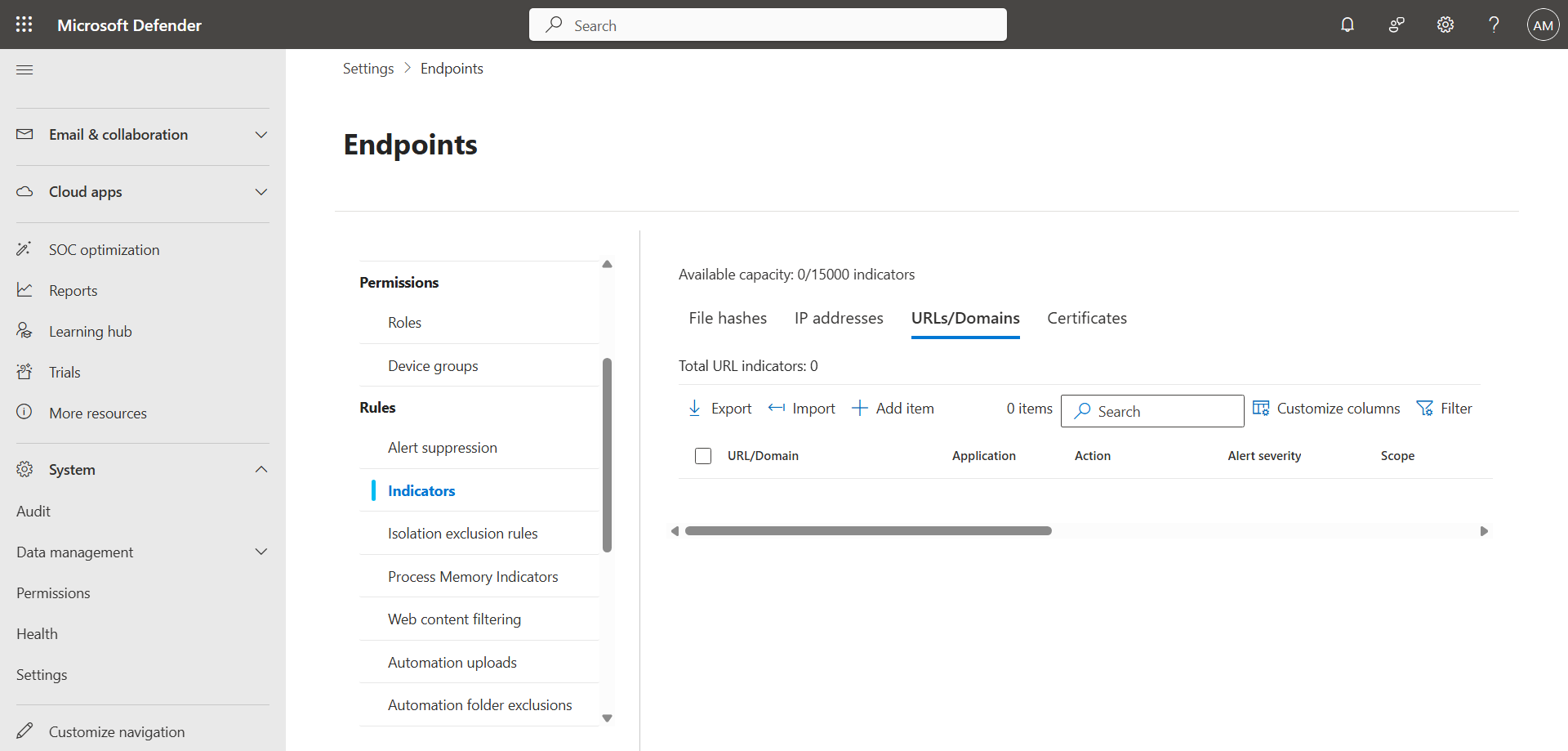
Still in the Endpoints menu, click Indicators, then the ULRs/Domains tab, and Add item to create a new policy.
image

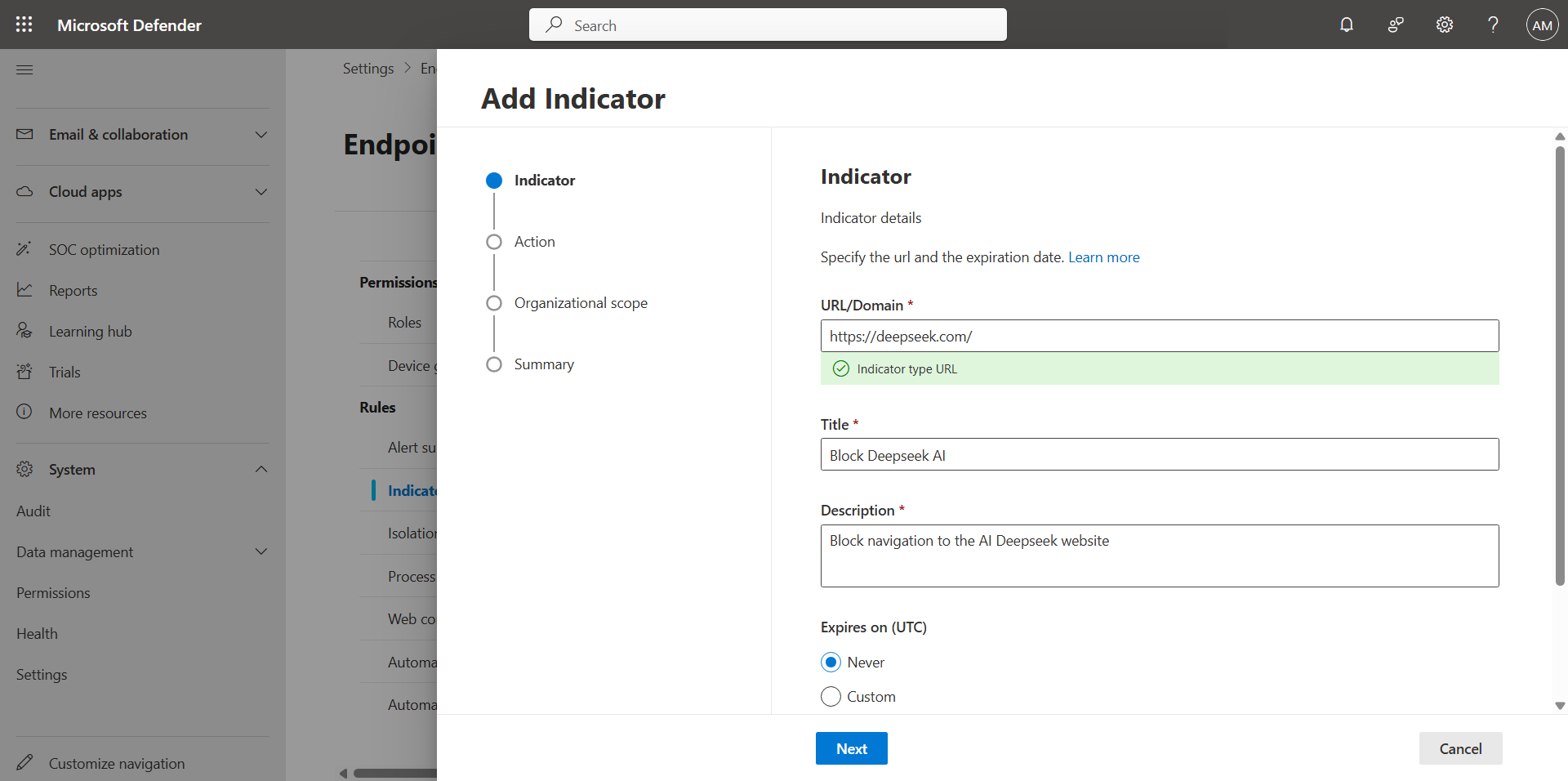
Enter the URL you wish to block and choose whether the policy expires or not.
image

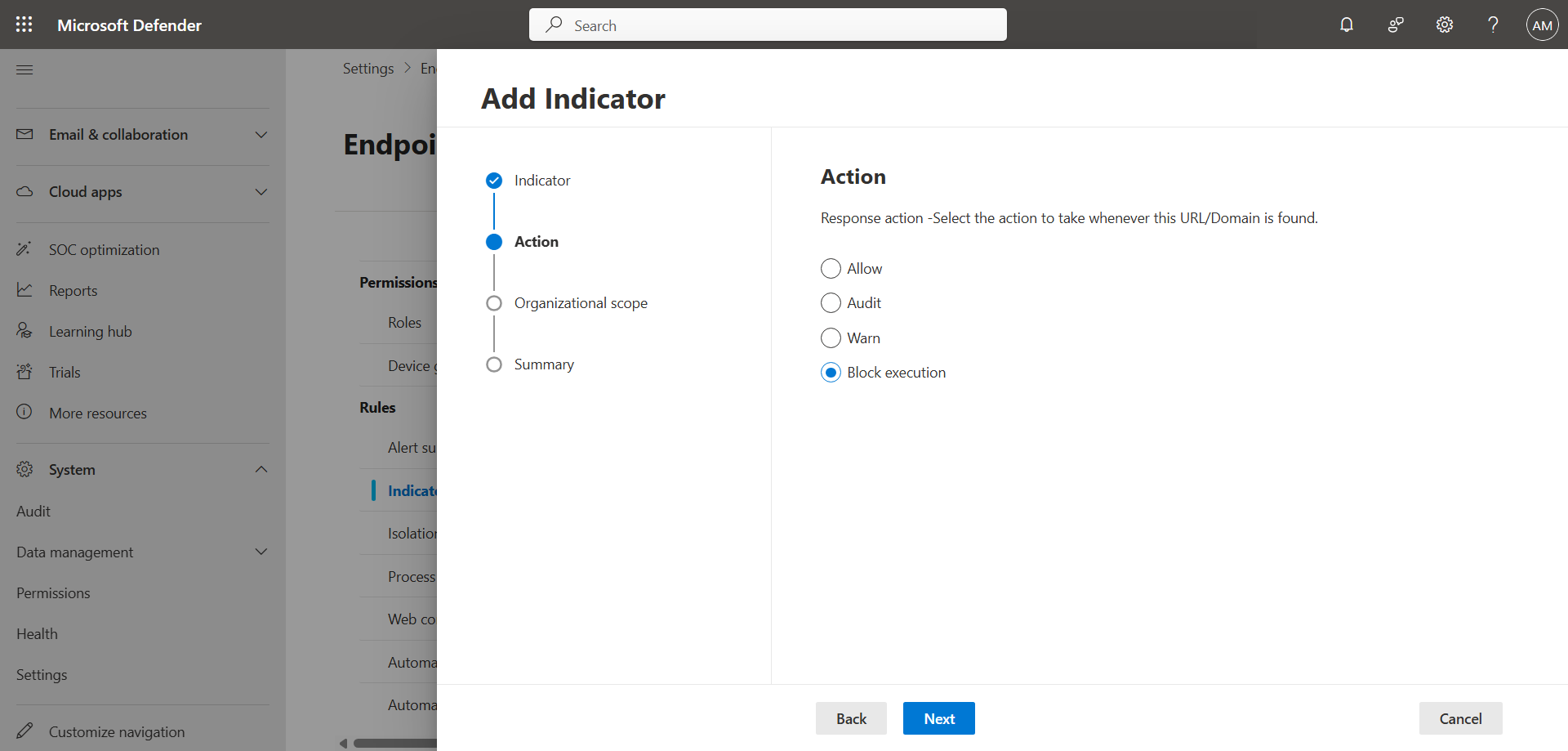
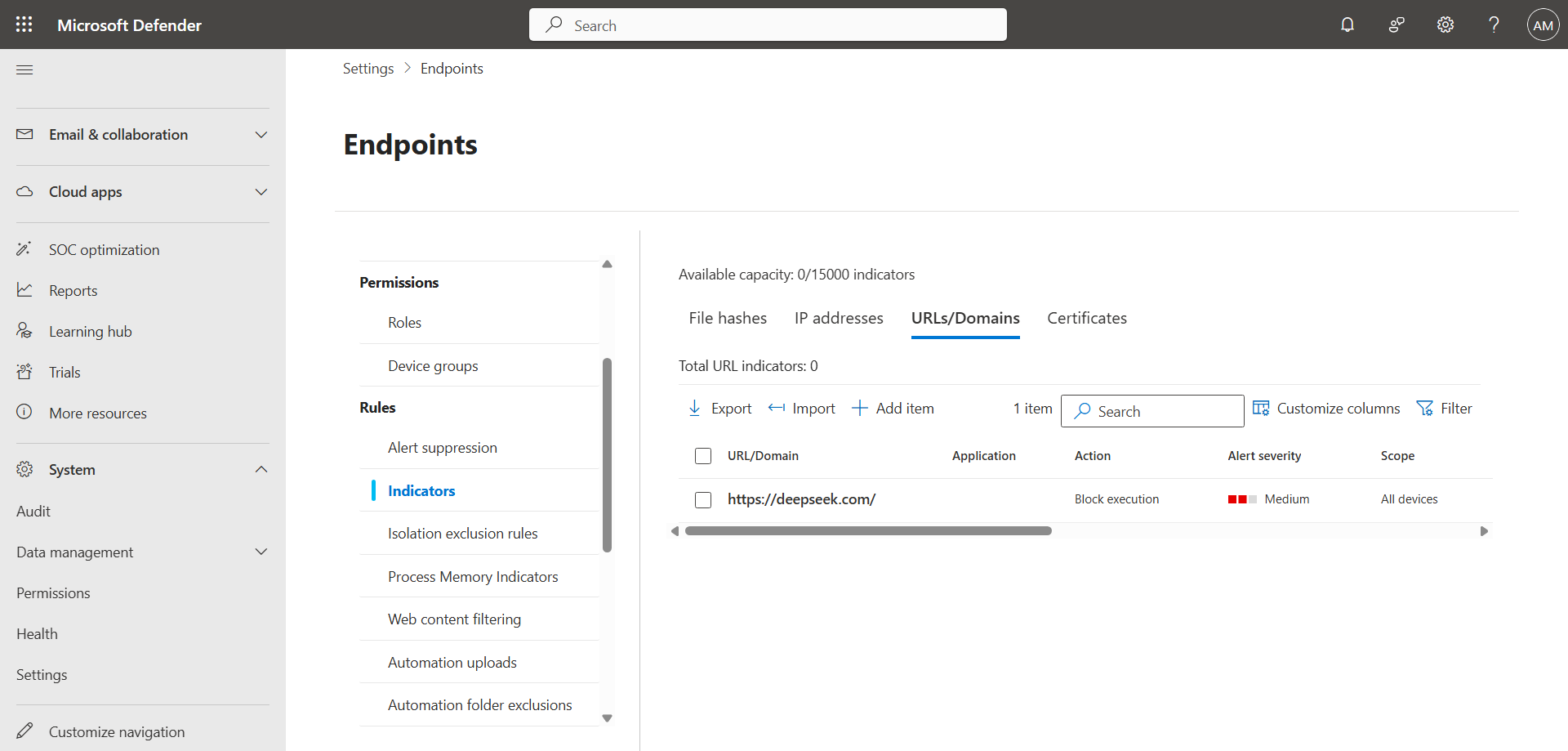
Choose the Block execution action.

image

After a few seconds, the policy is deployed.
image

tip

The policy can take up to 48 hours to take effect, but it took a few hours for me.

Step 4 : Confirm website blocking

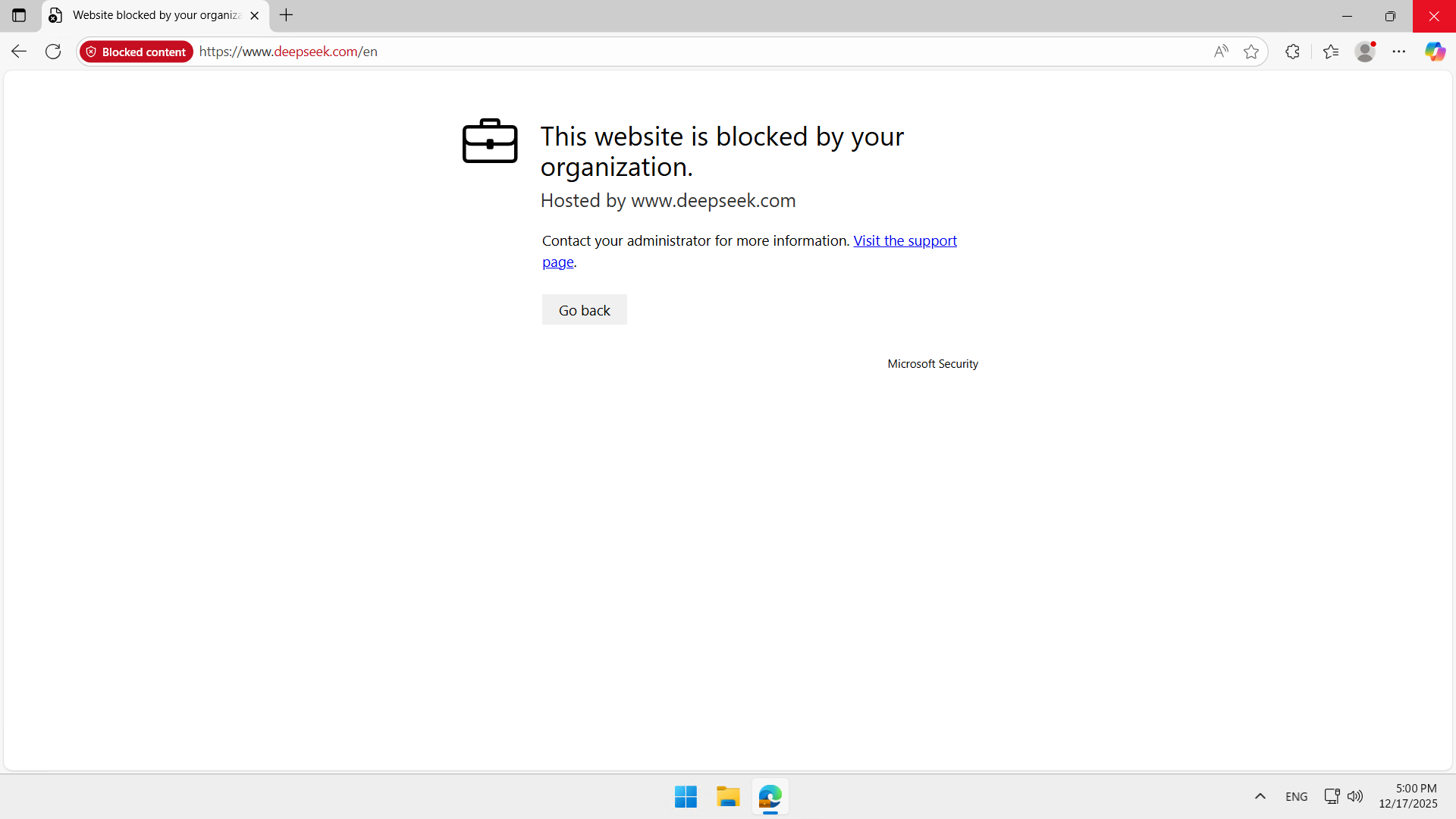
Here on my computer, you can see that the attempt to navigate to the Deepseek AI website is automatically blocked.
image


Step 5 : Let’s analyze the logs

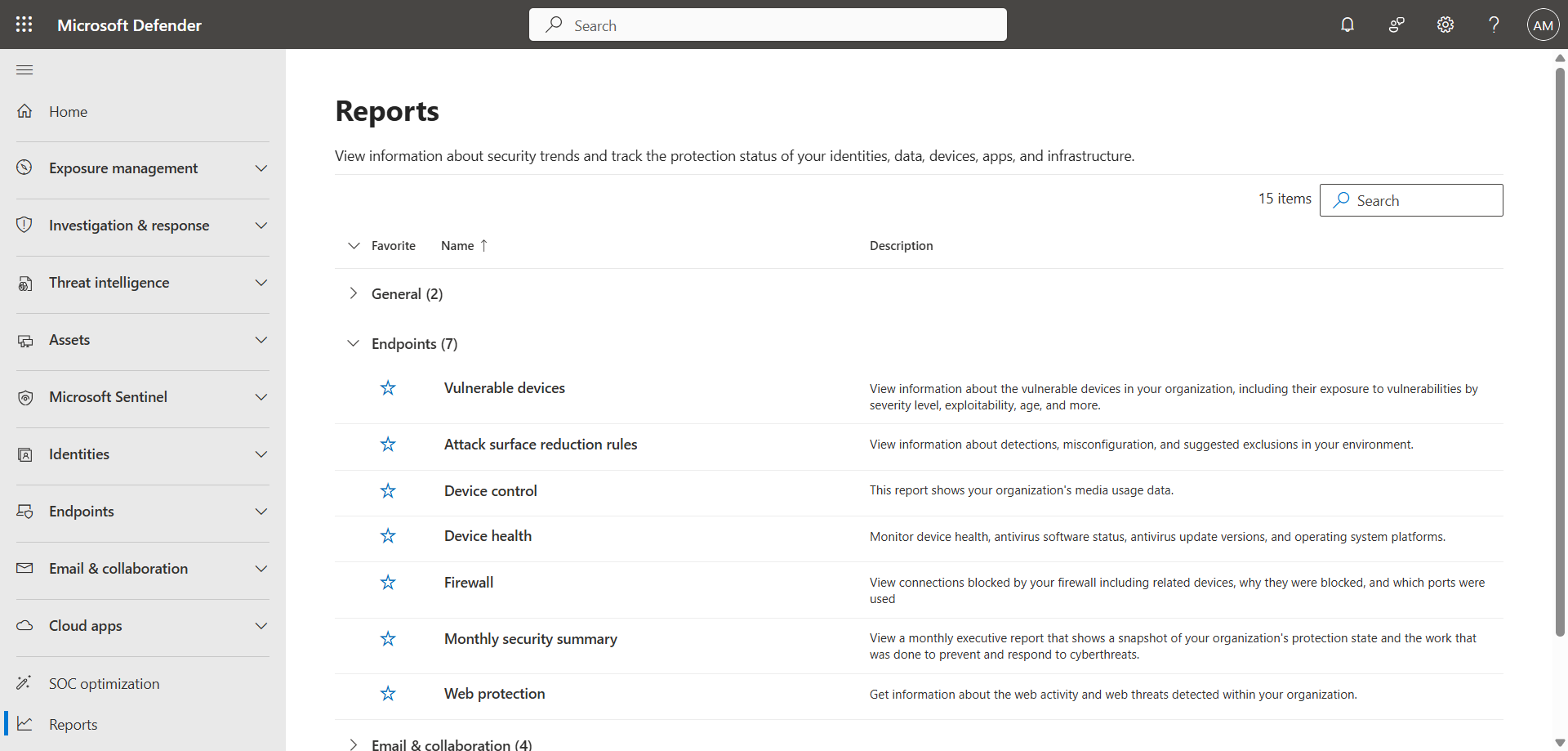
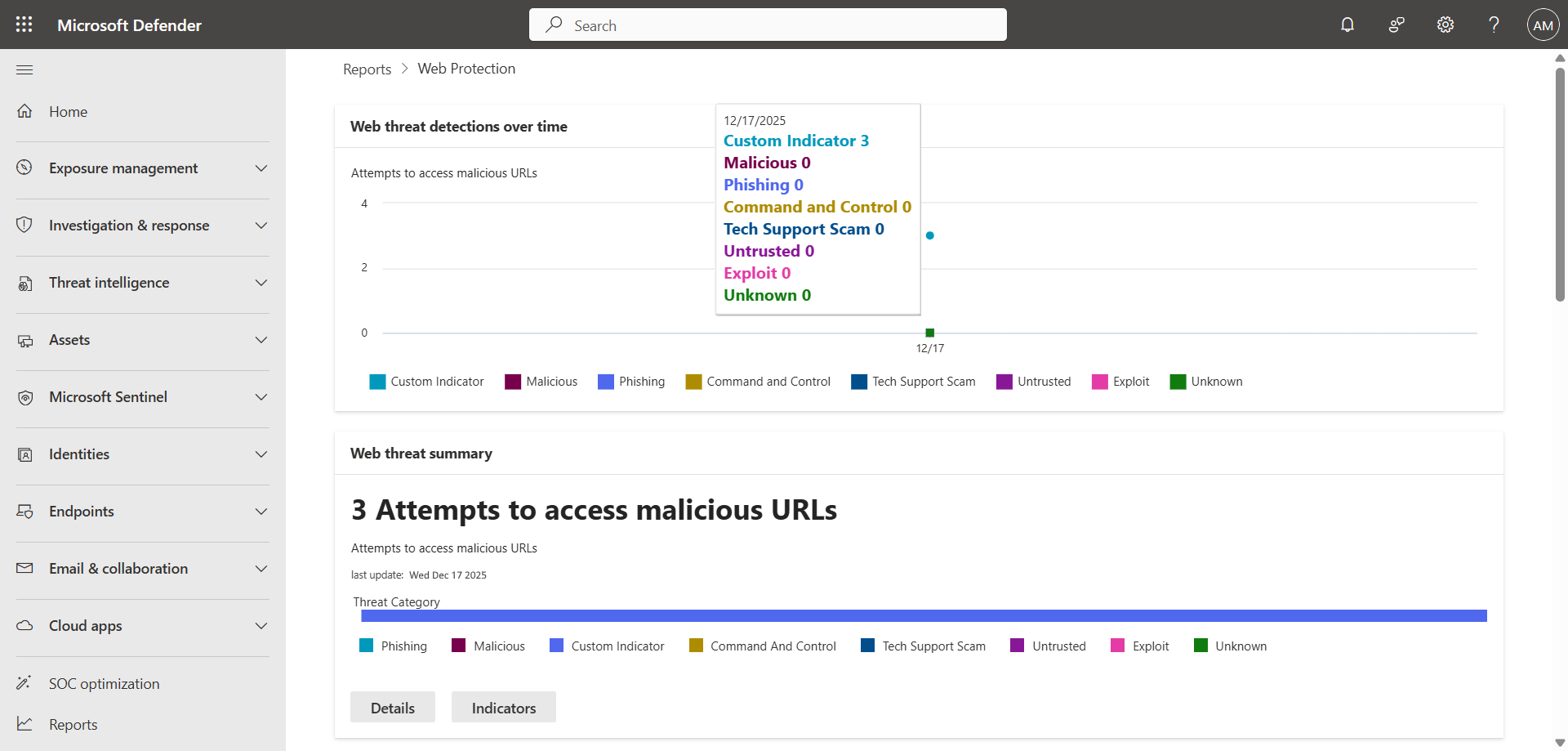
In the left menu, click Reports, then Web protection.
image

We can see here 3 attempts to access Custom Indicators.
image

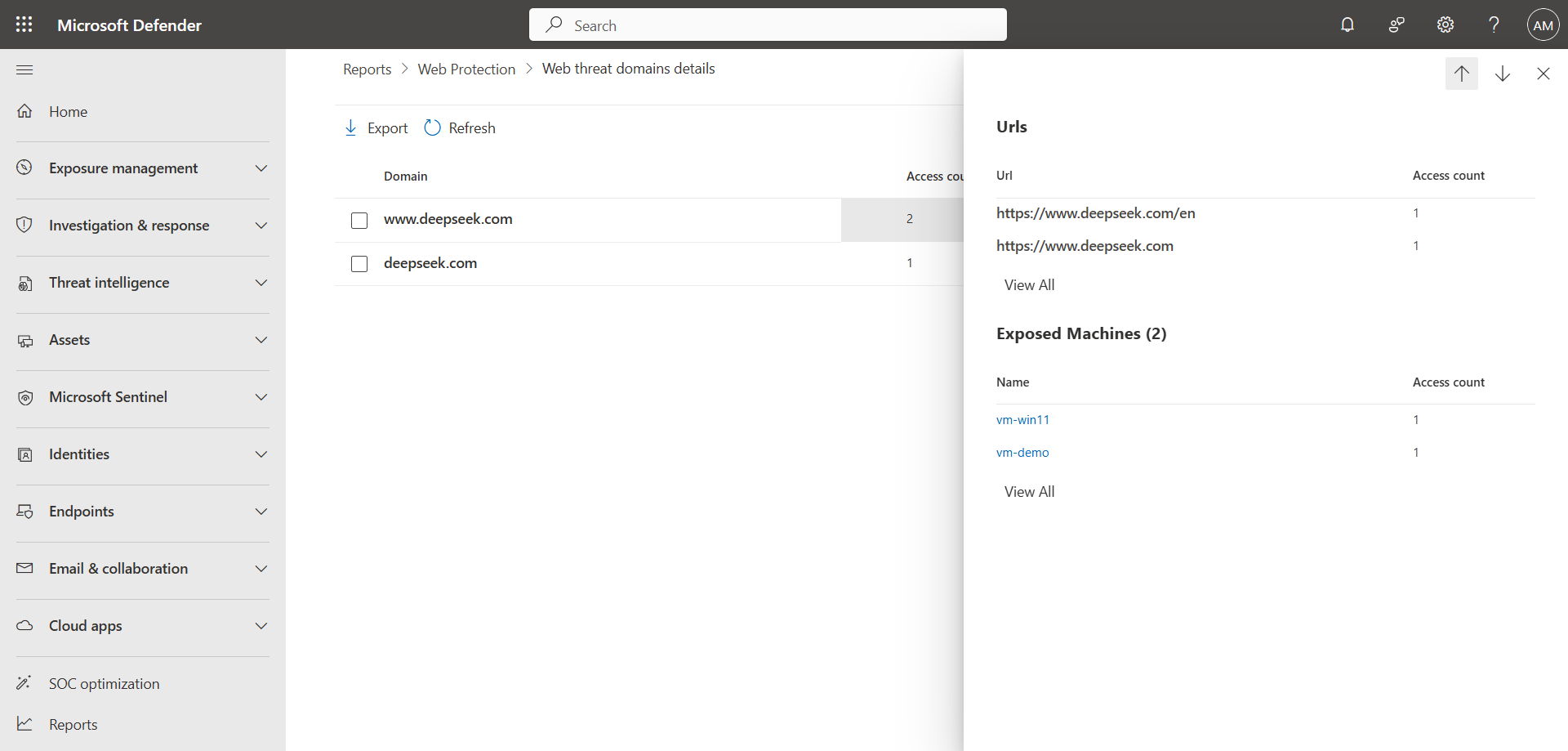
The two PC vm-win11 and vm-demo attempted to access the URL of Deepseek AI.
image


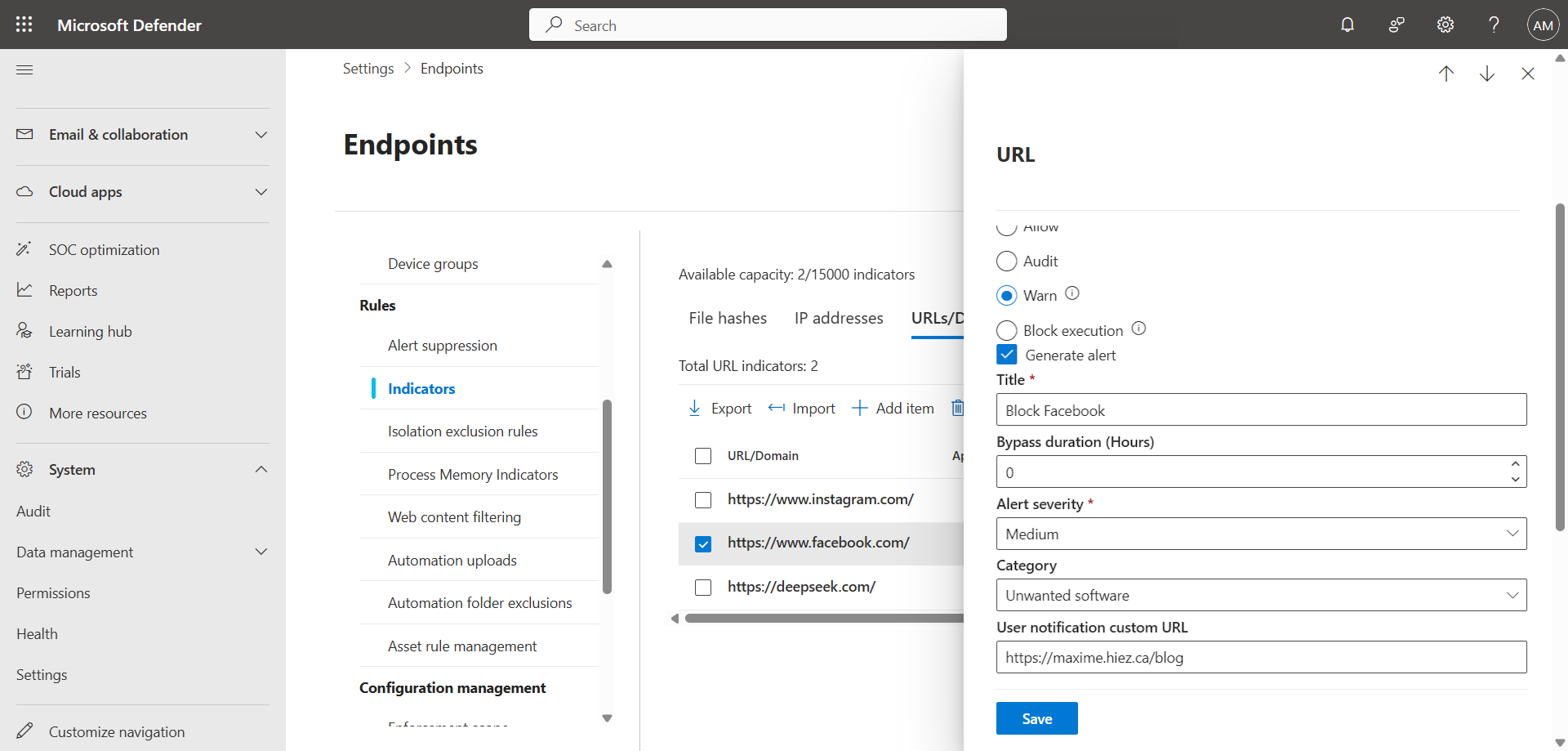
What if I want to allow browsing but display an alert ?

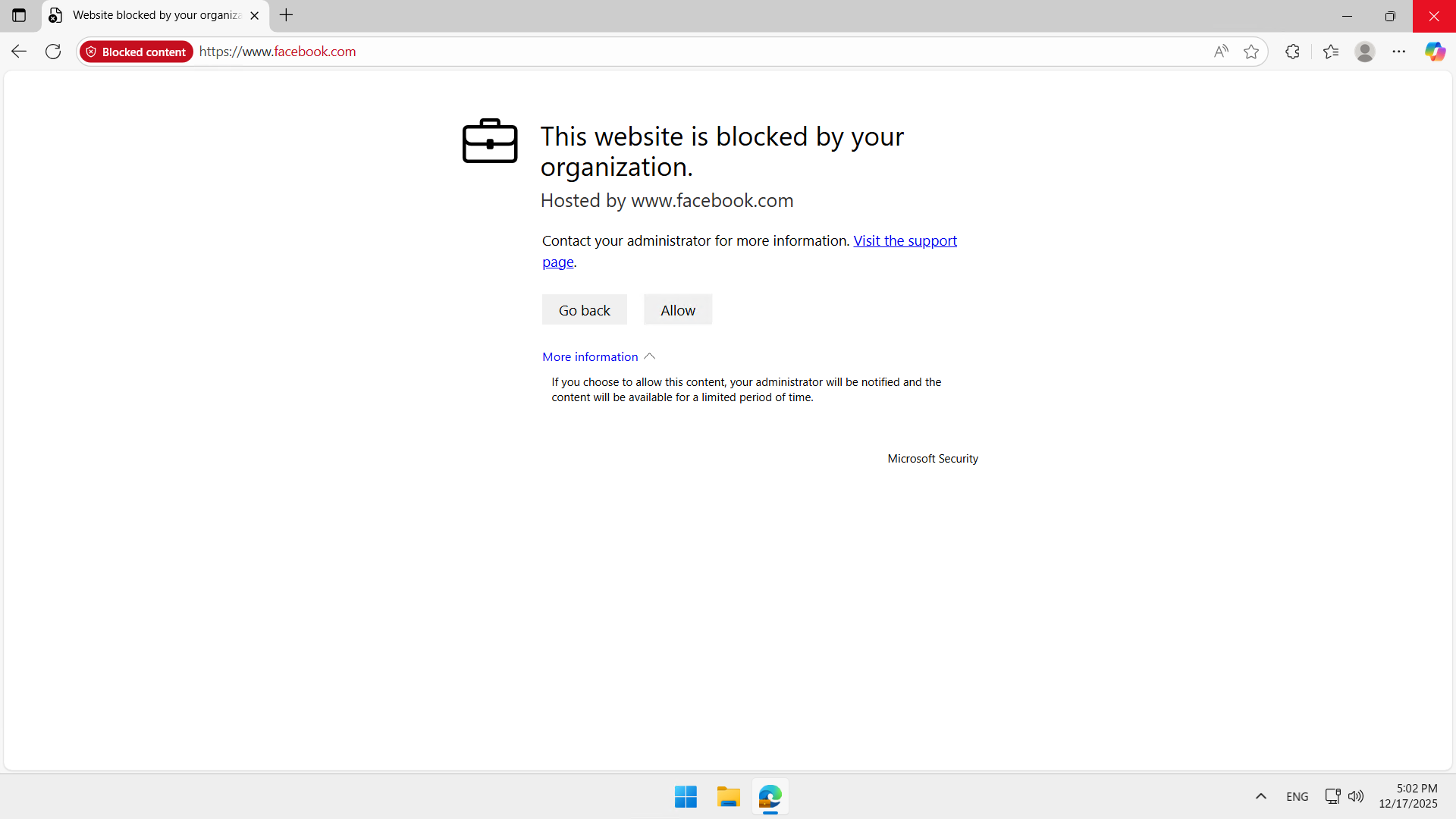
In the URL blocking policy, it’s possible to replace the Block execution action with Warn. Here, we’re applying a policy for the Facebook website.
image

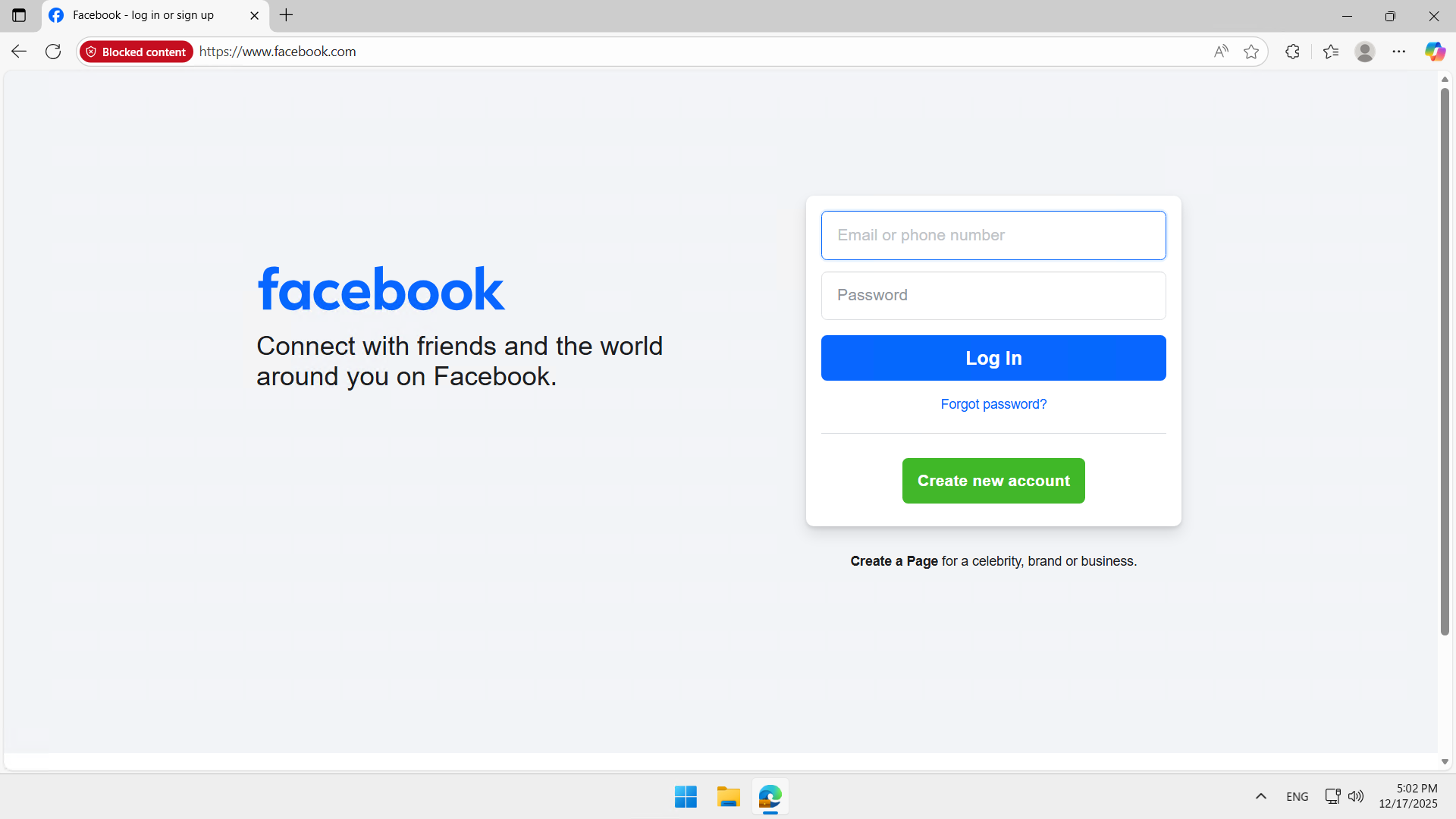
Access is blocked …

image

… but clicking the Allow button bypasses the block.
image

tip

By configuring the User notification custom URL attribute, if the user clicks on Visit the support page, they will be redirected to this URL.

What if I use Google Chrome as my browser?

The settings shown work as is with the Microsoft Edge browser ; by default, Google Chrome will allow you to access blocked websites. You can deploy the Microsoft Defender Browser Protection extension via Intune if you want your settings to apply to it. I will write an article about this soon.


Conclusion

You now know how to block website URLs via Defender.


Sources

Microsoft Learn - Indicators for IPs and URLs/domains


Did you enjoy this post ? If you have any questions, comments or suggestions, please feel free to send me a message from the contact form.

Don’t forget to follow us and share this post.
Related Posts

Email verification of external Teams participants

Email verification of external Teams participants

Introduction Microsoft Teams Premium introduces a new feature to enhance the security and reliability of your meetings: email verification for external participants. This feature allows mee

Read More
How to activate Microsoft 365 Passkey in Entra ID

How to activate Microsoft 365 Passkey in Entra ID

Introduction Microsoft 365 Passkey is an authentication method that replaces passwords with more secure options like facial recognition, fingerprint, or a PIN.Prerequisites **<

Read More
How to sign in with Passkey to Microsoft 365

How to sign in with Passkey to Microsoft 365

Introduction Microsoft 365 Passkey is an authentication method that replaces passwords with more secure options like facial recognition, fingerprint, or a PIN.Prerequisites **<

Read More
How to enable LAPS on the MTR Admin account via Intune

How to enable LAPS on the MTR Admin account via Intune

Introduction Microsoft's LAPS (Local Administrator Password Solution) is a free tool designed to improve password security for local administrator accounts on workstations, servers and

Read More
Impact analysis of Entra conditional access policies

Impact analysis of Entra conditional access policies

Introduction Conditional access in Entra is a security policy that allows administrators to control access to applications and resources based on specific conditions. These conditions can i

Read More
How to create a Windows local admin account via Intune LAPS

How to create a Windows local admin account via Intune LAPS

Introduction I wrote an article last February on how to replace the password of your MTR's local account using LAPS (Local Administrator Password Solution) in Intune. I concluded my article

Read More
New security approach for non-compliant emails

New security approach for non-compliant emails

Introduction Microsoft has announced a major update to Defender for Office 365 that strengthens email security by improving the handling of non-RFC compliant emails. This initiative is

Read More
Blocking screenshots during Teams meetings

Blocking screenshots during Teams meetings

Introduction Microsoft Teams continues to strengthen the privacy and security of online meetings. Starting in July 2025, a new feature will be rolled out to prevent screenshots during meeti

Read More
"Anti-Tampering" certification for Defender for Endpoint (2025)

"Anti-Tampering" certification for Defender for Endpoint (2025)

Introduction Microsoft recently announced that Microsoft Defender for Endpoint has successfully passed the 2025 anti-tampering tests conducted by AV-Comparatives, a recognized independe

Read More
Entra Private Access for Domain Controllers

Entra Private Access for Domain Controllers

Introduction Microsoft has announced the Public Preview of Microsoft Entra Private Access for Active Directory Domain Controllers, a major step forward in strengthening the security of

Read More
How to activate Defender EDR in "Block Mode"

How to activate Defender EDR in "Block Mode"

Introduction In a context of constantly evolving cyber threats, antivirus solutions are no longer sufficient to effectively protect workstations. Microsoft Defender for Endpoint's *Block

Read More
How to enable DSPM for AI with Purview

How to enable DSPM for AI with Purview

Introduction With the rise of generative AI models, the phenomenon of Shadow AI (the use of artificial intelligence tools and services not approved or controlled by organizations) is incr

Read More