How to enable DLP for cloud storage with Purview
- Maxime Hiez
- Purview , Tutorial
- 06 Jan, 2026
Introduction
A few months ago, I showed you how to enable DLP for Outlook with Microsoft Purview to prevent accidental or malicious data leaks (Data Loss Prevention). Purview is a comprehensive and extensive data protection solution, and I’m exploring it little by little. Continuing with the idea of talking to you about DLP, here this time is how to protect the copy of financial data to an external cloud storage solution.
Check the article from July 2025 HERE.
Prerequisites
Required licenses
- Microsoft 365 E5.
- Microsoft Purview Suite in addition to another license (E3, Business, …).
Administrator role
- An account with the Global Administrator or Compliance Administrator role to access the Microsoft Purview Portal.
Step 1 : Sign in to the Microsoft Purview Portal
Sign in to the Microsoft Purview Portal by opening your web browser to https://purview.microsoft.com.
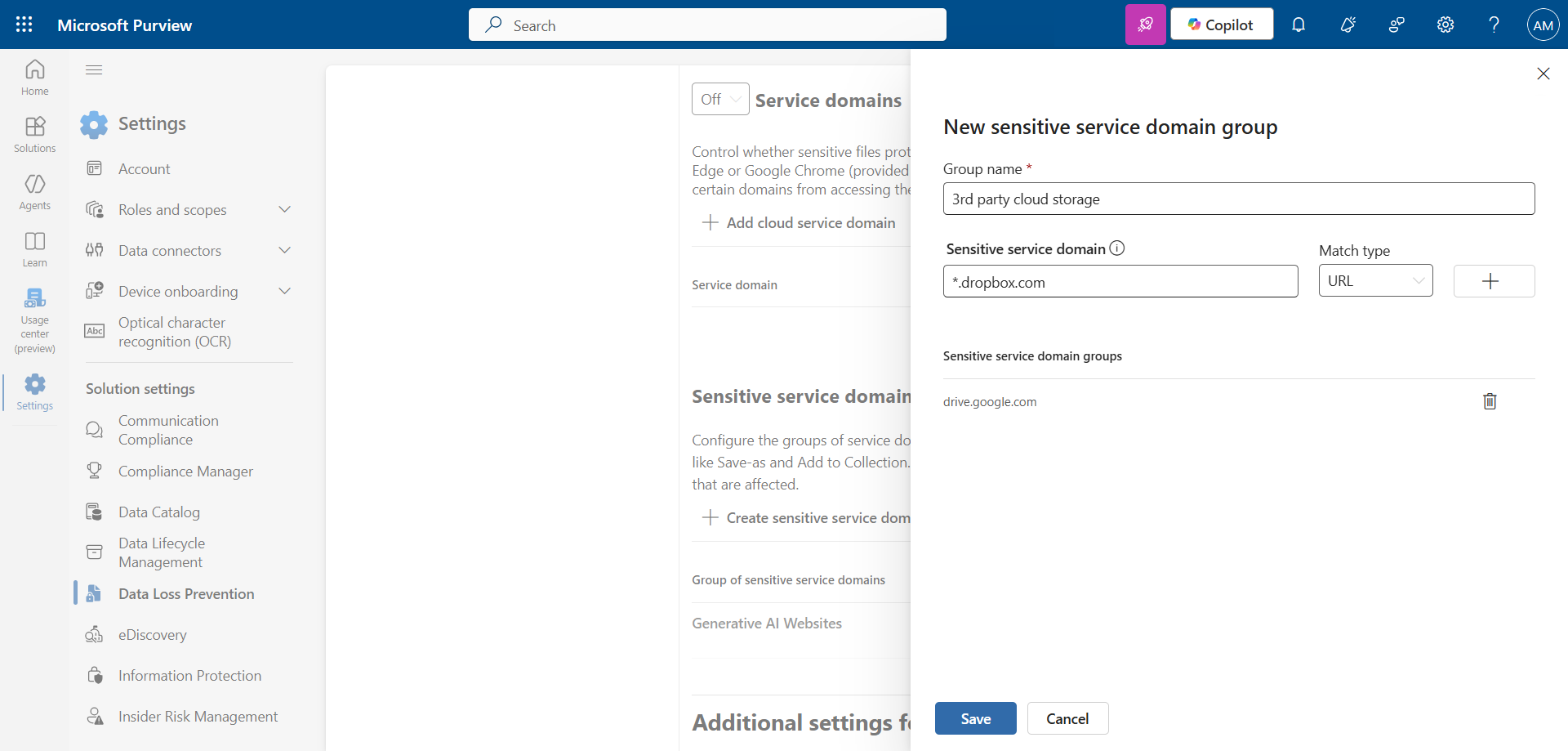
Step 2 : Declare cloud storage sites to block
In the left menu, click Settings, then Data Loss Prevention.
Click Browser and domain restrictions to sensitive data and create the list of sites to protect.
Step 3 : Create a DLP policy for devices
In the left menu, click Solutions, then Data Loss Prevention.
Click Create policy.
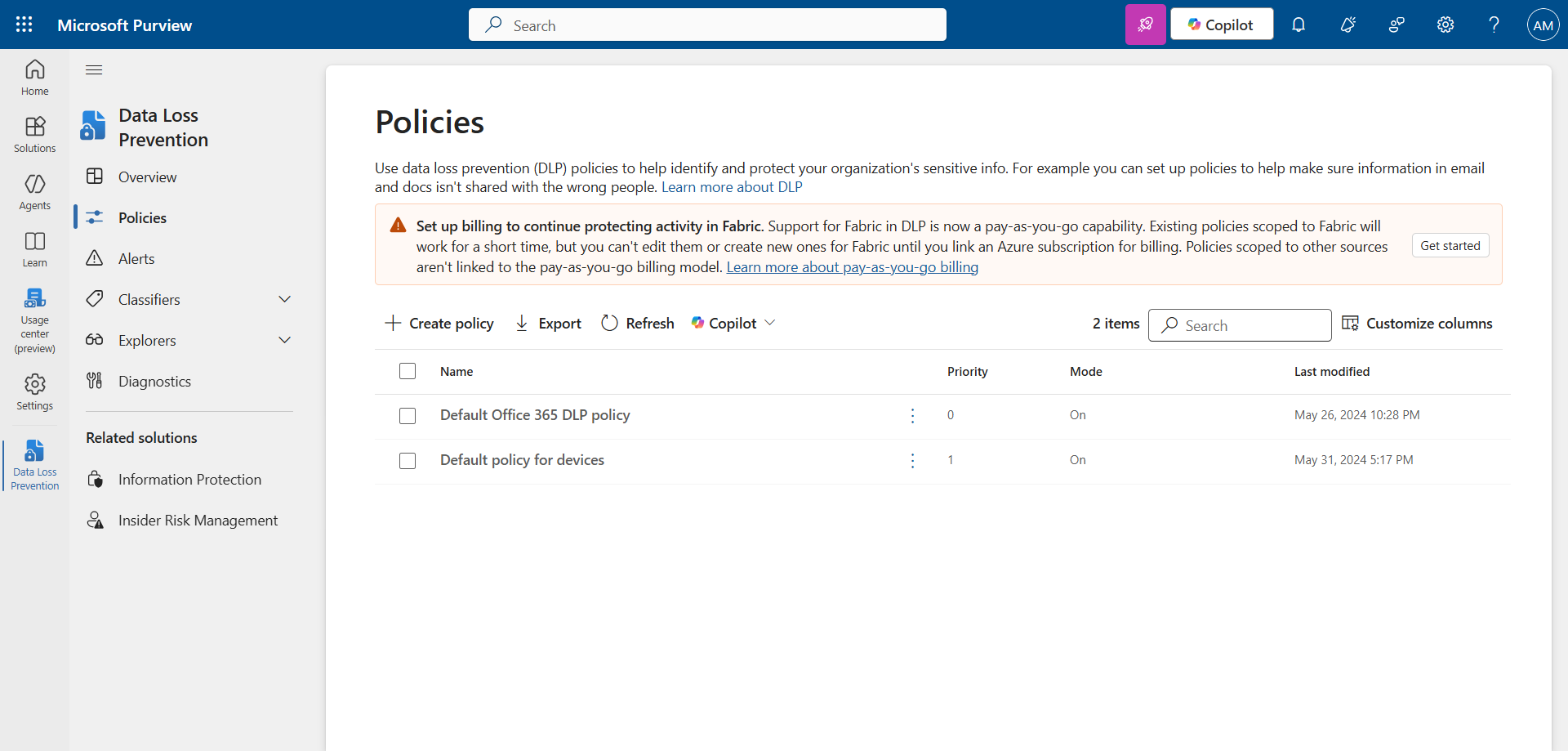
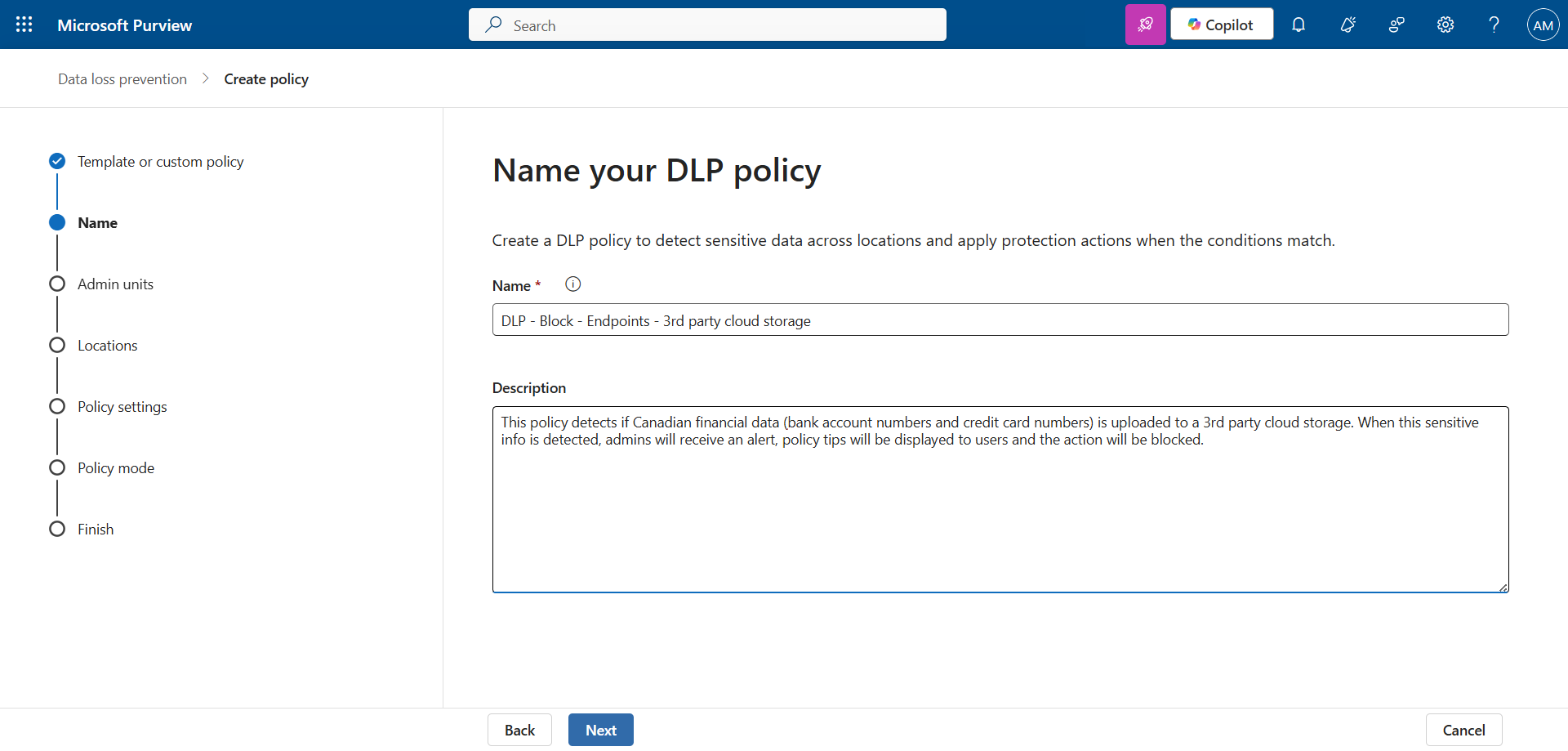
Set a name and description.
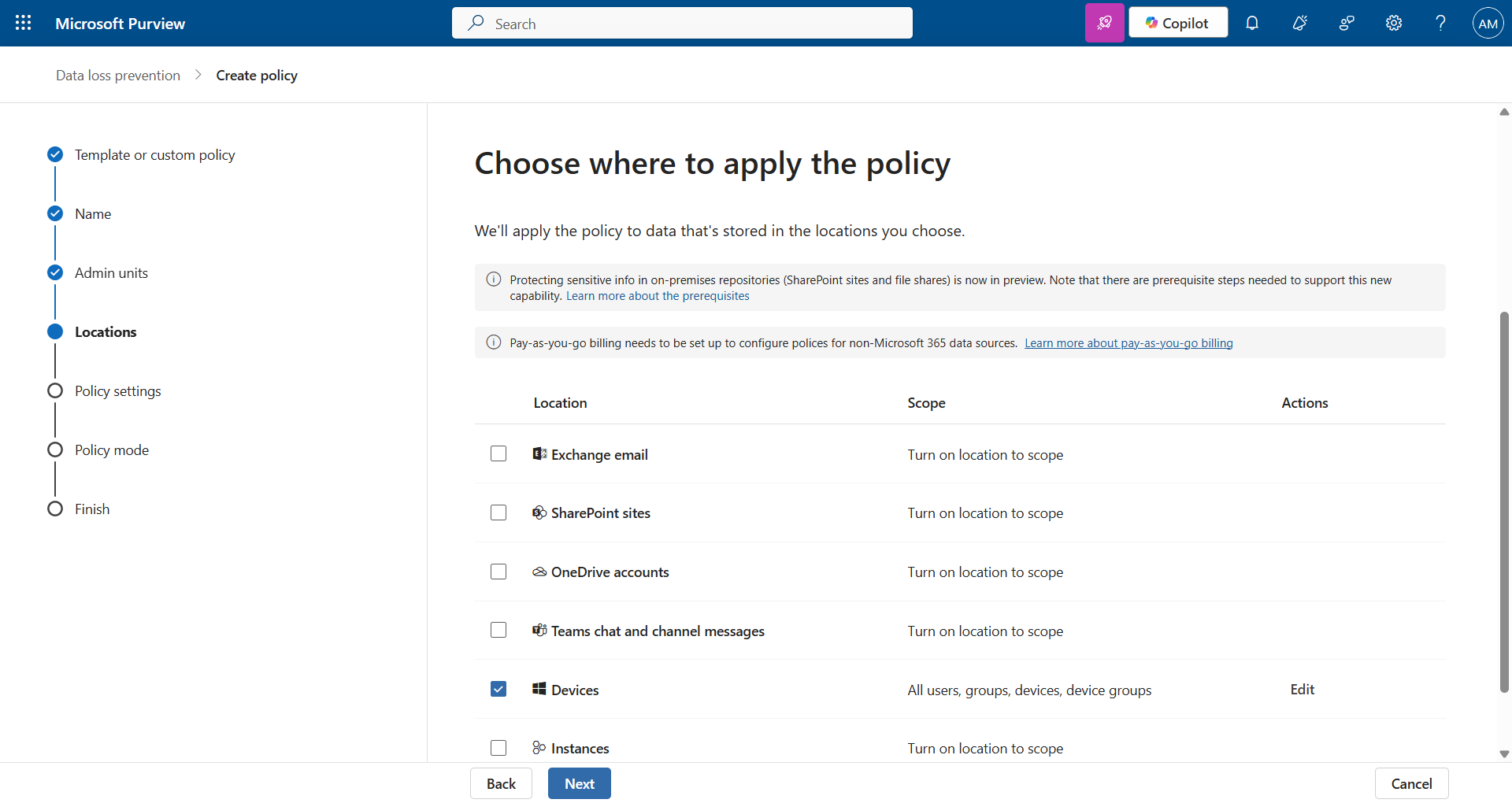
Apply this policy for devices.
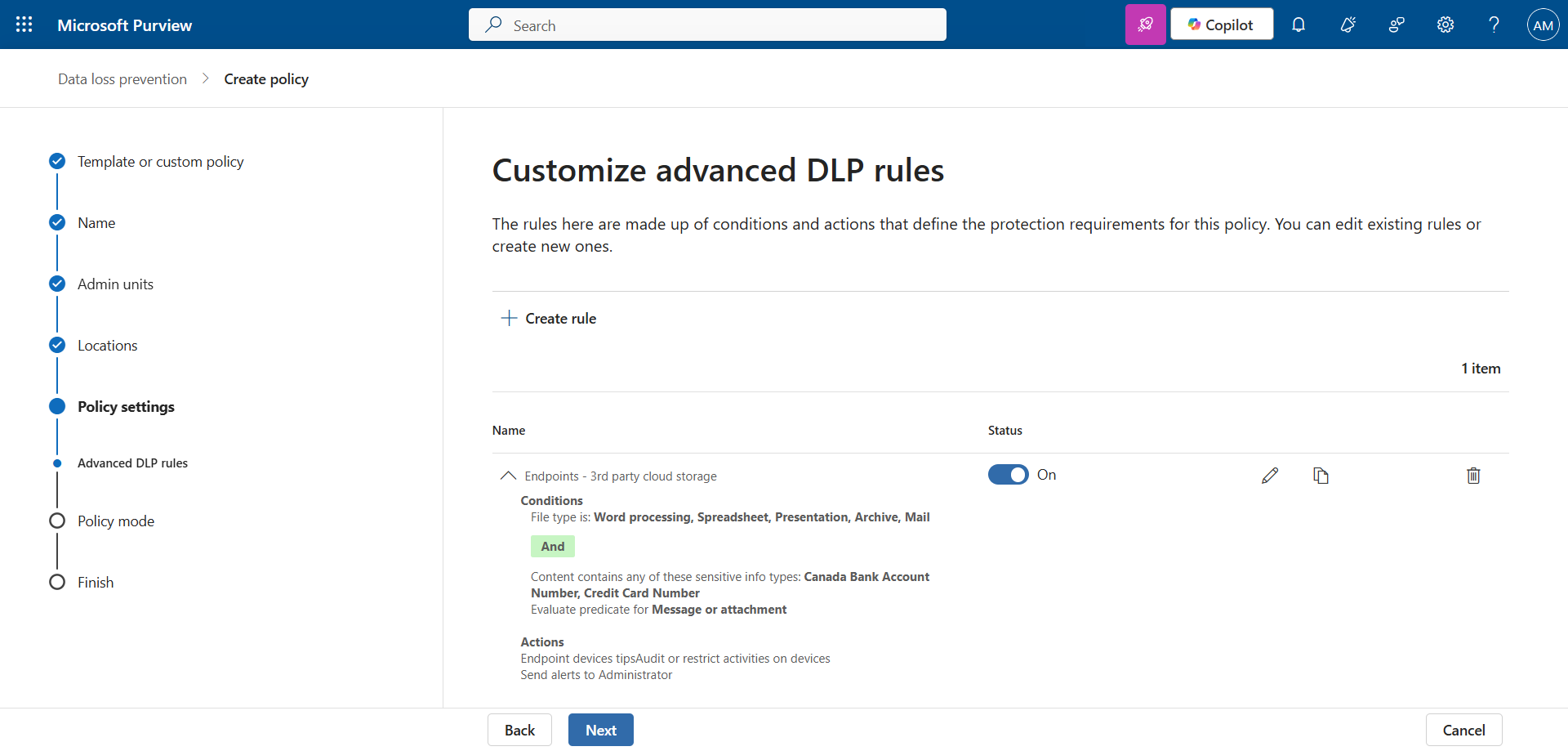
Configure the various data type attributes and notifications. In my example, I chose an existing type (Canadian financial data).
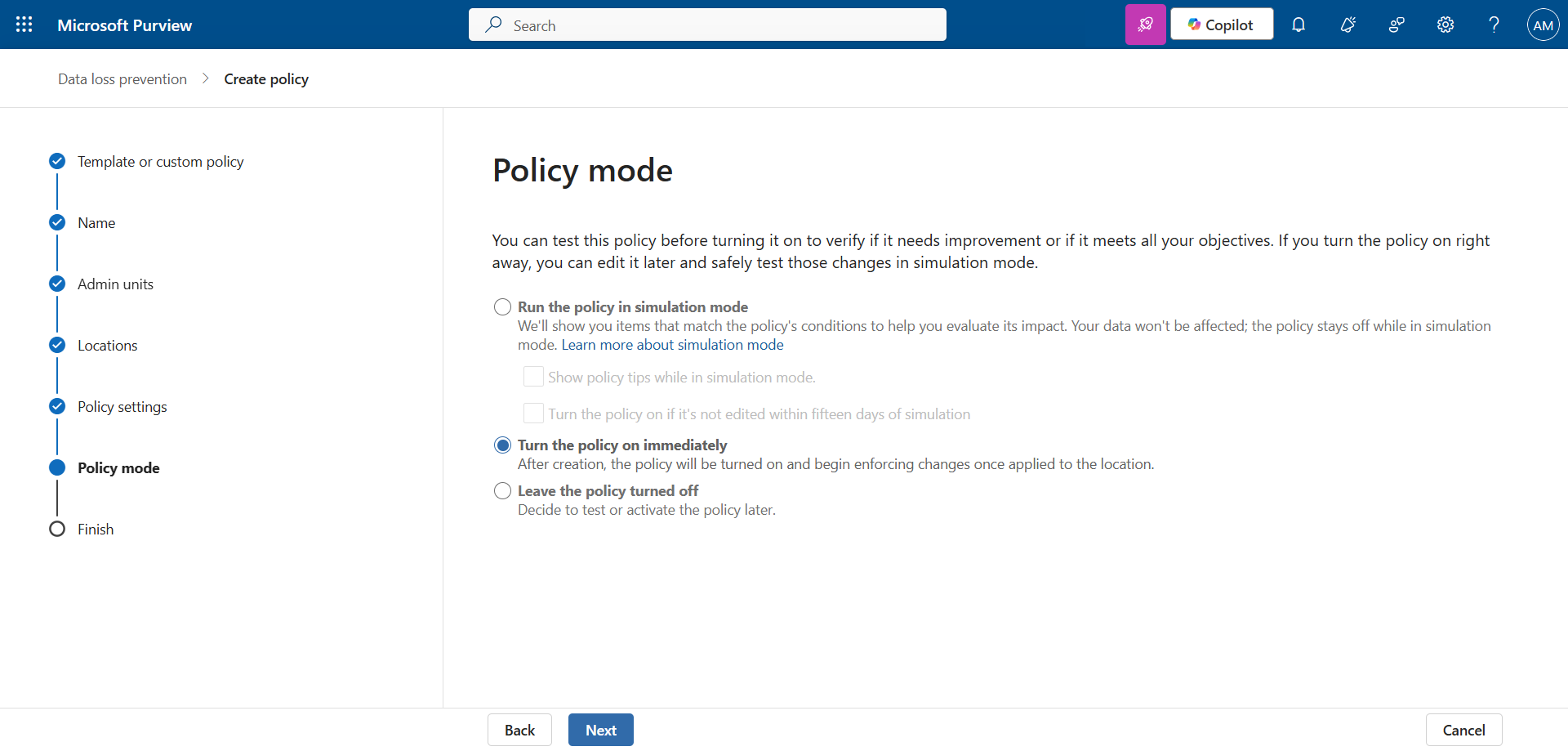
Enable the policy to put it into production.
note
Step 4 : Copy financial data to validate the policy
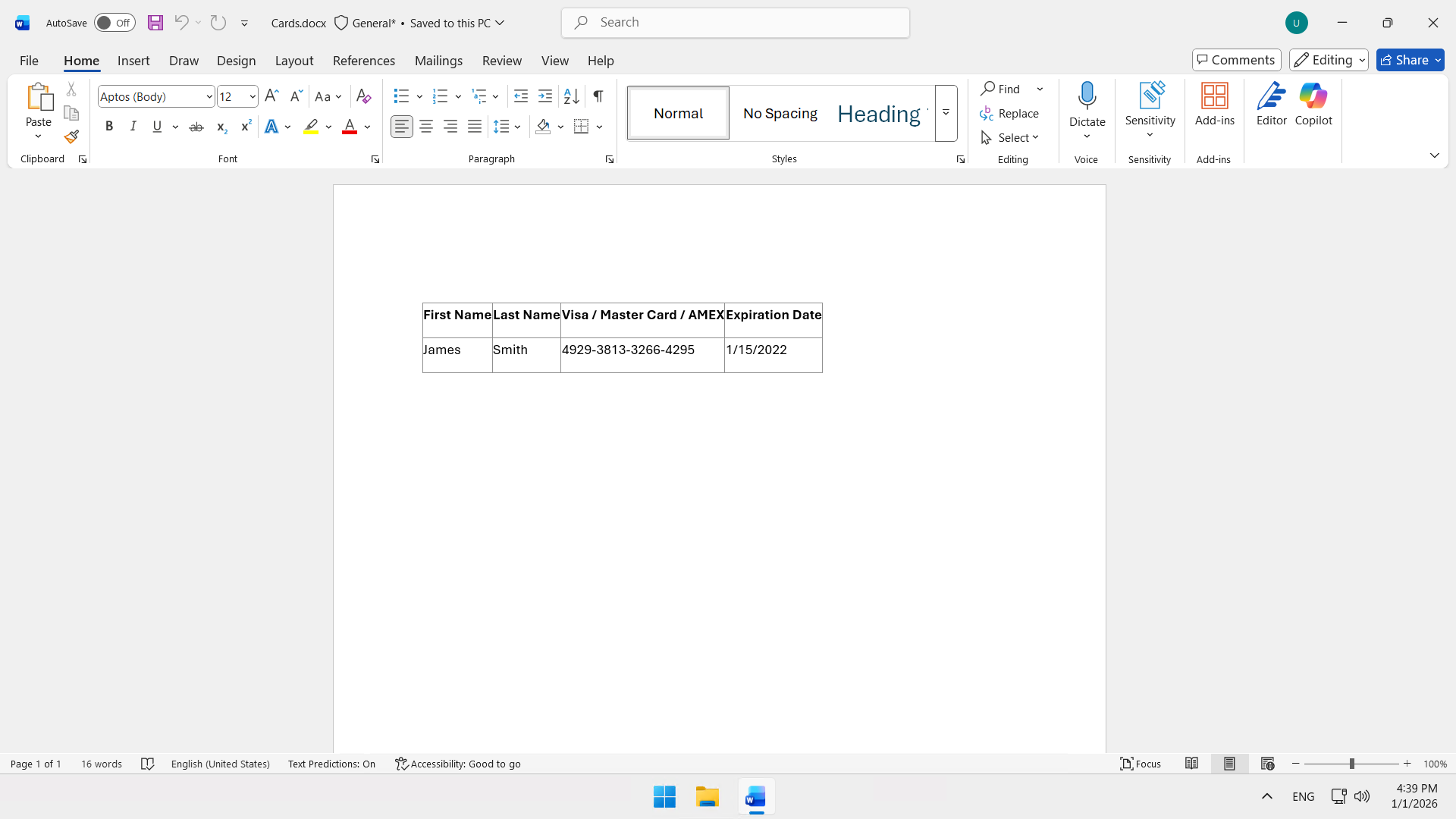
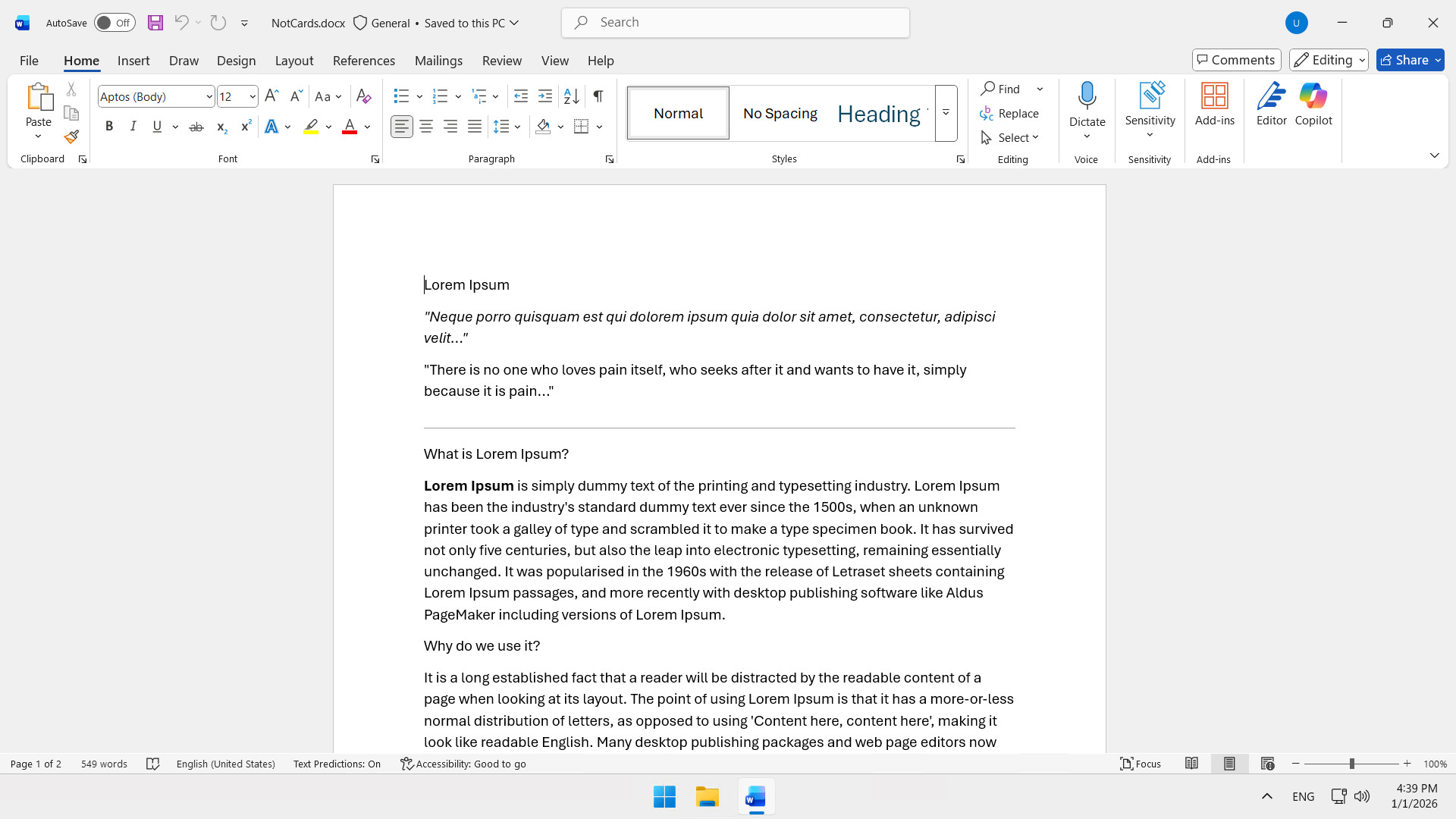
I created two Word files :
- Cards.docx containing a (fake) credit card
- NotCards.docx containing non-sensitive text
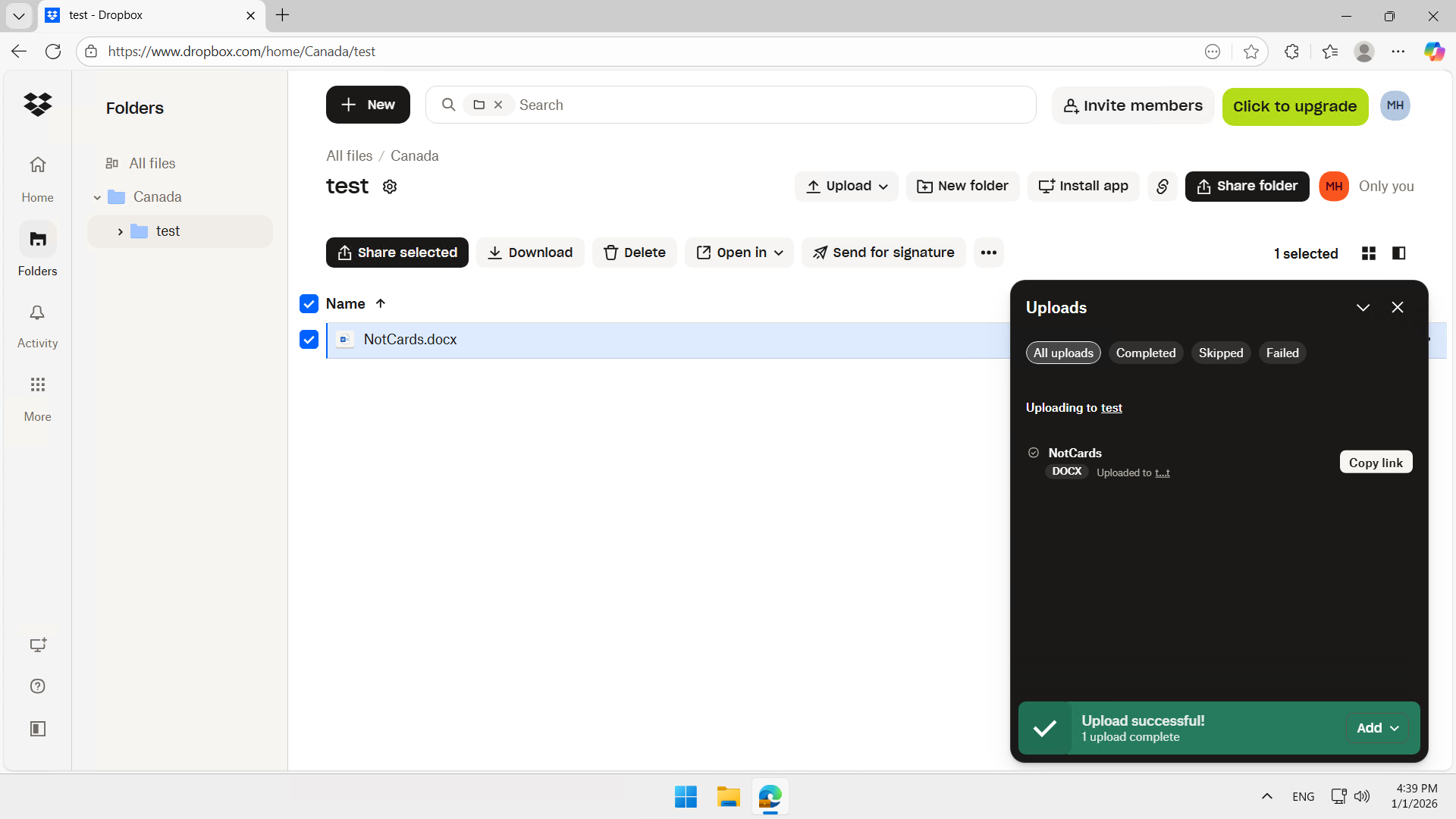
After a few hours, try copying NotCards.docx to Dropbox or any other cloud storage service you specified in step 2.
You should see that the copy was successful.
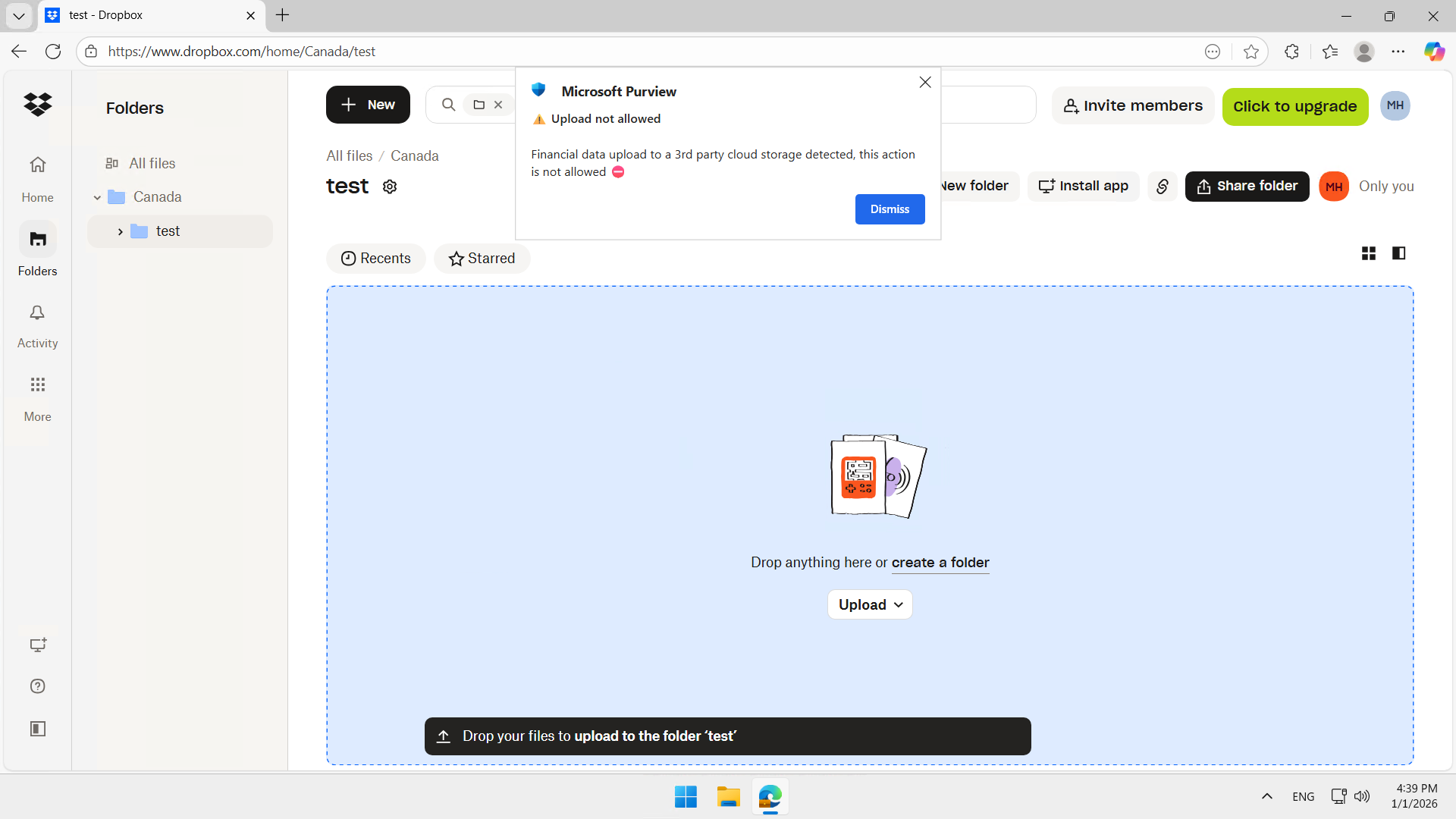
However, the attempt with Cards.docx is blocked. The banner configured in the policy is displayed at the top of the browser warning that this is data that cannot be uploaded.
Step 5 : Receive the notification
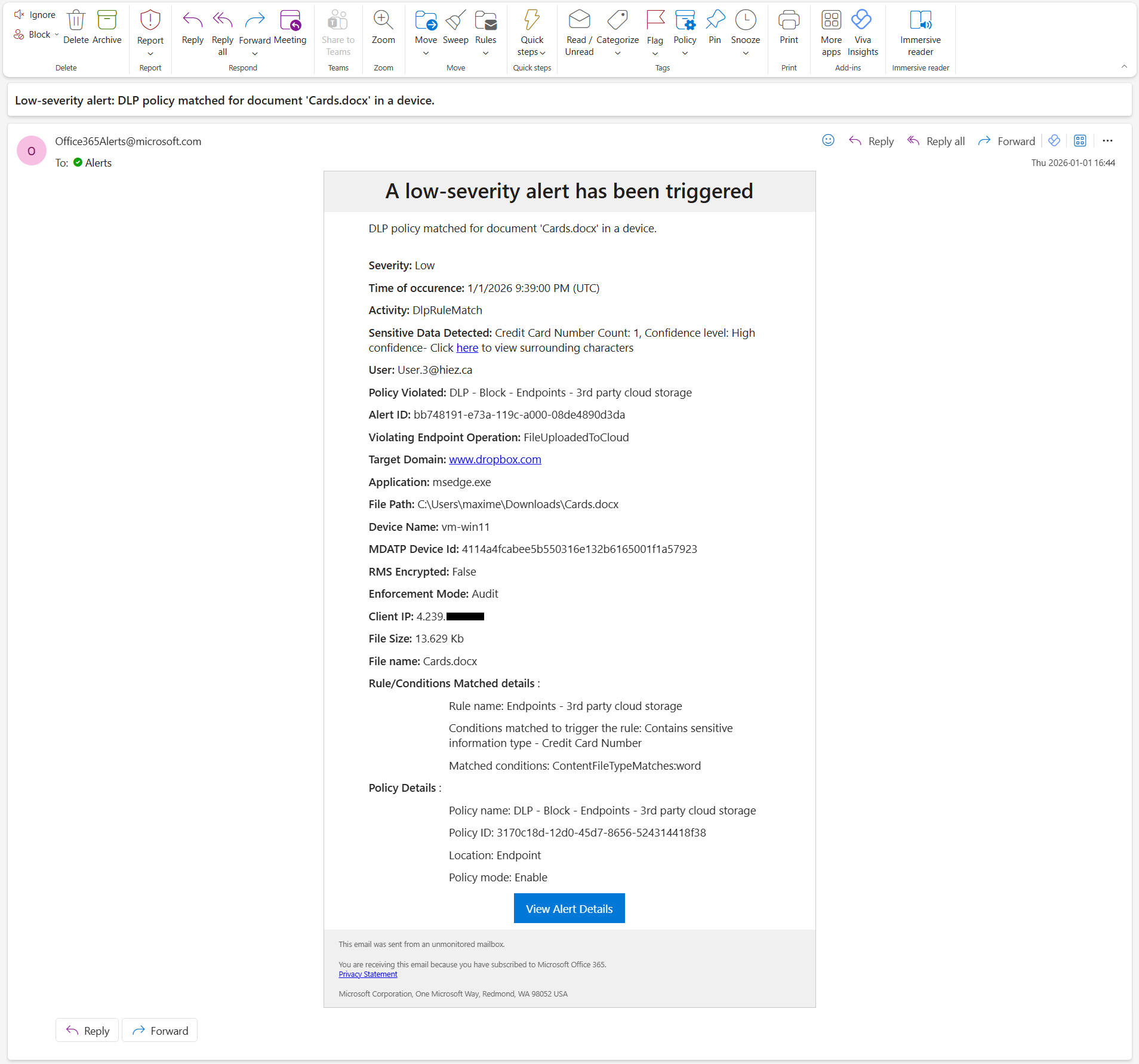
If you have configured notifications, an email is sent to the designated people within the next few seconds.
Conclusion
With Microsoft Purview DLP, organizations can automatically detect, monitor, and block unauthorized sharing of critical data, such as credit card numbers or bank account information, with external cloud storage solutions.
You now know how to enable DLP for external cloud storage solutions with Purview.
Sources
Microsoft Learn - DLP and devices
Did you enjoy this post ? If you have any questions, comments or suggestions, please feel free to send me a message from the contact form.
Don’t forget to follow us and share this post.