How to enable DSPM for AI with Purview
- Maxime Hiez
- Purview , Tutorial
- 27 Nov, 2025
Introduction
With the rise of generative AI models, the phenomenon of Shadow AI (the use of artificial intelligence tools and services not approved or controlled by organizations) is increasing dangerously. Managing sensitive information is becoming critical : risks of data leaks, non-compliance, and loss of governance are all on the rise. Microsoft Purview DSPM for AI (Data Security Posture Management) enables you to ensure compliance and mitigate the risks associated with using artificial intelligence. DSPM for AI can be used in conjunction with other Purview solutions to improve the security and compliance of your data, including Microsoft M365 Copilot, Copilot agents, other Copilot solutions, and non-Microsoft generative AI applications.
Prerequisites
Required licenses
- Microsoft 365 E5.
- Microsoft Purview Suite in addition to another license (E3, Business, …).
Administrator roles
- An account with the Global Administrator or Compliance Administrator role to access the Microsoft Purview Portal.
- An account with the Global Administrator or Intune Administrator role to access the Microsoft Intune Admin Center.
Step 1 : Sign in to the Microsoft Purview Portal
Sign in to the Microsoft Purview Portal by opening your web browser to https://purview.microsoft.com.
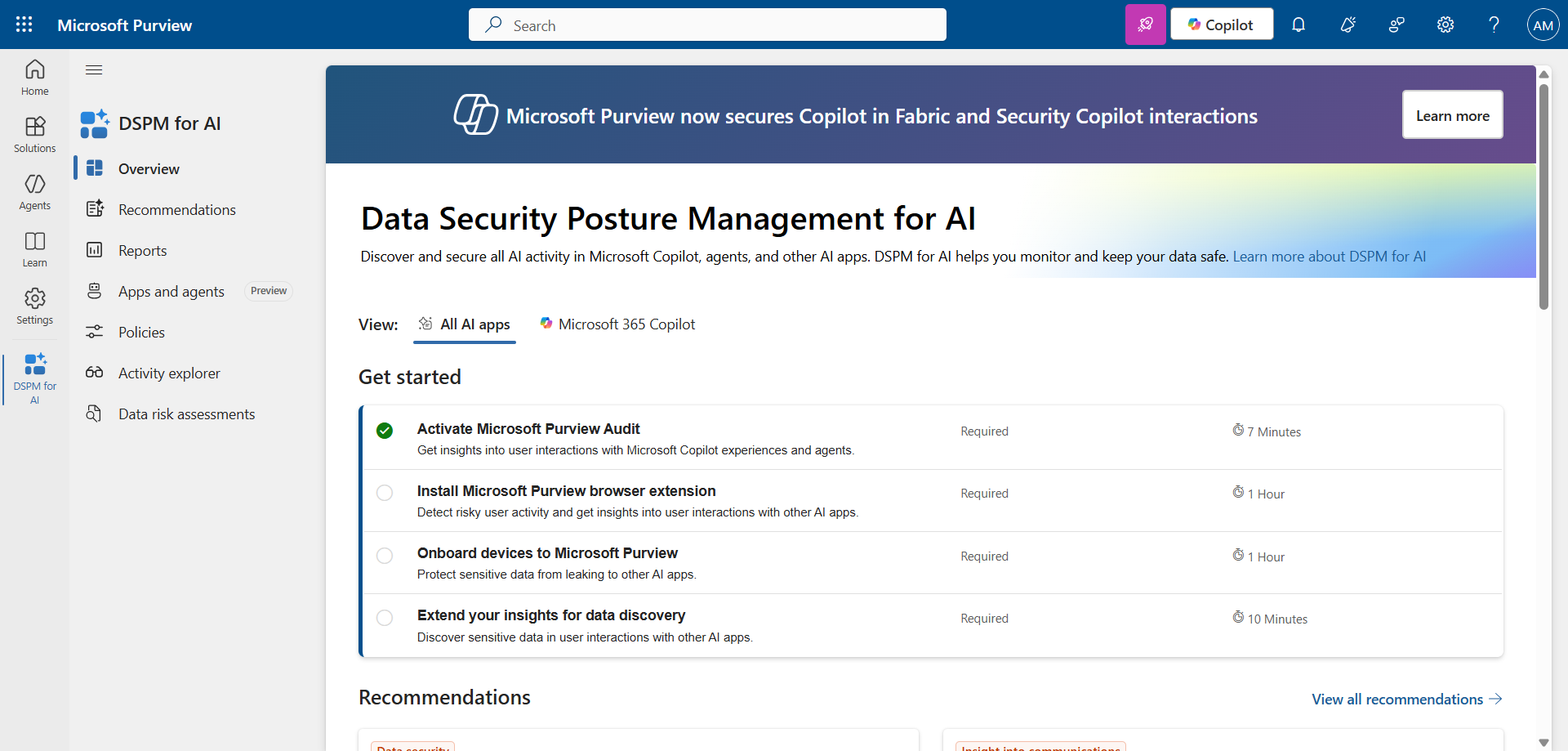
Step 2 : Enable Microsoft Purview Audit
In the left menu, click Solutions, then DSPM for AI, and enable Microsoft Purview Audit.
Step 3 : Sign in to the Microsoft Intune Admin Center
Sign in to the Microsoft Intune Admin Center by opening your web browser to https://intune.microsoft.com.
Step 4 : Install the Purview extension for Edge
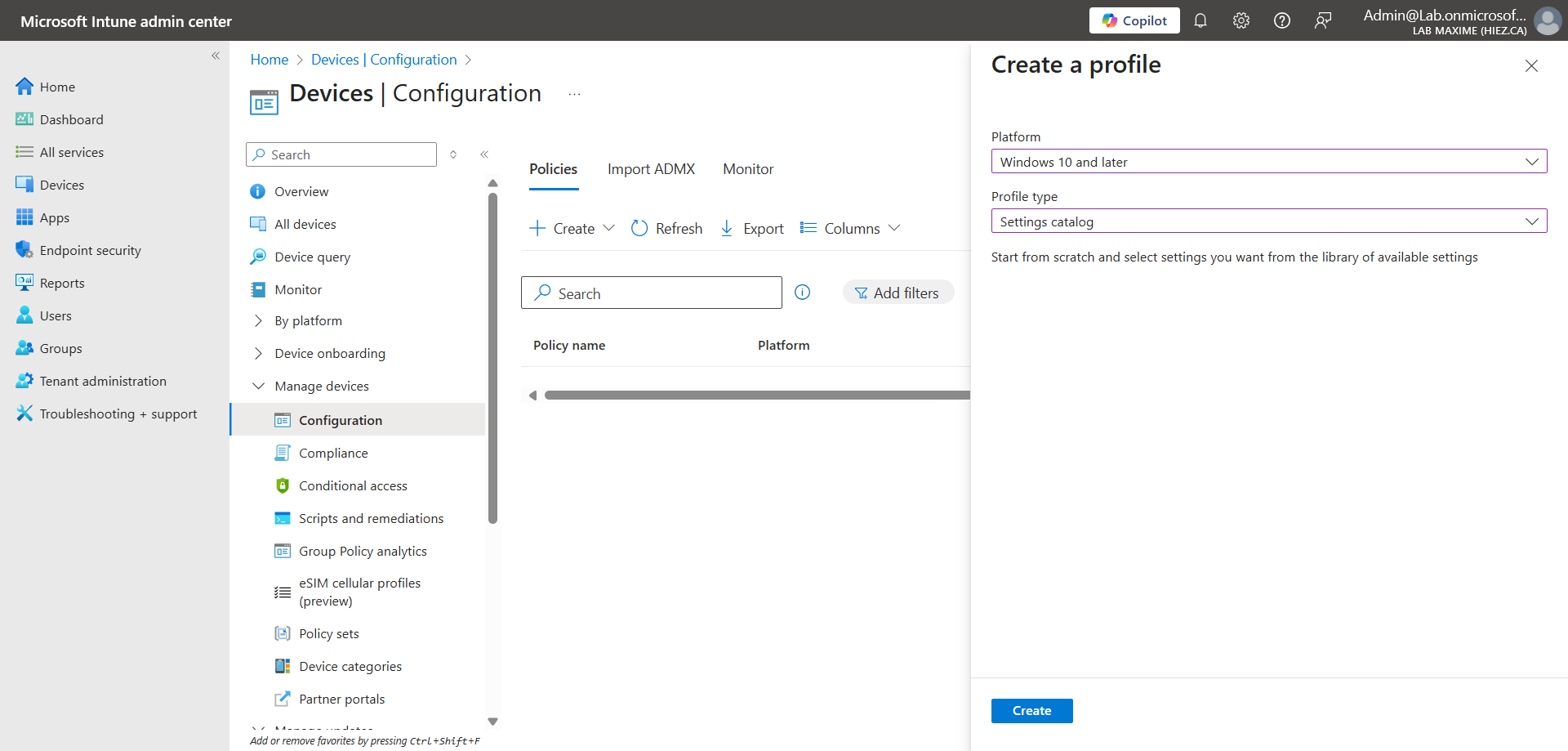
In the left menu, click Devices, then Configuration.
Create a policy for the Windows 10 and later platform with the Settings catalog profile type.
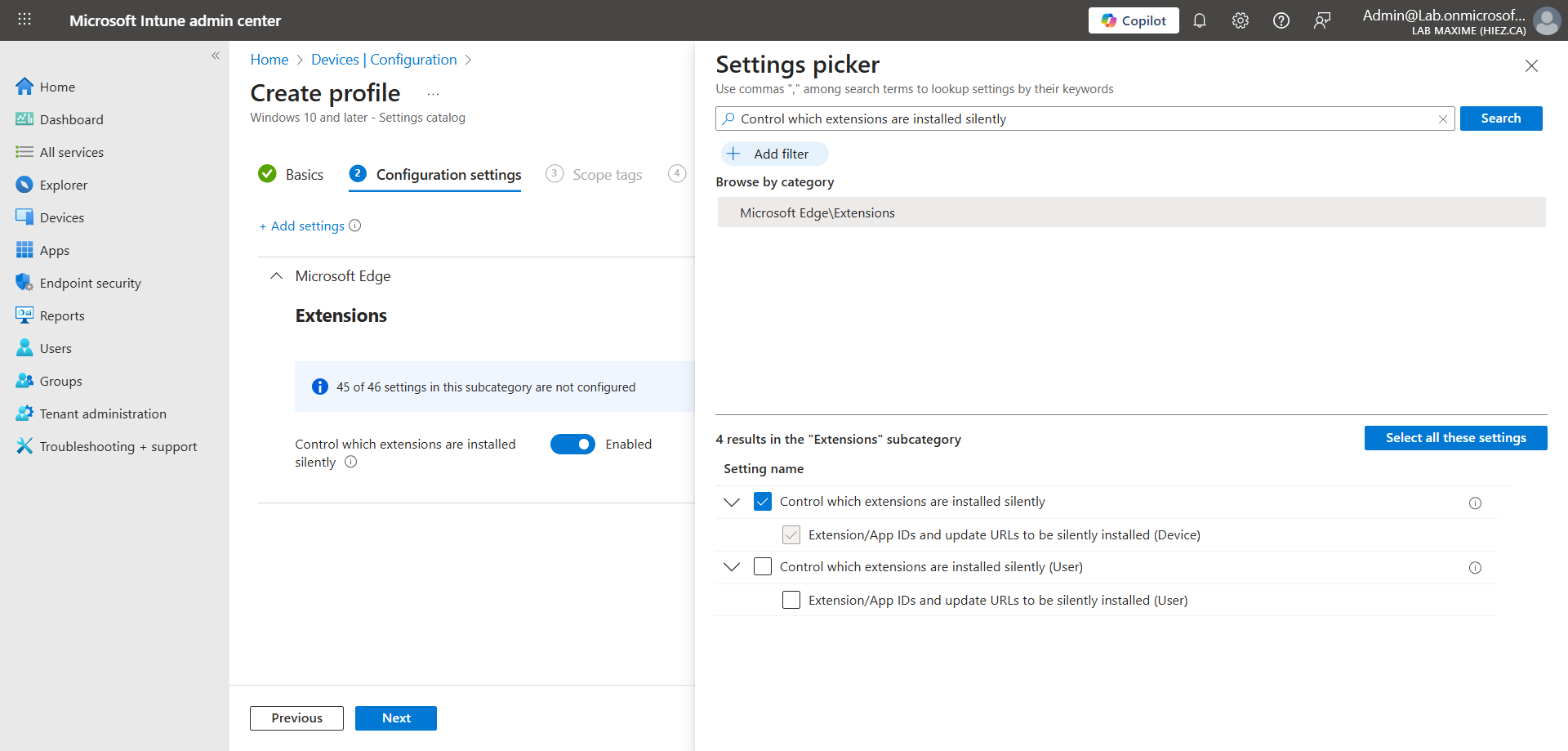
Search for Control which extension are installed silently in the name filter, click Microsoft Edge\Extensions, and check the Control which extension are installed silently box.
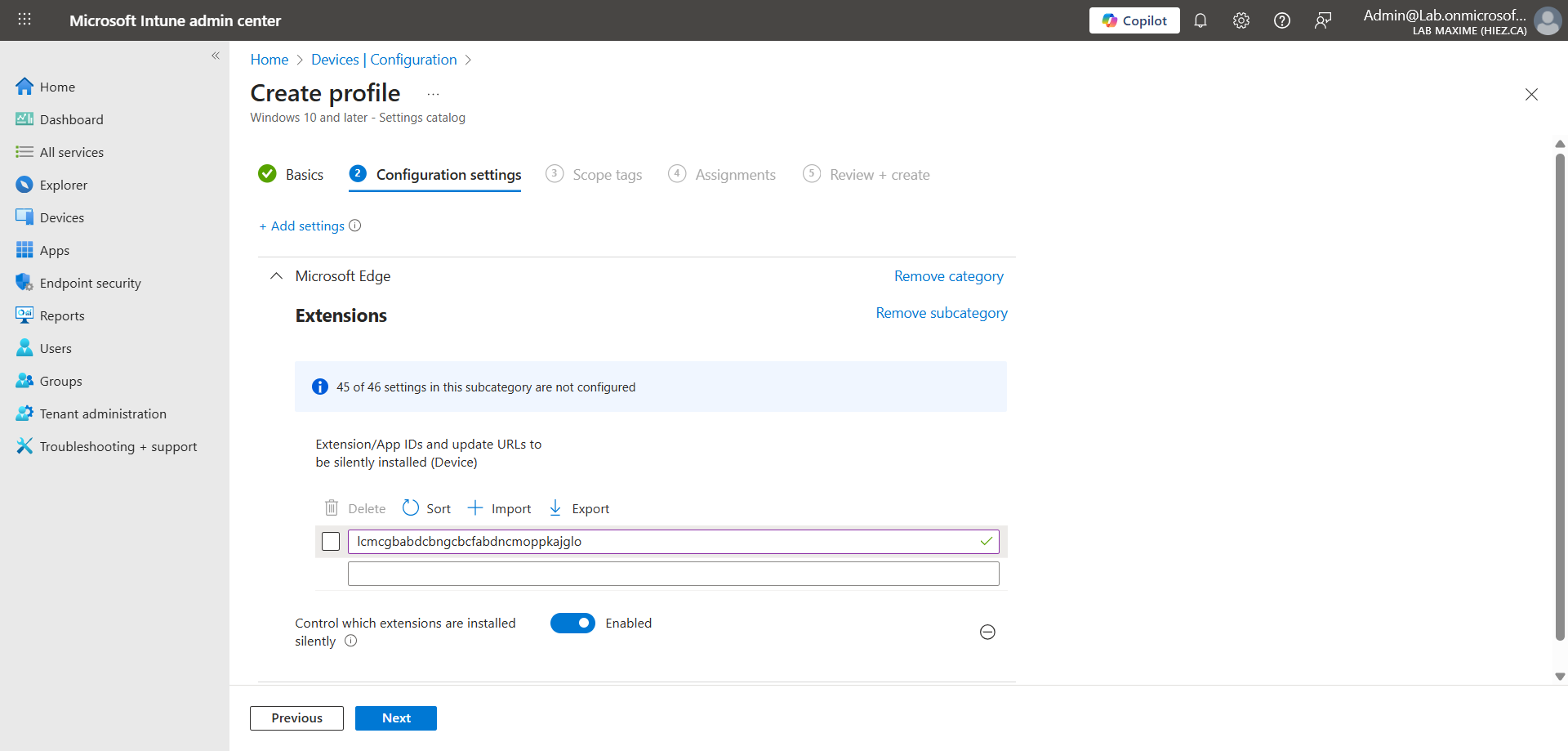
Enter the value lcmcgbabdcbngcbcfabdncmoppkajglo in the Extension/App IDs attribute.
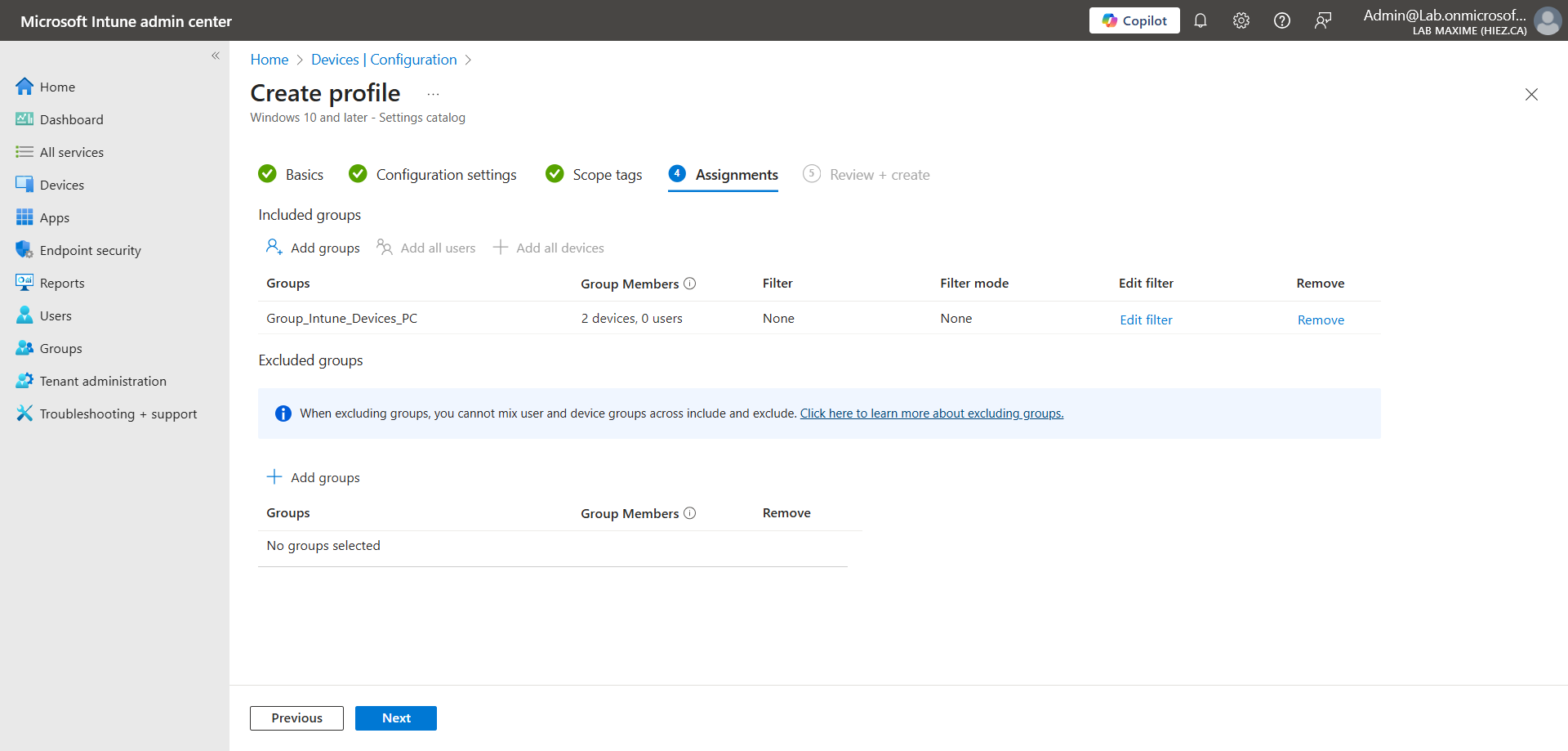
Assign the security group containing your Windows PC.
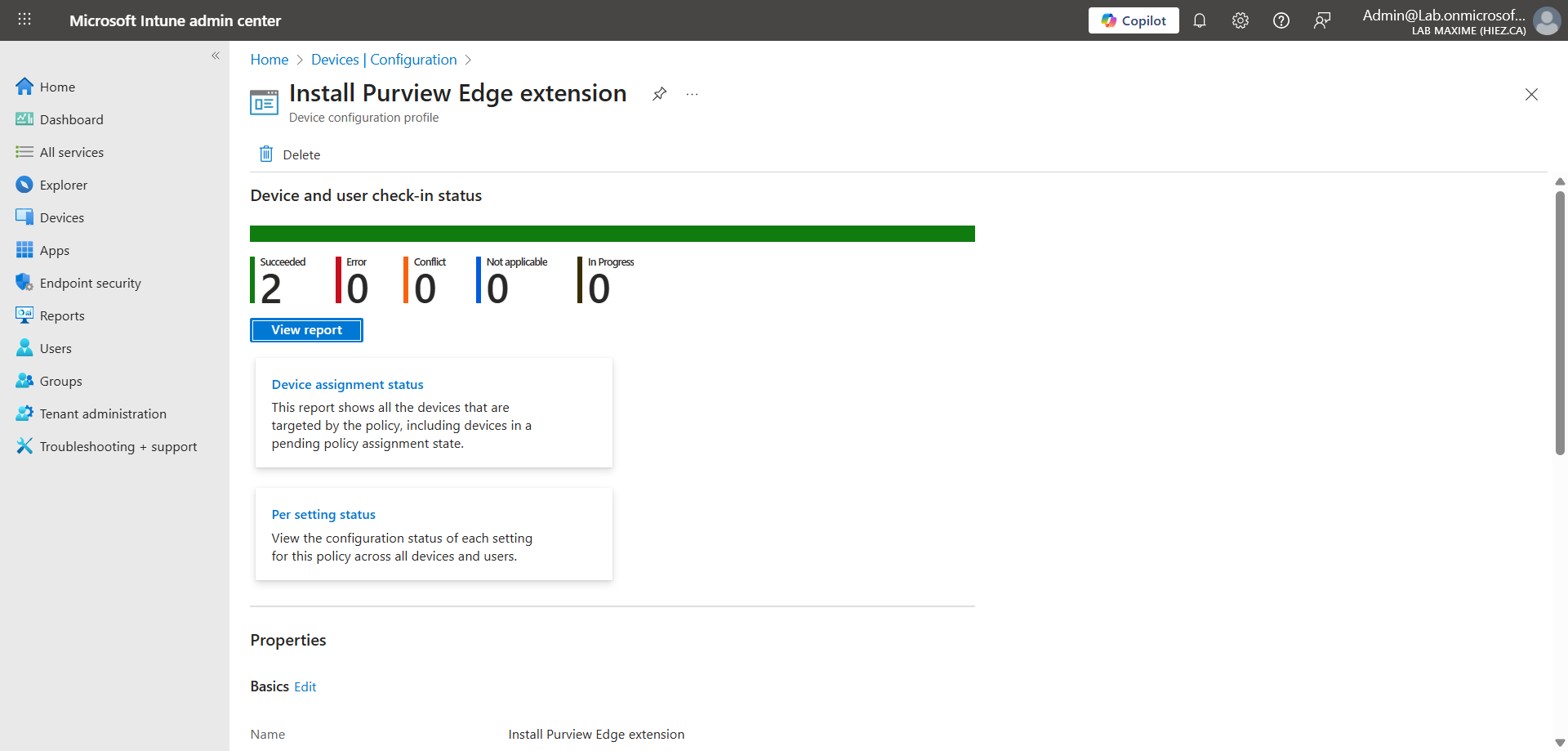
After a few minutes, the extension should be installed on the targeted computers.
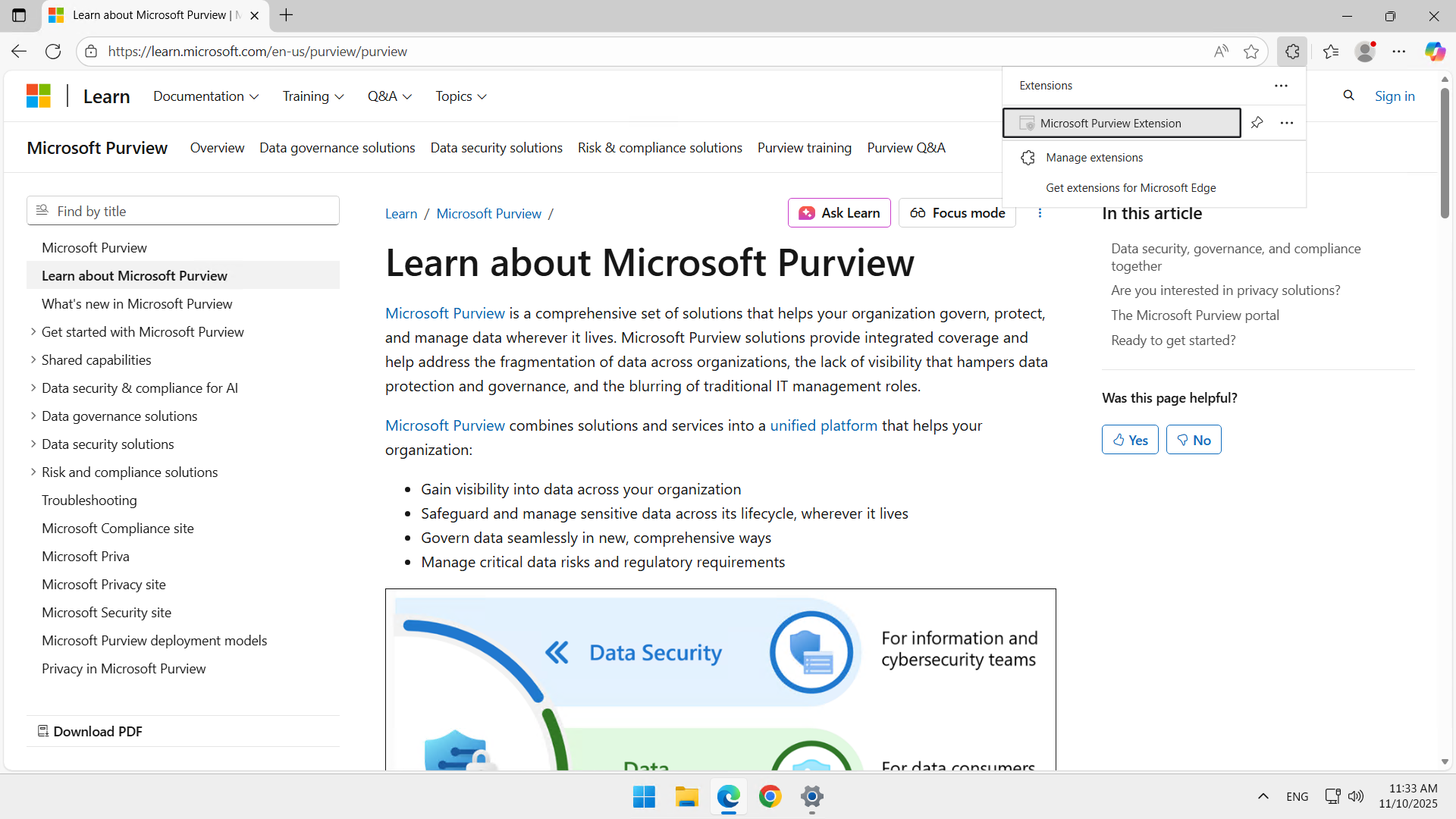
If you look at my computer, you can see that the extension is installed and greyed out, which means that it is managed by my organization.
tip
Step 5 : Enroll the computers in Defender and/or Purview
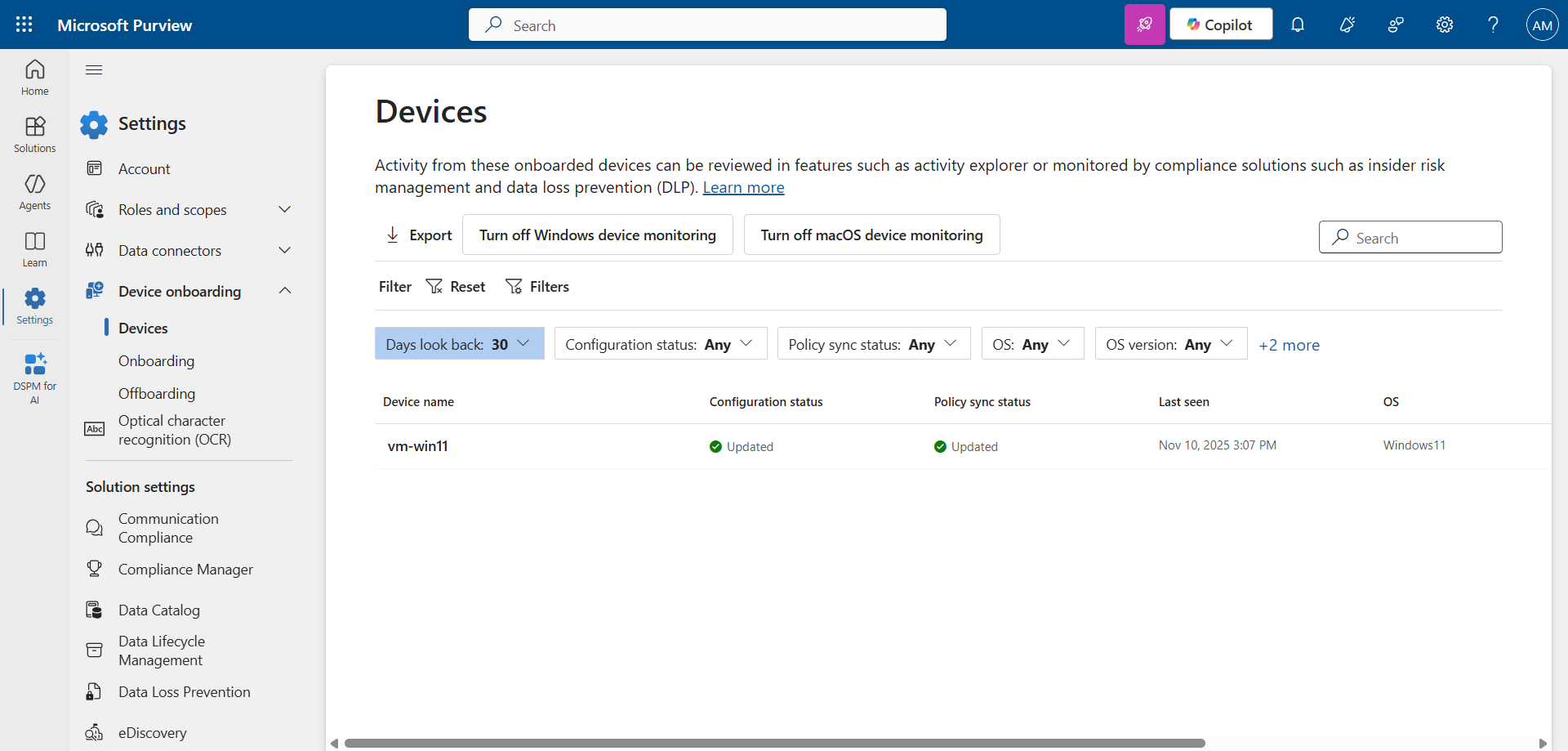
If the computer is already enroll in Defender for Endpoint / Purview, it will already be visible in Purview. Here you can see that my Windows 11 computer is already available.
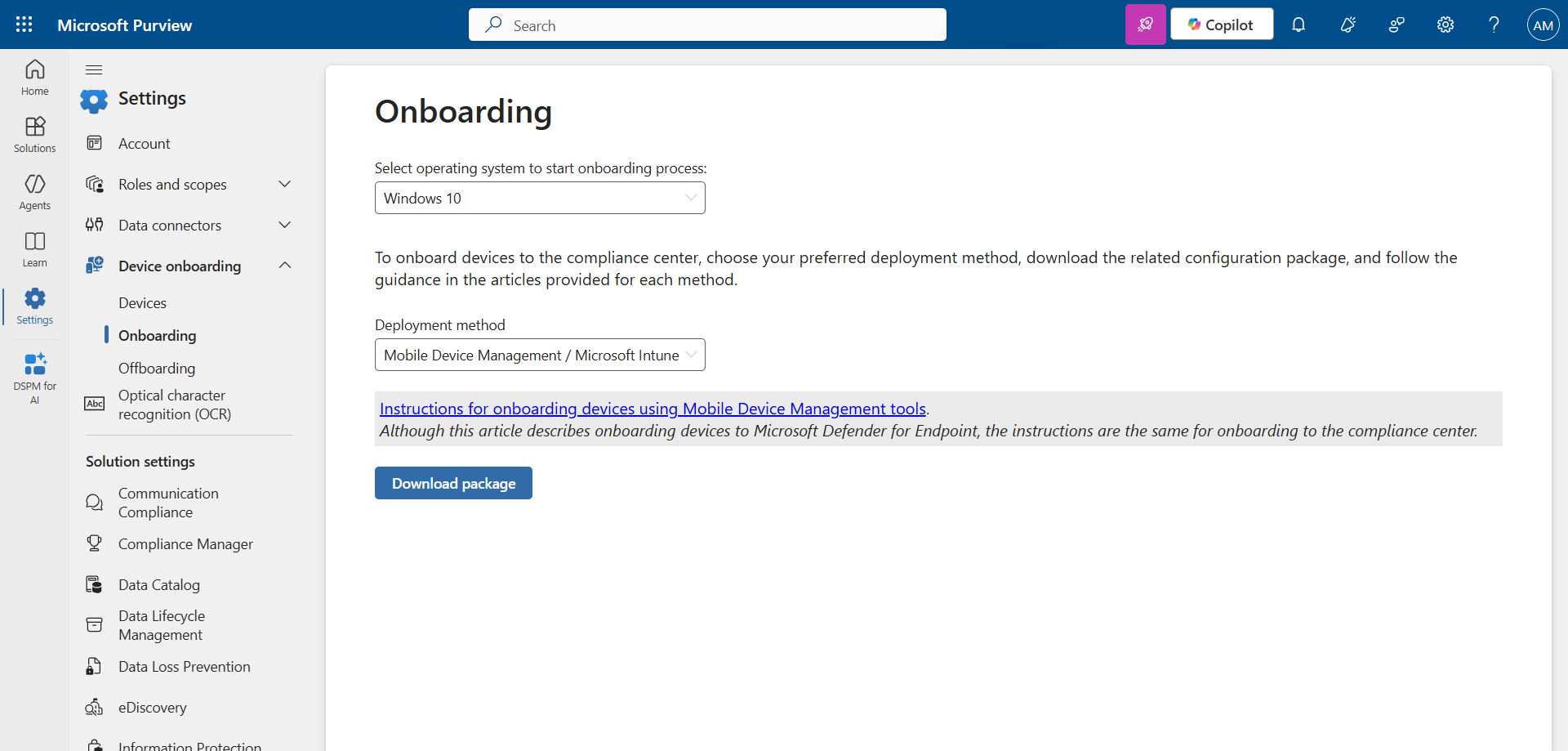
If it is not, you can run the provided Intune script to enroll it in Purview.
Step 6 : Enable AI interaction detection policies
Click Create policies.
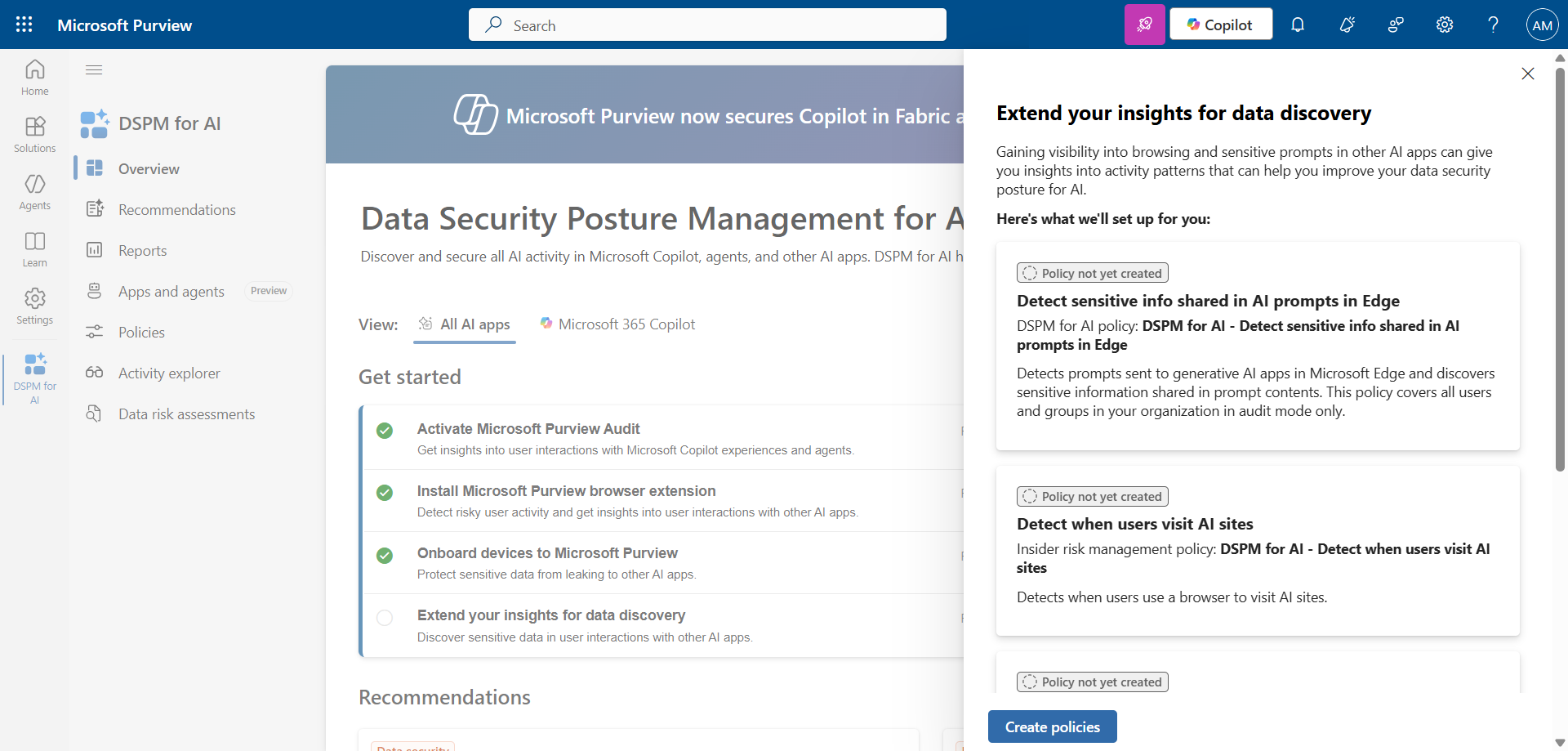
After a few minutes, policies are created.
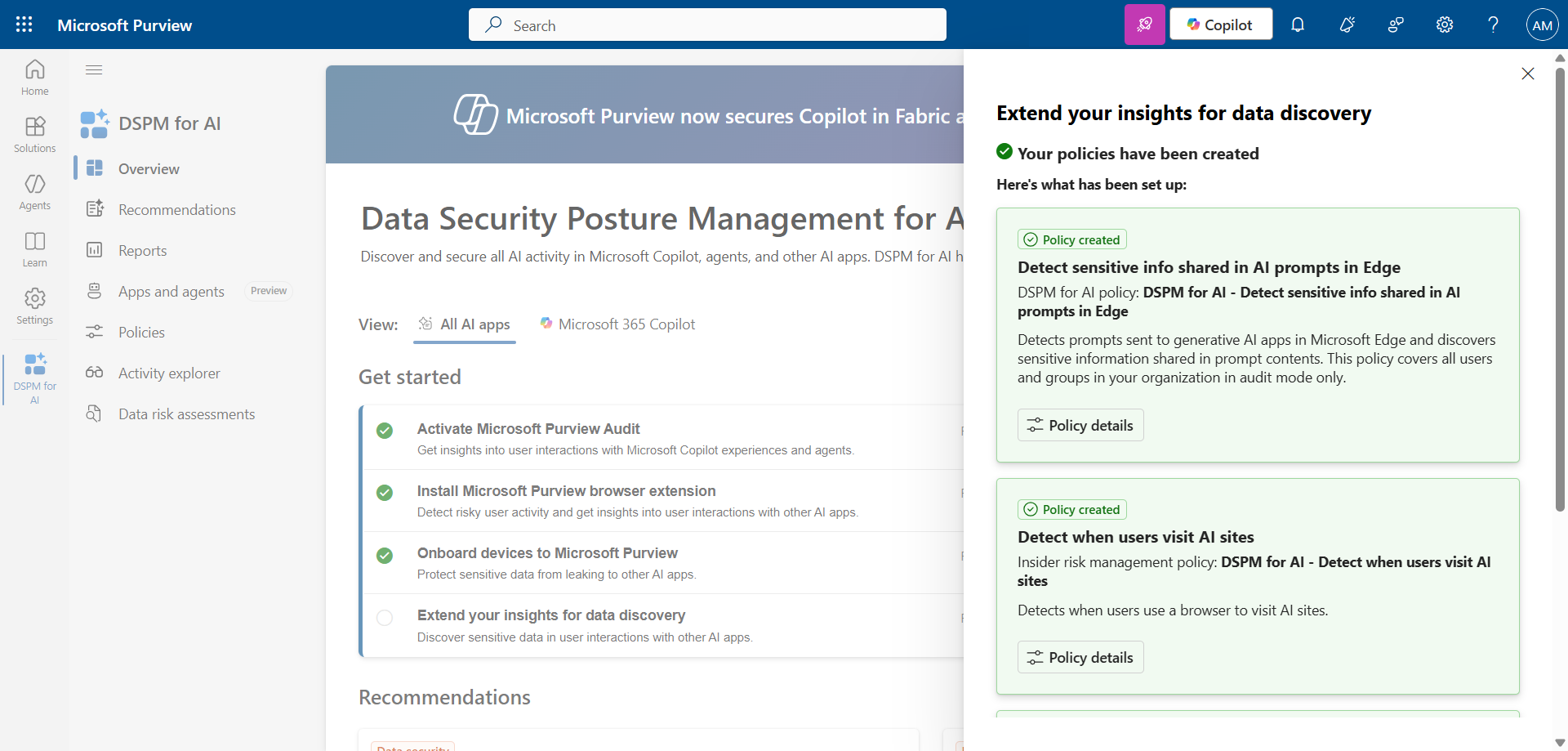
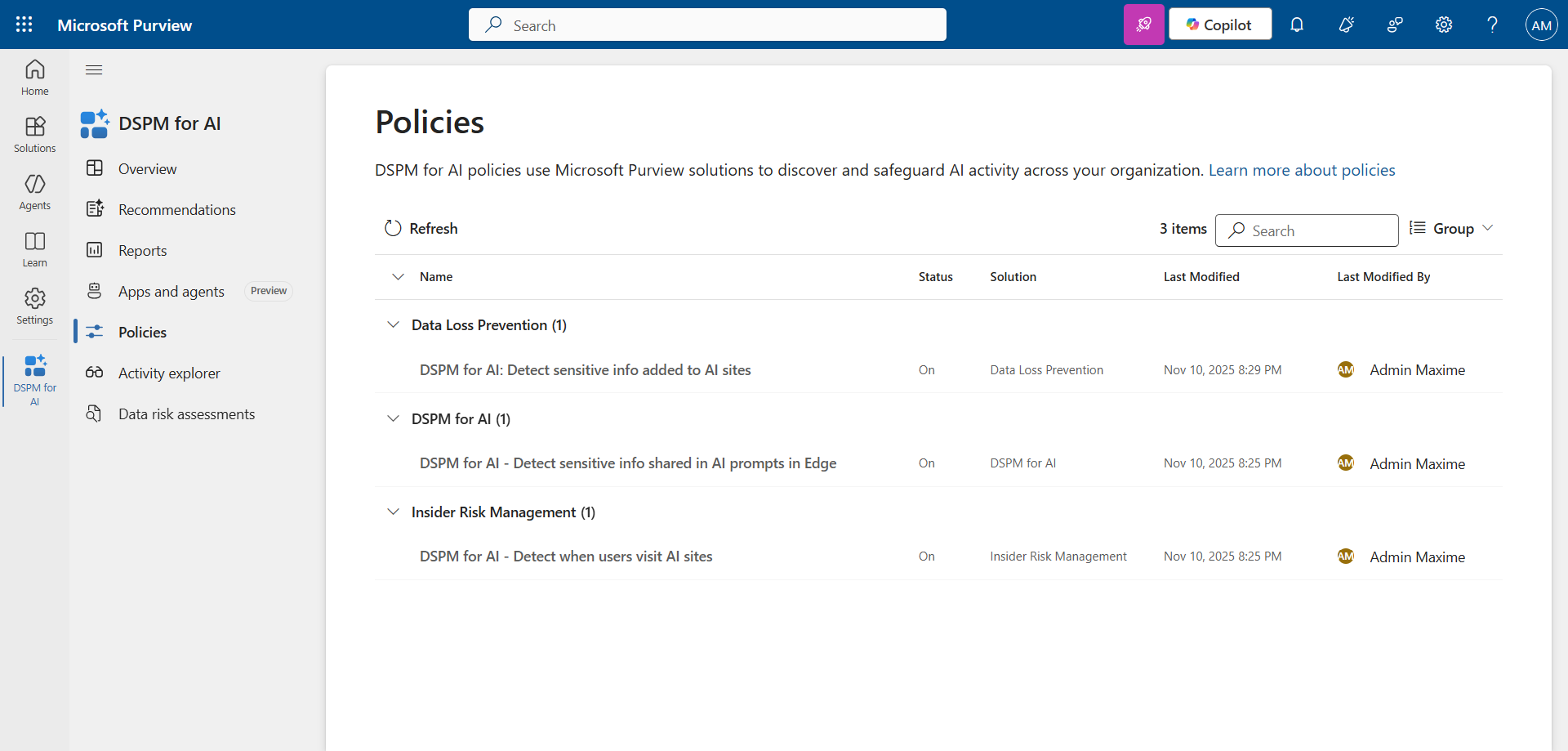
Step 7 : Analyze the policies
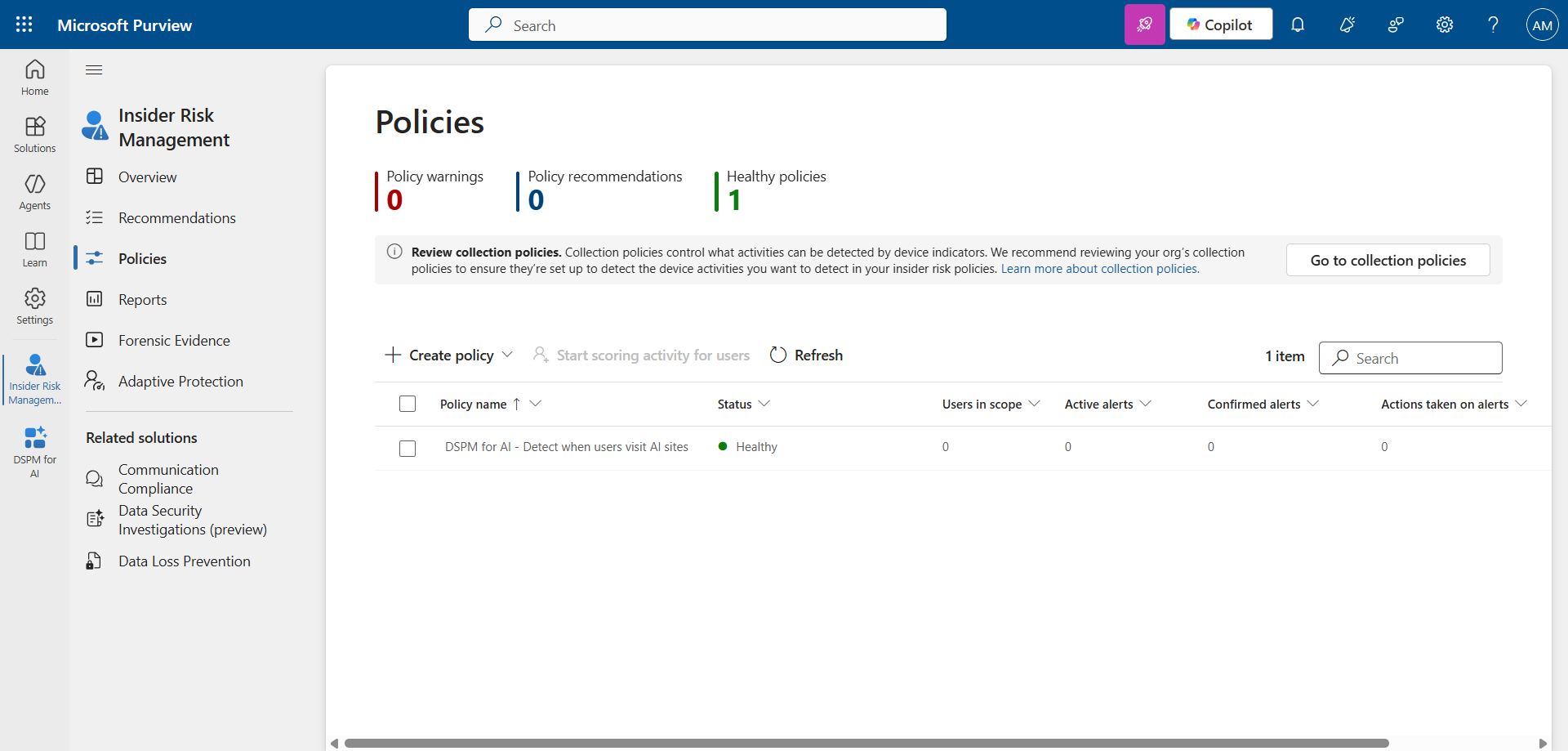
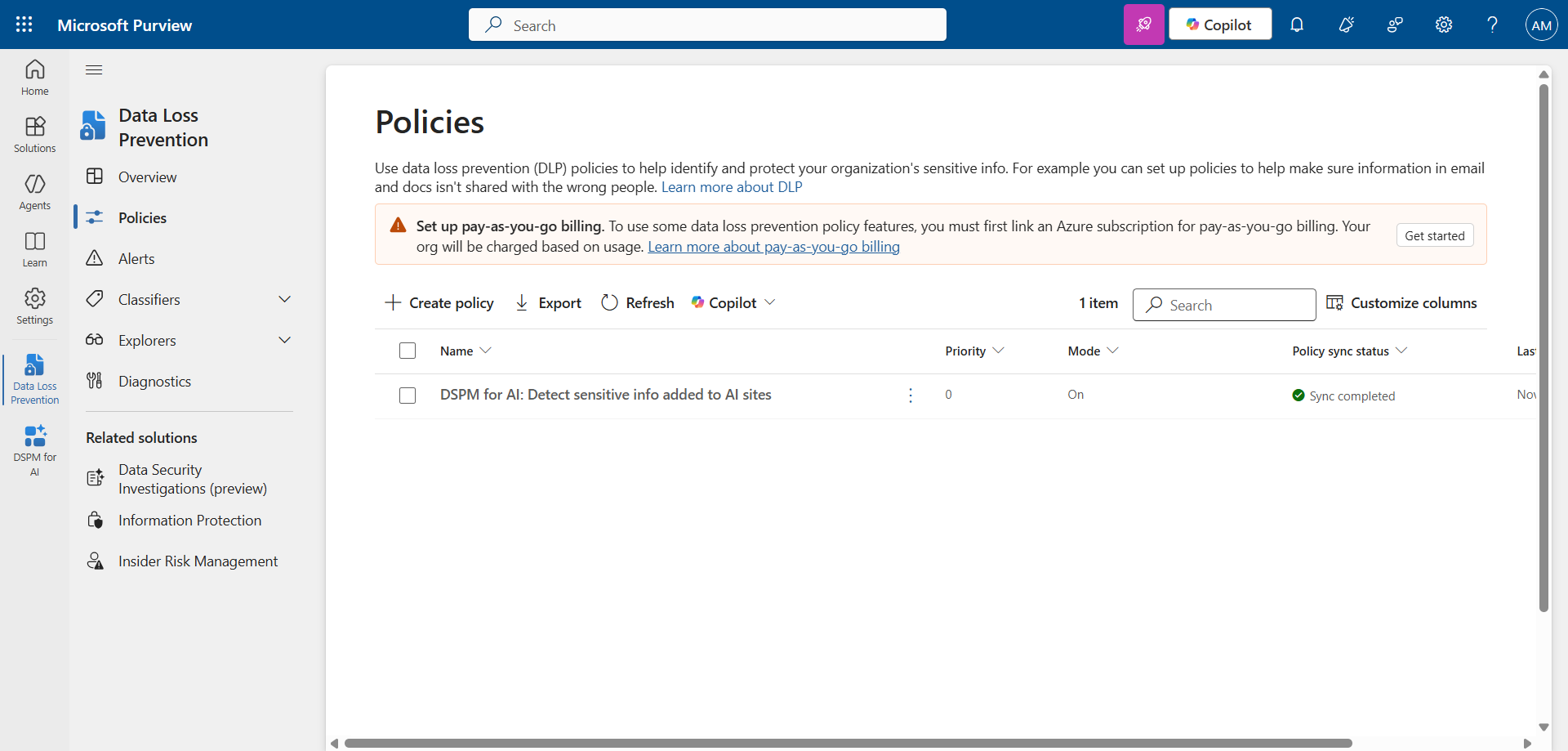
3 policies have been added to the existing Purview configurations :
- DSPM for AI - Detect sensitive info added to AI sites
- DSPM for AI - Detect sensitive info shared in AI prompts in Edge
- DSPM for AI - Detect when users visit AI sites
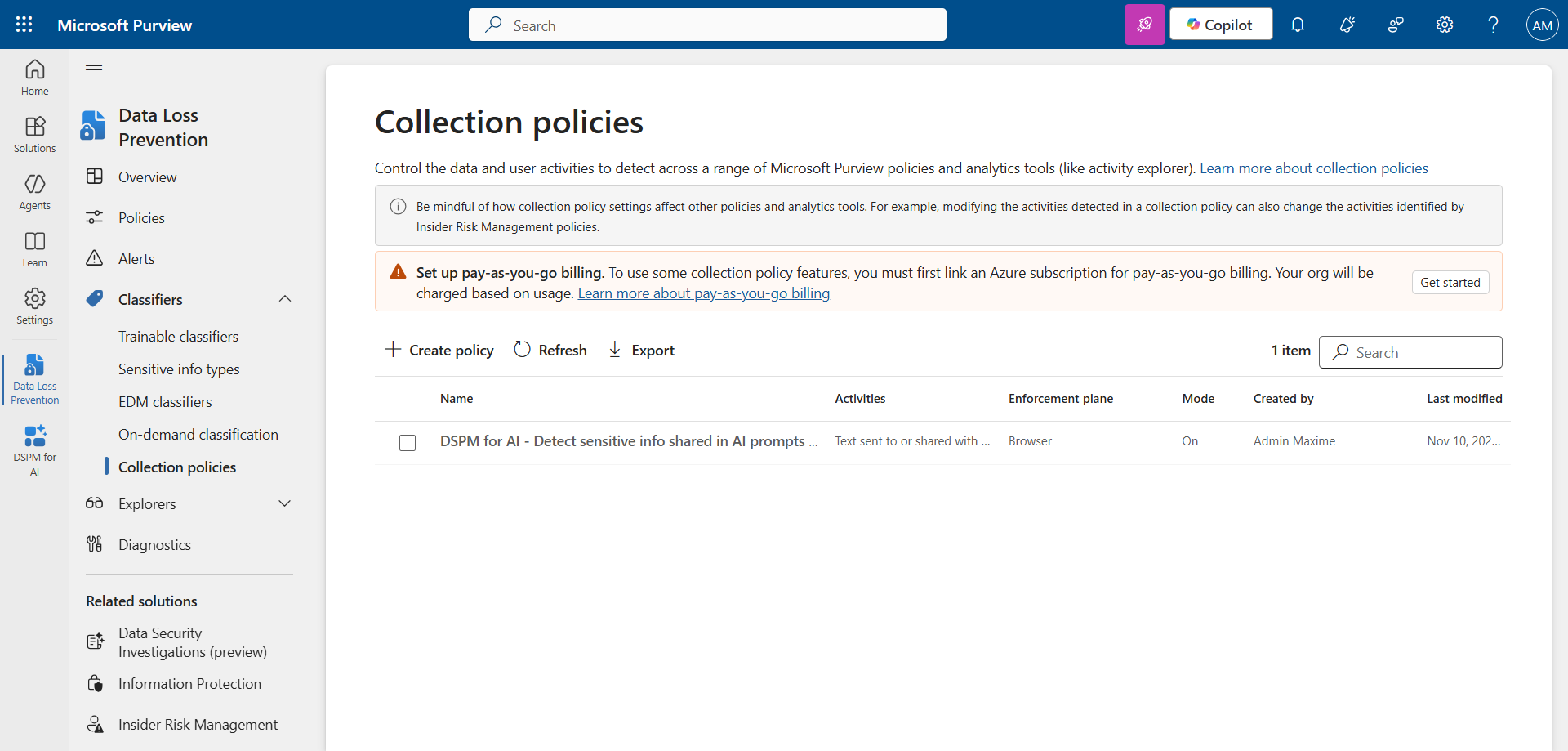
Data Loss Prevention Collection policy : Discovers the interactions and data shared with AI applications via the Edge browser.
Insider Risk Management policy : Detects web browsing behavior that may violate the organization’s acceptable use policy, such as visiting sites that promote hate, contain adult content, or present a risk (phishing sites, etc.).
Data Loss Prevention policy : Detects sensitive content pasted or downloaded from Microsoft Edge, Chrome and Firefox on AI websites.
Step 8 : Analyze the results
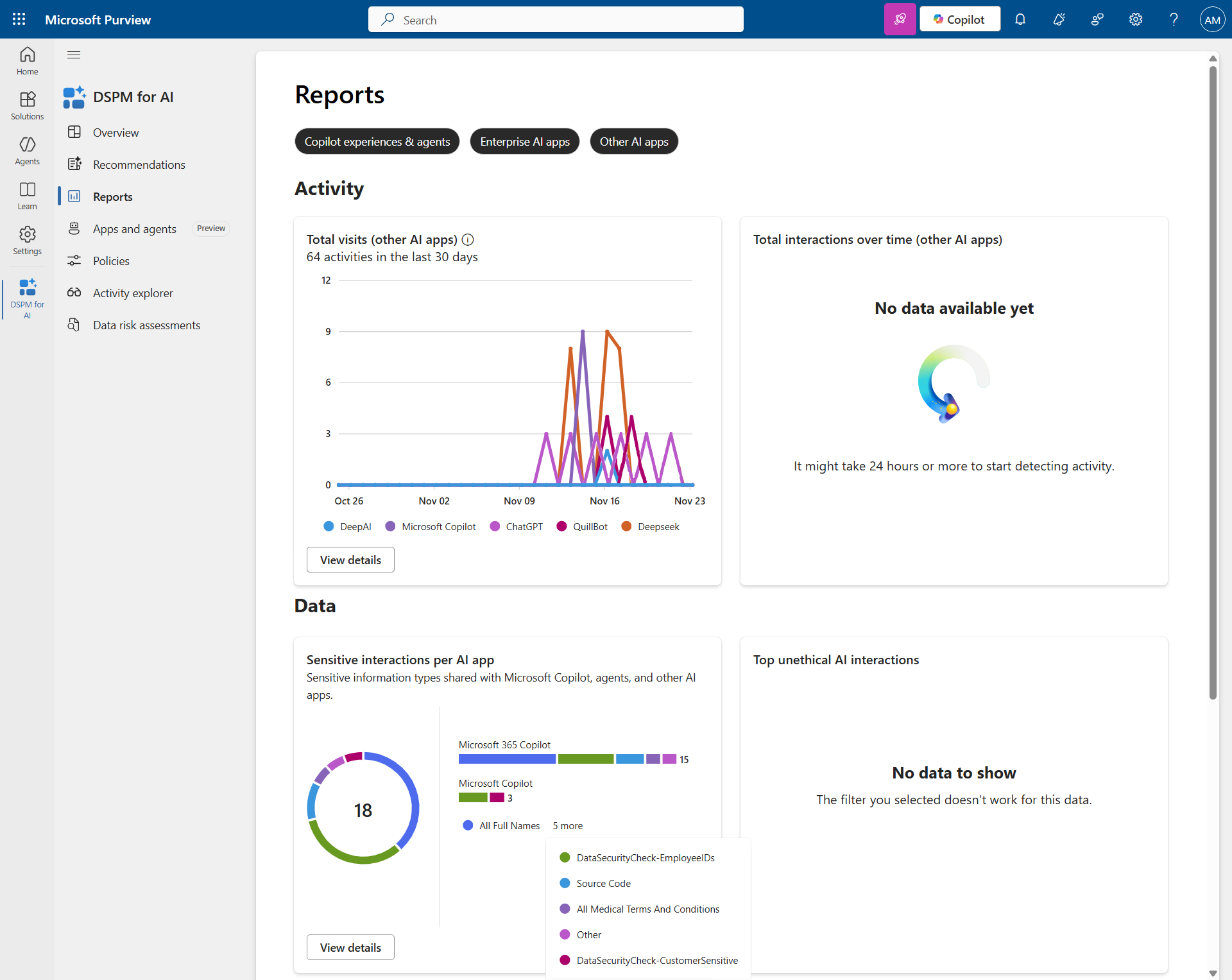
Click Reports to see the results of the configured policies (after 24 hours). Unconfigured policies will display an empty box.
Here we can see that several AI sites were accessed without being approved by the company. This is referred to as Shadow AI. We will see in a future article how to block navigation to Deepseek, for example.
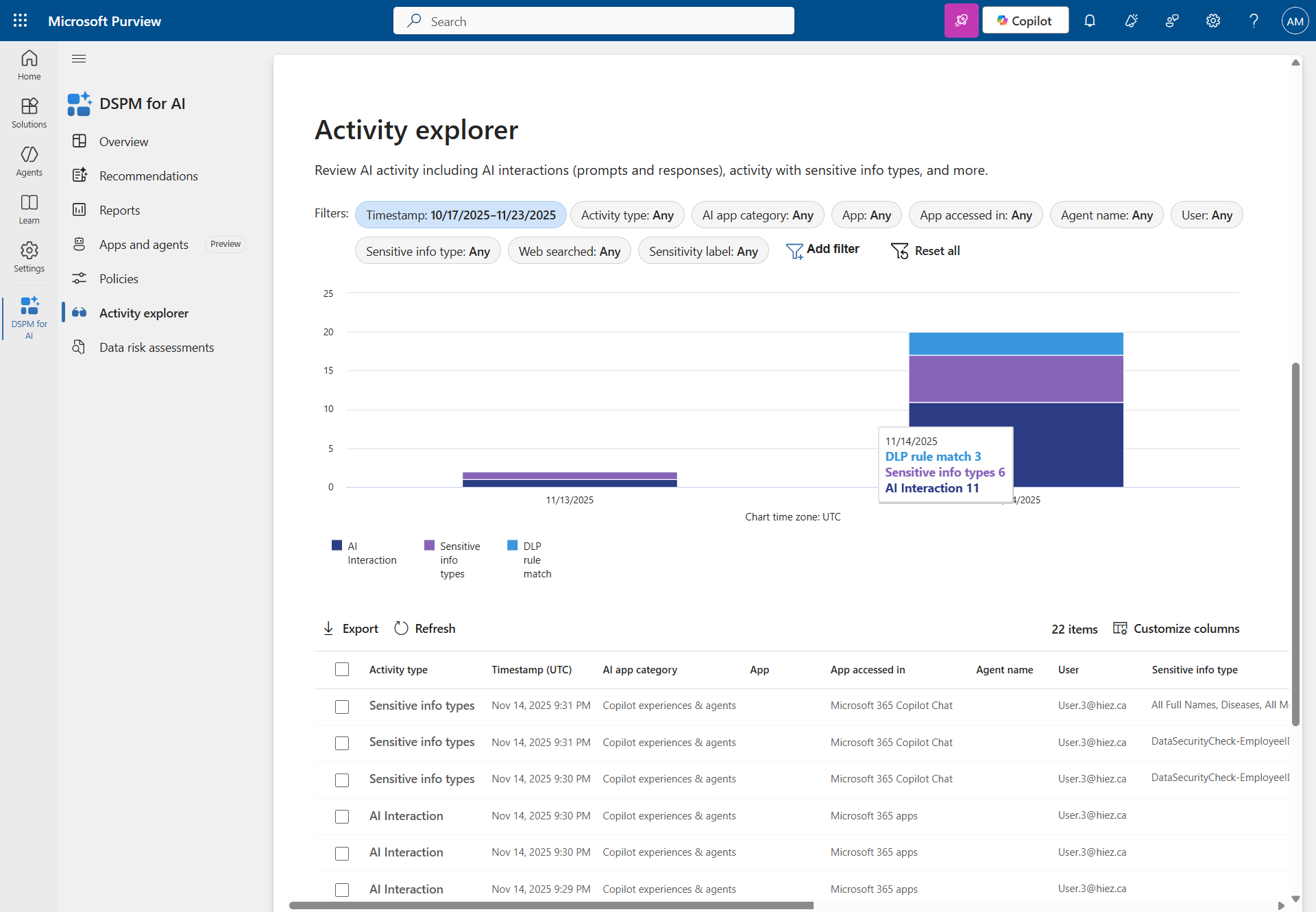
Click Activity explorer to see what interactions have occurred with these sites. In my case here, we can see that information detected as sensitive has been sent to Copilot, which represents a data breach.
Let’s go further
Several additional policies are available for activation if you have an Azure Pay-as-you-go subscription connected to Purview.
Click Recommendations and activate the additional policies you would like to implement.
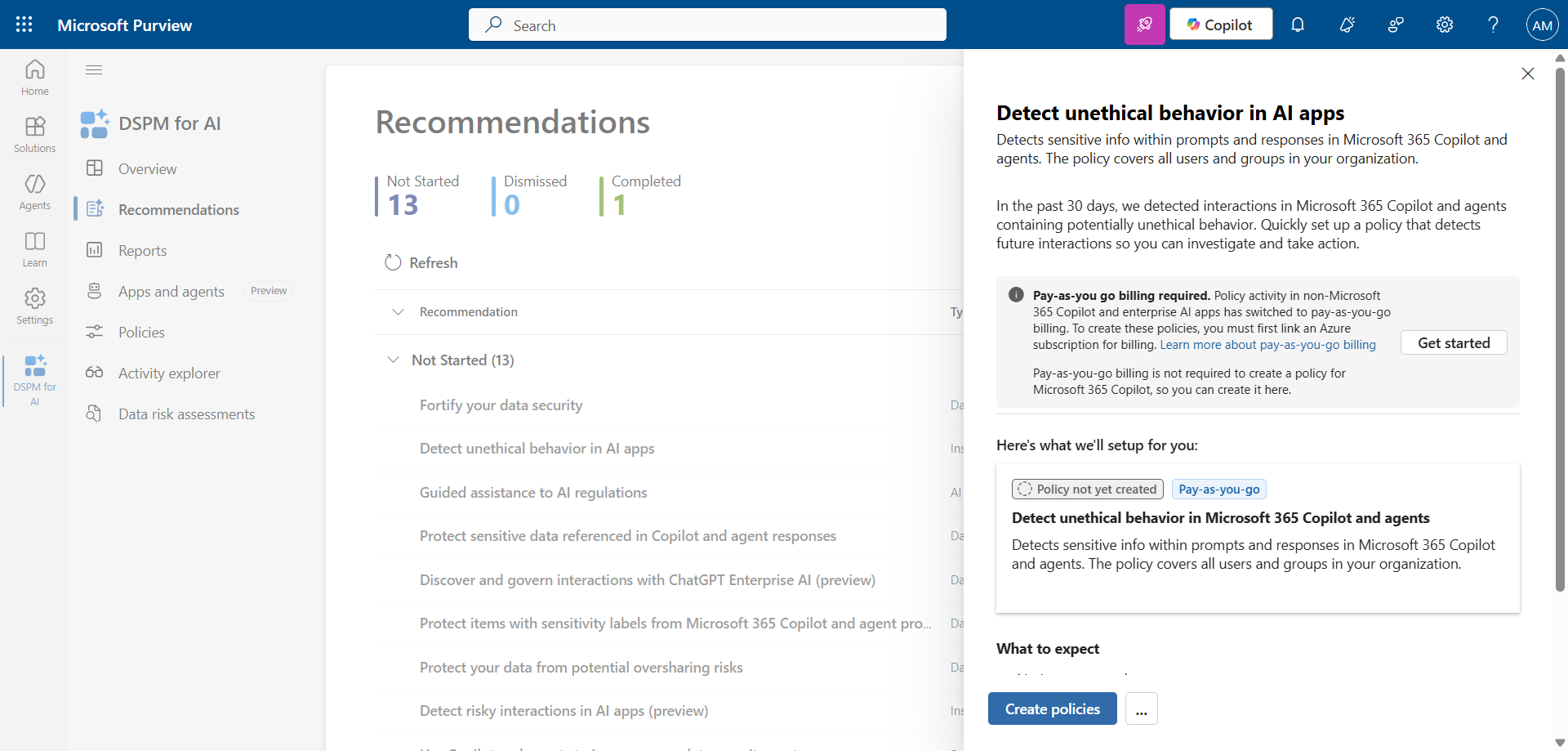
I may write an article soon about the possibilities offered by the other policies.
Conclusion
With Microsoft Purview DSPM for AI, organizations can ensure comprehensive monitoring of their employees’ AI activities.
You now know how to implement the DSPM for AI feature with Purview.
Sources
Did you enjoy this post ? If you have any questions, comments or suggestions, please feel free to send me a message from the contact form.
Don’t forget to follow us and share this post.