How to add a disclaimer in Copilot
- Maxime Hiez
- Copilot , Tutorial
- 28 Jan, 2026
Introduction
Microsoft has enabled a setting in tenants that allows administrators to display the Microsoft 365 Copilot disclaimer in bold, and to attach a shortcut pointing to a usage policy (for example).
Prerequisites
Administrator role
- An account with the Global Administrator role to access the Microsoft 365 Admin Center.
Step 1 : Sign in to the Microsoft 365 Admin Center
Sign in to the Microsoft 365 Admin Center by opening your web browser to https://admin.cloud.microsoft.
Step 2 : Enable the disclaimer
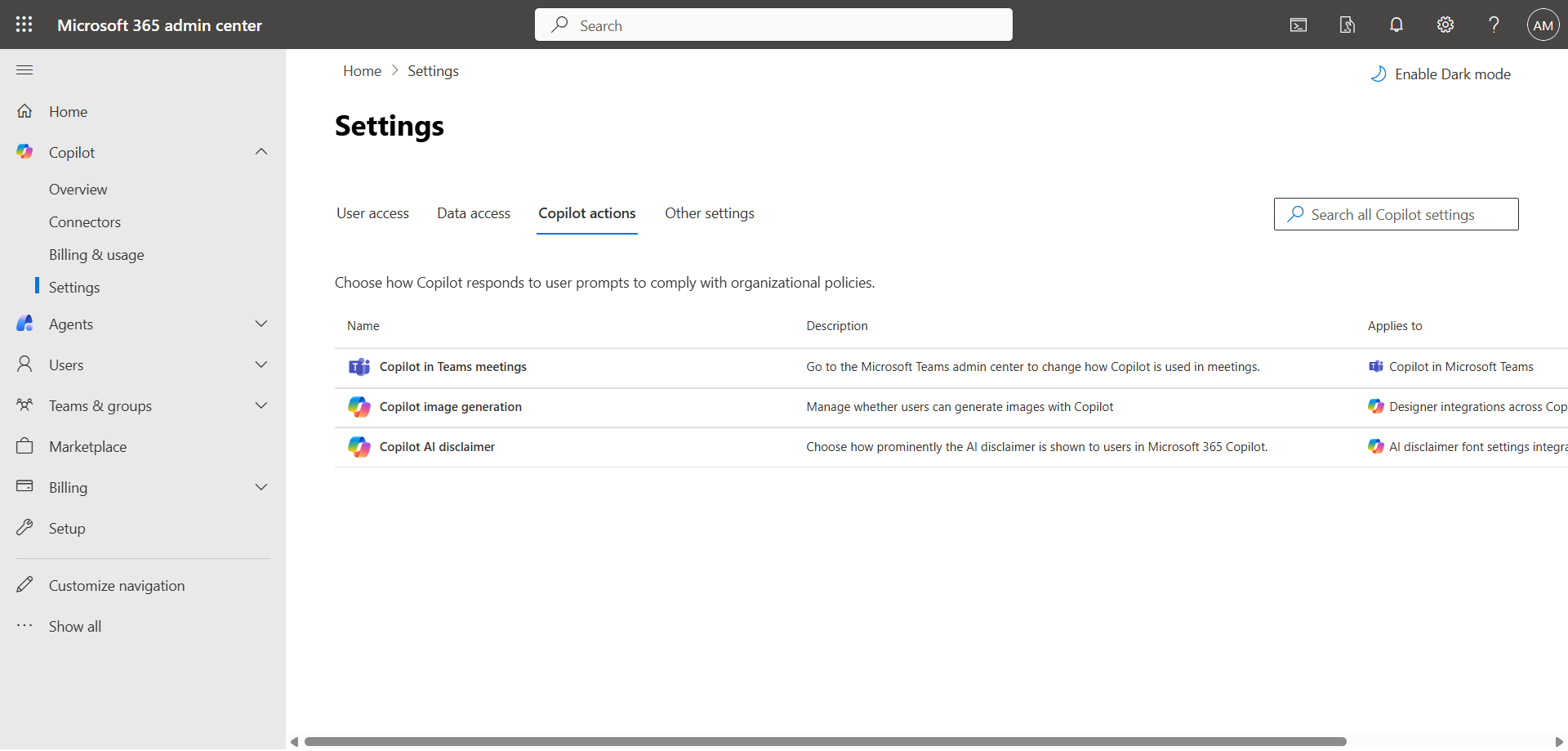
In the left menu, click Copilot, then Settings, and Copilot actions.
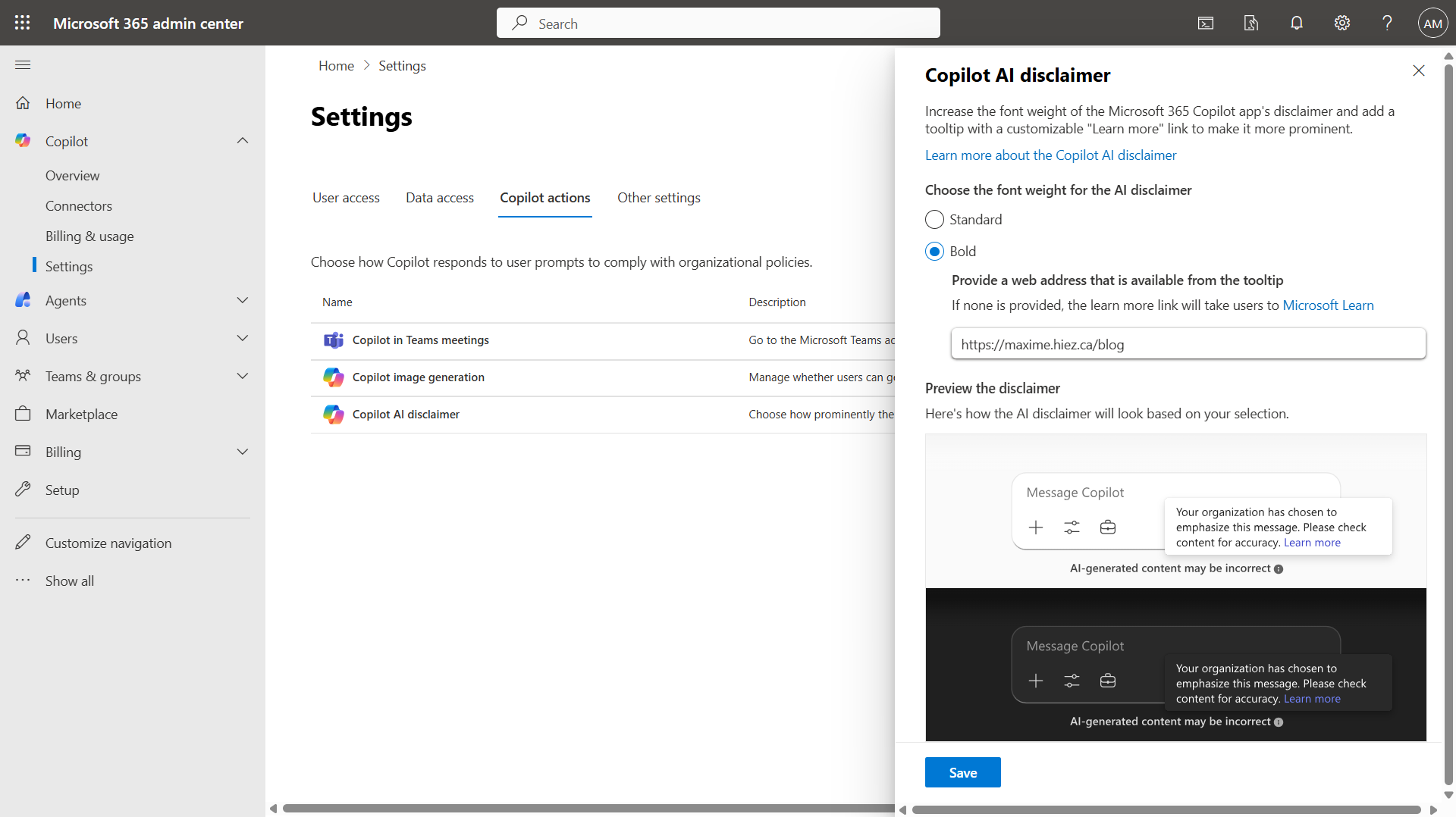
Click Copilot AI disclaimer, then Bold to enable the feature and enter the URL of the site to which you want to redirect the shortcut.
Validate the result
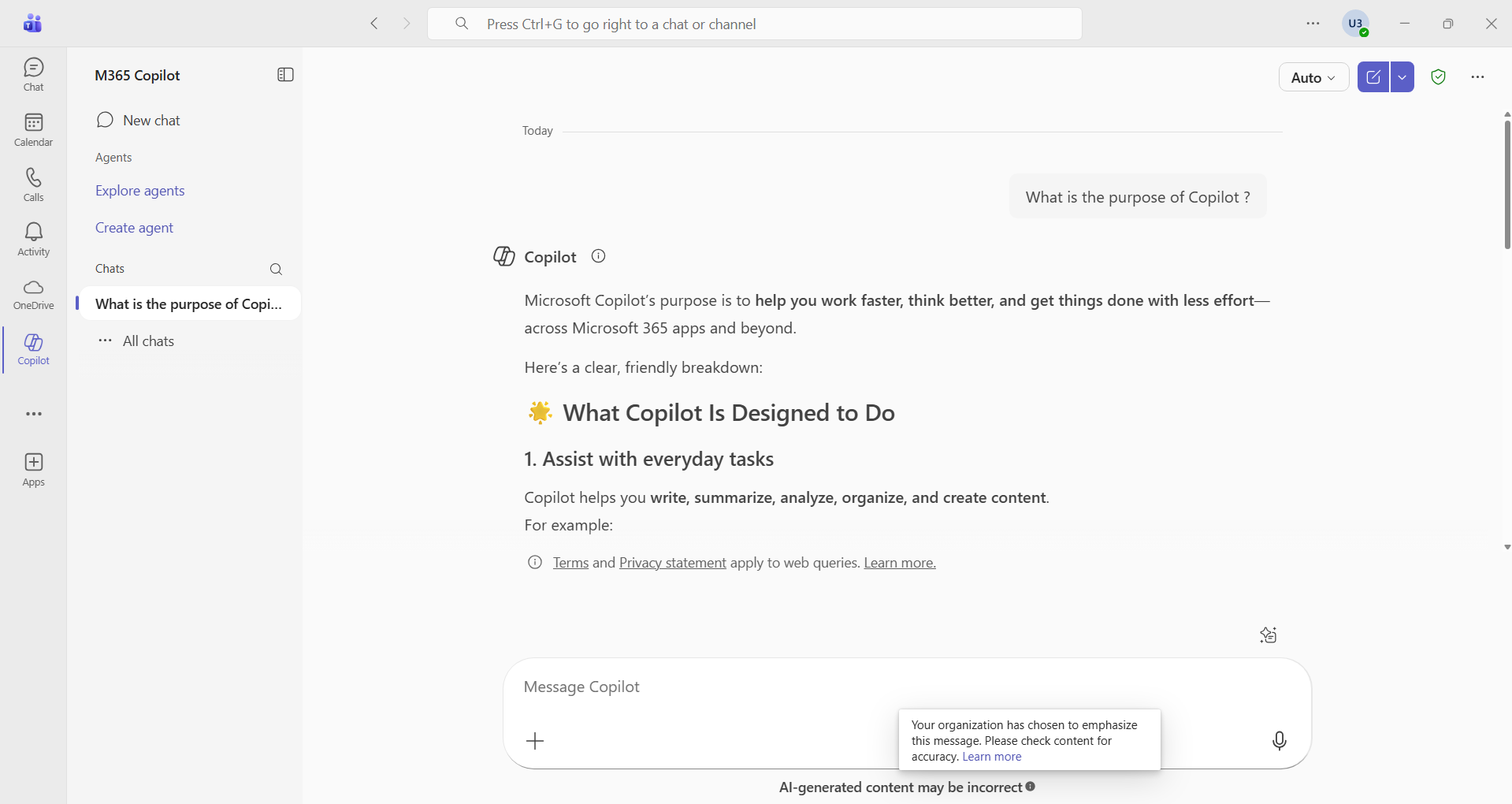
The result is visible in Teams. You can see the message AI-generated content may be incorrect. Clicking the i at the end of the line opens a description, and clicking Learn more will redirect you to the specified URL.
In which applications is the disclaimer available ?
The disclaimer is available in Word, Excel, PowerPoint, Outlook, OneNote, and Microsoft 365 Copilot. However, it is not available in SharePoint, OneDrive, Whiteboard, or Forms.
Conclusion
You now know how to activate a disclaimer in Copilot.
Sources
Microsoft Learn - Turn on AI disclaimers
Did you enjoy this post ? If you have any questions, comments or suggestions, please feel free to send me a message from the contact form.
Don’t forget to follow us and share this post.