How to download Cisco Webex recorded calls via API
- Maxime Hiez
- Cisco , Tutorial
- 17 Mar, 2026
Introduction
Cisco Webex Contact Center offers advanced call recording capabilities, essential for quality, compliance, and continuous service improvement. Supervisors can easily listen to calls from the web client, analyze interactions, and provide support to agents. However, a significant limitation remains, it is not possible to directly download audio recordings from the client interface. This feature, often requested for auditing, external archiving, or integration with other tools, is not yet available natively.
Cisco provides APIs that allow users to bypass this limitation and download recordings reliably and securely.
Prerequisites
Cisco Webex Contact Center call recording
- Call recording configured in Cisco Webex Contact Center.
Administrator role
- A Webex Control Hub account with the Full admin role to access the Webex for Developers portal.
Others
- Have the Postman application and an account.
Step 1 : Sign in to the Webex for Developers portal
Sign in to the Webex for Developers portal by opening your web browser to https://developer.webex.com.
Step 2 : Create an API integration
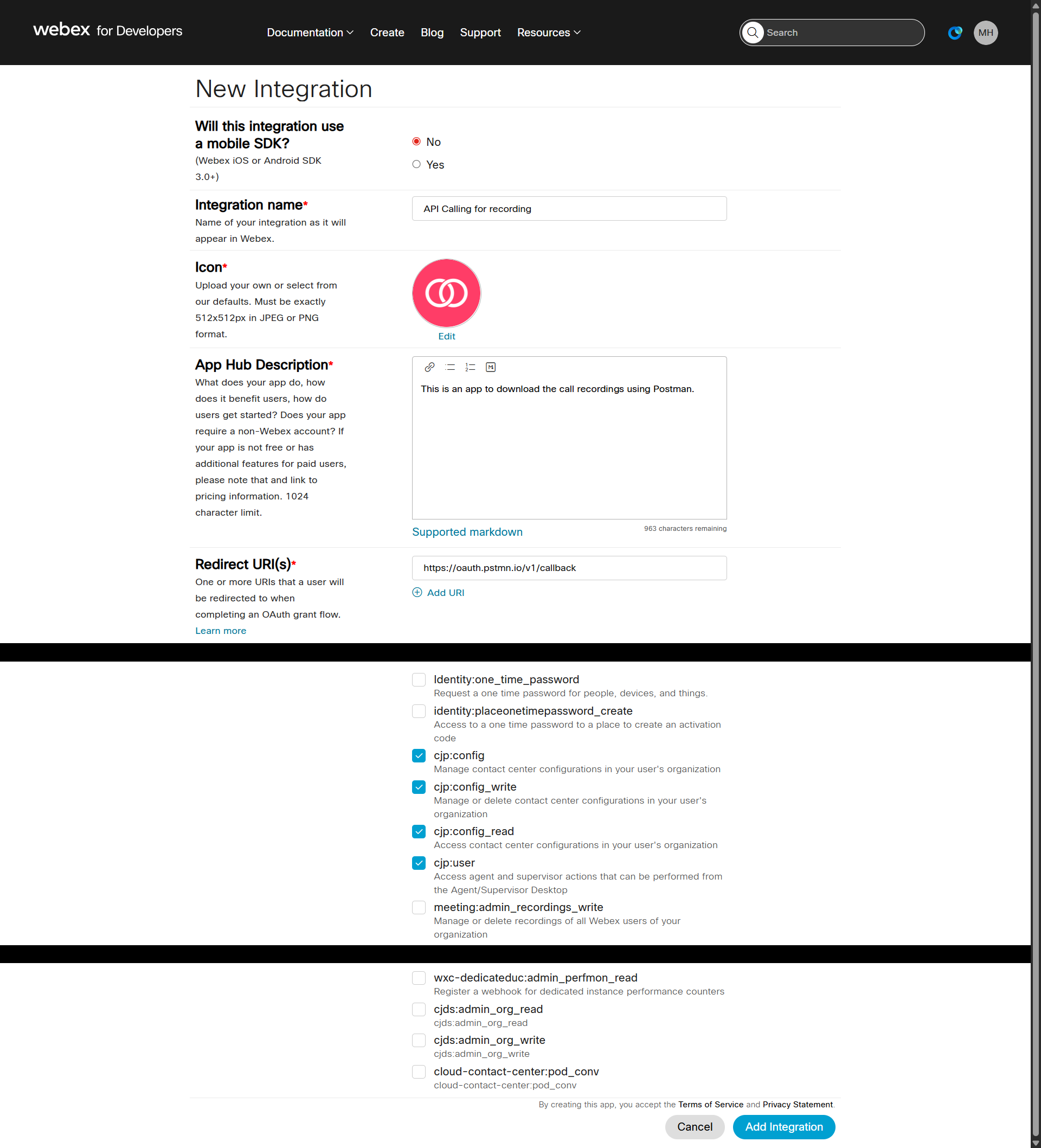
In the My Webex Apps menu, create a new API integration. Set a name, description, and icon.
Enter the value https://oauth.pstmn.io/v1/callback in the Redirect URI(s) attribute, and check the 4 boxes cjp:config, cjp:config_write, cjp:config_read and cjp:user.
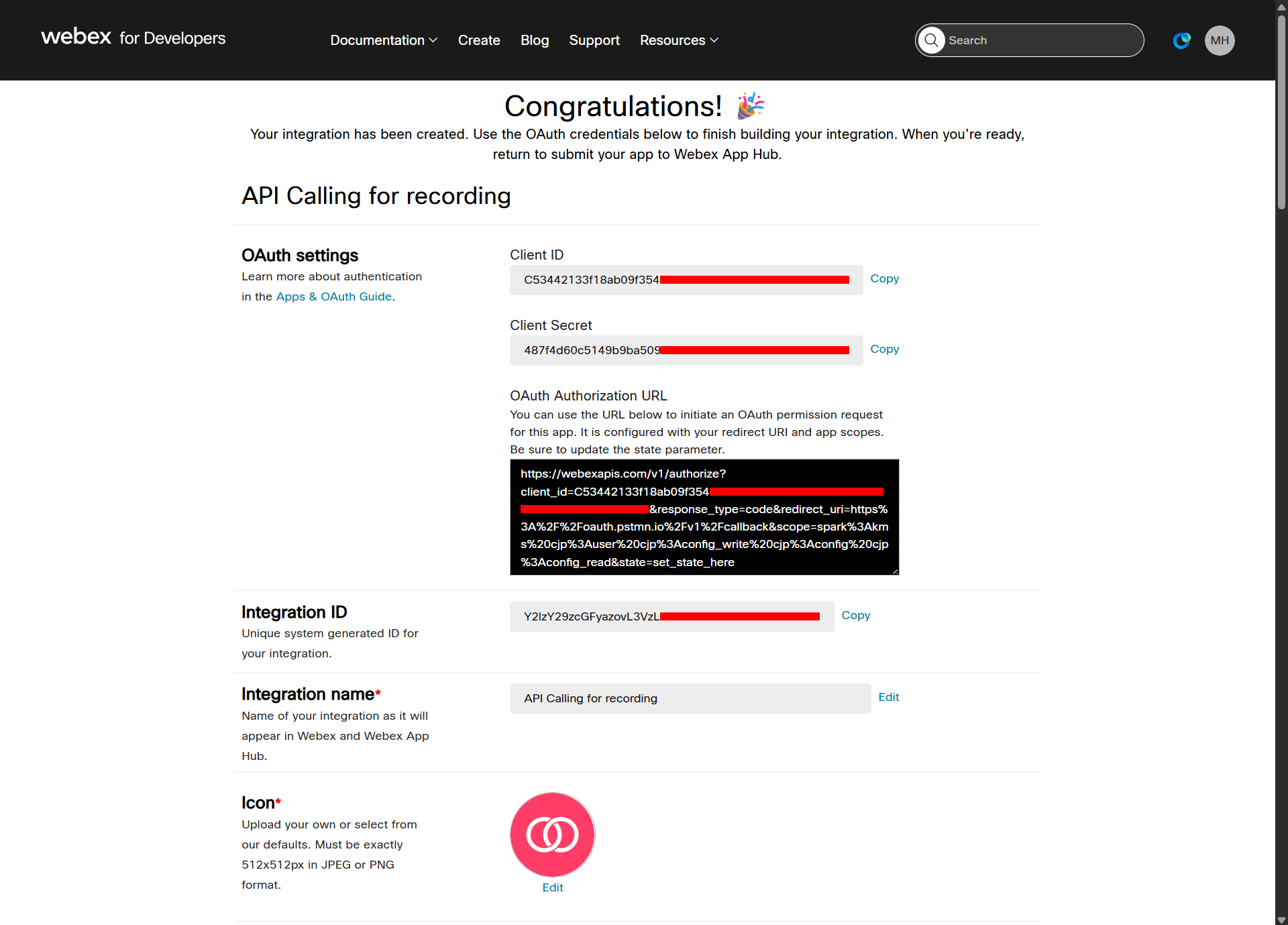
Save the values Client ID, Client Secret and OAuth Authorization URL.
Step 3 : Create a token via Postman
Open the Postman application and create a new token. Set a name and choose the OAuth 2.0 authentication type.
Paste the Client ID, Client Secret and Scope values copied in the previous step.
Enter the values https://oauth.pstmn.io/v1/callback, https://webexapis.com/v1/authorize and https://webexapis.com/v1/access_token in the attributes Callback URL, Auth URL and Access token URL.
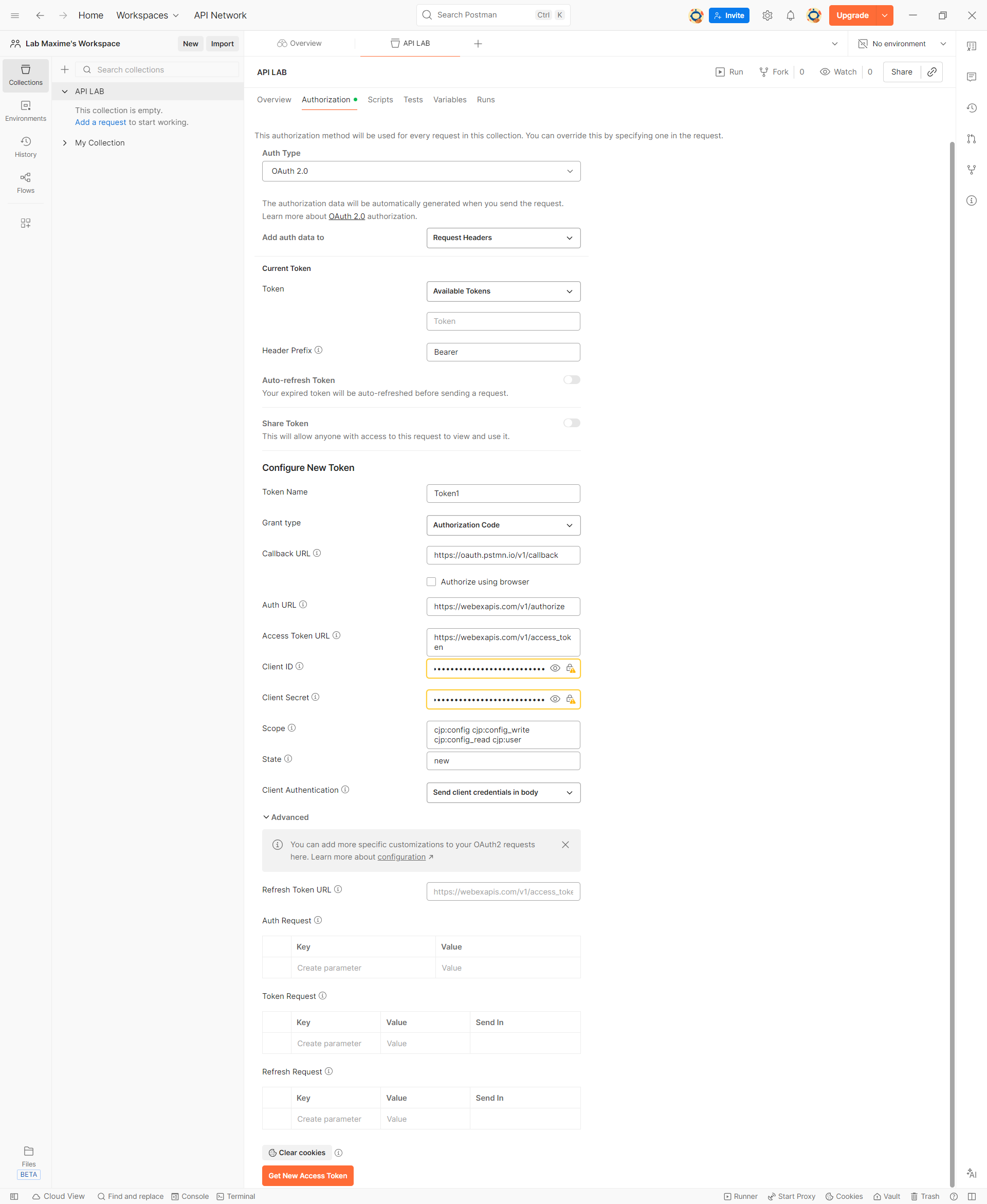
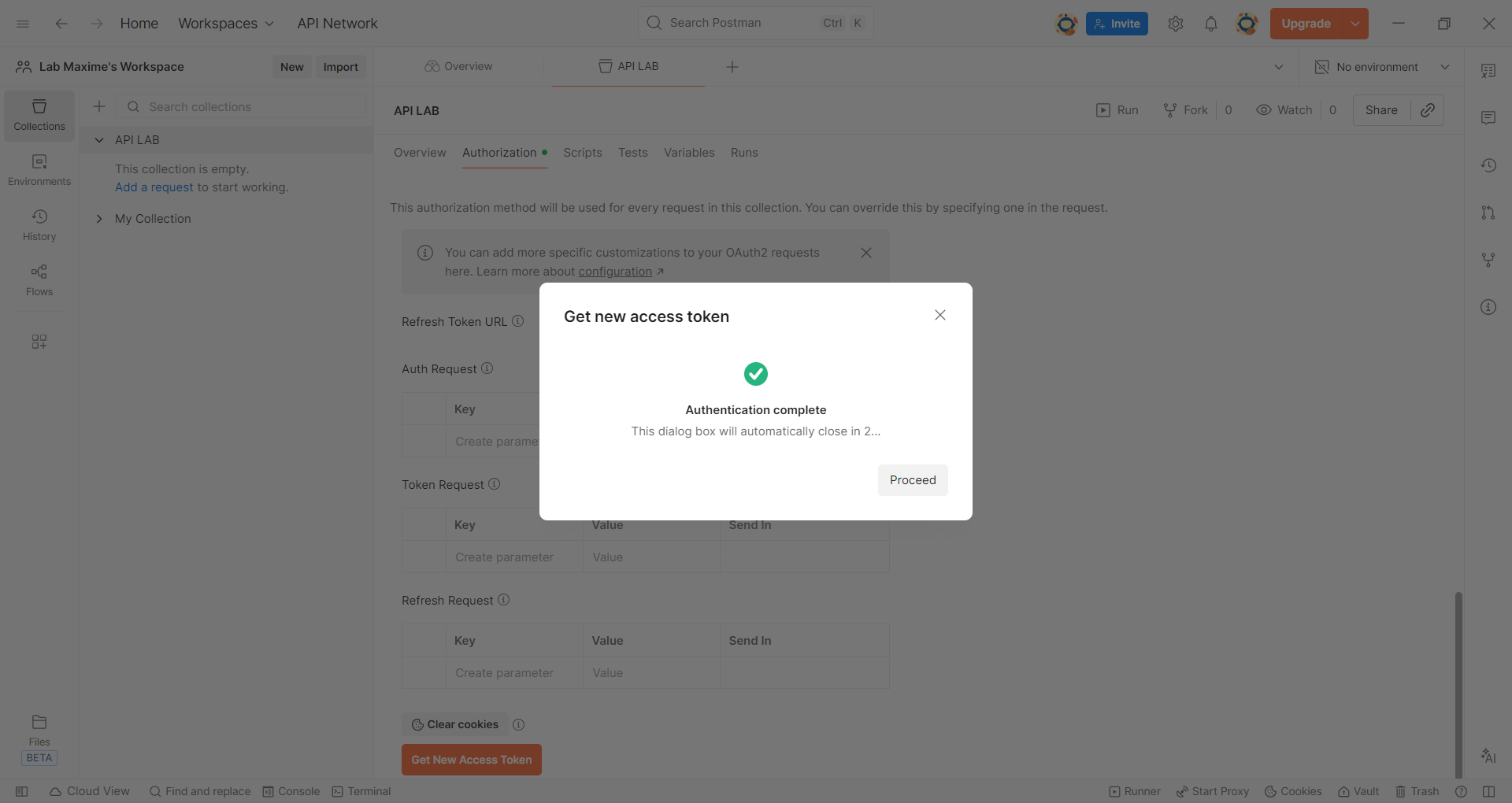
If all the information is entered correctly, Postman will send an authentication popup to connect to Cisco Webex and then validate the token.
Step 4 : Send a POST request
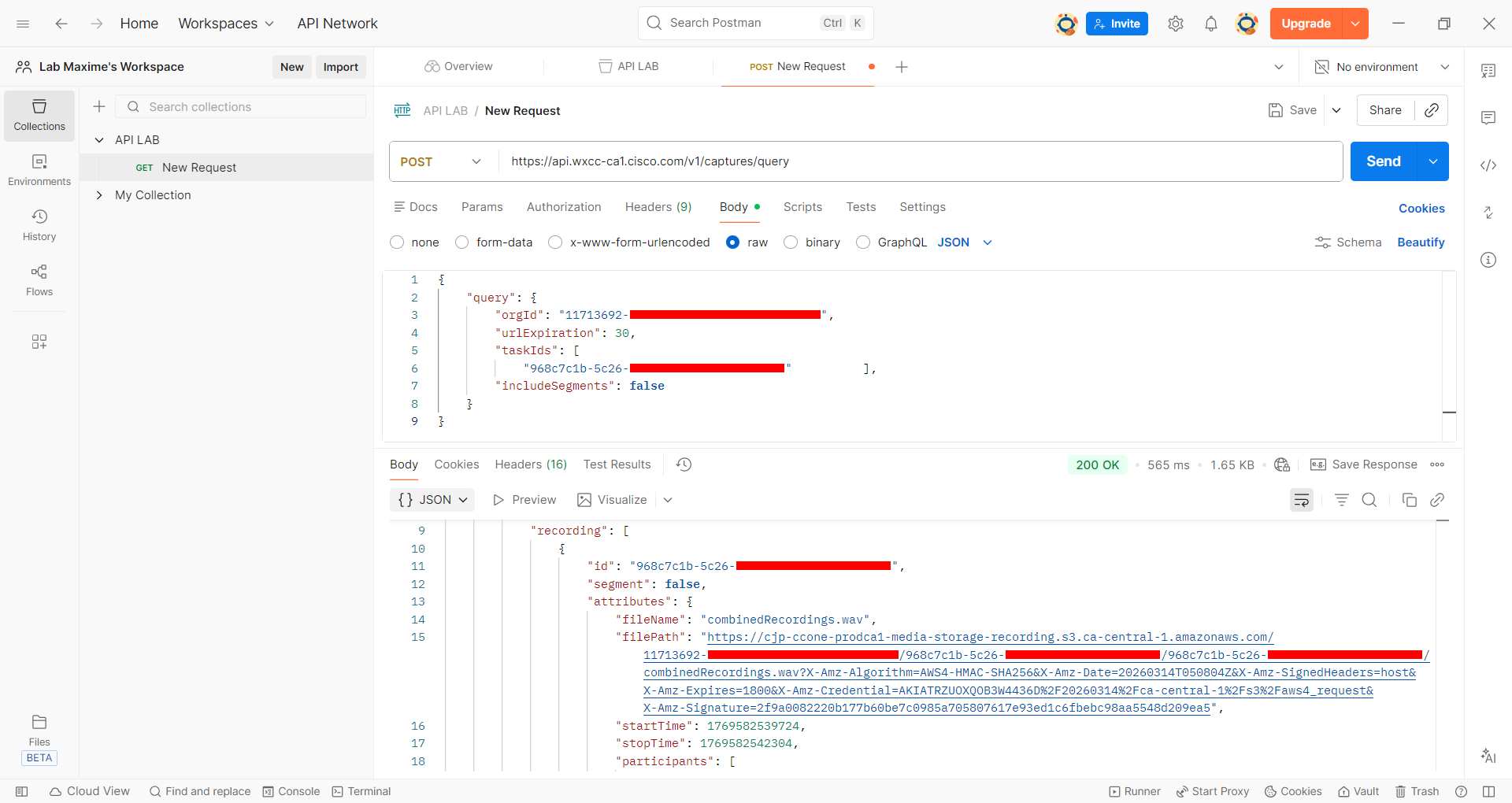
Create a new request and choose the POST type, and enter the value https://api.wxcc-ca1.cisco.com/v1/captures/query.
Enter the query below :
{
    "query": {
        "orgId": "11713692-XXXX-XXXX-XXXX-XXXXXXXXXXXX",
        "urlExpiration": 30,
        "taskIds": [
            "968c7c1b-5c26-XXXX-XXXX-XXXXXXXXXXXX"          ],
        "includeSegments": false
    }
}
orgId being the Cisco Webex tenant ID and taskIds the recorded call ID.
Click Send to get the filePath to download the recording.
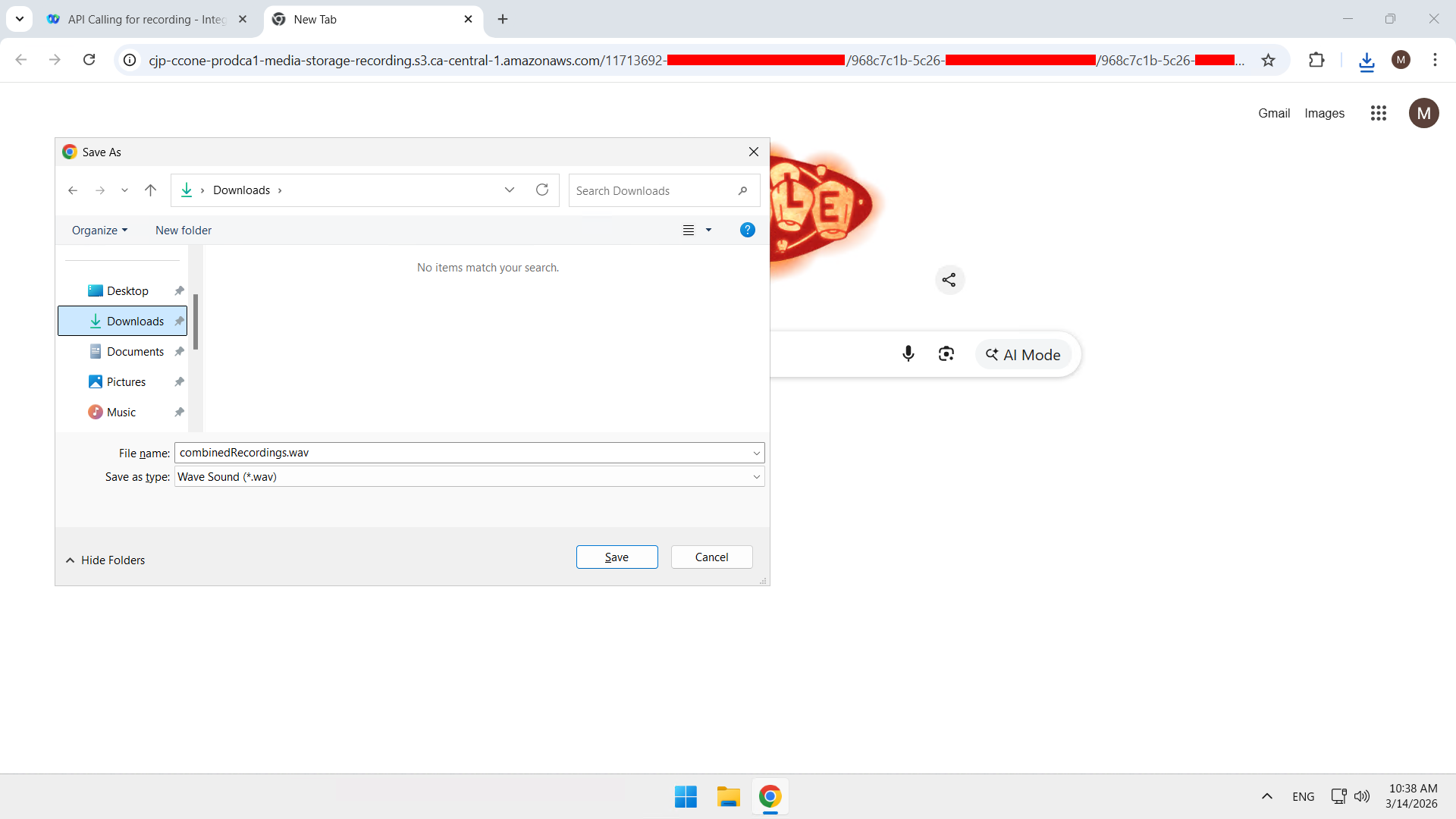
You can download the file locally.
Conclusion
You now know how to download recorded calls via the Cisco Webex API.
Sources
Did you enjoy this post ? If you have any questions, comments or suggestions, please feel free to send me a message from the contact form.
Don’t forget to follow us and share this post.