
How to enable call history in Teams queues
- Maxime Hiez
- Teams , Tutorial
- 06 Mar, 2026
Introduction
Microsoft has just introduced a feature that allows call history to be shared within the Microsoft Teams Queues app. This feature provides queue members with a unified view of all call events (missed, incoming, and outgoing) within a call queue. By enabling shared history, teams can access consistent, up-to-date information, follow up efficiently, and improve operational responsiveness.
Prerequisites
Microsoft Teams telephony enabled
- A configured call queue.
- Teams Queues App deployed.
Required licenses
- Microsoft Teams Premium.
Administrator role
- An account with the Global Administrator or Teams Administrator role to access the Microsoft Teams Admin Center.
Step 1 : Sign in to the Microsoft Teams Admin Center
Sign in to the Microsoft Teams Admin Center by opening your web browser to https://admin.teams.microsoft.com.
Step 2 : Create a shared call history template
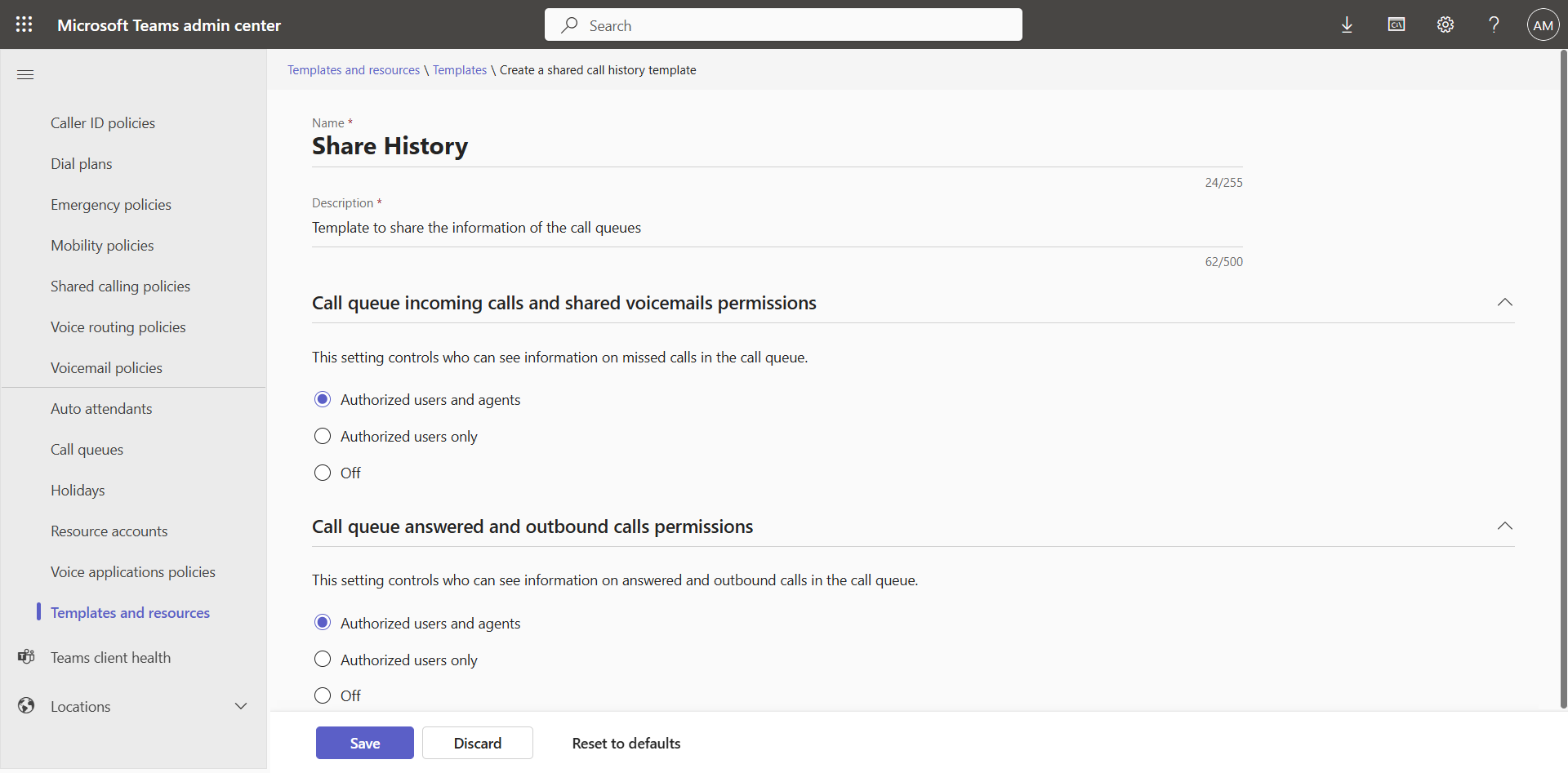
In the left menu, click Voice, then Templates and resources, and create a new template.
Choose the Authorized users and agents option for both attributes.
Step 3 : Apply the template to the queue
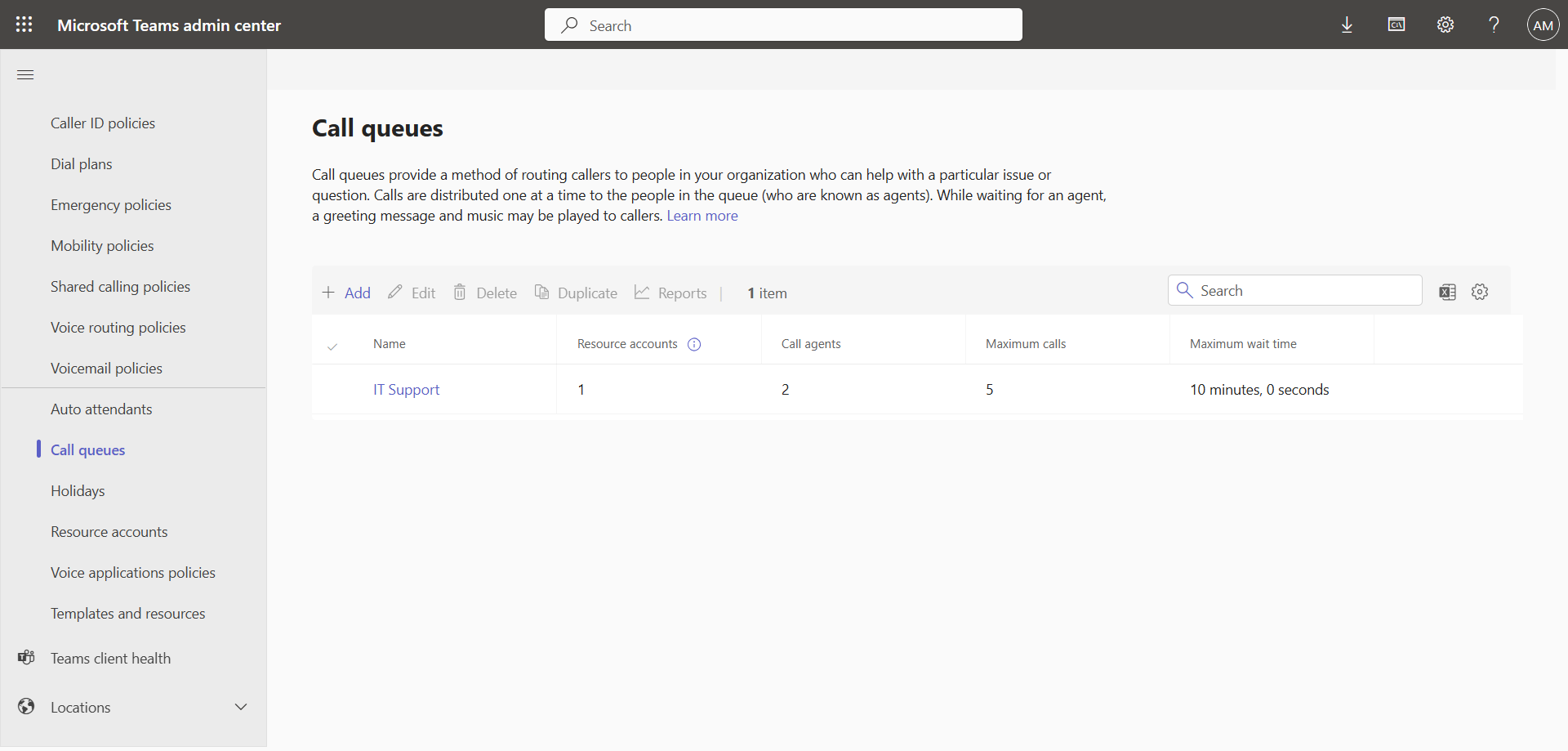
In the left menu, click Voice, then Call queues, and edit your queue …
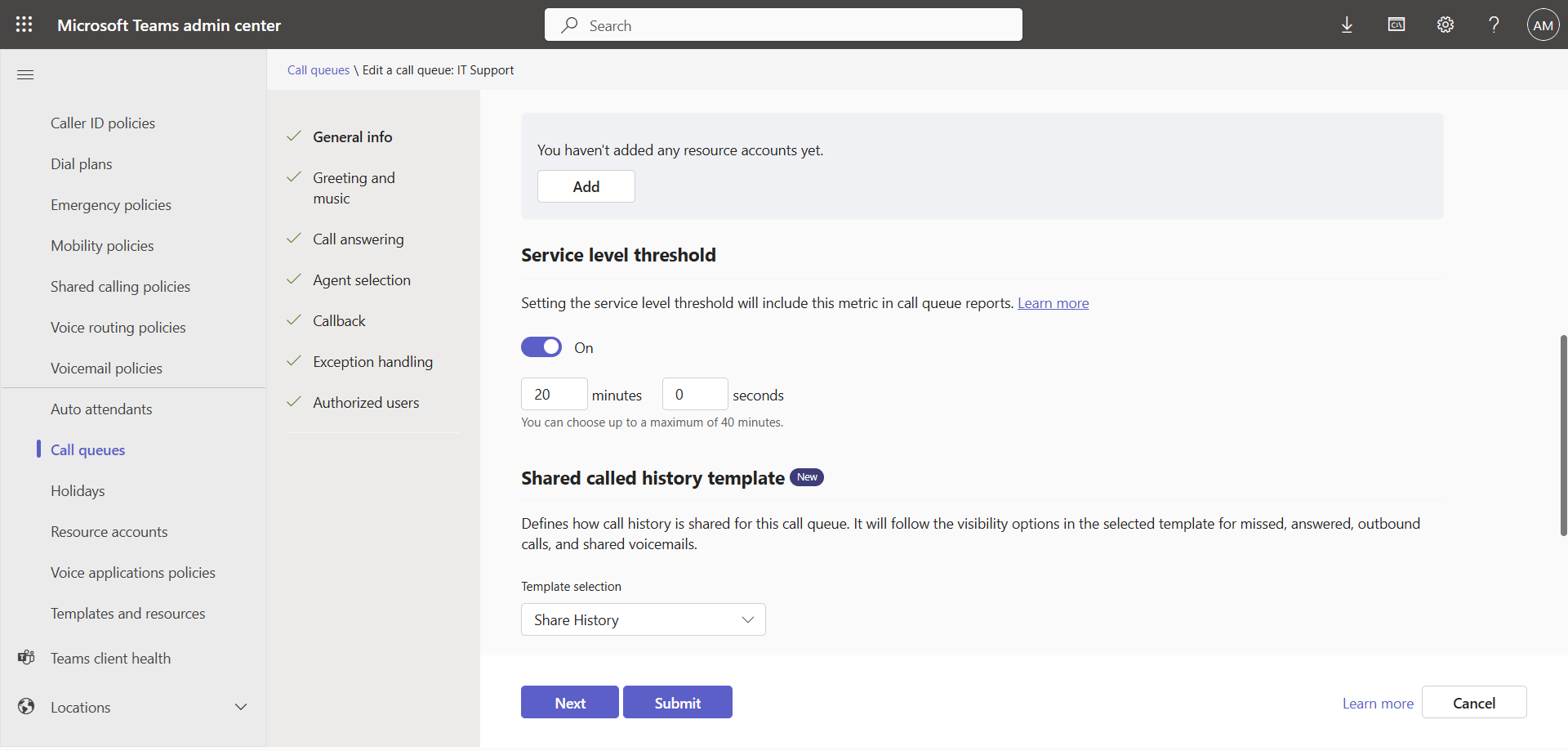
… and add the template.
Validate the result
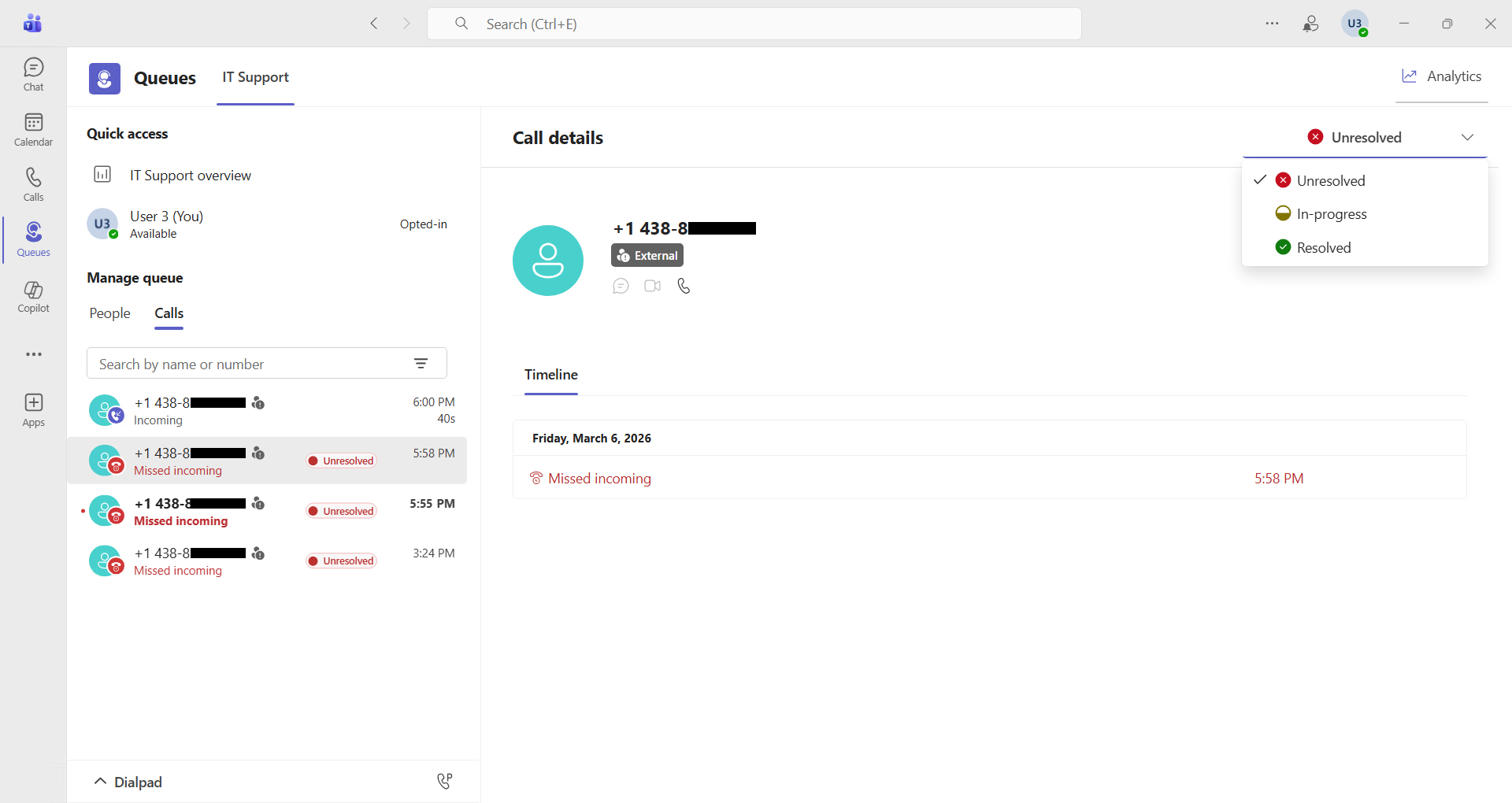
Open the Microsoft Teams Queues App and join the queue. New calls will now be visible in the History.
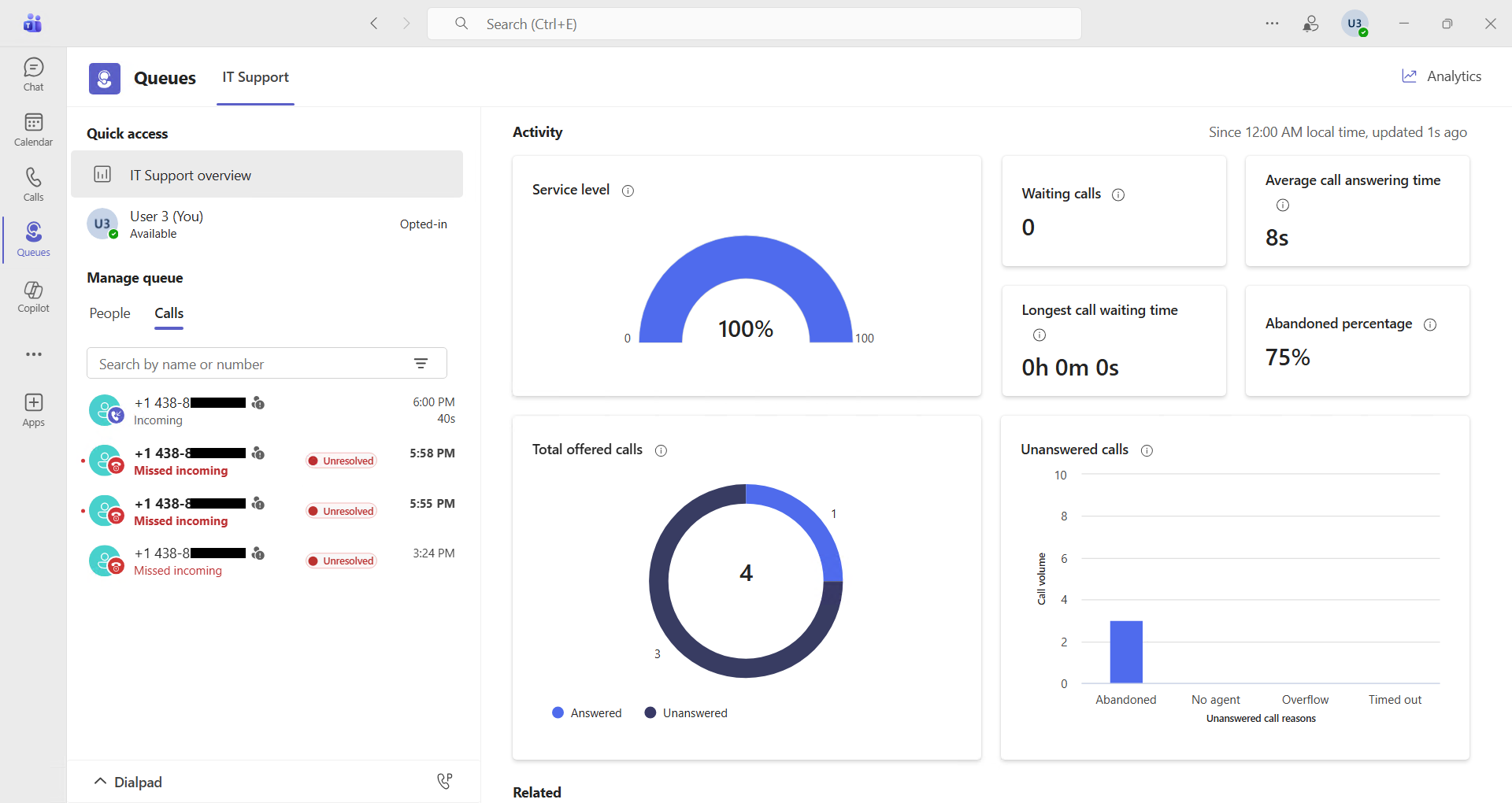
It becomes possible to track missed calls by applying a status to the call.
Conclusion
You now know how to enable call history in Teams queues.
Sources
Microsoft Learn - Shared call history
Did you enjoy this post ? If you have any questions, comments or suggestions, please feel free to send me a message from the contact form.
Don’t forget to follow us and share this post.