Remote Help adds unattended support on Windows
- Maxime Hiez
- Intune
- 05 Nov, 2026
Introduction
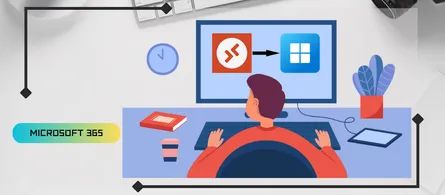
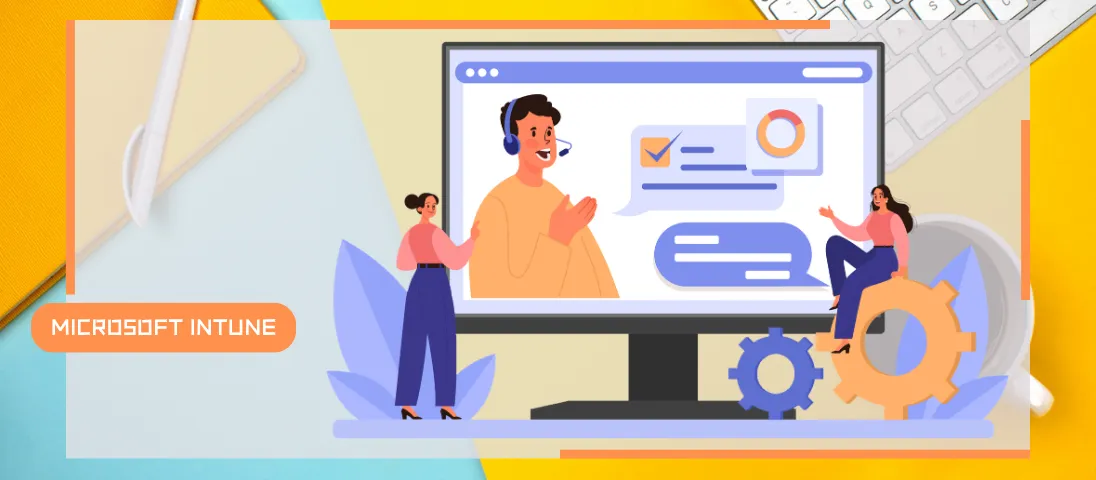
Microsoft Intune now lets a support agent sign in to a Windows device with their own credentials, without the user being present or having to do anything : this is Remote Help unattended support, with remote sign-in.
What unattended sign-in does
The agent opens a Windows session separate from the user’s. If nobody is signed in, the user’s session stays locked and preserved : they see the lock screen and can’t observe what happens in the agent’s session. If a user is signed in, they get a prompt : Yes continues, No cancels, and with no answer after 30 seconds the session starts automatically. The user can take their device back by signing in again from the lock screen, and the agent is notified.
On the agent side, everything starts from the device page in the Intune admin center : Devices > All devices > the device > New remote assistance session > Remote Help > Initiate unattended control. The session opens in Windows App (web client), in a new tab, with the account used for the admin center. Inside the session, the agent signs in with a local, AD domain, UPN or Entra ID account. A standard account doesn’t get administrator rights.
Only one agent and one unattended session are possible at a time on a device. According to the Tech Community post, a session lasts 12 hours at most, and this can’t be configured.
What you need to enable
Nothing works by default : Remote Help is disabled in the tenant, and the new permission isn’t in any built-in role. Four steps are needed :
- Tenant : Set Enable Remote Help to Enabled under Tenant administration > Remote Help > Settings
- Custom role : Create an Intune role with the Remote Help app - Windows unattended control remote sign-in permission, explicitly assigned and limited to the relevant devices
- Agents on the devices : Deploy the Azure Virtual Desktop agent and then its bootloader, which depends on the agent, as Win32 apps
- Remote Desktop : Enable Remote Desktop with a settings catalog profile (Allow users to connect remotely by using Remote Desktop Services), after checking that the firewall allows RDP traffic
The built-in Help Desk Operator role includes most of the required permissions, but not this one, so a custom role is mandatory. The agent also needs the Remote Tasks - Offer Remote Assistance and Remote Assistance Connector - read permissions, as well as at least one Remote Help permission.
When installing the agents, the registration token field is prefilled with INVALID_TOKEN and must be left as is. The agent updates itself, and the administrator can’t control that process. Finally, the device must be powered on and online : a device that is asleep, hibernating or turned off can’t receive unattended support. Traffic goes over port 443, to https://remotehelp.microsoft.com, using RDP.
Licensing and limits
A Remote Help license is required for all targeted users, agents and supported users alike, in addition to Intune Plan 1 or Plan 2. According to the Tech Community post, Remote Help is included in Intune Suite, sold as a standalone add-on (Remote Help add-on) or included in Microsoft 365 E3 and E5. No price is quoted here.
note
As for controls, a noncompliant device only triggers a warning banner. Remote Help’s own Conditional Access policies and chat don’t apply to unattended access, even though it’s recommended to protect agent accounts with Conditional Access (MFA or compliant device). The service doesn’t record any session, and session metadata is kept for 30 days. For monitoring, the Tech Community post points to the Monitor tab (active sessions, average duration, total) and the Remote Help sessions tab (agent, recipient, device, session type) under Tenant administration > Remote Help, as well as the audit logs (Tenant administration > Audit logs) filtered on the RemoteHelp category. It also states that unattended sessions can only be launched from the device page, not from the Remote Help app.
Conclusion
For a support team that manages physical devices remotely, the feature solves a real problem : fixing a device whose user is away and left it locked. But it opens access with no session recording, outside Remote Help’s own Conditional Access policies. It’s best to keep the custom role very narrow, limit it to specific device groups and watch the audit logs from day one. The license is also worth checking before any deployment : a Remote Help subscription is added on top of Intune, and E3 or E5 coverage still needs to be confirmed in your tenant.
Sources
Microsoft Learn - What’s new in Microsoft Intune
Microsoft Learn - Plan for Remote Help
Microsoft Learn - Deploy Remote Help
Microsoft Learn - Use Remote Help
Microsoft Learn - Remote Help with Microsoft Intune
Did you enjoy this post ? If you have any questions, comments or suggestions, please feel free to send me a message from the contact form.
Don’t forget to follow us and share this post.