
How to monitor your certification renewals with Power Automate
- Maxime Hiez
- Power Automate , Tutorial
- 20 Jul, 2026
Introduction
Certification renewal is an important milestone for companies, yet it is very common for experts to forget to renew them. They then lose their partnerships and experts have to restart their certification process.
I built a simple solution in my environment using Power Automate combined with Teams, SharePoint, Outlook and Forms, which monitors the expiration dates of each expert’s certifications and notifies them before their exams expire.
Prerequisites
Required licenses
- Power Automate Free (included in all Microsoft 365 and Business licenses).
Step 1 : Sign in to the Microsoft SharePoint Portal
Sign in to Microsoft SharePoint Portal by opening your web browser to https://YOUR_TENANT.sharepoint.com/_layouts/15/sharepoint.aspx.
Step 2 : Create a SharePoint site
In the left menu, click Create site, then Teams site, and give a relevant name and site address.
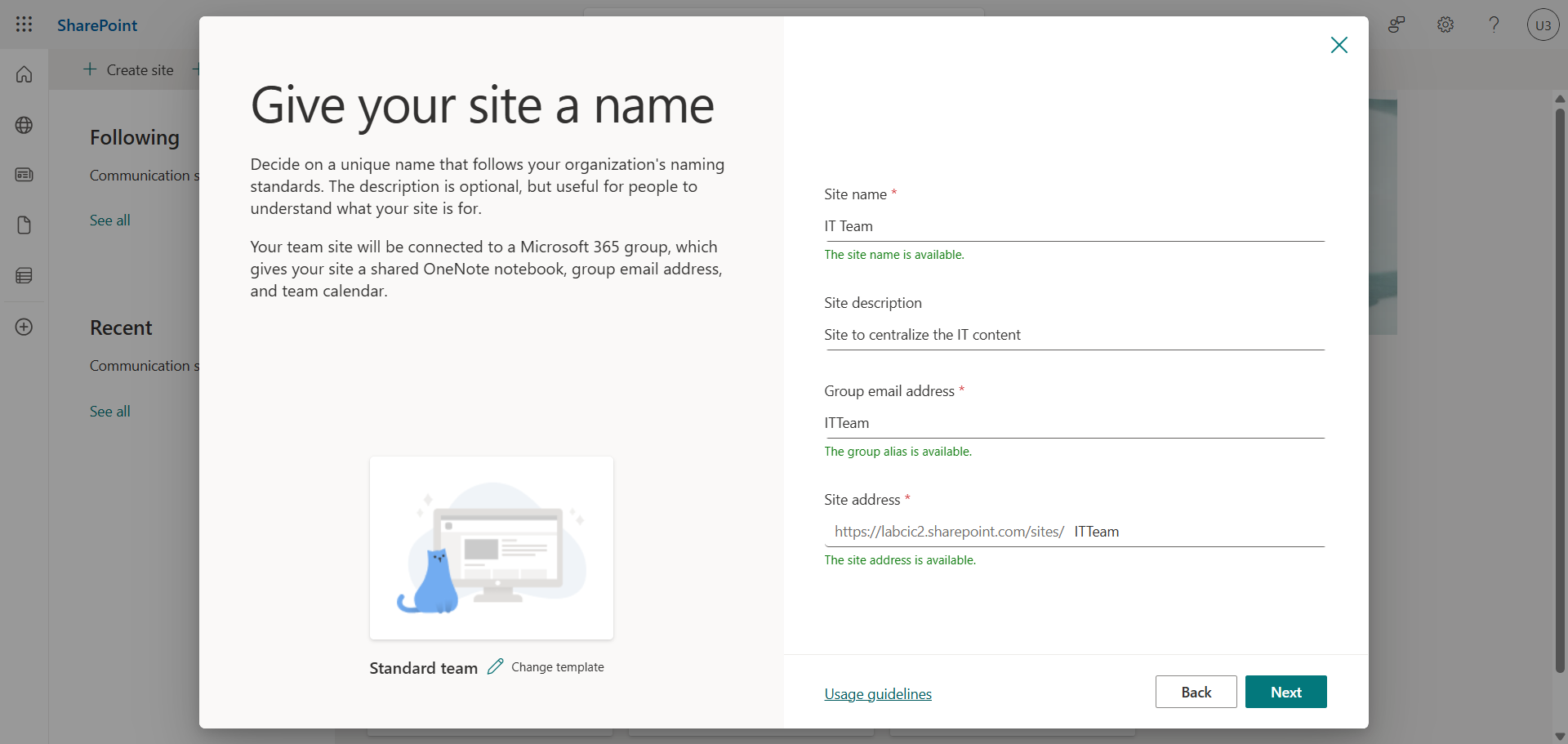
Step 3 : Create 3 SharePoint lists
In the left menu, click New, then List.
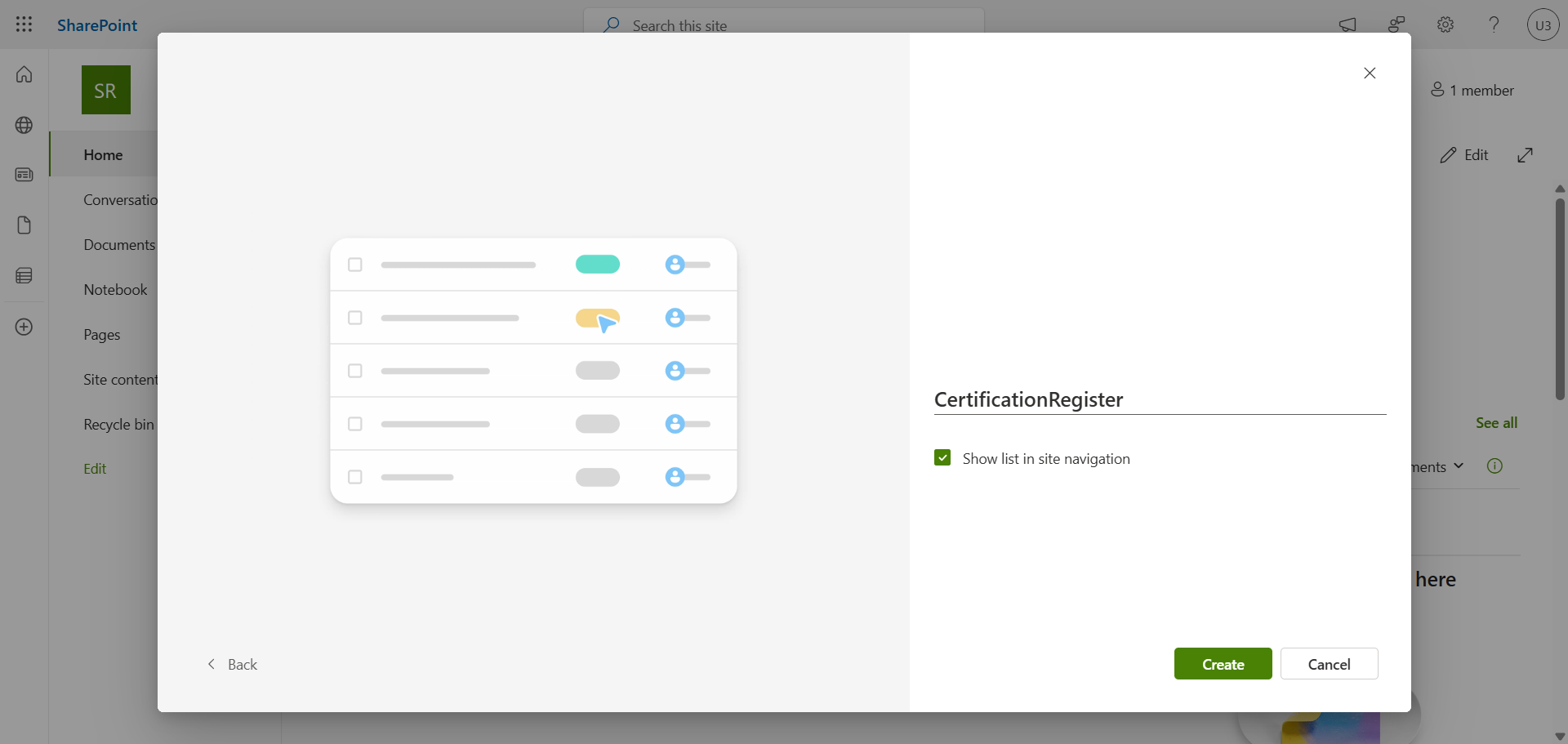
Add columns to your 3 lists with necessary information such as :
CertificationRegister
- EmployeeEmail
- Category
- IssuedOn
- ExpiryDate
- ValidatyMonths
- Status
- AlertTier
- CertificateReference
- …
FlowErrorLog
- RunUrl
- FailedAction
- ErrorMessage
- ErrorTime
- …
ComplianceHistory
- Compliance
- Total
- Valid
- …
Step 4 : Sign in to Microsoft Forms
Sign in to Microsoft Forms by opening your web browser to https://forms.cloud.microsoft.
Step 5 : Create 2 Forms forms
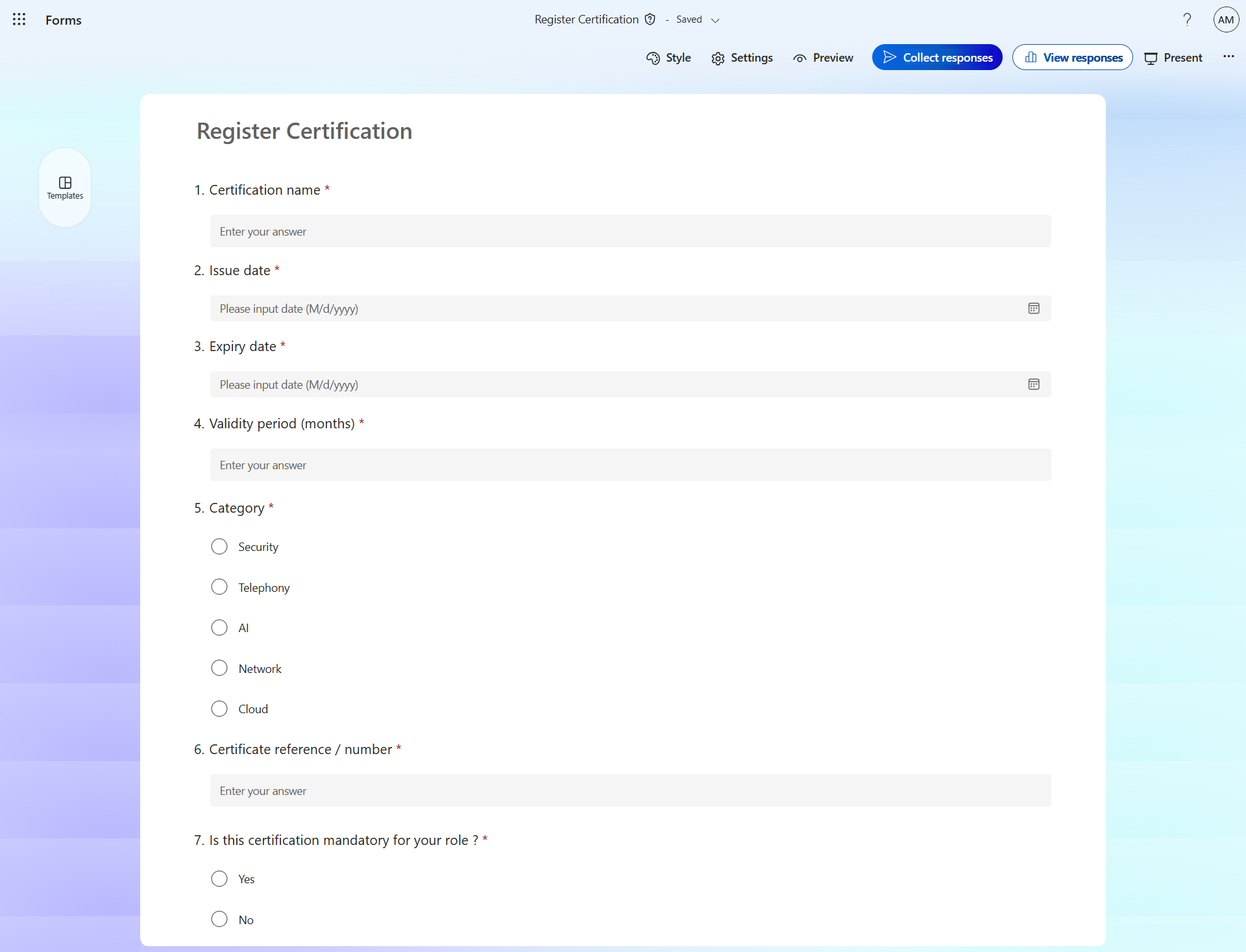
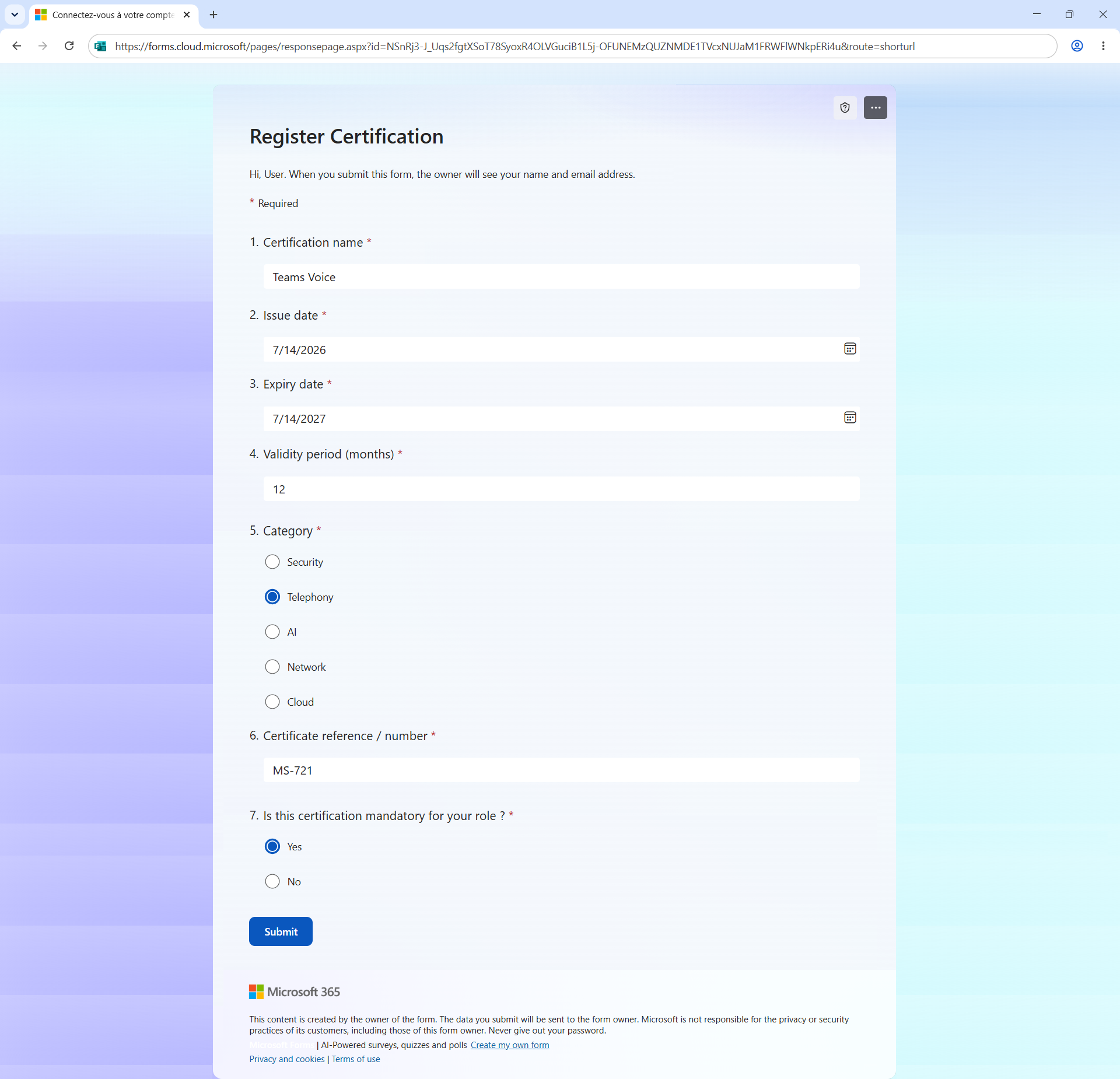
Add questions to your 2 forms with necessary information such as :
Register Certification
- Certification name
- Issued date
- Expiry date
- Validaty period
- Category
- Certificate reference
- Mandatory
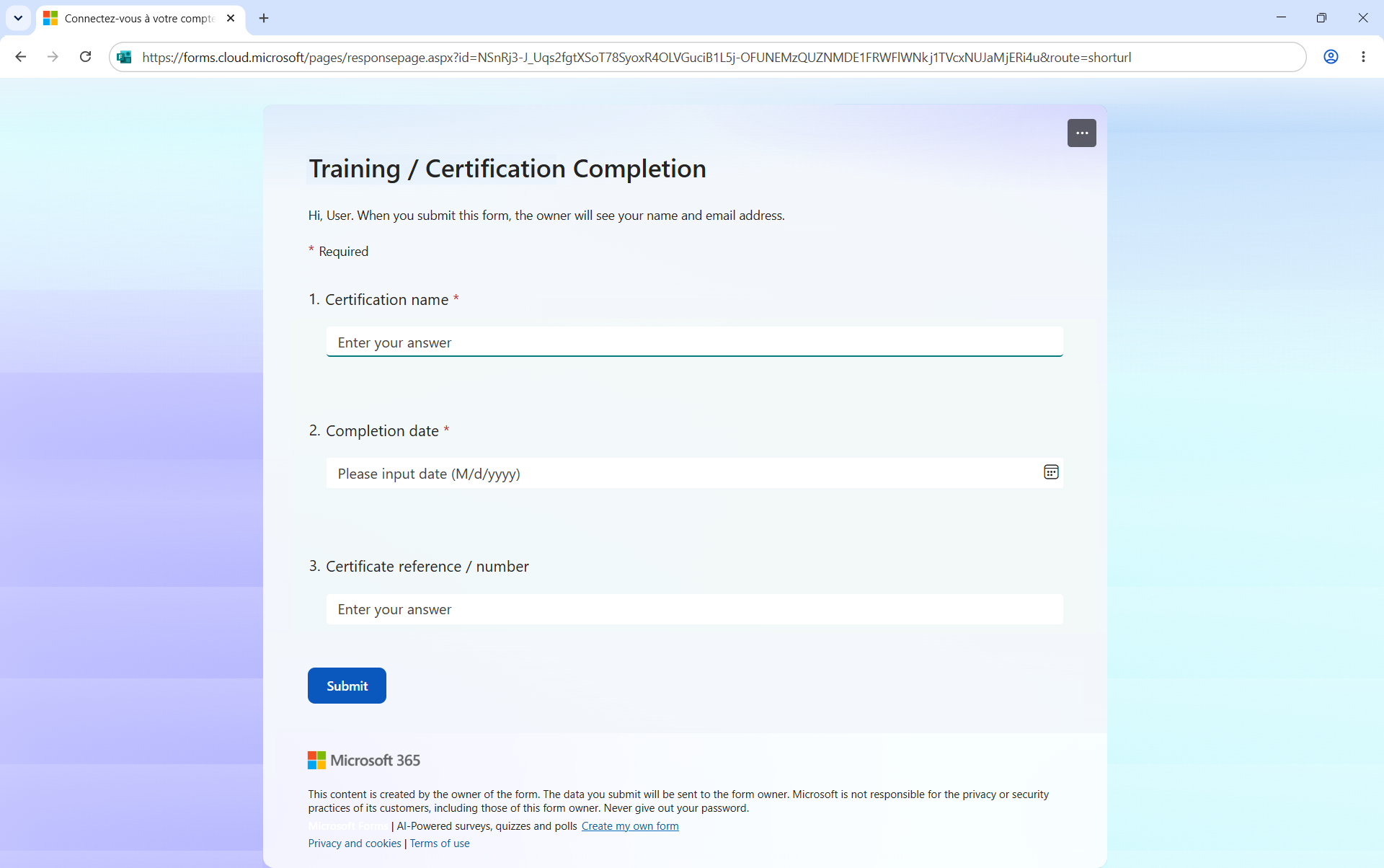
Training / Certification Completion
- Certification name
- Completion date
- Certificate reference
Step 6 : Sign in to Microsoft Power Automate
Sign in to Microsoft Power Automate by opening your web browser to https://make.powerautomate.com.
Step 7 : Create a first flow to retrieve the new certification
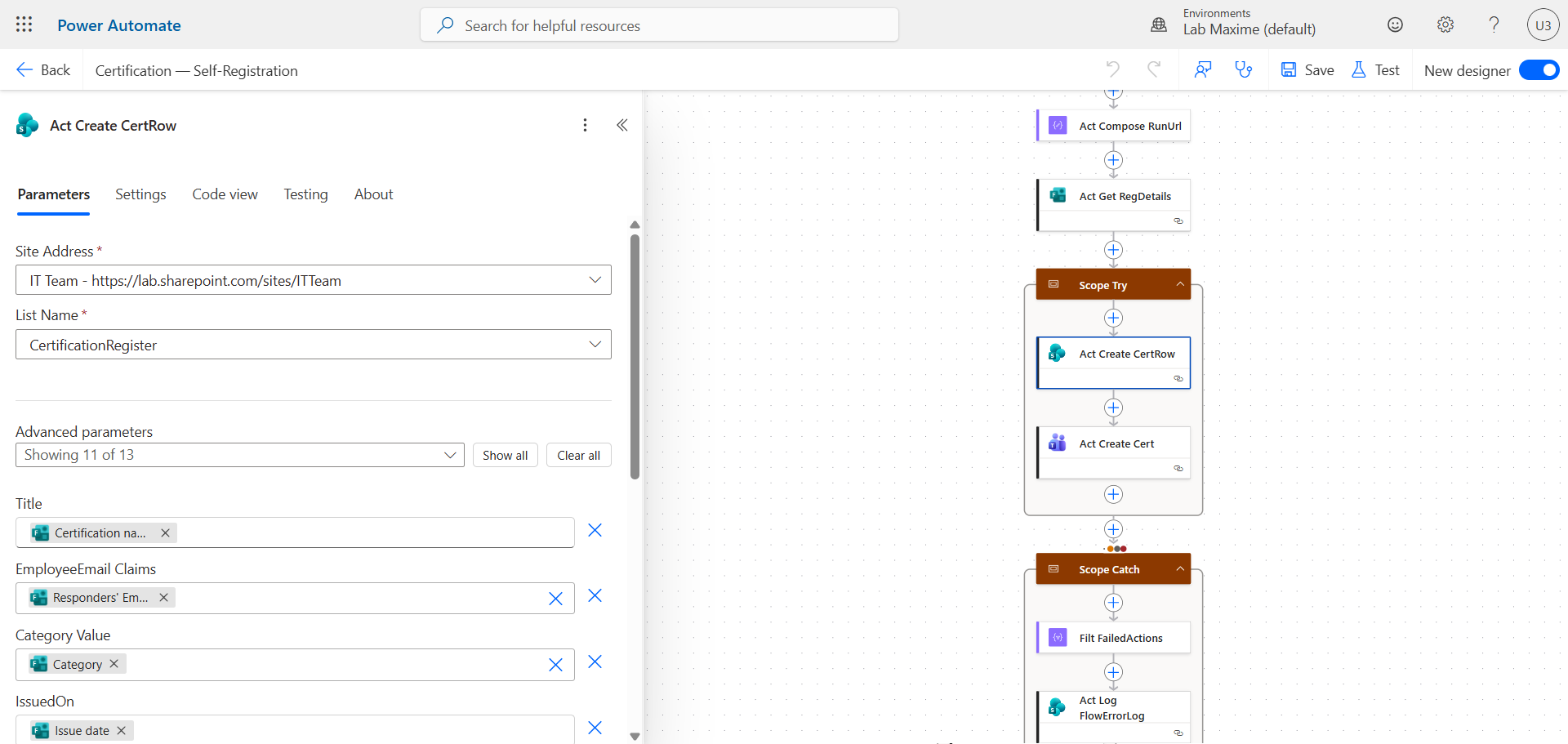
In the left menu, click Create, then Automate cloud flow and choose When a new response is submitted.
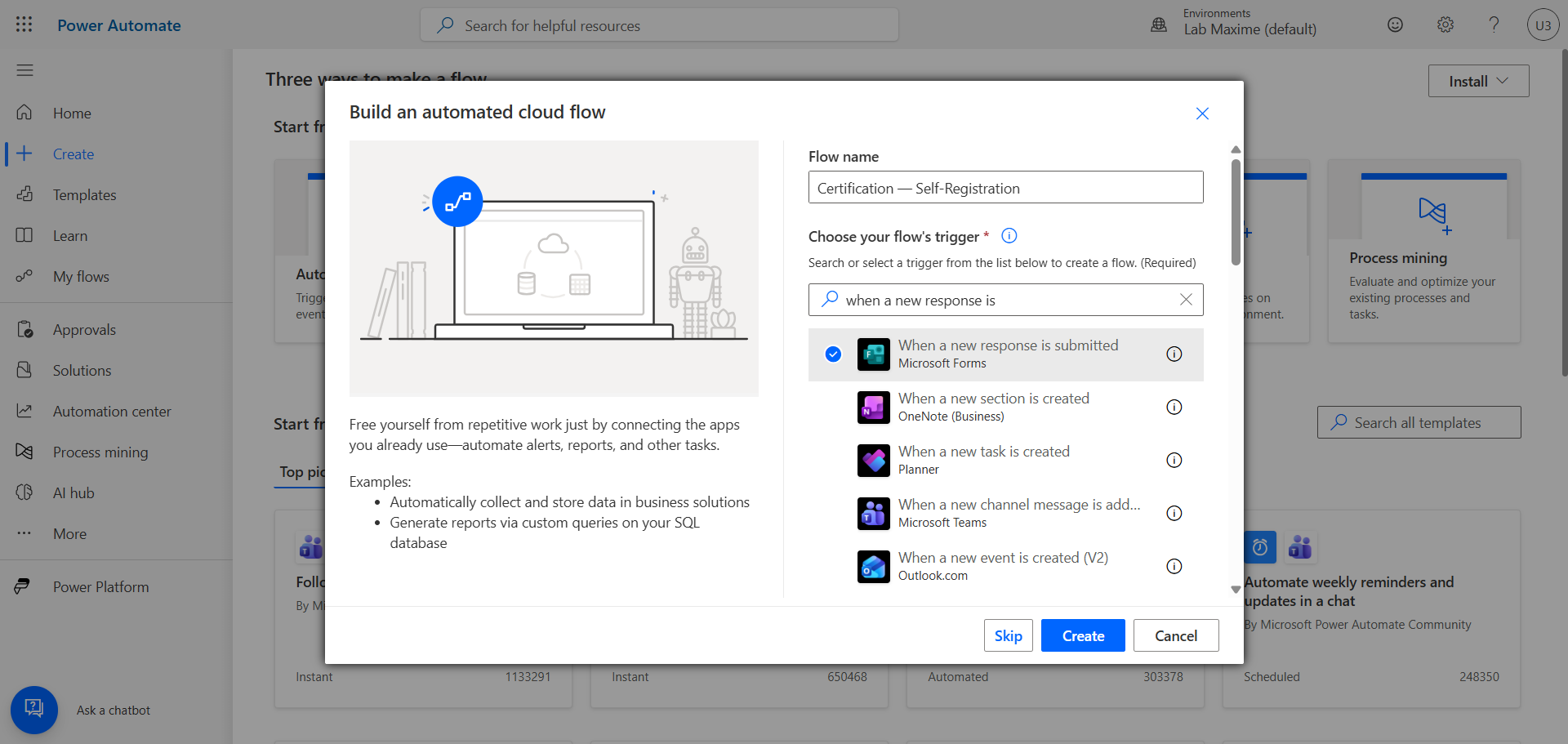
Chain actions and variables to retrieve the Forms form submitted by the user. Use the retrieved variables to send them to the CertificationRegister SharePoint list.
Step 8 : Create a second flow to analyze certifications and notify
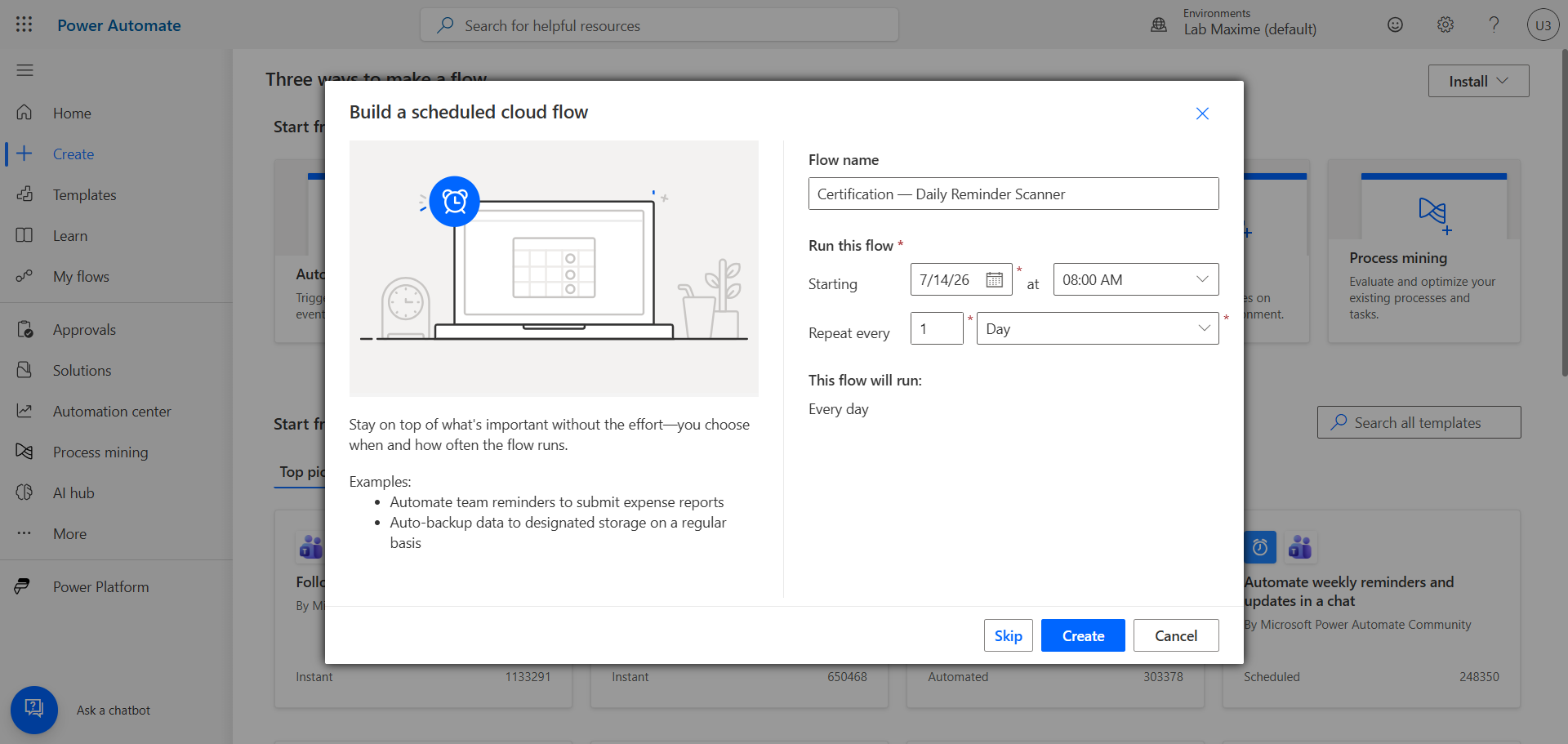
In the left menu, click Create, then Scheduled cloud flow and choose a daily recurrence.
Create a loop to go through the CertificationRegister SharePoint list and check if there are certifications expiring in 60, 30 and 7 days.
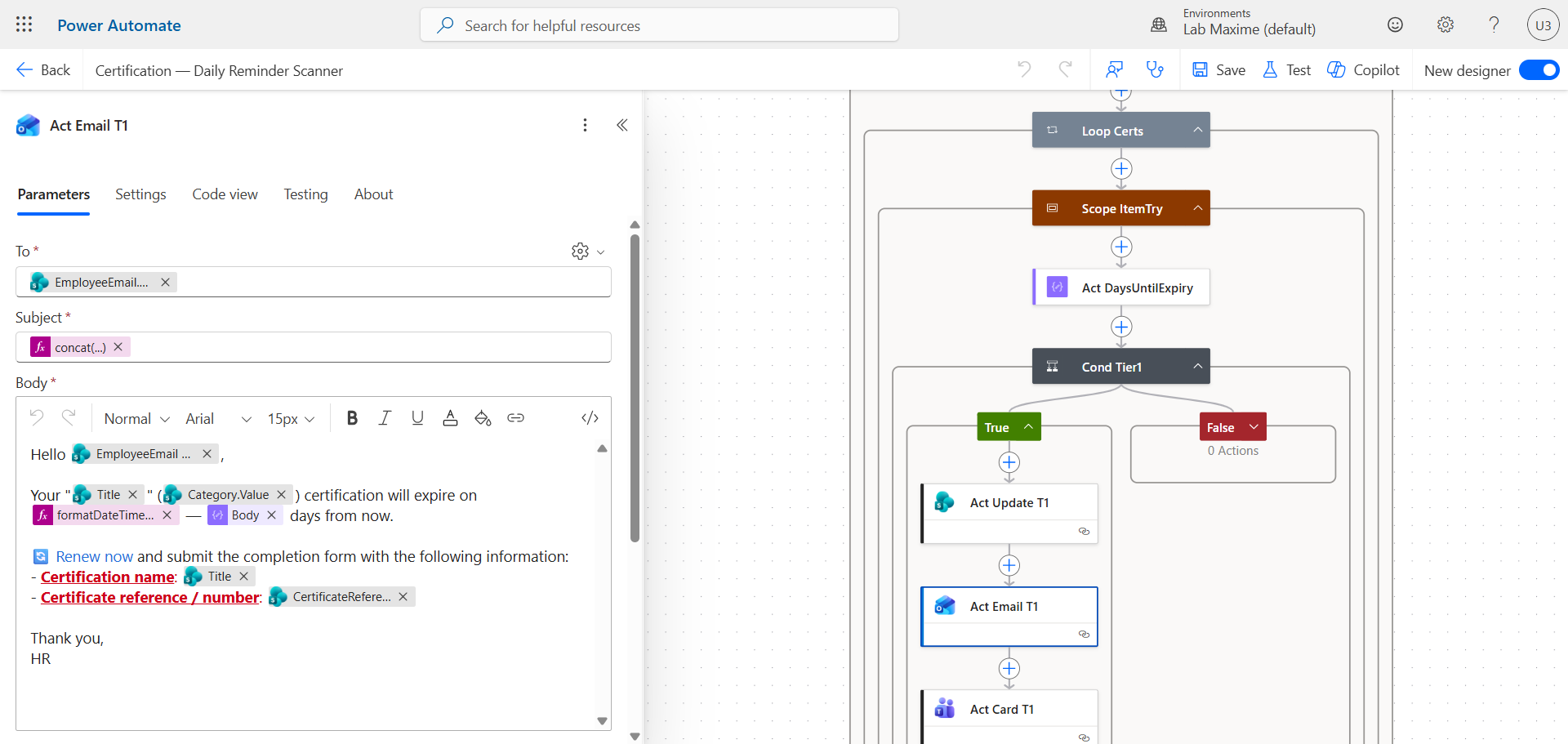
When a certification is getting close to expiration, chain the following actions :
- 60 days : Teams message + email to the certification owner
- 30 days : Email to the certification owner and their supervisor
- 7 days : Teams message + email to the certification owner and their supervisor
Step 9 : Create a third flow to retrieve the certification update
In the left menu, click Create, then Automate cloud flow and choose When a new response is submitted.
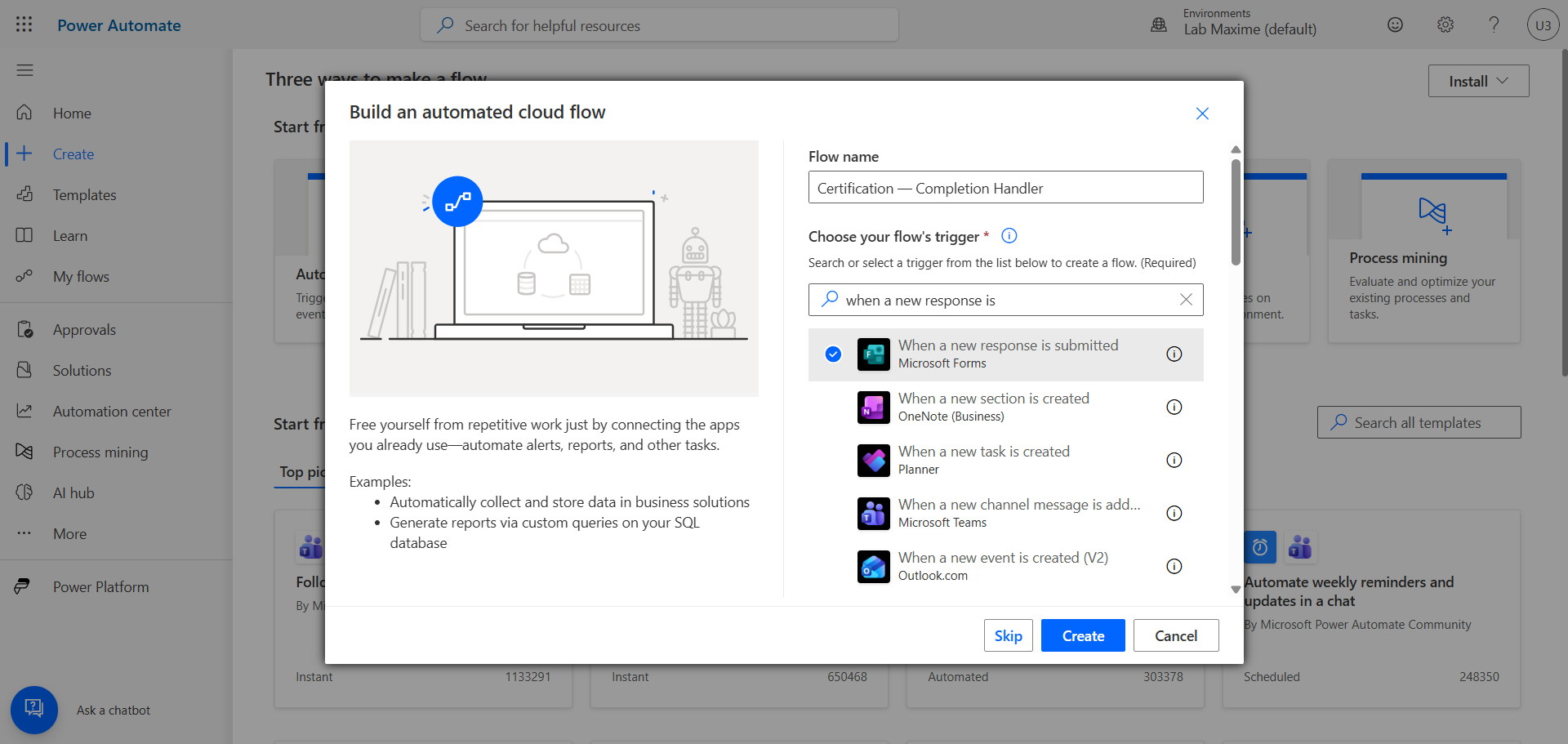
Chain actions and variables to retrieve the Forms form submitted by the user. Use the retrieved variables to update the CertificationRegister SharePoint list.
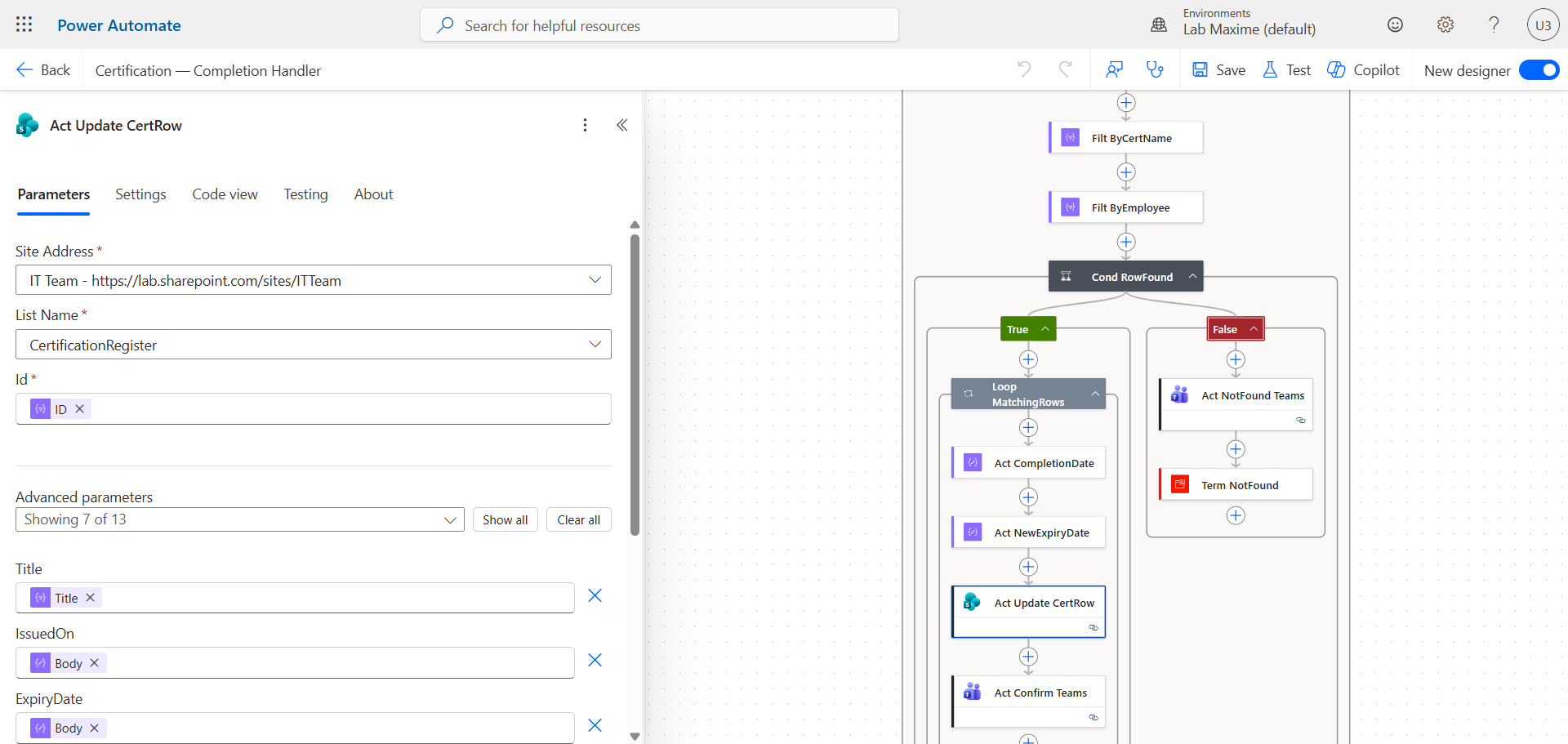
Step 10 : Create a fourth flow to get a monthly follow-up
In the left menu, click Create, then Scheduled cloud flow and choose a monthly recurrence.
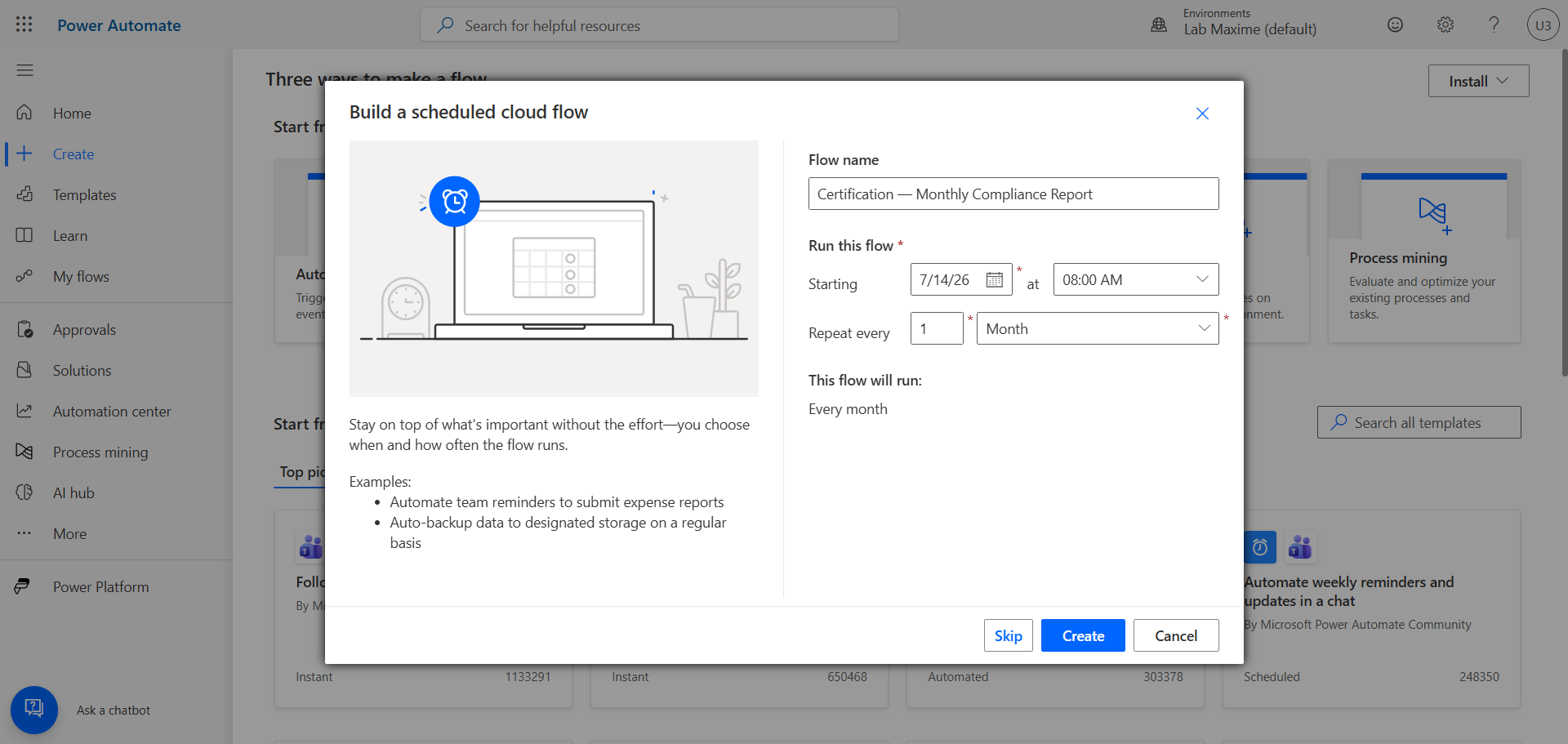
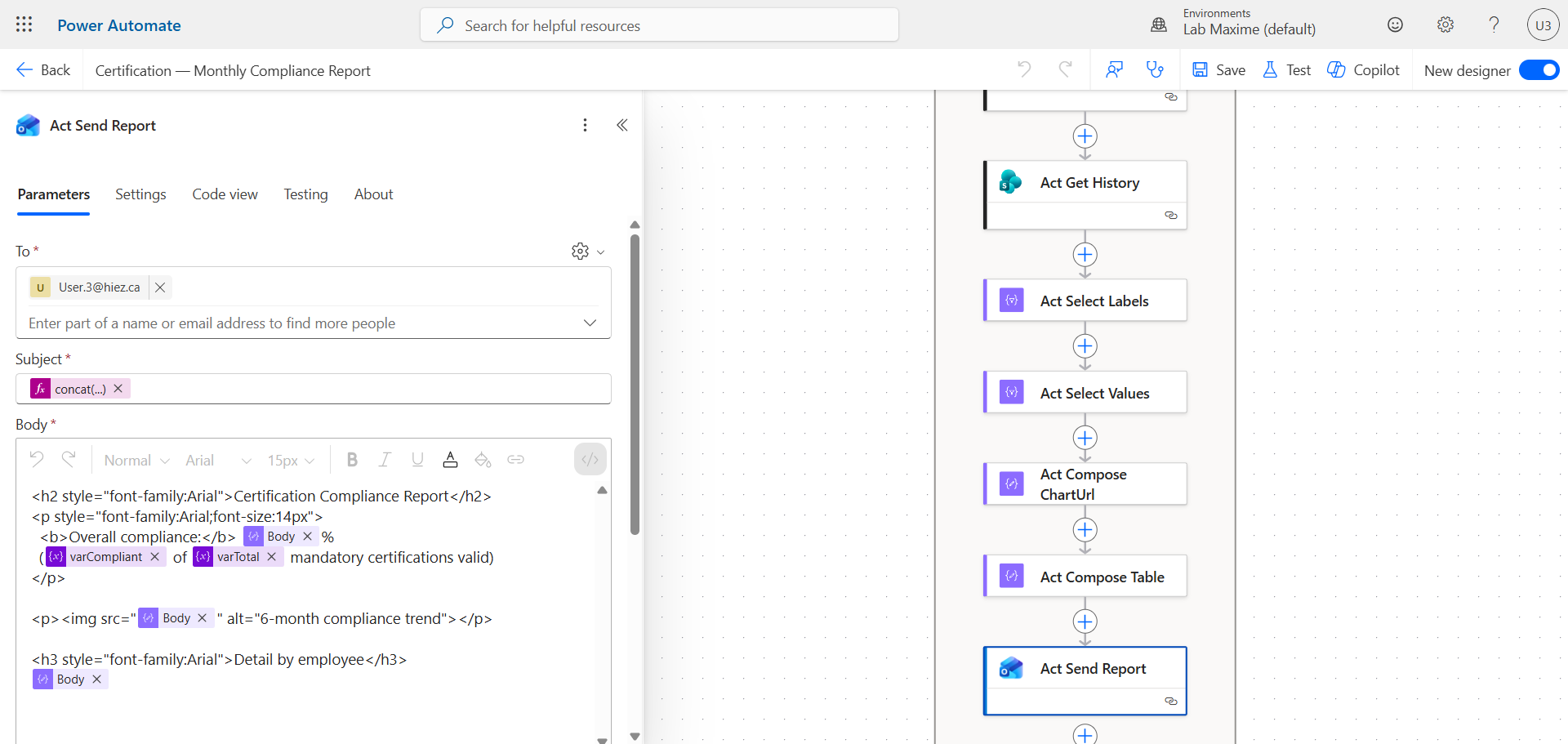
Create a loop to go through the CertificationRegister SharePoint list and send a monthly follow-up report of all certifications.
Results
The user registers their new certification themselves via the published form. The responses will be saved in SharePoint.
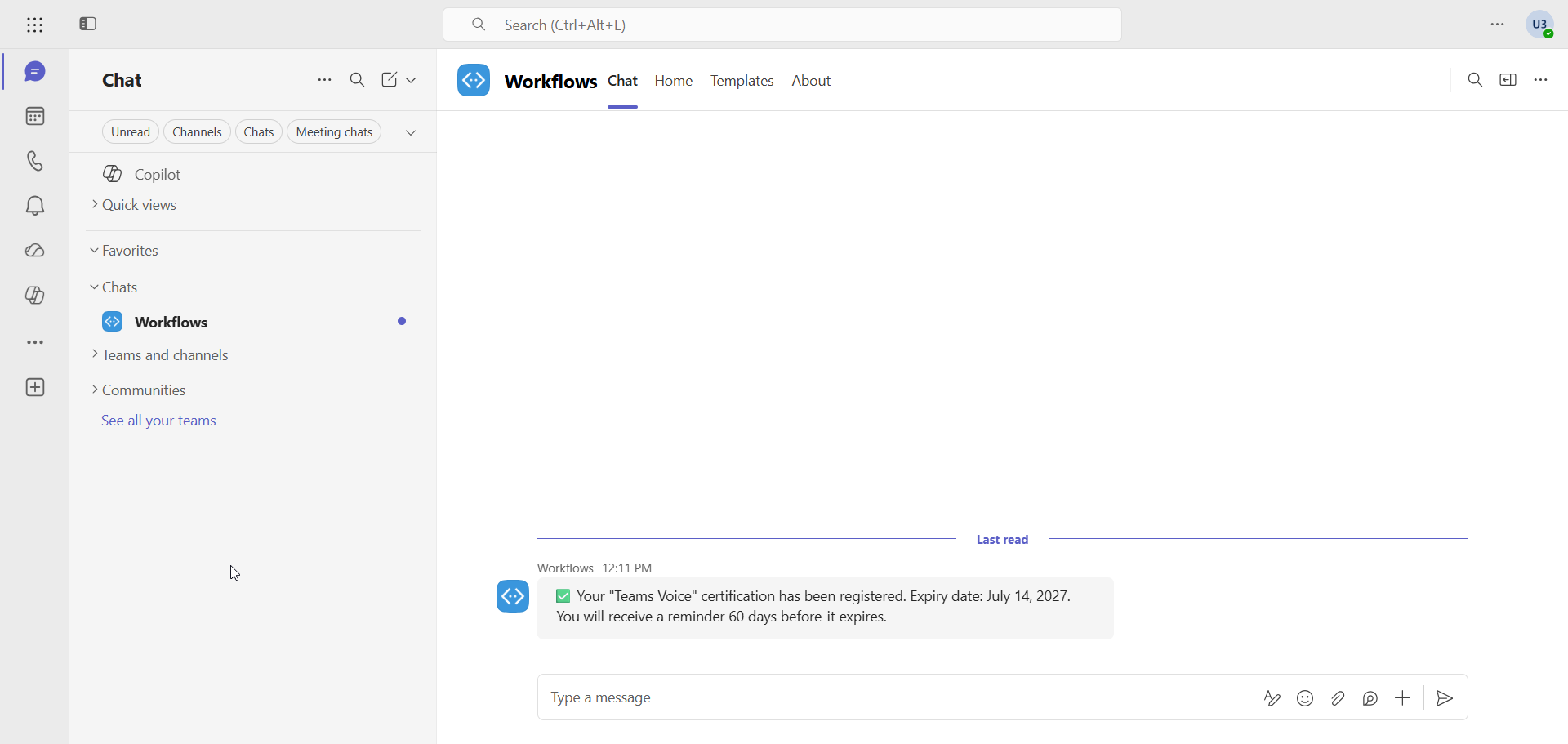
They receive a message in Teams confirming that their certification has been registered…
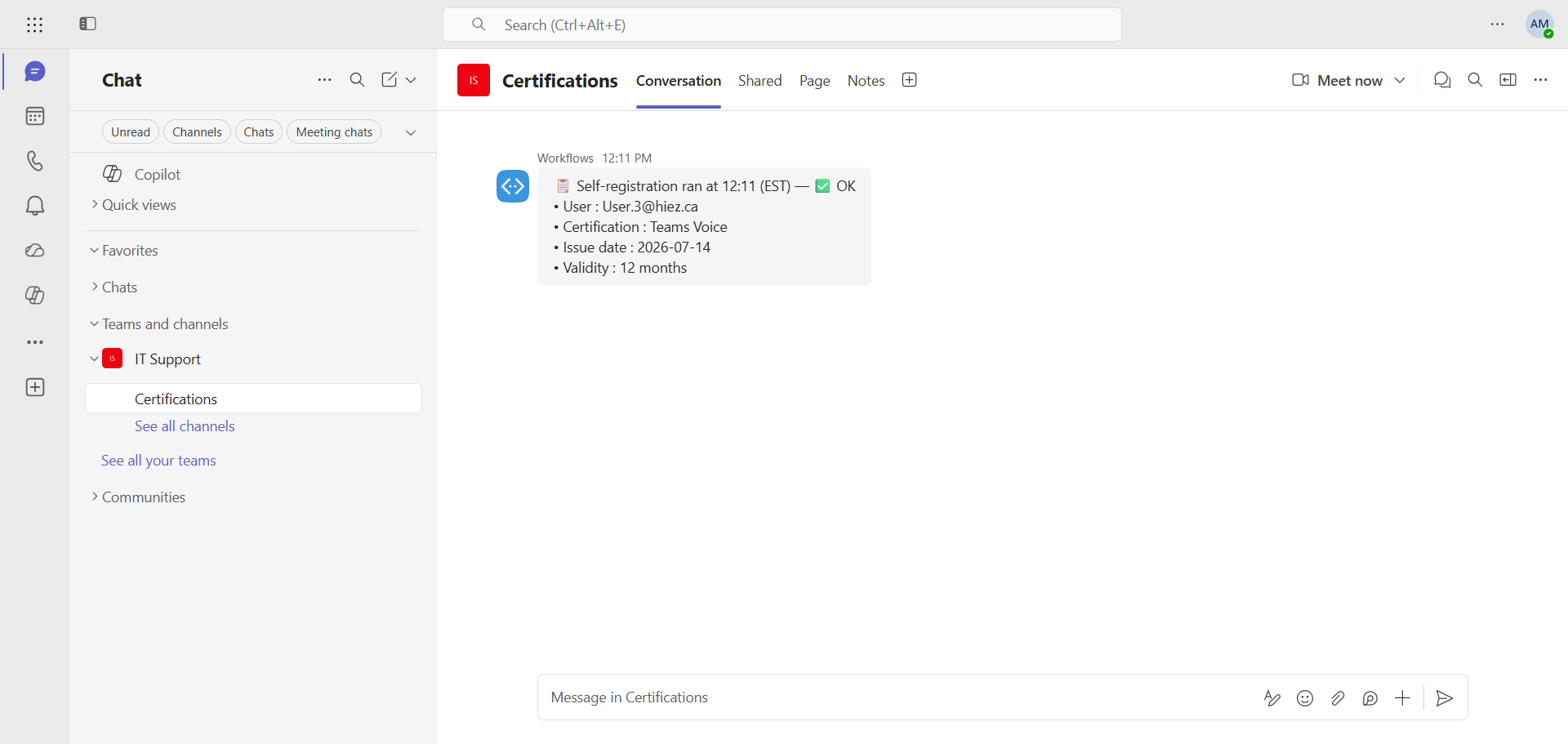
… and the team in charge of tracking certifications also receives a confirmation in Teams.
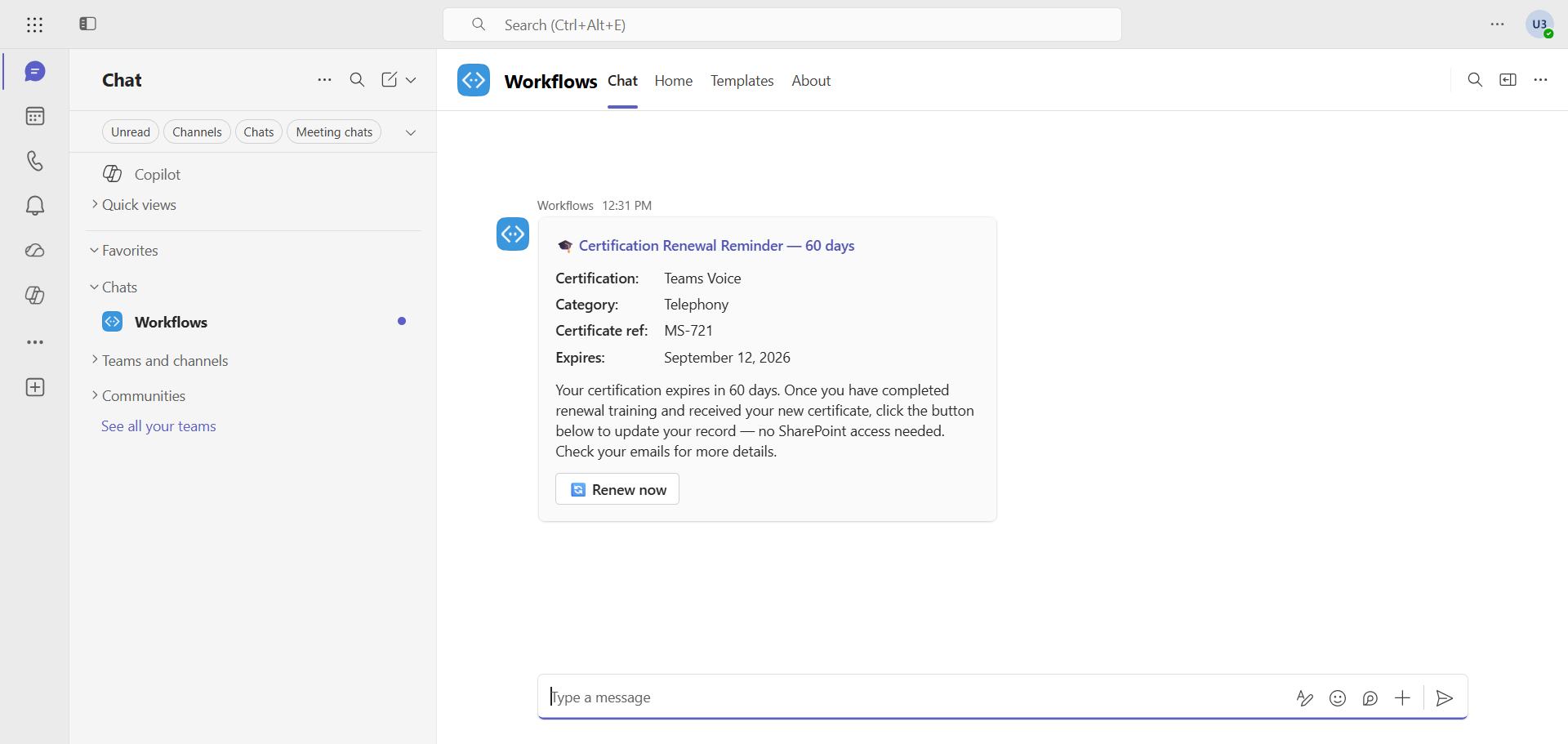
60 days before the expiration date, a Teams message is sent to the user to inform them of the situation and offer them to renew it by clicking a button.
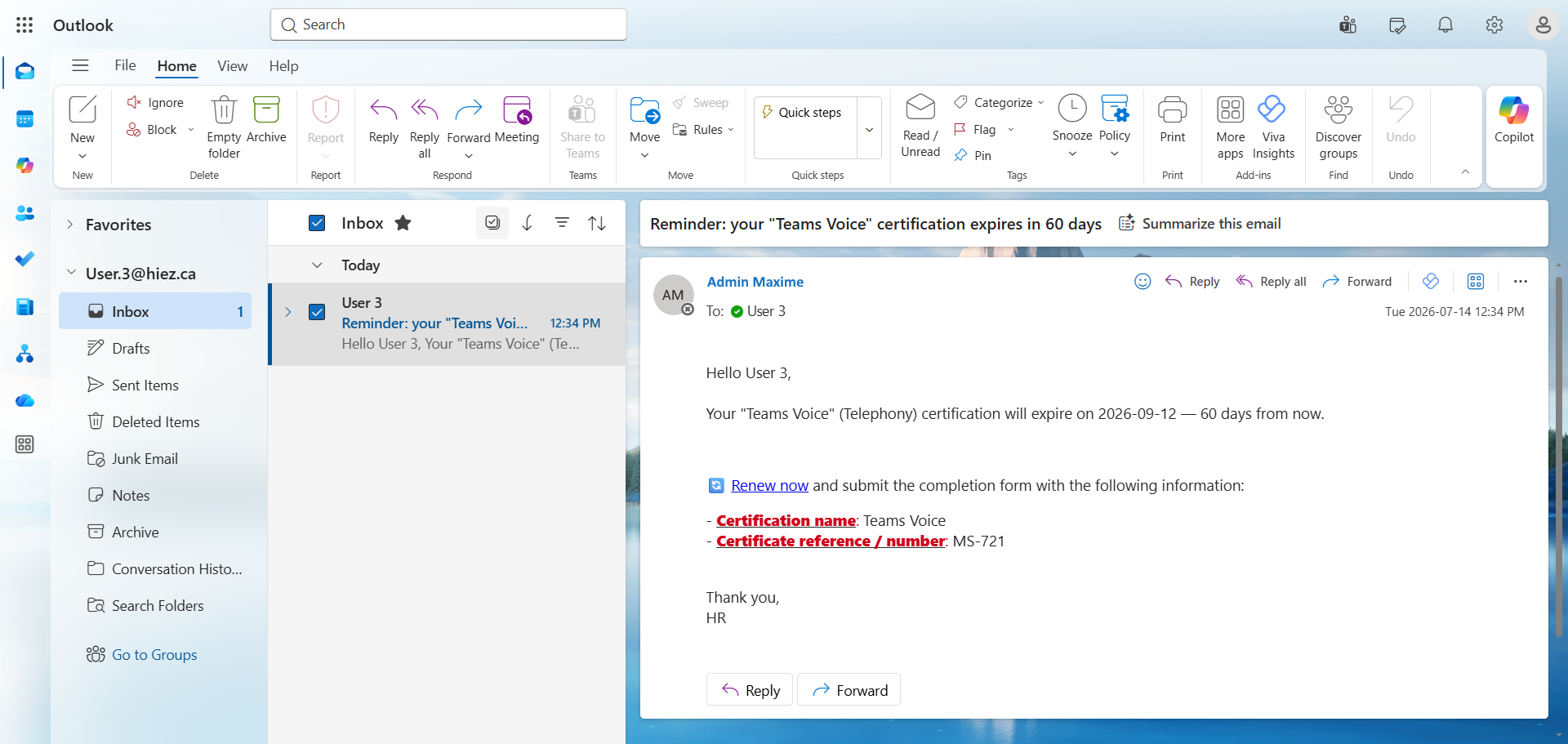
An email is also sent to them.
30 days before the expiration date, if the certification has not been renewed, the user receives a new email and their manager is escalated.
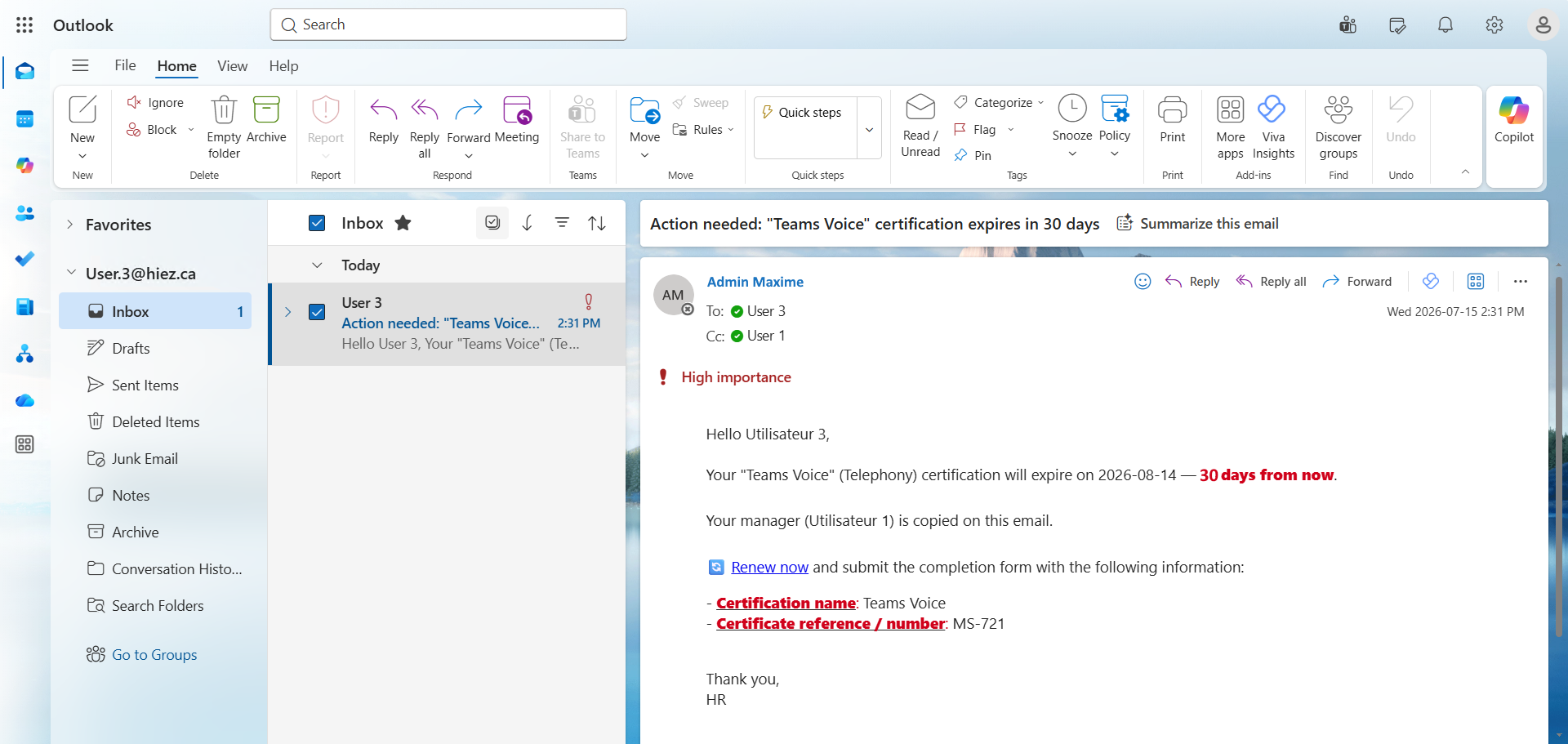
When the user clicks the link received by email or the button received in Teams, they can enter the information received to extend the date of their certification.
Compliance tracking
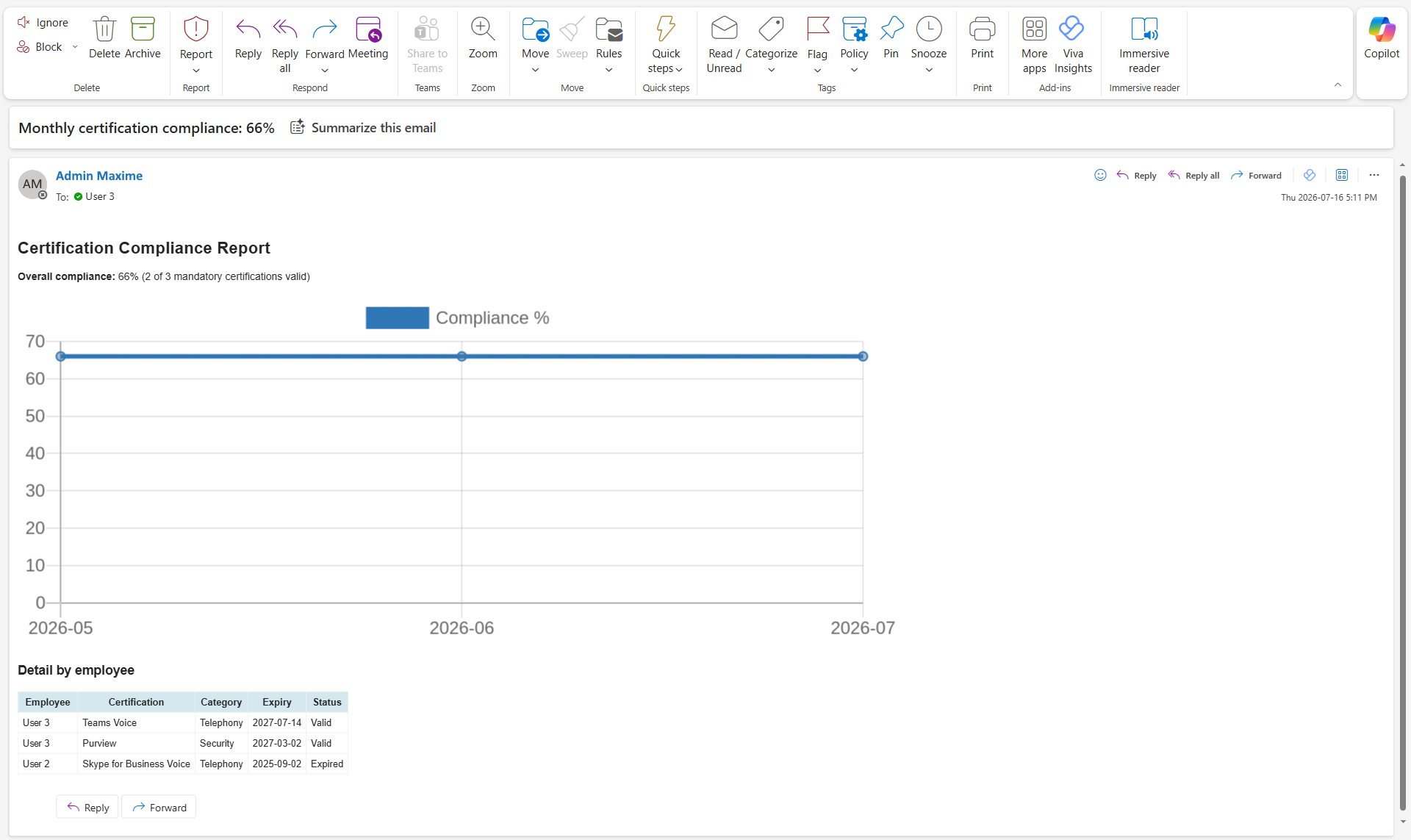
Every month, a report is sent with a follow-up of the evolution of renewal and expiration dates.
Conclusion
You now know how to create a certification expiration monitoring tool with Power Automate.
Sources
Microsoft Learn - Power Automate
Did you enjoy this post ? If you have any questions, comments or suggestions, please feel free to send me a message from the contact form.
Don’t forget to follow us and share this post.