How to build a catering service with Power Automate
- Maxime Hiez
- Power Automate , Tutorial
- 23 Apr, 2026
Introduction
There are already catering solutions for Outlook on the market ; examples include arbooMEET, AskCody, GoBright, and others. These solutions integrate directly with Microsoft 365, allowing users to order food and drinks when booking meeting rooms. These add-ons streamline processes, reduce email exchanges with caterers, and provide real-time updates on orders, room configurations, and attendee management.
I built a simple equivalent in my environment using Power Automate, combined with Teams and SharePoint.
Prerequisites
Required licenses
- Power Automate Free (included in all Microsoft 365 and Business licenses).
Step 1 : Sign in to the Microsoft SharePoint Portal
Sign in to Microsoft SharePoint Portal by opening your web browser to https://YOUR_TENANT.sharepoint.com/_layouts/15/sharepoint.aspx.
Step 2 : Create a SharePoint site
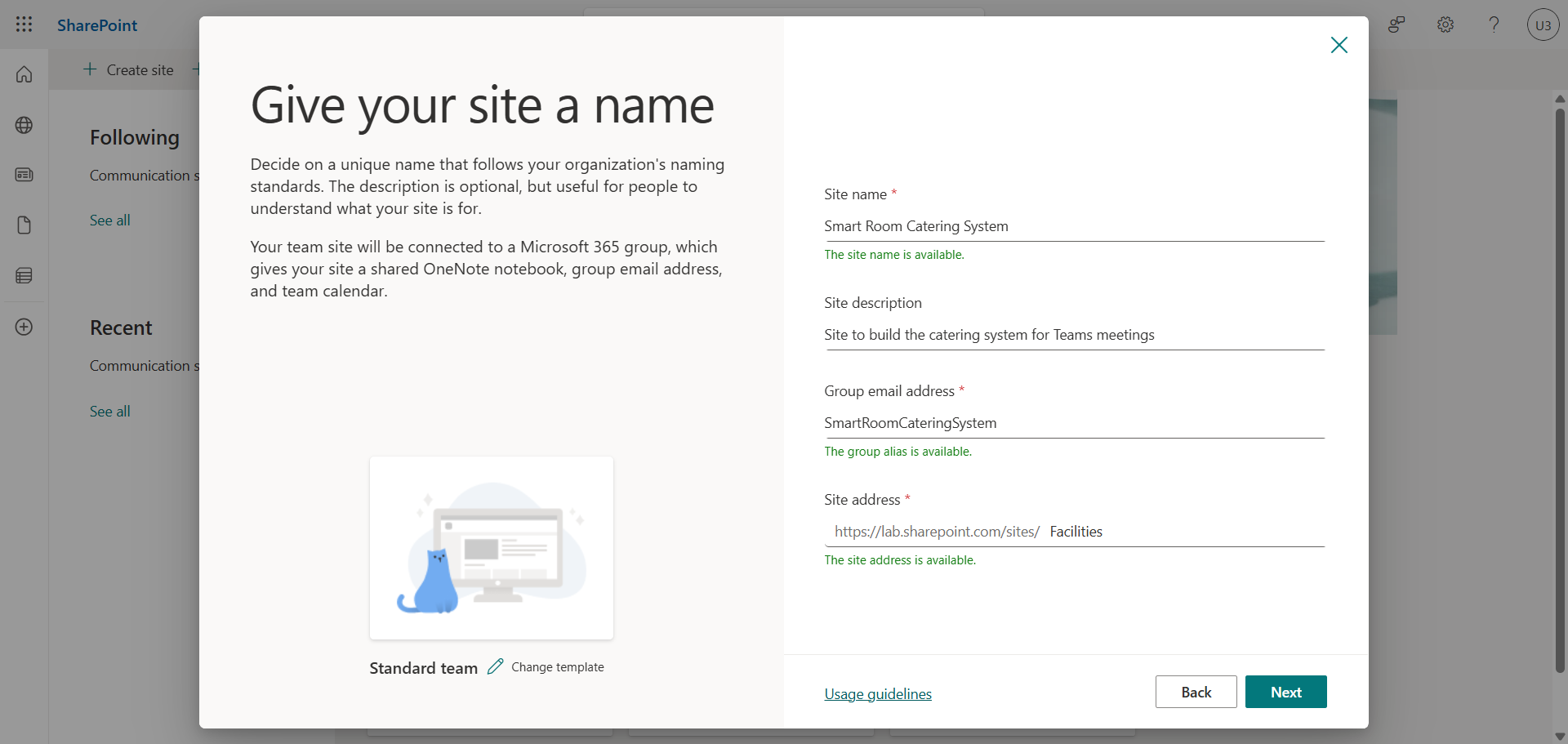
In the left menu, click Create site, then Teams site, and give a relevant site name and address.
Step 3 : Create 2 SharePoint lists
In the left menu, click New, then List.
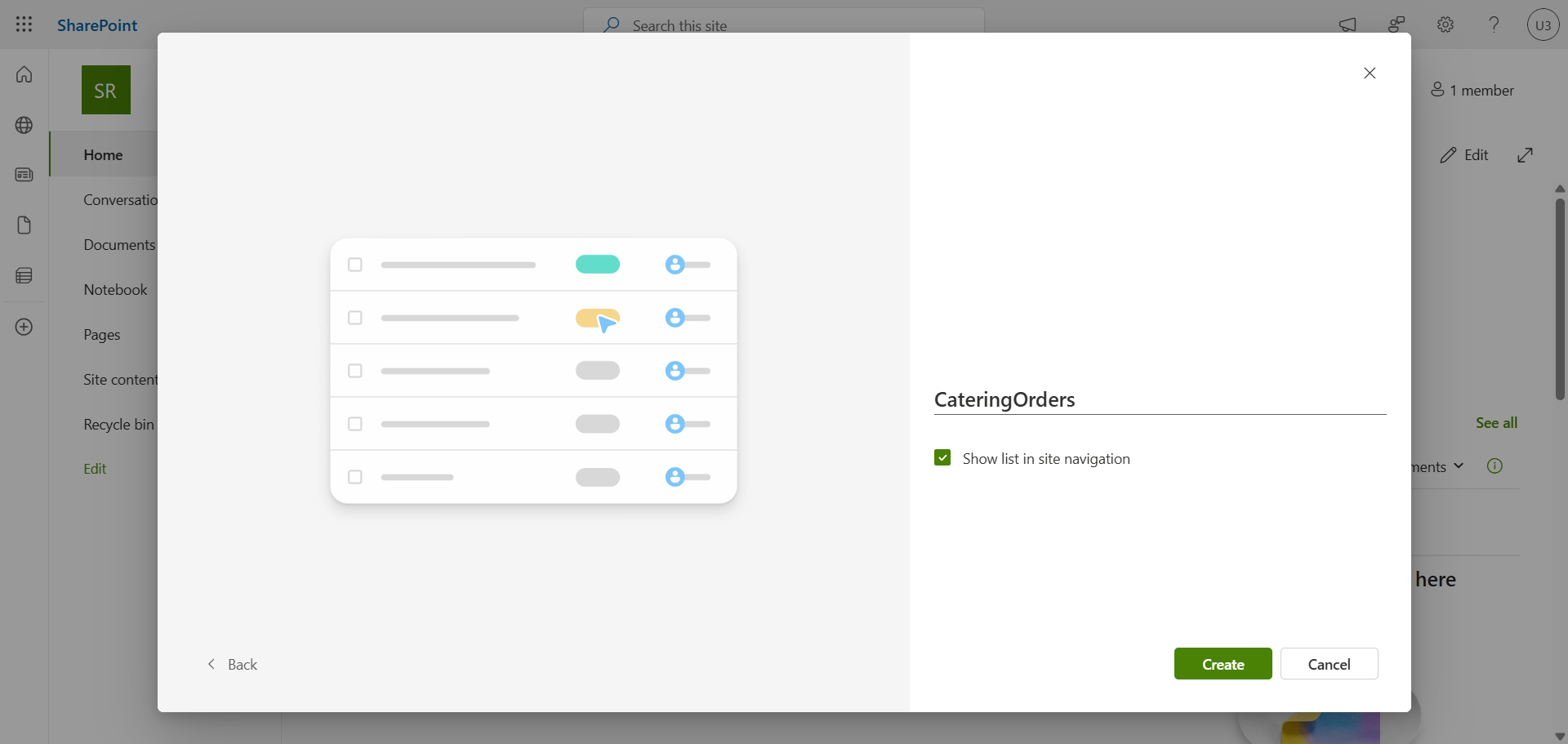
Add columns to your two lists with necessary information such as :
CateringOrders
- RoomName
- RoomEmail
- OrganizerName
- OrganizerEmail
- MeetingStart
- MeetingEnd
- AttendeeCount
- StillWater
- …
CateringPreferences
- OrganizerName
- OrganizerEmail
- PreferStillWater
- …
Step 4 : Sign in to Microsoft Power Automate
Sign in to Microsoft Power Automate by opening your web browser to https://make.powerautomate.com.
Step 5 : Create a first flow to generate a survey
In the left menu, click Create, then Automate cloud flow and choose When a new event is created (V3).
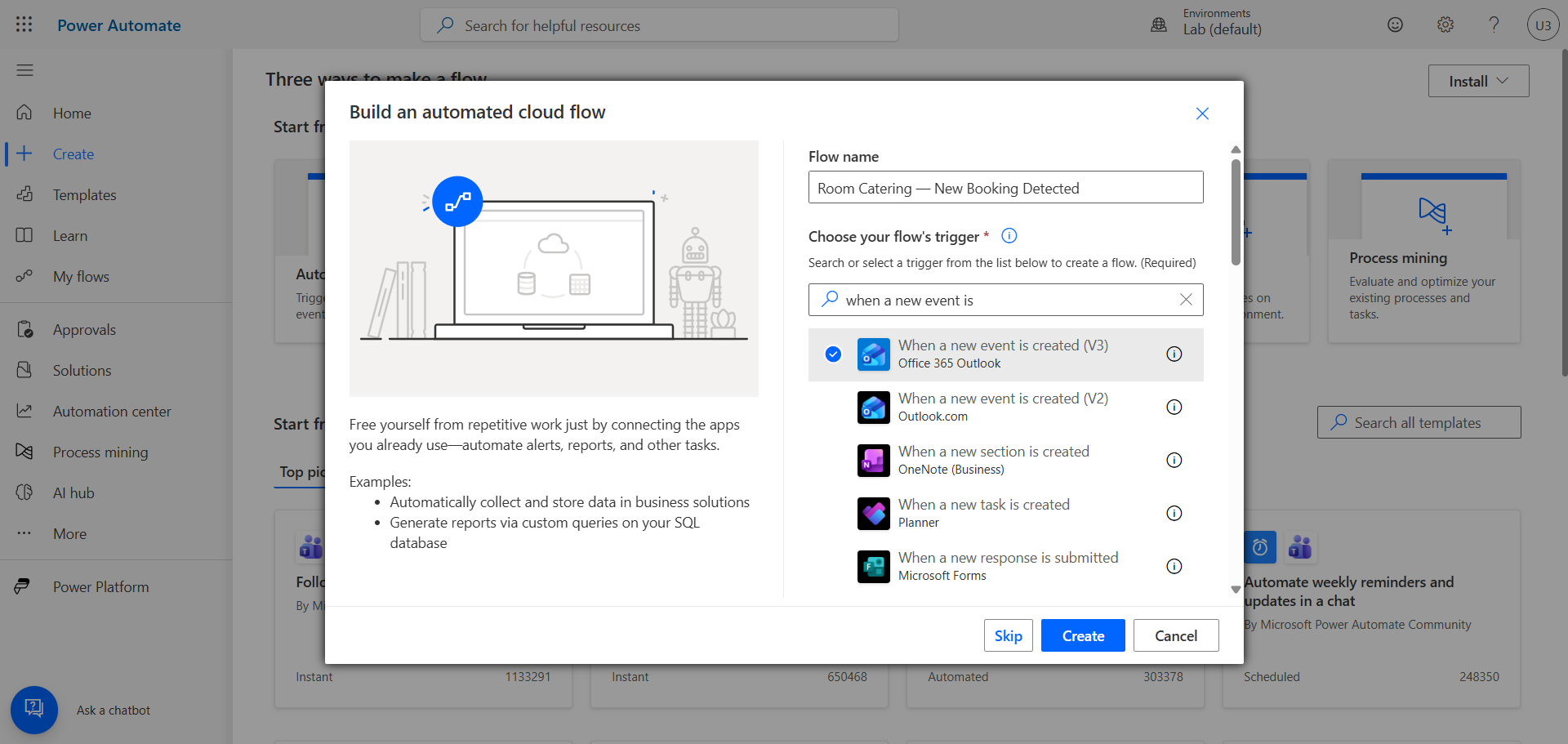
Chain actions and variables to create a form to send to Teams immediately after the user books a conference room. Use the retrieved variables to send them to the SharePoint lists CateringOrders and CateringPreferences.
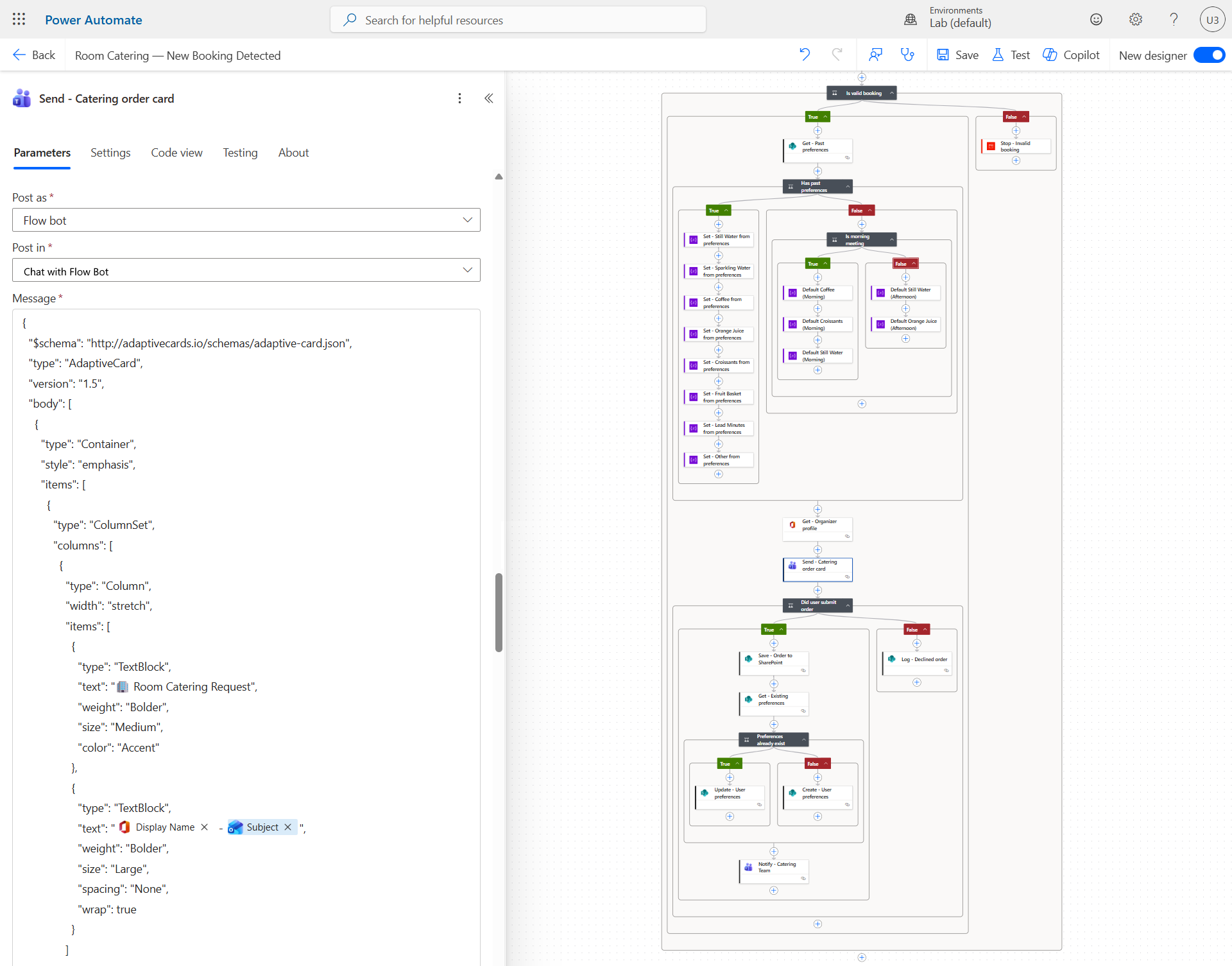
Send the order summary to the team in charge of the service via a message in Teams.
Step 6 : Create a second flow to generate a reminder
In the left menu, click Create, then Scheduled cloud flow and choose a daily repetition.
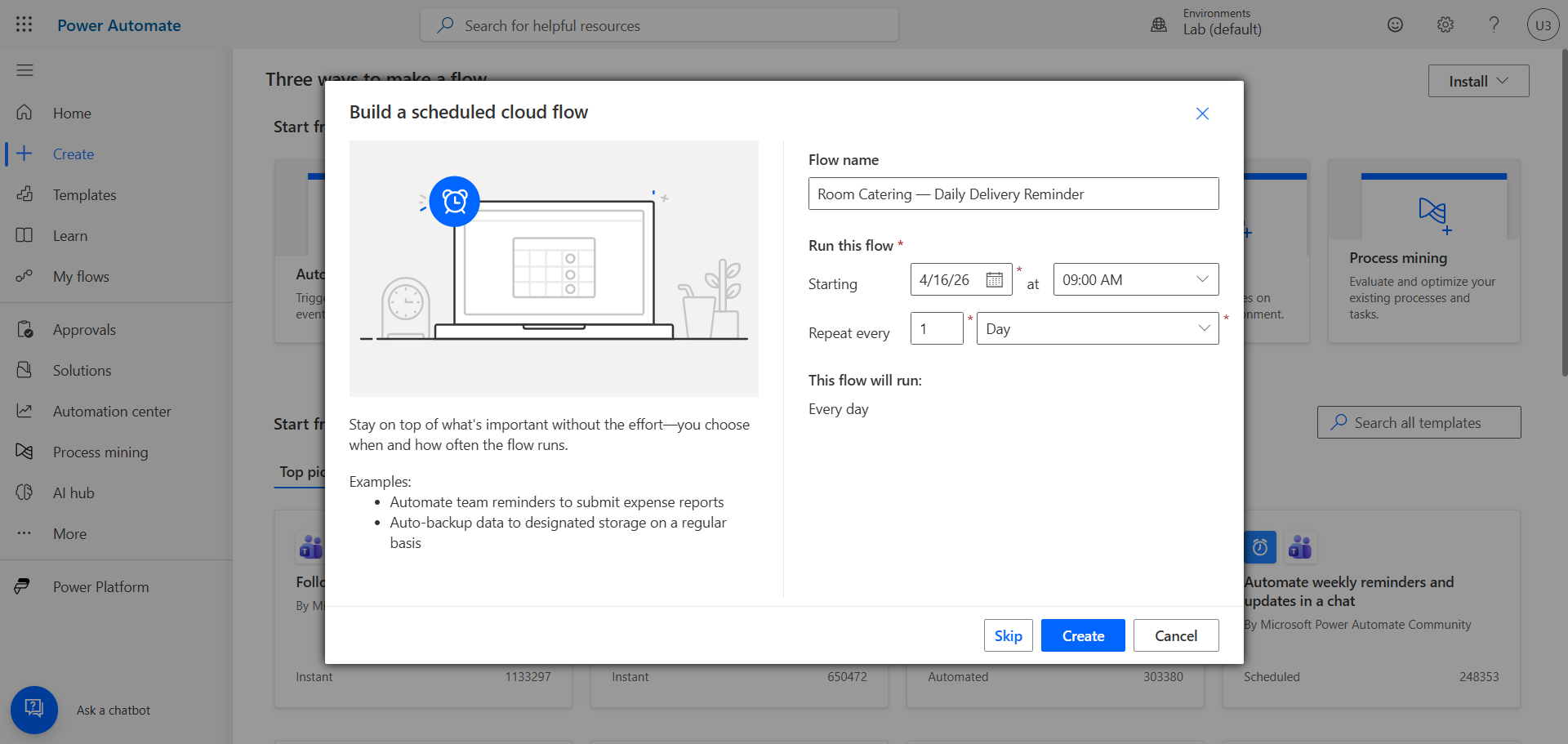
Create a loop to iterate through the SharePoint CateringOrders list and check if there is an order scheduled for today and awaiting delivery.
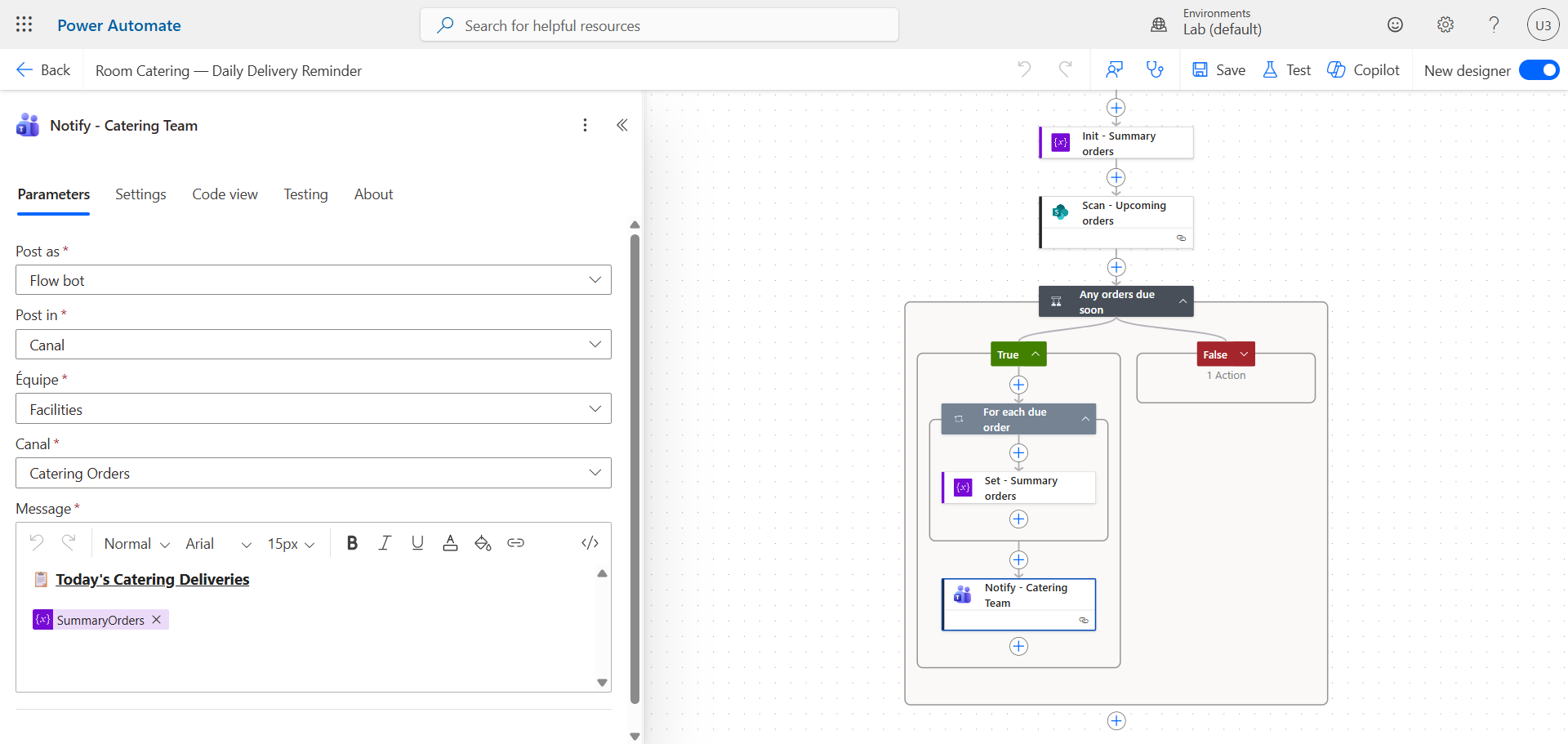
Send the list of orders for the day to the team in charge of the service via a message in Teams.
Step 7 : Create a third flow to confirm delivery
In the left menu, click Create, then Scheduled cloud flow and choose a repetition every 5 minutes.
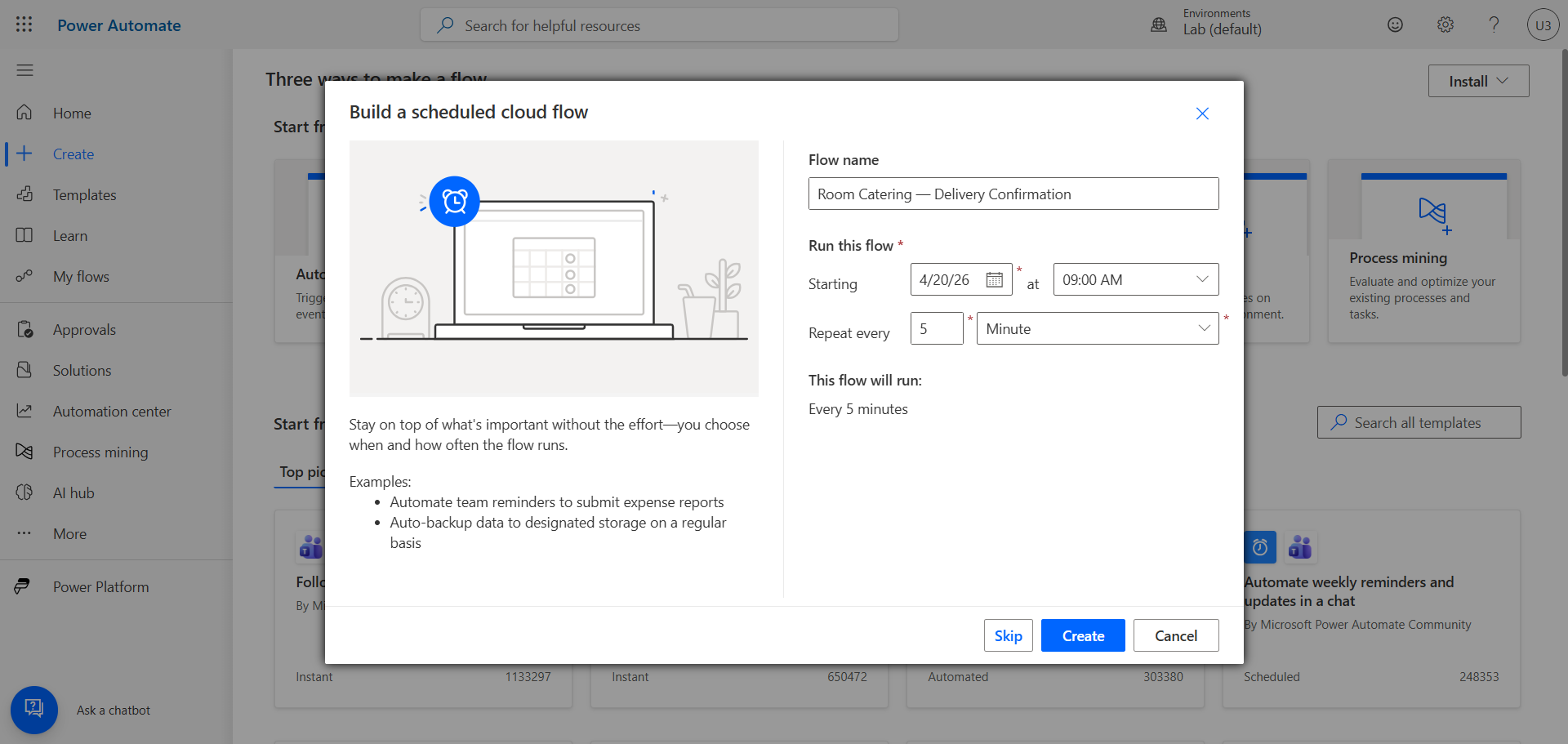
Create a loop to send a form in Teams to the team in charge to confirm delivery.
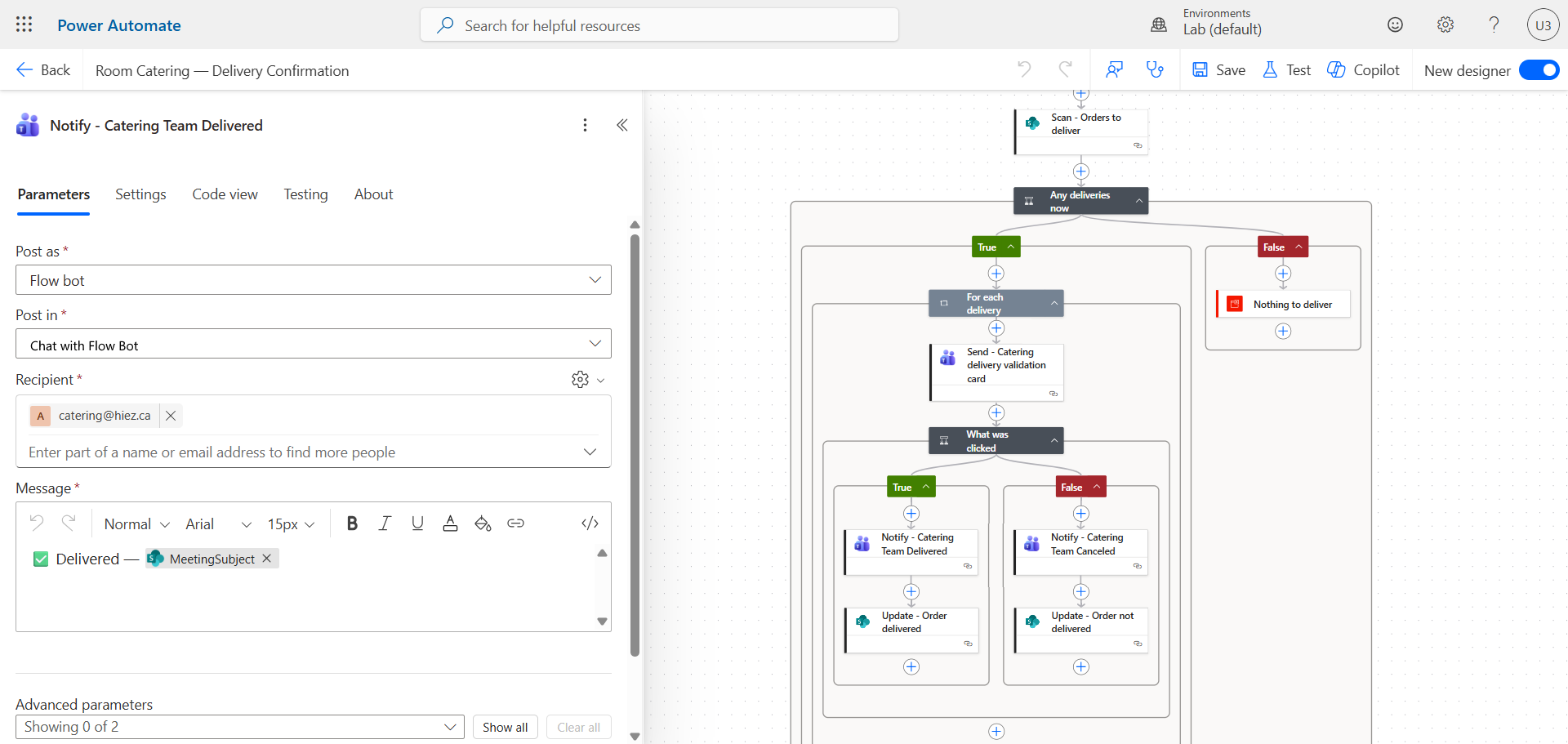
Send the order confirmation to the team in charge of the service via a message in Teams.
Step 8 : Create a fourth flow to send a satisfaction survey
In the left menu, click Create, then Scheduled cloud flow and choose a repetition every 30 minutes.
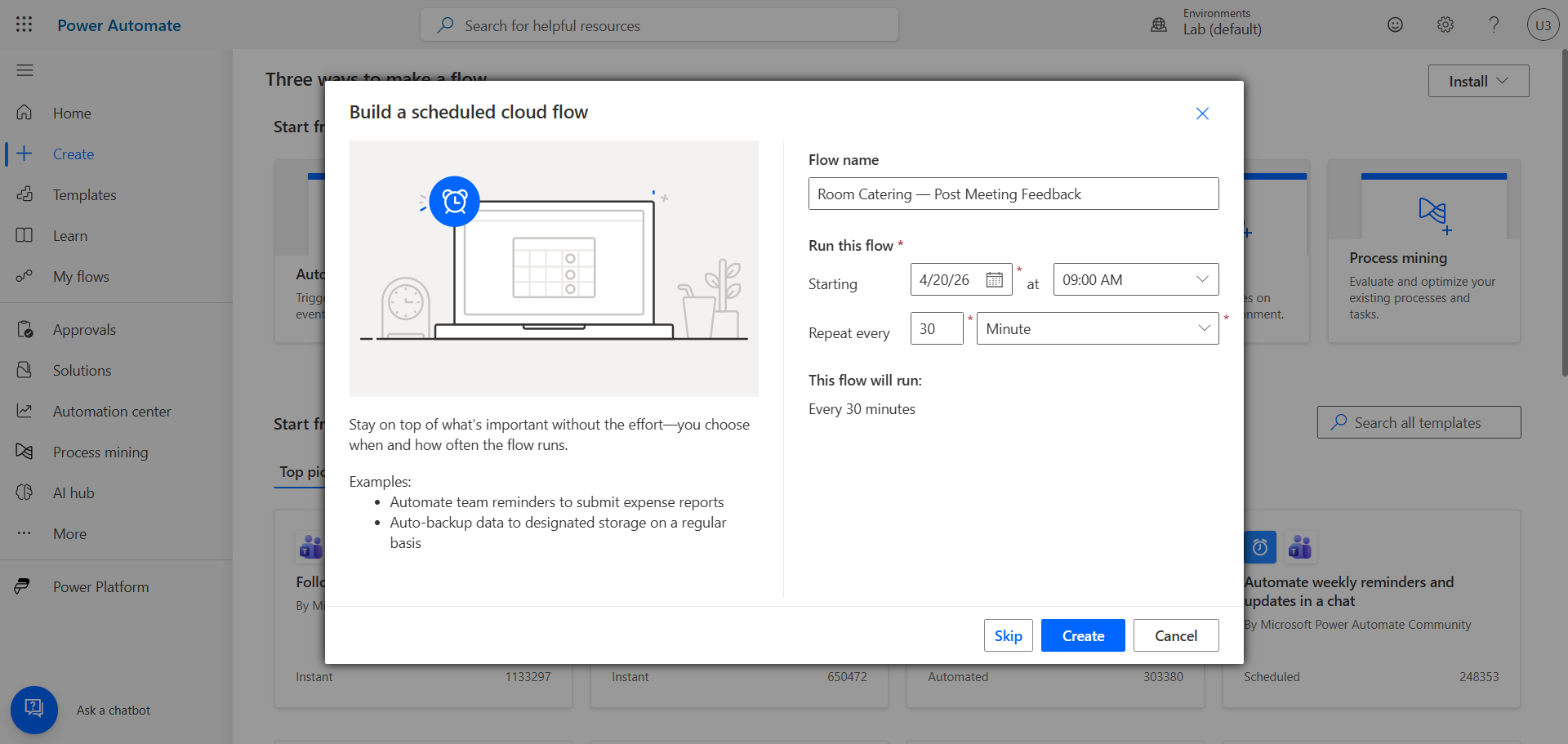
Create a loop to send a satisfaction survey in Teams to the person who placed the initial order. The loop will only retrieve completed meetings with a “delivered order” status.
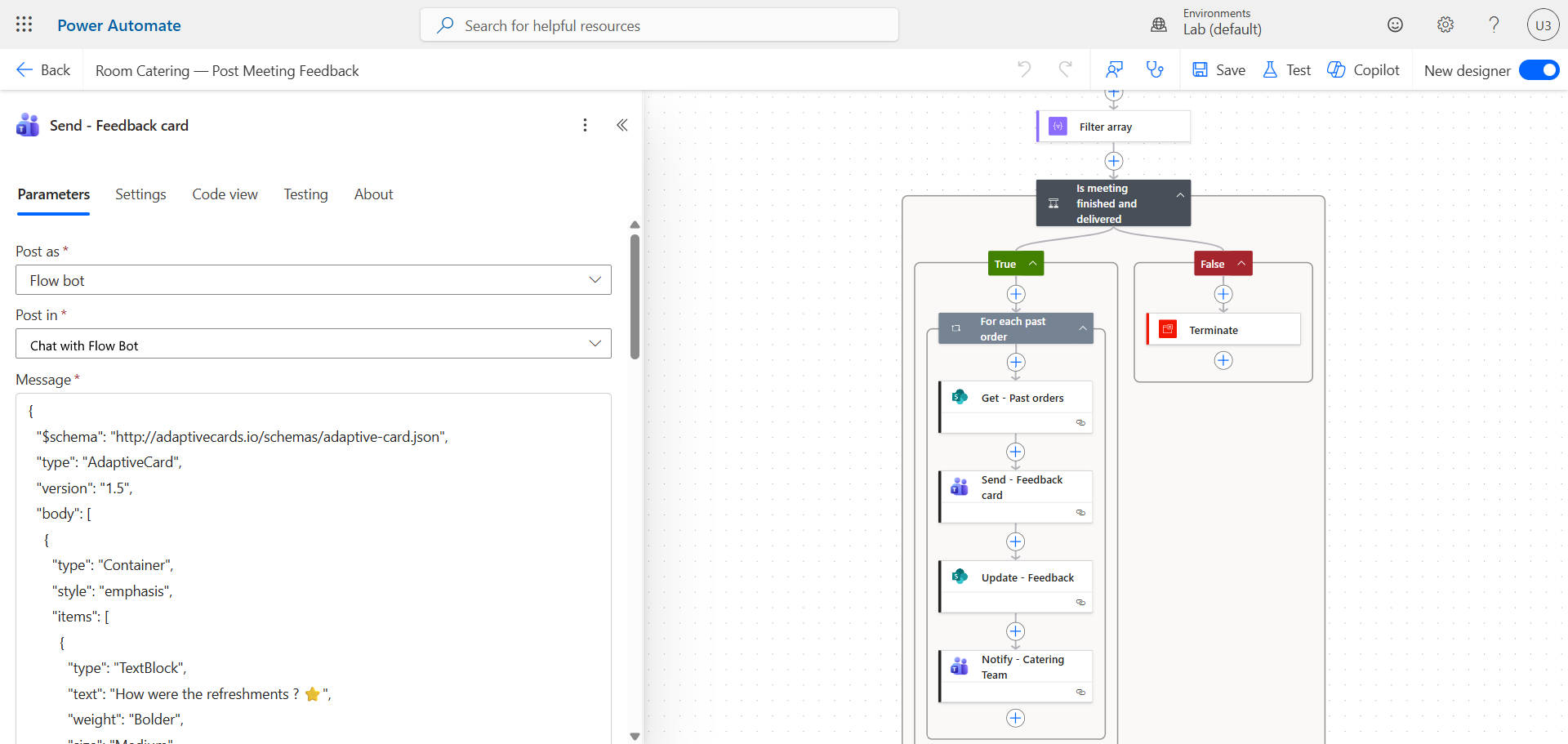
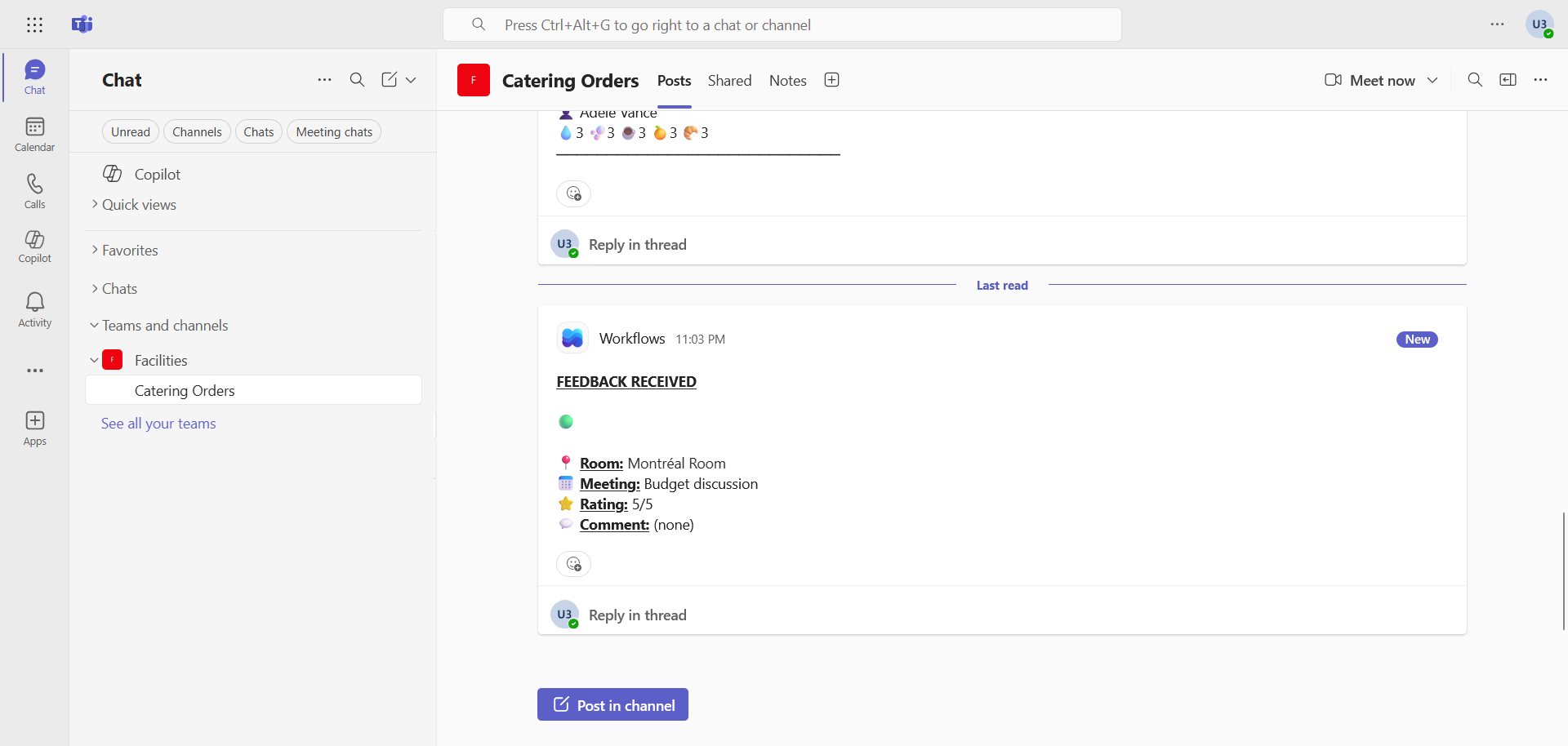
Send the results of the satisfaction survey to the team in charge of the service via a message in Teams.
Step 9 : Send a Teams invitation
From Outlook (or Teams), send a meeting invitation and include a room.
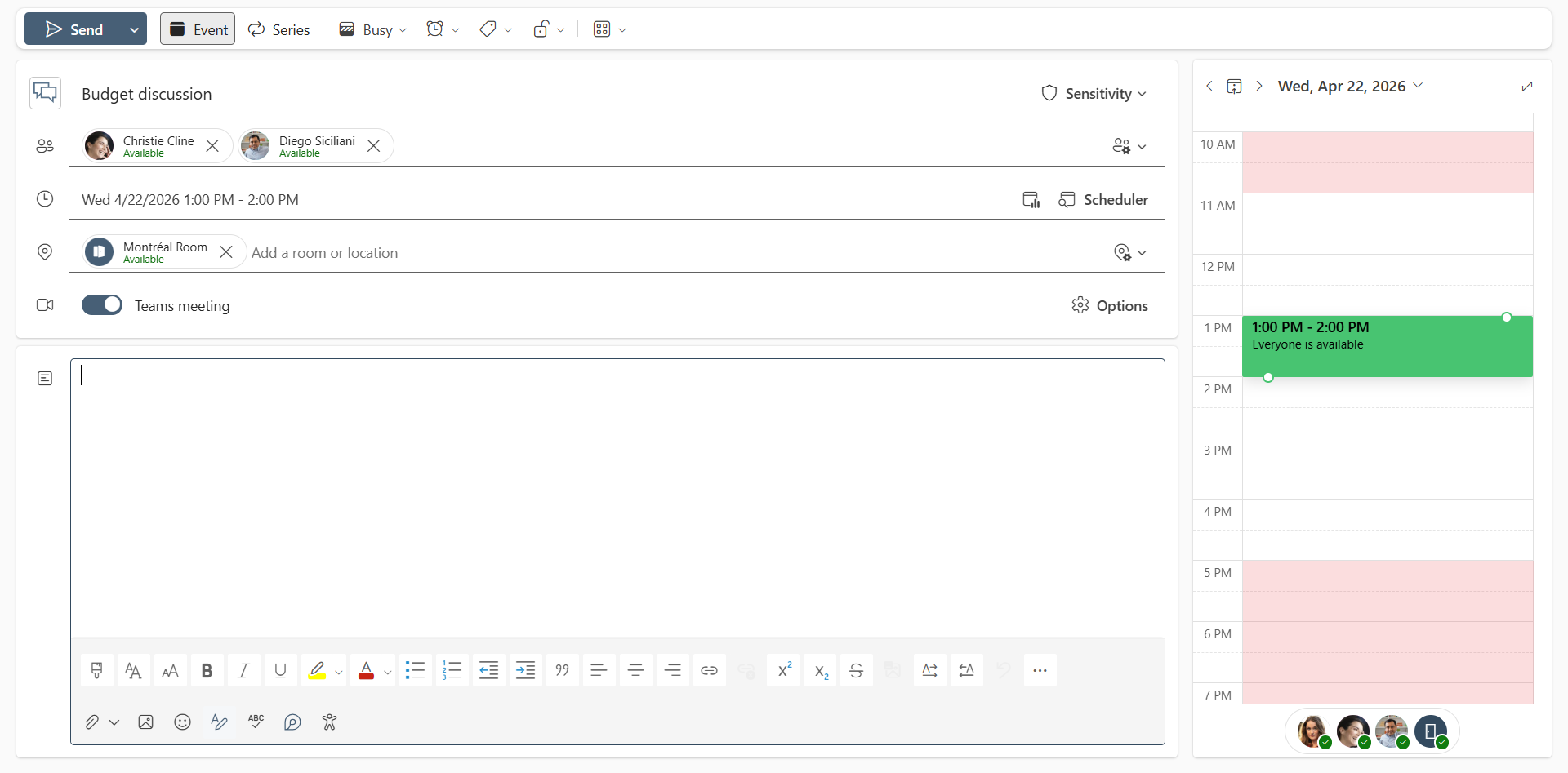
Results
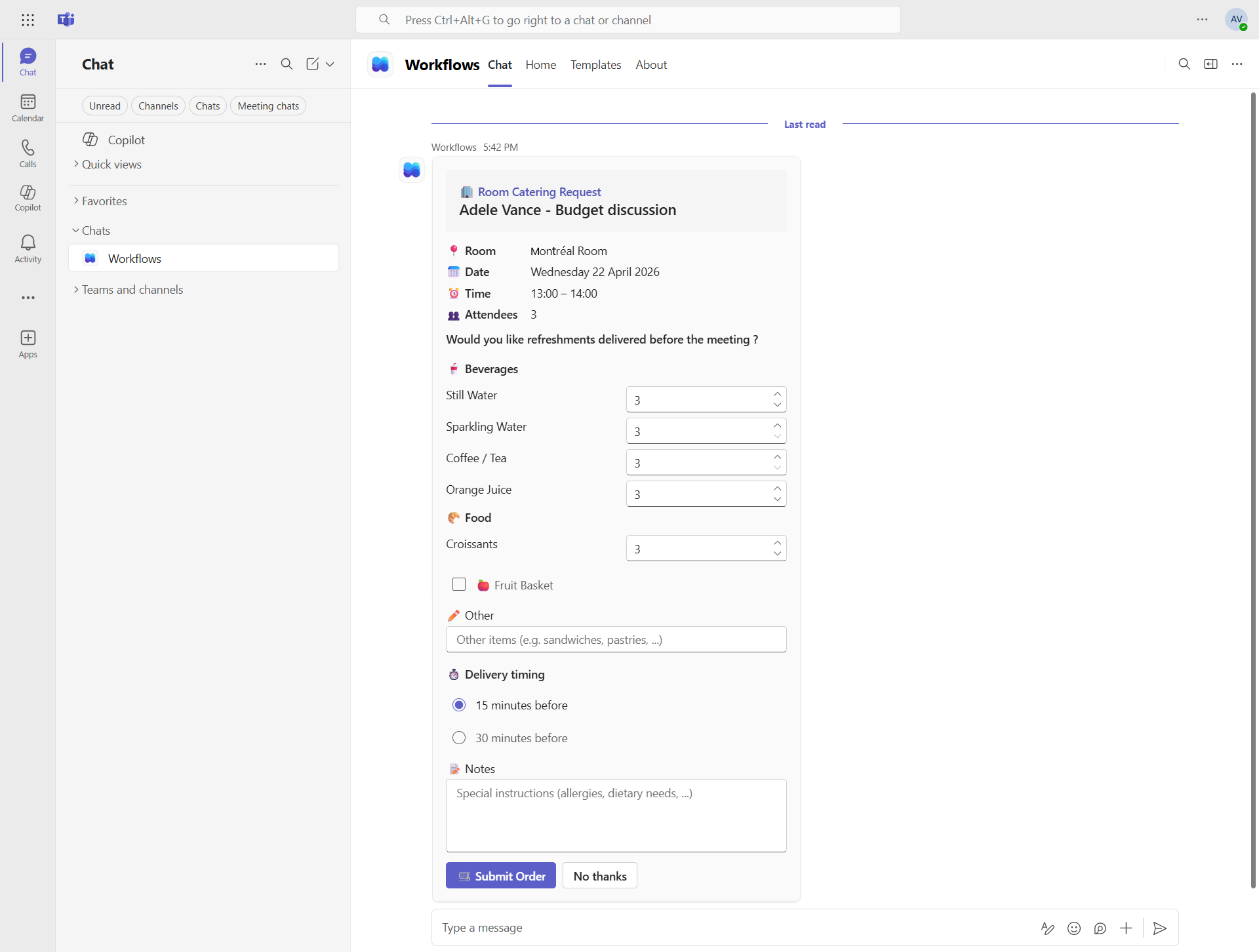
The user receives a form in Teams a few moments after booking the meeting.
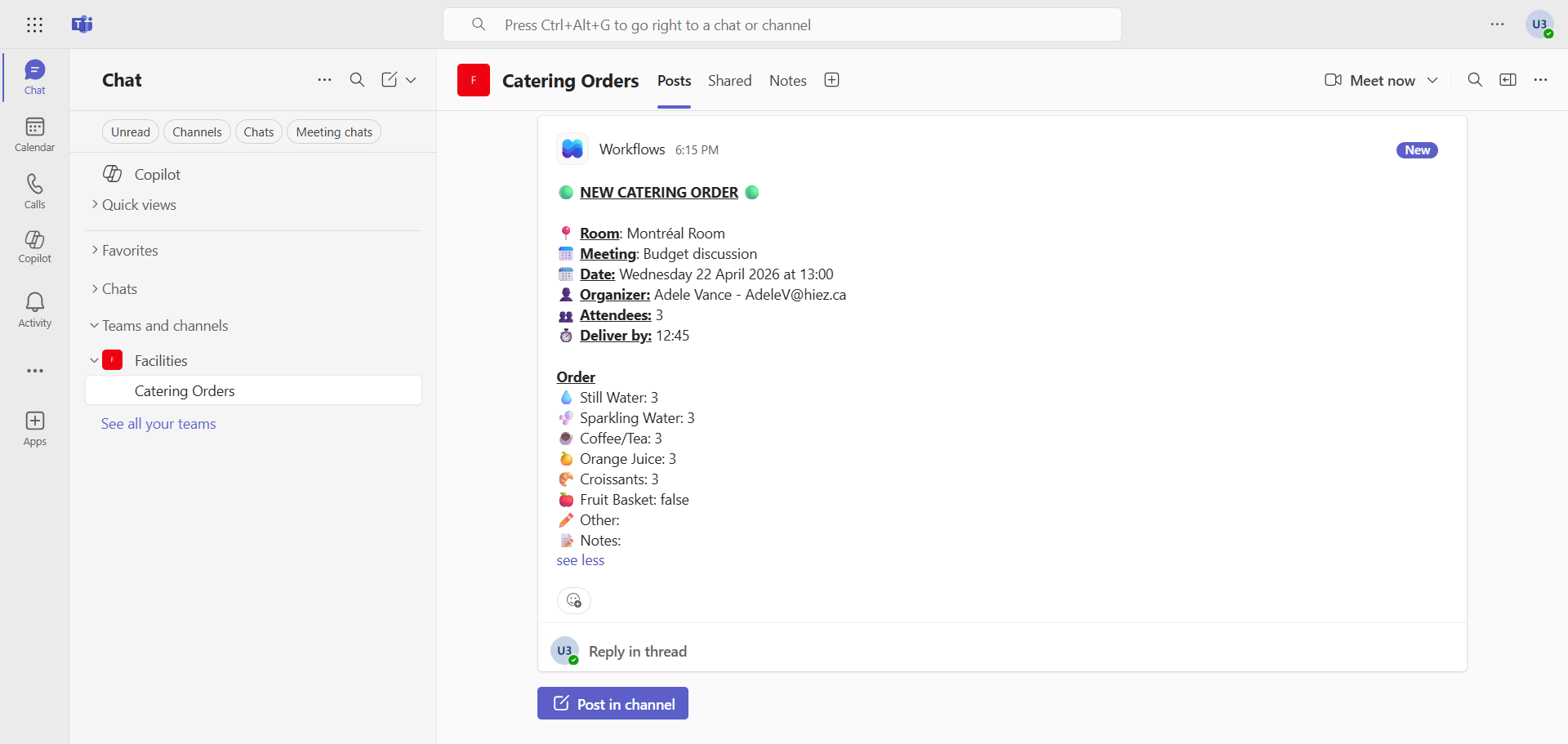
The team in charge of orders then receives the list of what has been ordered as well as the meeting information.
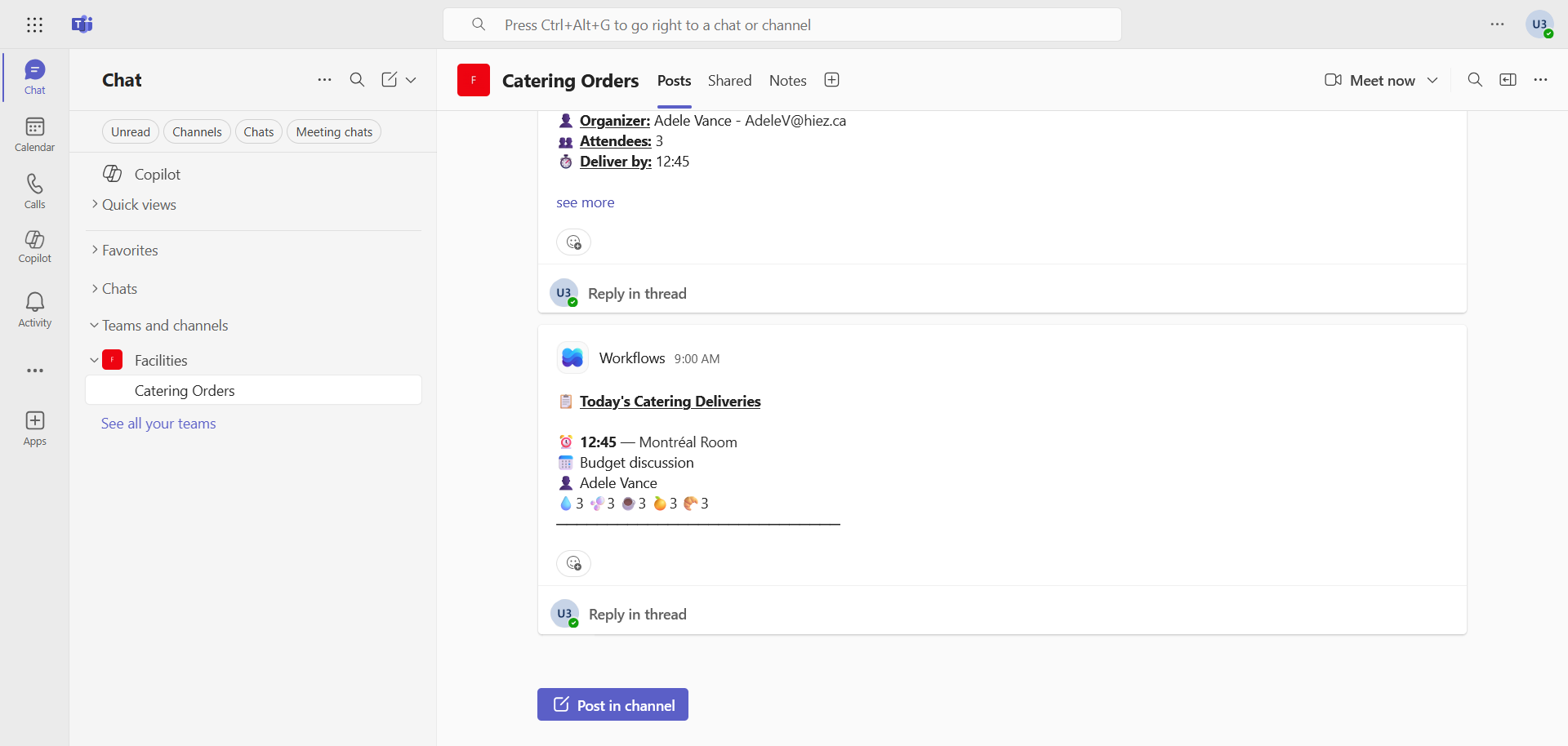
On the morning of the meeting, the team in charge of orders receives confirmation of the day’s deliveries to be made …
… and 15 minutes before the meeting, you have to confirm whether or not the order has been delivered.
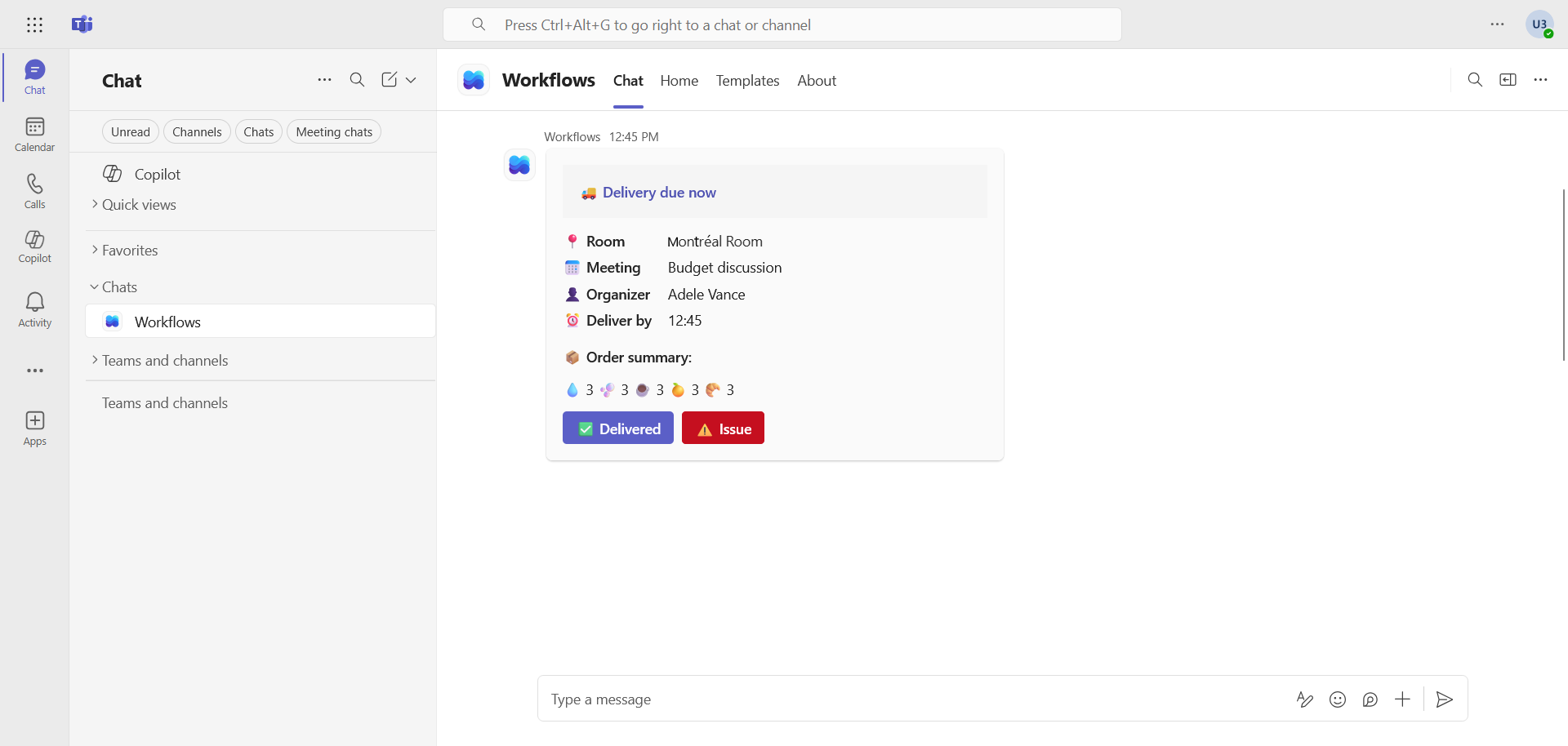
30 minutes after the meeting, a survey is sent to the person who booked the service …
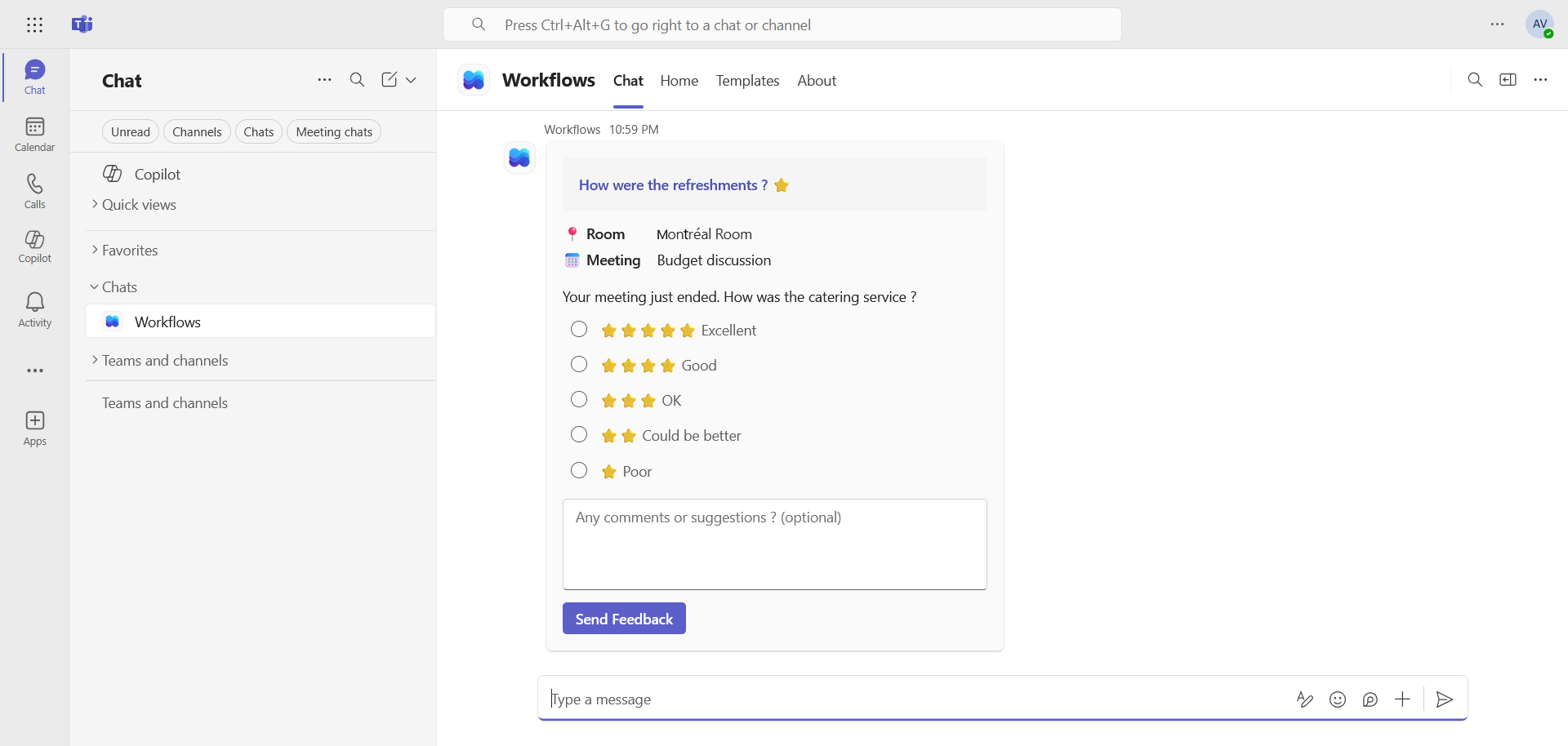
… and the team in charge of the orders receives the result.
Let’s go further
I have two ideas worth exploring that I will test when I have the time :
- Create a PowerApps application connected to Teams to allow order processing within it rather than going to SharePoint.
- Connect the solution with the Uber Eats, DoorDash, and other APIs to have a more complete menu.
Conclusion
You now know how to create a catering service with Power Automate.
Sources
Microsoft Learn - Power Automate
Did you enjoy this post ? If you have any questions, comments or suggestions, please feel free to send me a message from the contact form.
Don’t forget to follow us and share this post.