Workplace Check-in via WiFi for Microsoft Places and Teams
- Maxime Hiez
- Teams , Places
- 16 Jun, 2026
Introduction
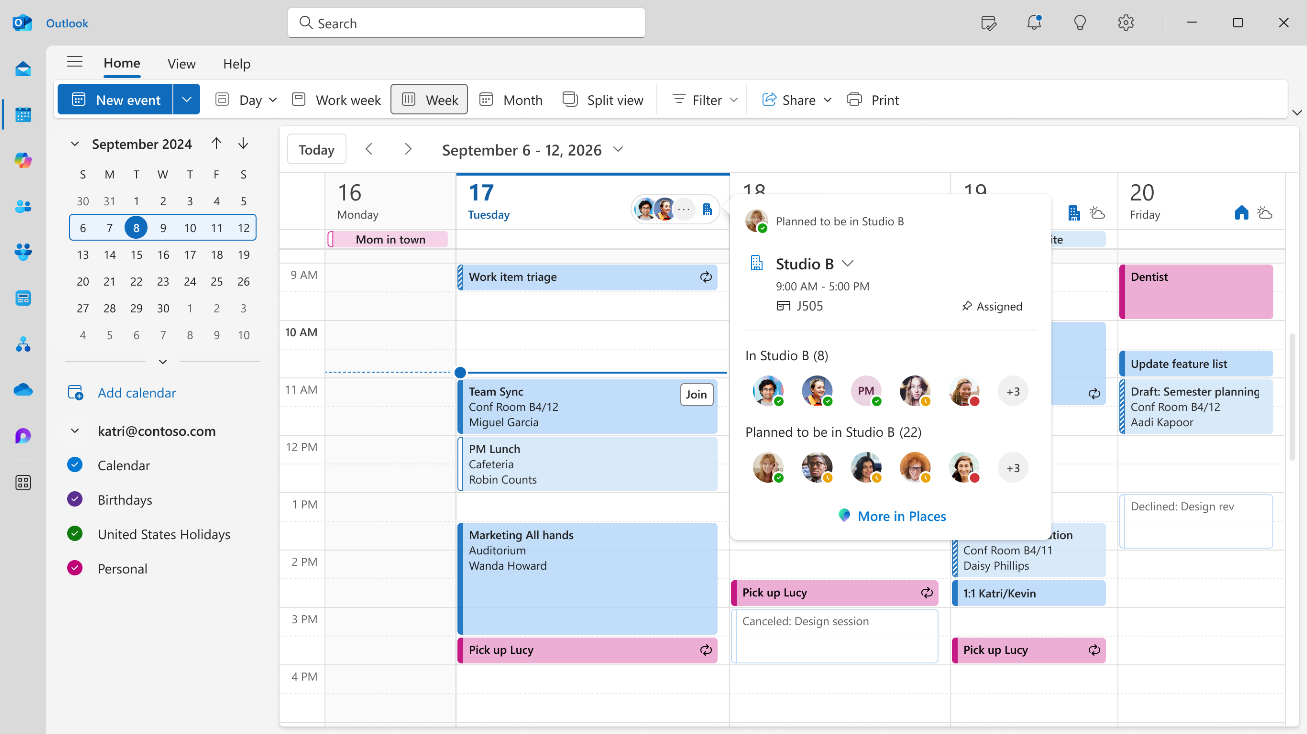
Microsoft Places introduces Workplace Check-in via WiFi in Microsoft Teams ; when a user connects to the company WiFi network, their work location updates automatically in Microsoft 365. No more manual check-in, the information appears directly in the Teams and Outlook calendar of their colleagues.
How it works
Workplace Check-in relies on two complementary signals :
- WiFi : Teams detects network changes (initial connection, network switch, device wake) and updates the work location.
- Desk peripheral : Connecting a computer to a configured peripheral (monitor, dock) triggers the check-in.
The location displayed to colleagues can be :
- In the office : If only the SSID list is configured.
- Specific building : If the BSSID list is also configured, Teams identifies the building from the WiFi access point.
The check-in clears automatically at the end of the user’s working hours. It works only on corporate networks configured in the tenant, and requires the Teams desktop app (Windows or macOS). Web and mobile clients are not supported.
Deployment options
Administrators can choose between three modes for WiFi check-in :
- Inform mode : Check-in is active by default. The user sees a banner in Teams informing them that the feature is enabled, with an option to opt out.
- Ask mode : Check-in is inactive by default. The user sees a banner offering them to opt in.
- Off mode : The feature is disabled. The user cannot enable it on their side.
In Inform and Ask modes, the user can change their preference at any time in Teams settings. The location can also be overridden manually at any time, making it a collaboration tool rather than a surveillance tool.
Availability
Desk peripheral check-in is generally available. WiFi network check-in is in extended rollout.
Conclusion
Workplace Check-in via WiFi simplifies presence management in hybrid environments without requiring any manual action from users. Configuration is handled entirely by the administrator via PowerShell, with granular control over sharing modes and user consent.
Sources
Did you enjoy this post ? If you have any questions, comments or suggestions, please feel free to send me a message from the contact form.
Don’t forget to follow us and share this post.